
How to Get the Messages Icon Back on iPhone
Take a breath: the Messages icon back on iPhone is a two second job, because Apple does not let you delete Messages in the first place.
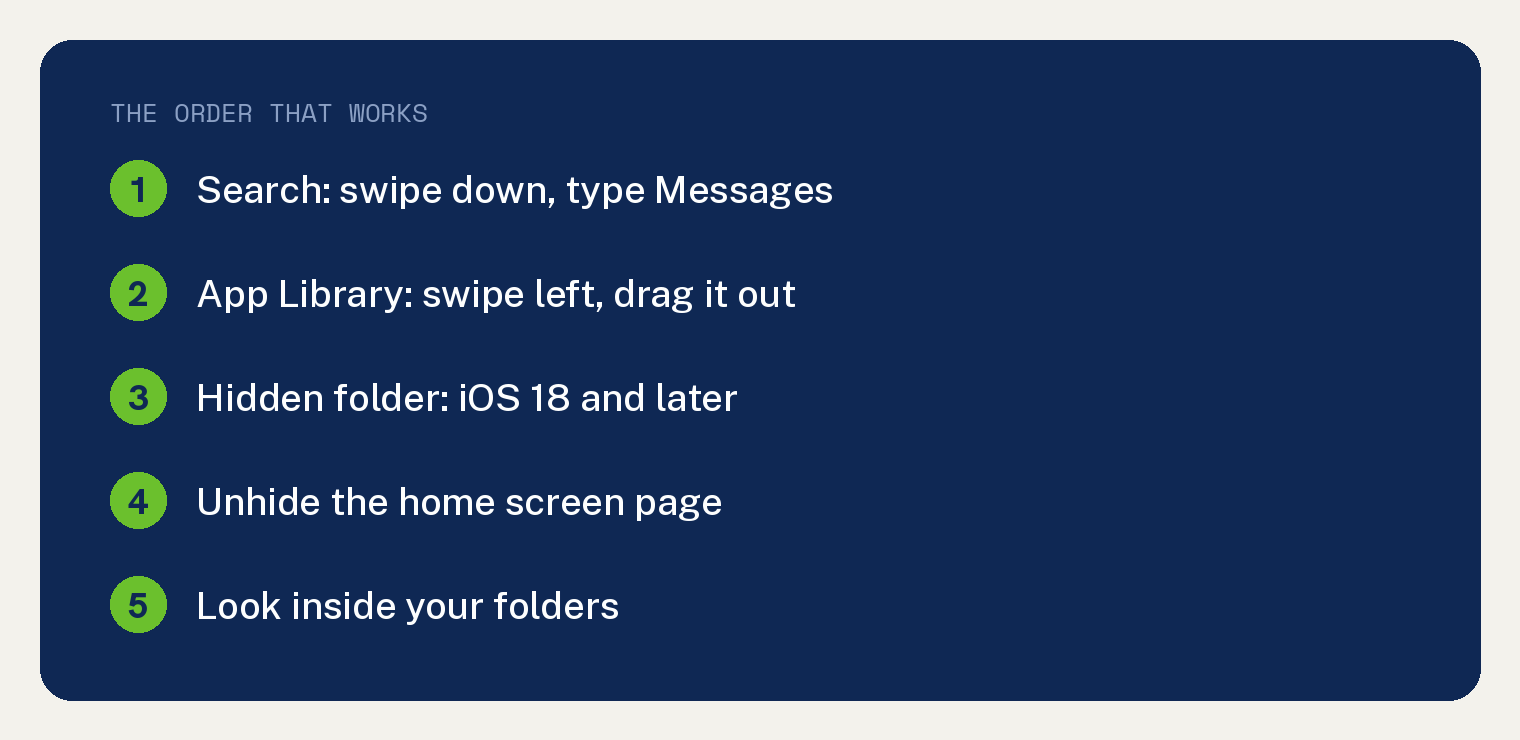
Swipe down from the middle of your home screen, type Messages, and touch and hold the green icon that appears. Choose Add to Home Screen.
That works for most people. If it does not, the app is hidden, and the steps below find it.
Why the Messages icon disappears
Apple lets you remove Messages from the home screen. It does not let you delete the app.
The icon is still on your phone. It moved to a place you are not looking.
Three things move it:
- You dragged it into a folder by accident.
- You tapped Remove from Home Screen, which sends it to the App Library.
- You hid the app, or hid the whole home screen page it lived on.
Fix 1: Find it with Search
Apple recommends this first, and it is the fastest.
- Swipe down from the middle of the home screen. On newer iPhones you can also tap the Search field at the bottom of the screen.
- Type the word Messages.
- The green speech bubble icon appears in the results.
- Touch and hold the icon, then tap Add to Home Screen.
If the icon shows up in Search but nothing happens when you hold it, drag it instead. Hold it and pull it toward the middle of the screen.
Fix 2: Drag it out of the App Library
The App Library holds every app on your phone, whether or not it sits on a home screen.
- Swipe left past your last home screen page until you reach the App Library.
- Tap the search bar at the top and type Messages.
- Touch and hold the Messages icon until the icons start to jiggle.
- Keep holding and drag it to the left. Your home screen slides in behind it.
- Let go where you want it, then tap Done in the corner.
Apple’s own instruction is simpler on newer versions: touch and hold the app in the App Library until the icons jiggle, and it moves to the home screen on its own.
Fix 3: Check the Hidden folder
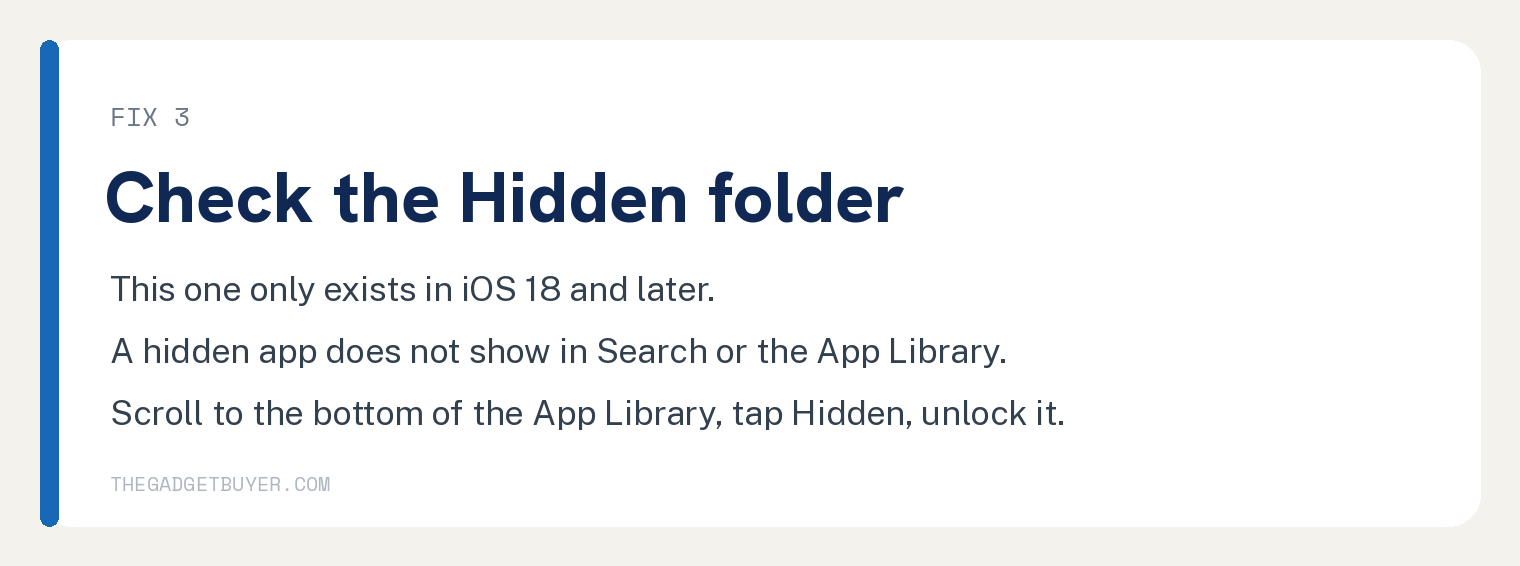
This is the one that catches people, and it only exists in iOS 18 and later.
A hidden app does not show on the home screen, does not show in the App Library, and does not show in Search. It is invisible until you unlock it.
- Swipe left past all your home screen pages to reach the App Library.
- Scroll all the way down and look for a folder named Hidden.
- Tap it.
- Unlock it with Face ID, Touch ID, or your passcode.
- If Messages is in there, touch and hold it and tap Don’t Require Face ID. The app returns to your App Library.
You can also see every hidden app in one list. Open Settings, tap Apps, then tap Hidden Apps and unlock it.
Fix 4: Unhide the home screen page
Hiding a whole page hides every app on it. The apps stay in the App Library, which is why Search still finds them.
- Touch and hold an empty spot on your home screen until the icons jiggle.
- Tap Edit, then tap Edit Pages. On some versions you tap the row of dots near the bottom of the screen instead.
- You will see thumbnails of your pages with a circle under each one.
- Tap any empty circle to bring that page back.
- Tap Done twice.
Fix 5: Look inside your folders
Boring, and it is the real answer more often than anyone admits.
Open every folder on your home screen and look for the green speech bubble. Icons get dragged into folders during a normal swipe all the time.
While you are in there, our guide on making the iPhone keyboard go away fixes the other thing that covers your screen.
If your phone tends to move things on its own, our guide on an iPhone that jumps from screen to screen is worth a read.
If nothing worked
Reset the home screen layout. This puts every Apple app back where it started and drops your other apps into alphabetical order.
- Open Settings.
- Tap General.
- Scroll to the bottom and tap Transfer or Reset iPhone.
- Tap Reset, then tap Reset Home Screen Layout.
Nothing is deleted, but your custom arrangement is gone, so use this last.
Still missing after a reset? Restart the phone. If Messages is truly gone from Settings and Search, contact Apple Support, because a built in app cannot be removed by normal means.
Frequently asked questions
Can you actually delete the Messages app?
No. Apple lets you remove the icon from the home screen, but the app itself stays on the iPhone. That is why the icon can always be recovered.
Why does the Messages icon show no unread badge?
The badge is a notification setting. Open Settings, tap Notifications, tap Messages, and turn on Badges. If Messages is inside a folder, the badge appears on the folder instead.
Texts not arriving at all is a separate issue, covered in our guide on an iPhone that does not receive verification texts.
Where does the icon go when I tap Remove from Home Screen?
Straight to the App Library, which sits one swipe to the left of your last home screen page. Nothing is uninstalled.
Does a hidden app still receive texts?
Yes. Hiding an app changes where you can see it, not whether it runs. Your messages keep arriving.
Will this work on an iPad too?
Yes, the App Library and Search work the same way on an iPad. Note that not every app appears in the same place, and some apps behave differently, as we cover in closing multiple windows on an iPad.
I had several icons that weren’t on my home screen I have trouble putting it on home screen because I can’t see the screen when I try to put it back on