
Record Your Screen on iPhone in Control Center, 3 Seconds
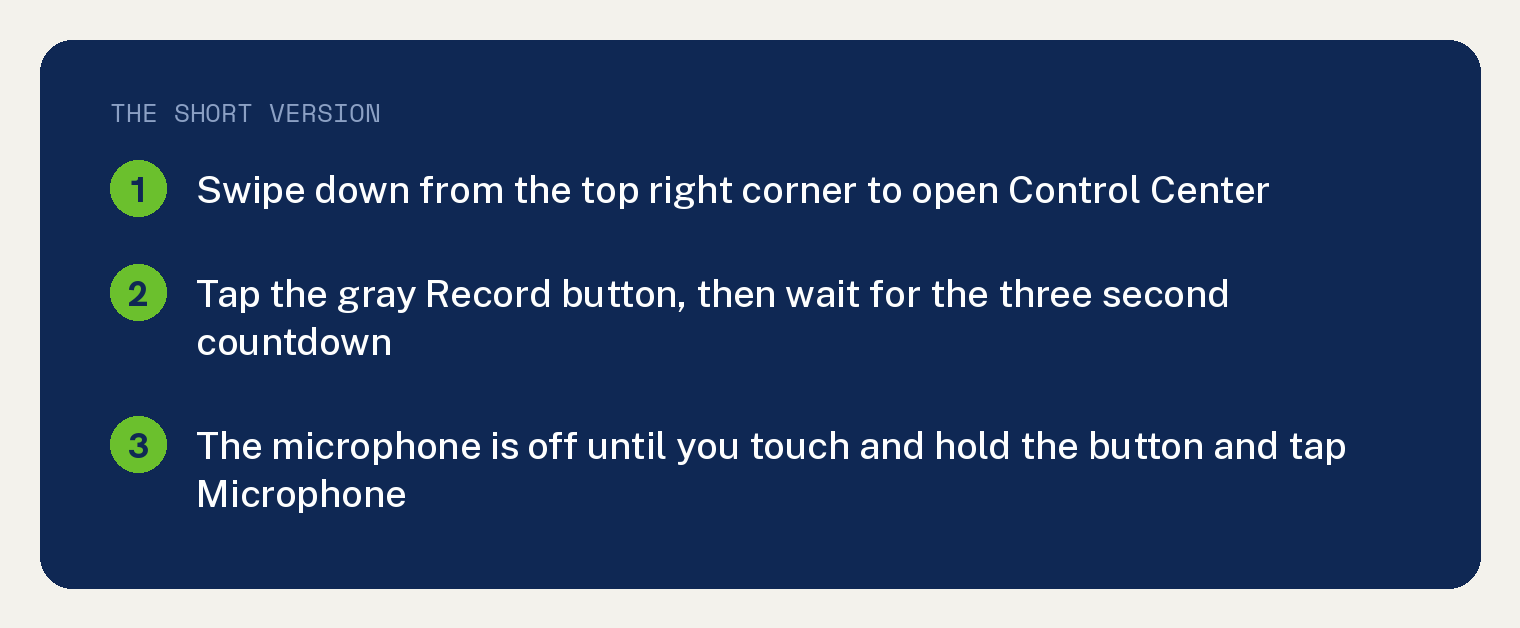
To record your screen on iPhone, swipe down from the top right corner to open Control Center, tap the Record button, and wait three seconds. Apple’s support page puts that step this way: “Tap the gray Record button” and “then wait for the three-second countdown.”
The video lands in Photos when you stop. The microphone is off unless you turn it on: touch and hold the same Record button first, tap Microphone, then start recording.
How to record your screen on an iPhone
Recording starts in Control Center. Apple’s support page opens with: “In Control Center, you can start a screen recording and capture sound on your iPhone, iPad, or iPod touch.”
- Swipe down from the top right corner of the screen. Apple’s step: “Swipe down from the top-right corner of your screen.”
- Tap the gray Record button, then wait for the three second countdown.
- Leave Control Center and do the thing you want on video. The iPhone User Guide’s step: “Swipe up to dismiss Control Center, then perform the action you want to record.”
The countdown is the same on both Apple pages: the support page says three seconds, and the User Guide says “then wait for the 3-second countdown to start recording.”
No Record button in Control Center? Add it
If you do not see the Record button in Control Center, add it first. Apple’s support page: “If you don’t see the Record button, add it to your Control Center”.
The User Guide says the same under its first step: “If you don’t see the Screen Recording control” then “add it to Control Center. See” Customize controls. That Customize controls page is a separate Apple page, and its steps are not reproduced here.
How to stop a screen recording
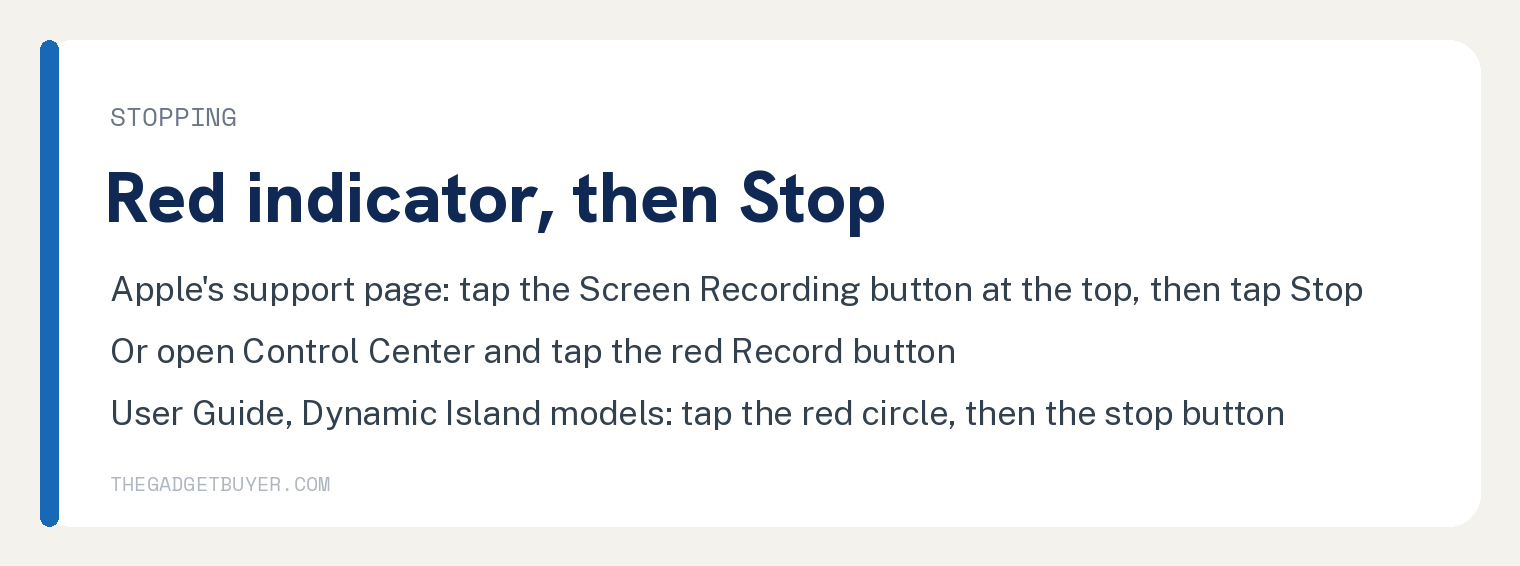
Tap the red indicator at the top of the screen, then tap Stop. Apple’s support page gives two routes and no model split: “To stop recording, tap the Screen Recording button at the top of your screen, then tap the Stop button” and “Or open Control Center and tap the red Record button”.
The User Guide splits the first route by model.
For a phone with a Dynamic Island: “Tap the red circle, then tap” the stop button. For every other model: “Tap the timer (highlighted in red) in the top left of the screen, then tap Stop.”
Record your iPhone screen with sound
The microphone is a separate switch, and it starts off. Turn it on before you start the recording, from the same Control Center button.
Apple’s support page, under “Record your screen with audio”: “Tap and hold the gray Record button”, then “Tap the Microphone button” “to turn it on.”
The User Guide gives it in one line: “Touch and hold” the Screen Recording button, “tap Microphone to turn it on, then tap Start Recording.” The User Guide’s opening: “You can even turn on the microphone to add audio.”
Where the recording goes
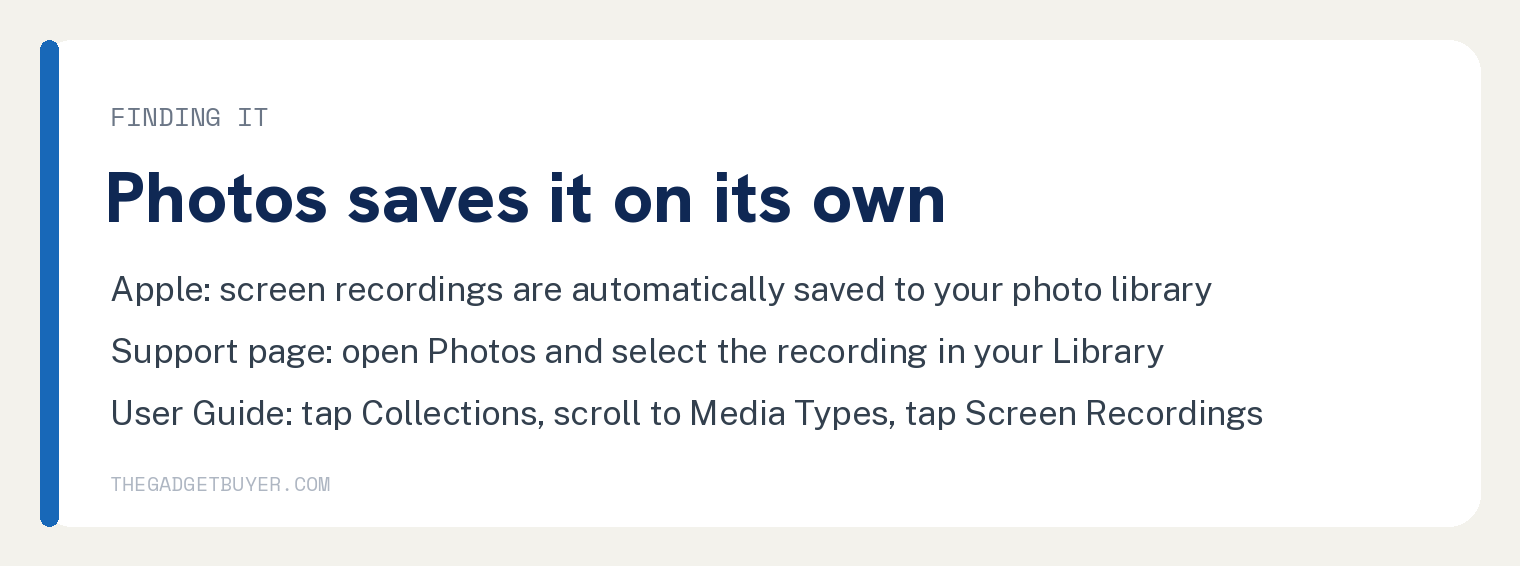
Screen recordings save to Photos on their own. The User Guide: “Screen recordings are automatically saved to your photo library.”
Apple’s support page sends you to the Library view: “To find your recording, open the Photos app and select your screen recording in your Library.” The User Guide gives a filtered view instead: “Go to the Photos app on your iPhone.” then “Tap Collections, scroll down to Media Types, then tap Screen Recordings.”
Recordings are saved as video, and this site covers how iPhone storage capacity is measured.
Two limits Apple prints
Some apps might not let you record them, and you cannot record while mirroring your screen. Apple’s support page: “Some apps might not allow you to record audio or video.” and “You can’t record your screen and use screen mirroring at the same time.”
The User Guide carries both in one note: “Some apps might not allow you to record their content, and you can’t record your screen and use screen mirroring at the same time.” Apple’s limit sentence names no app on either page, so this article names none as blocked.
Claims the two Apple pages leave out
An earlier version of this article blamed a failed recording on full storage, Screen Time restrictions or Low Power Mode, and said to restart the phone. Apple’s support page prints none of the strings storage, Screen Time, restriction, restart or Low Power, and the User Guide’s screen recording page prints the first four only in its table of contents, never in its recording steps.
Neither page prints a time limit or a file size limit for a recording, and neither page’s recording steps mention FaceTime, a phone call or app audio; the User Guide page prints FaceTime and phone call only in its table of contents. The User Guide links a separate page on trimming video length; that page is not cited here, so this article gives no editing steps.
For a laptop, this site covers how to screen record on an HP laptop. If the phone takes screenshots on its own instead, this site covers why an iPhone takes screenshots by itself.
Frequently asked questions
How do I record my iPhone screen with sound?
Touch and hold the Record button in Control Center, tap Microphone to turn it on, then tap Start Recording. In the User Guide’s words: “tap Microphone to turn it on, then tap Start Recording.” The microphone stays off until you do that.
Why is there no screen record button on my iPhone?
It has not been added to Control Center yet. Apple’s support page: “If you don’t see the Record button, add it to your Control Center”. Apple’s pages give no other reason for a missing button.
Where do iPhone screen recordings go?
To the Photos app. The User Guide: “Screen recordings are automatically saved to your photo library.” and the filtered view is “Tap Collections, scroll down to Media Types, then tap Screen Recordings.”
Why will my iPhone not record a certain app?
Apple’s pages say some apps might not allow it: “Some apps might not allow you to record audio or video.” Neither page names which apps, and neither prints a workaround, so this article offers none.