
What to Do About a T-Mobile eSIM Not Working on Android
Got a T-Mobile eSIM not working on Android after you moved your line to a new phone? Turn off SIM Protection first, because T-Mobile says that if you upgrade or transfer service to a new device without turning it off, “you’ll receive an error.”
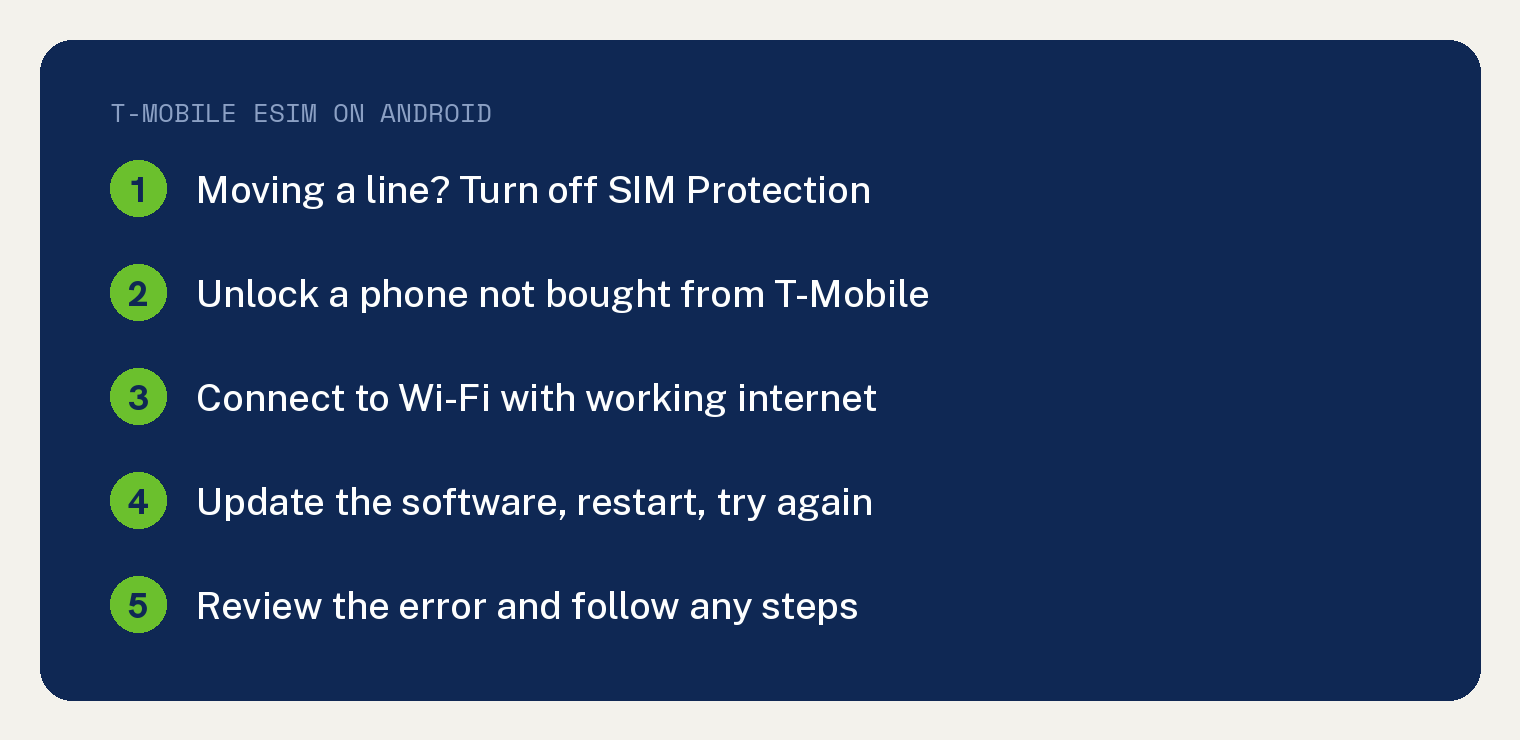
If you are not moving a line, or SIM Protection is already off, work through T-Mobile’s five phone checks.
The checks come from T-Mobile’s Android eSIM Troubleshooting page. The SIM Protection rules and the Settings paths come from its SIM card & eSIM page and its account fraud page.
Why does my T-Mobile eSIM show an error on a new phone?
SIM Protection is a T-Mobile feature that guards against an unauthorized SIM swap. T-Mobile says it “prevents bad actors from moving your number to another device and using it for fraud.”
That block also stops your own move. T-Mobile’s fraud page says: “If you don’t disable SIM Protection before changing to a new SIM card or moving your eSIM to a new device, you’ll receive an error.”
T-Mobile’s Android eSIM Troubleshooting page does not mention SIM Protection, so check it before you work through that page’s list.
How do I turn off SIM Protection on T-Mobile?
On a postpaid account, only the Primary Account Holder can turn it off. T-Mobile says an Authorized User can add SIM Protection, while only the Primary Account Holder “can remove the feature.”
In the T-Life app, the steps are:
- Open T-Life on your phone.
- Select the Manage tab.
- Select the gear icon.
- Select Security.
- Select SIM Protection, then switch the toggle off for the whole account or for one line.
- Select Save Changes.
- Select Continue.
On T-Mobile.com, log in and select your name in the top right corner. Then select Profile, Security and SIM Protection, move the toggle, and select Save Changes and Continue.
On a prepaid account, log in to T-Mobile.com with the primary line, choose My T-Mobile, then My Profile, and go to SIM Protection. Switch the toggle and select Save Changes.
T-Mobile notes: “The Primary Line needs to be the line logged in.” For a T-Mobile for Business account, it points you to your “self-service portal” or to contact it for help.
What should I check when my T-Mobile eSIM won’t activate?
T-Mobile’s Android eSIM Troubleshooting page lists five checks for a phone with eSIM, in this order:
- If the phone was not bought from T-Mobile, make sure it is unlocked.
- Connect to a Wi-Fi network and make sure the internet works.
- Update the phone’s software to the latest version.
- Restart the phone and try again.
- Review the specific errors you are getting and follow any steps.
Bringing your own phone? T-Mobile’s SIM card & eSIM page says: “Make sure it’s compatible.”
Where do I add the eSIM on a Samsung, Google or Motorola phone?
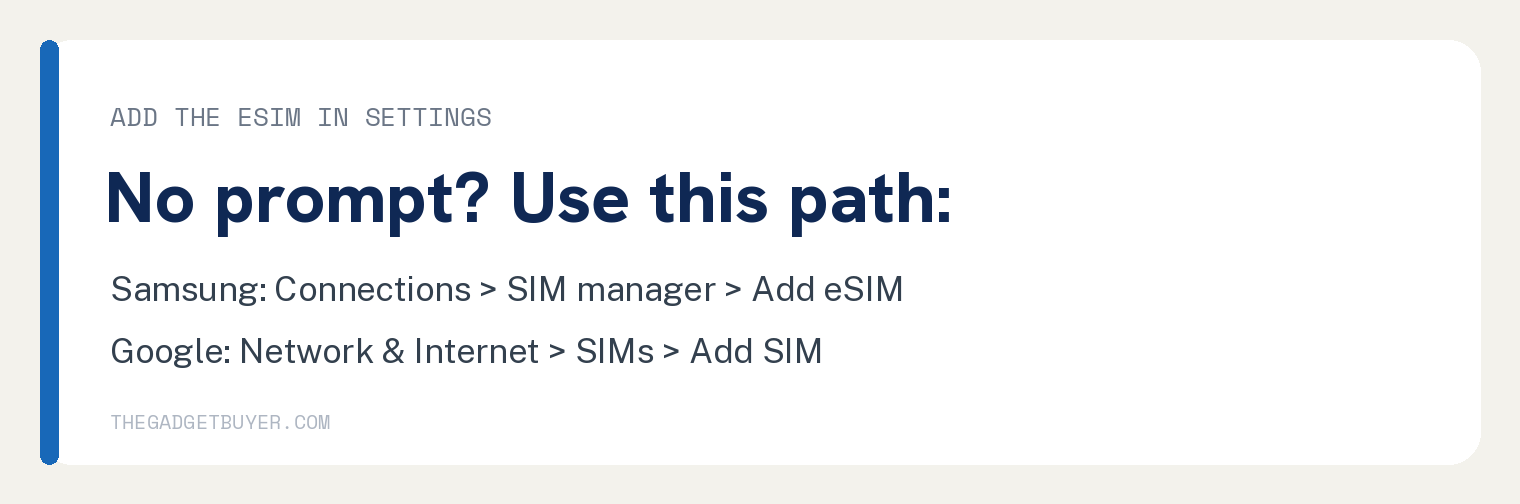
If you did not get the eSIM prompt, or chose to activate later, add it from Settings. T-Mobile’s SIM card & eSIM page gives a path for each of these brands, and we put them in one table.
| Phone | Where to add the eSIM |
|---|---|
| Samsung | Settings > Connections > SIM manager > Add eSIM |
| Settings > Network & Internet > SIMs > Add SIM, then Set up an eSIM | |
| Motorola | Settings > Network & Internet > SIMs & mobile network > + Download new SIM > Set up an eSIM |
| TCL | Settings > Network & internet > Add SIM |
| T-Mobile Revvl | Settings > Network & internet > SIMs > Add SIM |
If the phone asks for a QR code, T-Mobile says to contact it so it can email you one. That line sits in its Google, Motorola, TCL and Revvl sections.
What if I’m switching from an iPhone or don’t have my old phone?
Use T-Mobile’s Other devices steps. Its SIM card & eSIM page says: “If you’re switching between Apple & Android or don’t have your old device, follow the steps for Other devices.”
Those steps run in the T-Life app:
- Make sure SIM Protection is turned off.
- Open the T-Life app while you are connected to the T-Mobile network.
- Select the Account tab and choose the line you want to change the SIM on.
- Choose SIM transfer or activation, then Get Started.
- Enter the IMEI number of the phone you are moving the eSIM to, then select Continue.
- Choose to activate an eSIM, then select Continue.
- If prompted, turn on Wi-Fi or insert the SIM card.
- Enter the EID, then select Continue.
- Review the change and select Activate.
- If prompted, answer the interactive text message (iSMS) to confirm the change.
- Connect to Wi-Fi and scan the QR code.
T-Mobile’s SIM card & eSIM page says: “Check in Settings > Network & Internet > Mobile Network for most Androids.”
Moving from an iPhone to a Google phone? The same page also prints a direct transfer after setup, for an iPhone 11 or newer on iOS 26 or higher and a Google Pixel 9 series or newer.
T-Mobile also lists Wi-Fi and a PIN or password as requirements. On the new Google phone, go to Settings > Network & internet > SIMs > + Add SIM, choose Transfer a SIM from another device, then iPhone or iPad, and scan the QR code with your iPhone.
T-Mobile’s SIM card & eSIM page also says: “Place your new Google device close to your current iPhone.” and “On your iPhone, select the number you want to transfer and confirm transfer.”
For the rest of a phone move, see our guide to switching phones on T-Mobile.
What if the eSIM is on a cellular watch?
T-Mobile’s Android eSIM Troubleshooting page has a separate list of six checks for a watch with cellular:
- Make sure the phone you are setting up the watch with is on the same account.
- If you are switching from one watch to another, make sure you changed your SIM to the EID of the new watch.
- Make sure the Line Settings in your account profile have the correct E911 and usage addresses.
- Pair the watch by Bluetooth only, and make sure it is updated to the latest software.
- Restart your phone and watch, then try again.
- Review the specific errors you are getting and follow any steps.
What if my T-Mobile eSIM still won’t activate?
Review the specific errors you are getting and follow any steps, which is the last check on T-Mobile’s phone list. For help with any step, T-Mobile says to pick your device on its Device tutorials page and use the search bar.
Other T-Mobile problems have their own guides: T-Mobile hotspot not working and T-Mobile visual voicemail not working. If your line is on Verizon instead, see Verizon eSIM transfer not working.
Sources
- Android eSIM Troubleshooting (T-Mobile Support)
- SIM card & eSIM (T-Mobile Support)
- Protect your T-Mobile account from fraud (T-Mobile Support)