
iPad Magic Keyboard Not Working? Try These Fixes First
iPad Magic Keyboard not working? Make sure the keyboard fits your iPad and that iPadOS is up to date, then clean the Smart Connector, reconnect the keyboard and restart your iPad if it still does not respond.
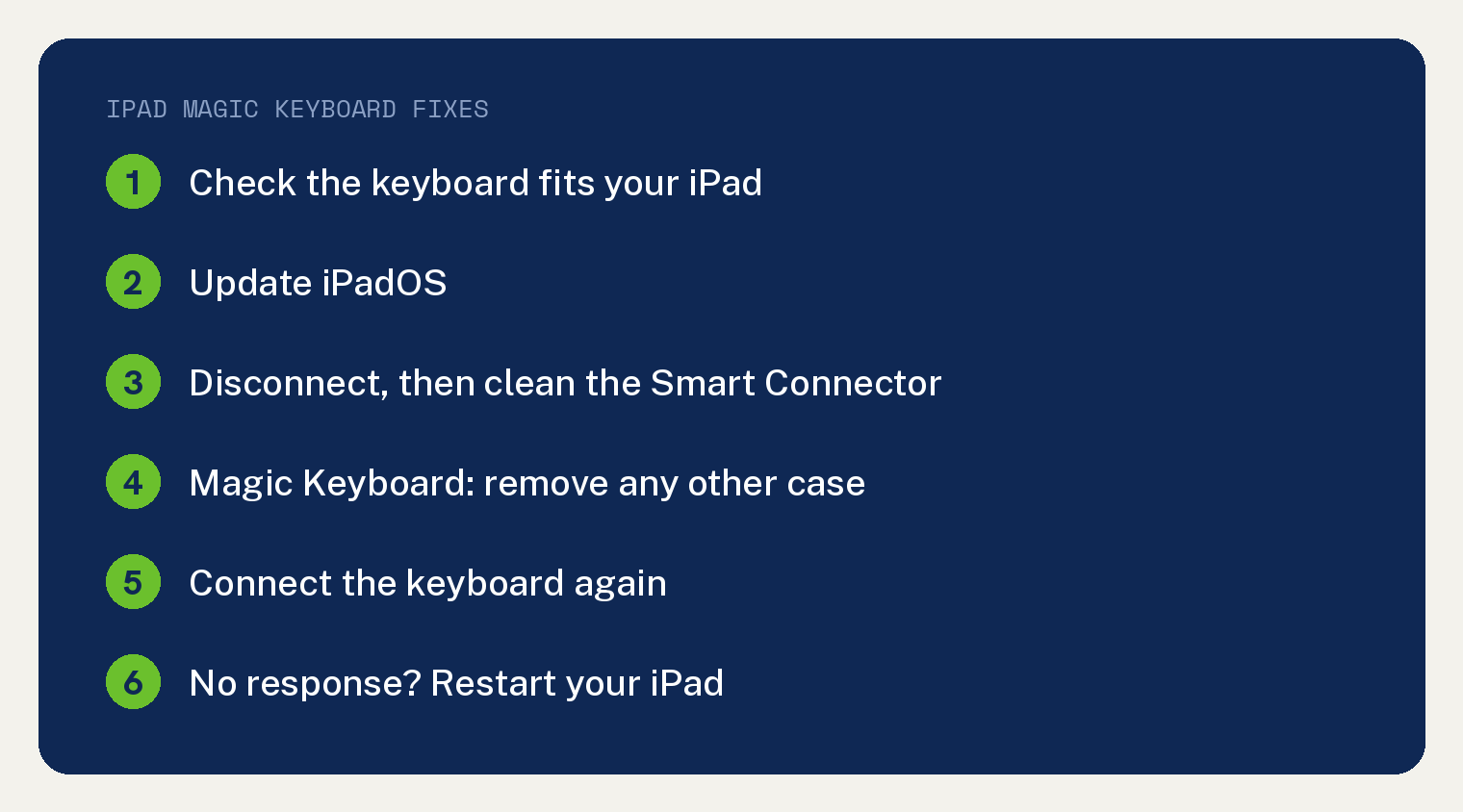
That order comes from Apple’s support page for an iPad that can’t connect to its keyboard. The page covers the Magic Keyboard, Magic Keyboard Folio, Smart Keyboard and Smart Keyboard Folio, and this guide sticks to the two Magic Keyboard types.
Does your Magic Keyboard fit your iPad?
Apple puts this check first. Its page says: “First make sure your iPad and keyboard or folio will work together”.
Apple’s iPad User Guide keyboard table has six keyboard rows. Here are its four Magic Keyboard rows, with the minimum iPadOS from Apple’s troubleshooting page added.
| Keyboard | Fits these iPads | Minimum iPadOS |
|---|---|---|
| Magic Keyboard for iPad Pro | iPad Pro 11-inch (M4 and M5), iPad Pro 13-inch (M4 and M5) | 14.5 or later |
| Magic Keyboard for iPad Air | iPad Air 11-inch (M2, M3, and M4), iPad Air 13-inch (M2, M3, and M4), iPad Air (4th and 5th generation) | 18.3 or later |
| Magic Keyboard for iPad Air and iPad Pro | iPad Air 11-inch (M2, M3, and M4), iPad Air 13-inch (M2, M3, and M4), iPad Air (4th and 5th generation), iPad Pro 11-inch (1st, 2nd, 3rd, and 4th generation), iPad Pro 12.9-inch (3rd, 4th, 5th, and 6th generation) | 14.5 or later |
| Magic Keyboard Folio | iPad (A16), iPad (10th generation) | 14.5 or later |
The 14.5 rows come from one Apple line: “Other Magic Keyboard devices require iPadOS 14.5 or later.”
Not sure which iPad you have? The keyboard guide links to Apple’s Identify your iPad model page.
The first generation Magic Keyboard (A1998) works with the iPad Pro 12.9-inch (5th generation), and it may not close flush. Apple’s Magic Keyboard setup page says “it’s possible that the Magic Keyboard may not precisely fit when closed, especially when screen protectors are applied.”
Which iPadOS does a Magic Keyboard need?
Apple says to update your iPad to the latest version of iPadOS.
Apple’s keyboard troubleshooting page adds: “Magic Keyboard for iPad Air requires iPadOS 18.3 or later.” Every other Magic Keyboard needs iPadOS 14.5 or later.
To update, go to Settings and tap the Software Update Available notification. You can also tap General, then Software Update, to see if an update is waiting.
If the update will not install, see our guide to an iPad that won’t update to iPadOS 26.
How to clean the Smart Connector and reconnect
Apple’s page lists four steps to clean the Smart Connector and reconnect:
- Disconnect the keyboard or keyboard folio from your iPad.
- “With a soft, lint-free cloth, clean the Smart Connector on the keyboard and on the back or edge of your iPad.”
- “Remove any other iPad case or cover if you’re using Magic Keyboard or Smart Keyboard Folio.”
- Connect your keyboard again. “If your keyboard doesn’t immediately respond, restart your iPad”.
How to restart your iPad
These are the three steps from Apple’s restart page for an iPad without a Home button. The same page also lists steps for iPads with a Home button.
- “Press and hold either volume button and the top button until the power off slider appears.”
- Drag the slider, then wait 30 seconds for your iPad to turn off.
- “To turn your device back on, press and hold the top button until you see the Apple logo.”
Apple says that “If your device is frozen or unresponsive, force restart your device.” If your iPad will not come back on, see our fixes for an iPad that won’t turn on.
Do you need to pair or charge a Magic Keyboard?
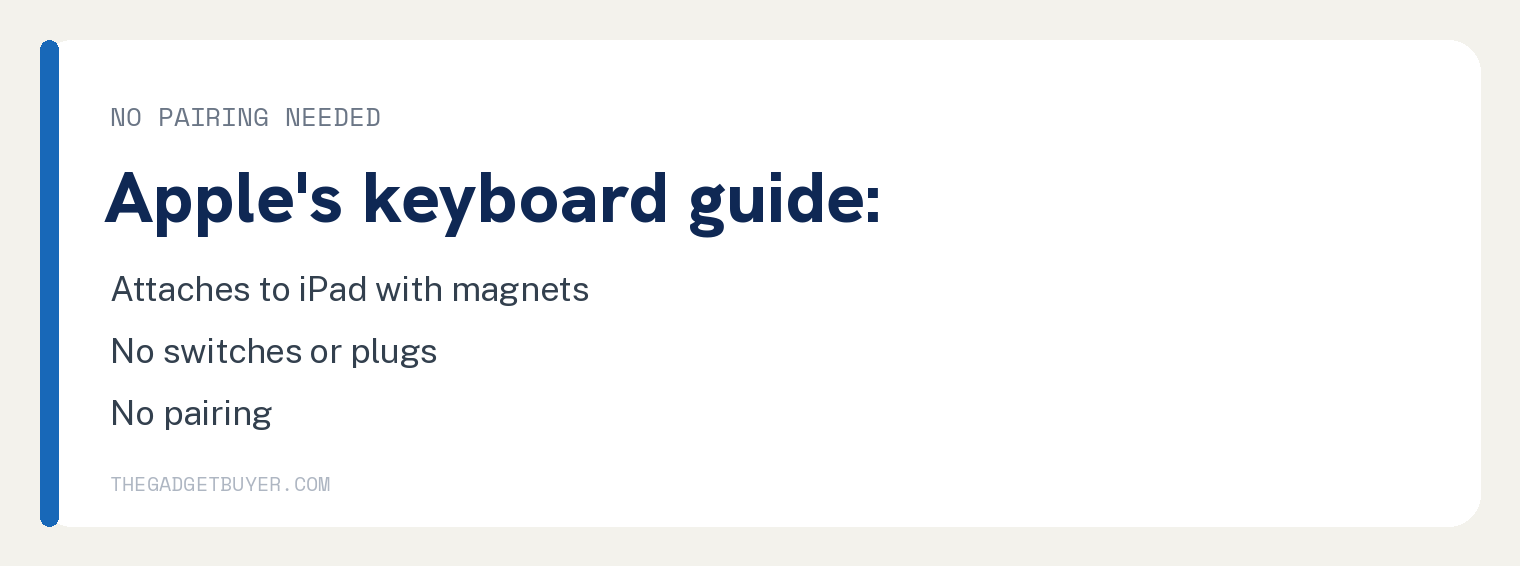
You do not need to pair it. Apple’s keyboard guide says these keyboards “magnetically attach to iPad” and work “without switches, plugs or pairing”.
For the Magic Keyboard with iPad Pro and iPad Air, Apple’s setup page also covers charging. Once it is connected, “you don’t need to pair, turn on, or charge your Magic Keyboard”.
Using a Bluetooth keyboard instead? See our fixes for iPad Bluetooth not connecting.
Why a mouse won’t work in the Magic Keyboard USB-C port
On a Magic Keyboard for iPad Pro or iPad Air, the port on the keyboard is for power only.
Apple’s Magic Keyboard setup page says: “The USB-C port on Magic Keyboard provides power, but it doesn’t transmit data. This means you can’t use this port with an input device such as a USB-C mouse.”
You can charge your iPad through that port. Apple also warns: “Never connect one end of a USB-C cable to the USB-C port on your iPad and the other end to the USB-C port on your Magic Keyboard.”
If your iPad will not charge at all, see our guide to an iPad that won’t charge.
Keys look dim or the trackpad feels wrong
On a Magic Keyboard for iPad Pro or iPad Air, the key lights change on their own. Apple says “the brightness of the Magic Keyboard automatically adjusts based on the light conditions around you”.
To set the key brightness yourself, go to Settings, then General, then Keyboard, then Hardware Keyboard. To change trackpad settings, go to Settings, then General, then Trackpad.
iPad Magic Keyboard still not working?
The restart is the last step on Apple’s keyboard page. For more help, Apple’s restart page offers a Get suggestions link with this line: “Tell us more about what’s happening, and we’ll suggest what you can do next.”
Sources
- If you can’t connect your iPad to your Magic Keyboard (Apple Support)
- iPad Magic Keyboard and Smart Keyboard (iPad User Guide)
- Set up and use Magic Keyboard for iPad (Apple Support)
- Restart your iPad (Apple Support)