
How to Fix an iPad That Won’t Update to iPadOS 26
The most common reason an iPad will not update to iPadOS 26 is not enough free storage. An update needs room to download and install, and a full iPad stops it cold.
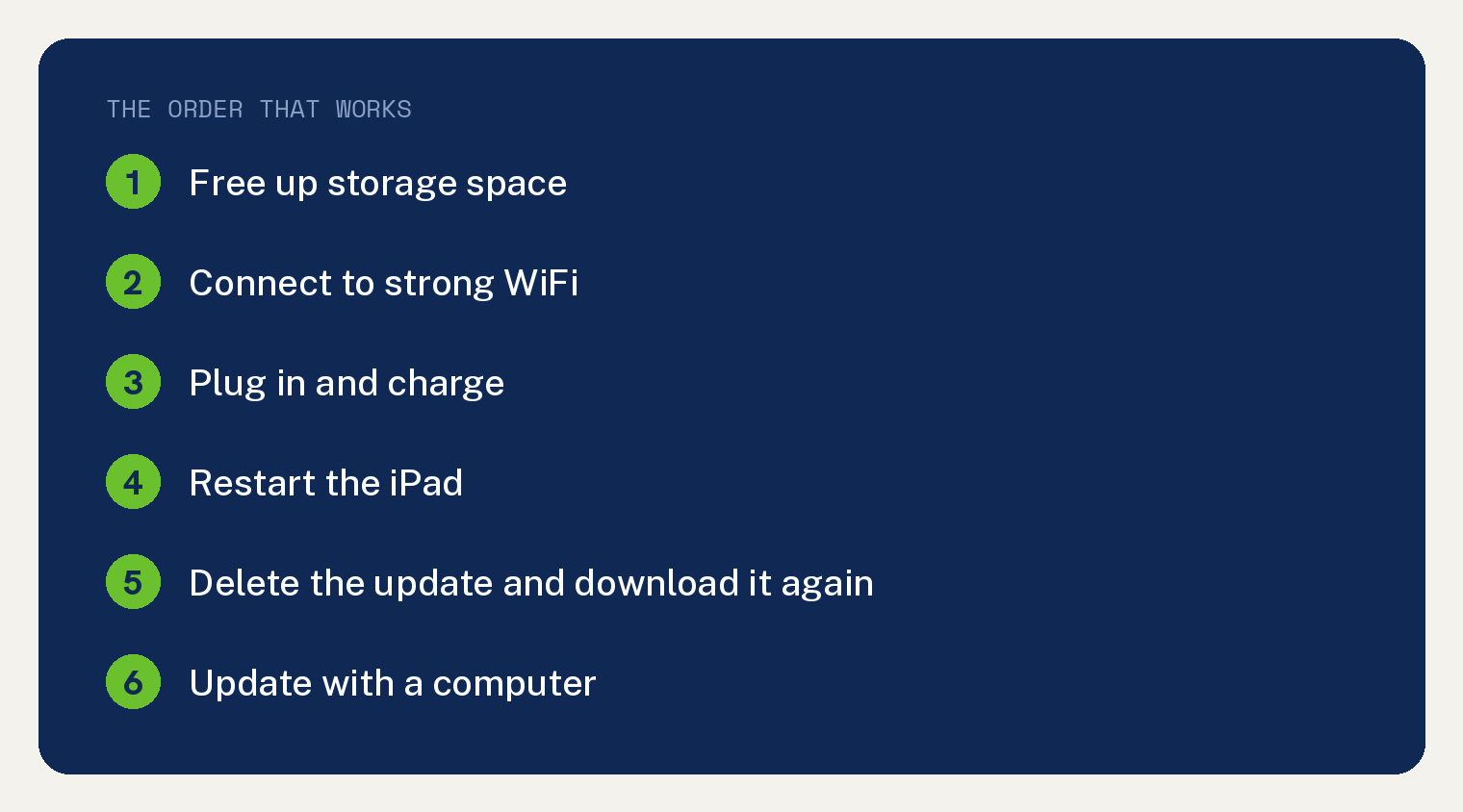
Free up space, connect to strong WiFi, plug in the charger, and try the update again. That clears most cases.
If it still fails, delete the downloaded update and get it again, or update using a computer. First, make sure your iPad can even run iPadOS 26.
First, Is Your iPad Compatible With iPadOS 26?
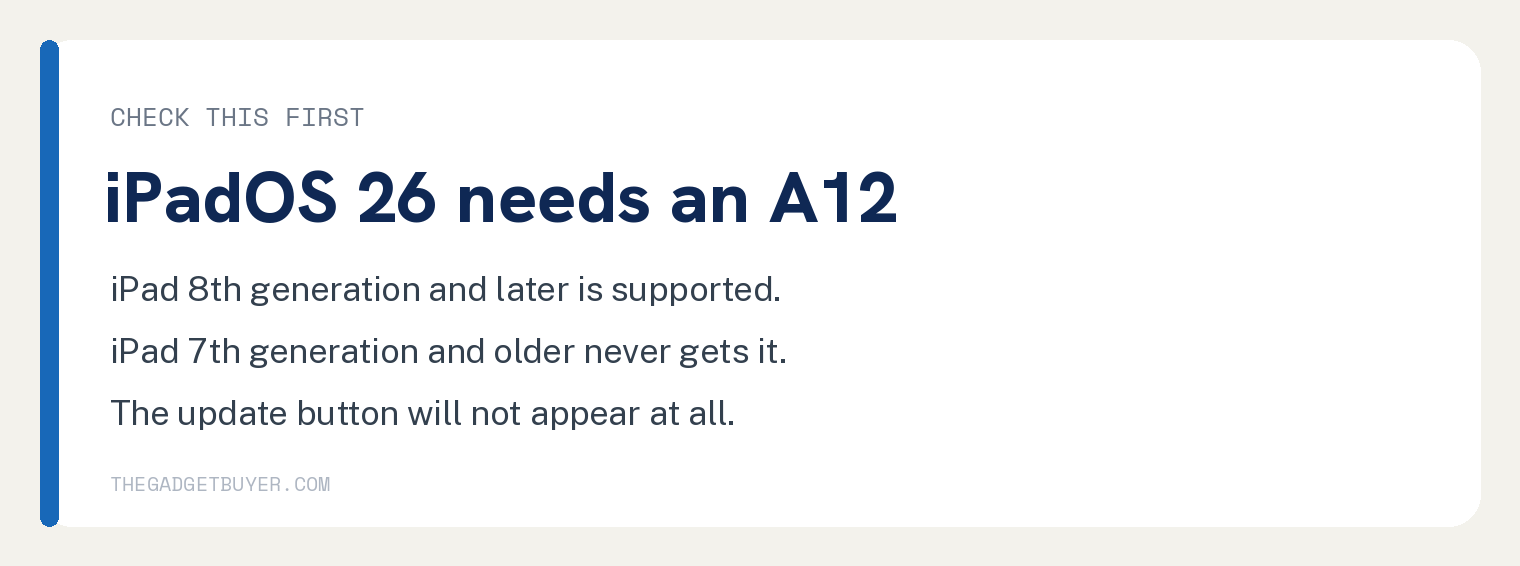
iPadOS 26 needs an A12 chip or newer. If your iPad is too old, it will never show the update, and no fix changes that.
| iPad line | Supported by iPadOS 26 |
|---|---|
| iPad | 8th generation and later |
| iPad Air | 3rd generation and later |
| iPad mini | 5th generation and later |
| iPad Pro | 11 inch 1st gen and later, 12.9 inch 3rd gen and later |
The iPad 7th generation and anything older cannot run iPadOS 26. If that is your iPad, the update button will not appear at all.
Not sure which iPad you own? Open Settings, tap General, then About, and read the Model Name line.
Fix 1: Free Up Storage Space
This is the fix that solves it most often, so start here. Aim for at least 10 GB of free space before you update.
- Open Settings, tap General, then iPad Storage.
- Look at the bar at the top to see how much room is left.
- Tap Offload Unused Apps if it is offered. This clears apps you rarely use but keeps your files and data.
- Delete large videos, old downloads, and apps you do not need.
Offloading is the safe first move, because you can reinstall those apps later without losing anything. If you keep running out of room, our guide on how to get more storage on an iPad goes deeper.
Fix 2: Connect to Strong WiFi
An update is a big download, and a weak signal makes it stall or fail.
- Move close to your router.
- Open Settings, tap WiFi, and make sure you are on your home network.
- Pause any big downloads or streaming on other devices while the iPad updates.
If the WiFi itself keeps dropping, our guide on an iPad that will not connect to WiFi can help.
Fix 3: Plug In and Charge
iPadOS will not install a large update on a low battery.
Plug the iPad into its charger and leave it connected through the whole update. Keep it above 50 percent to be safe.
A charged, plugged in iPad also will not go to sleep and interrupt the install.
Fix 4: Restart the iPad
A restart clears small glitches that block the update. The buttons depend on whether your iPad has a Home button.
If your iPad has a Home button (iPad 8th and 9th generation, iPad Air 3rd generation, iPad mini 5th generation):
- Press and hold the top button alone until the power off slider appears.
- Drag the slider to turn the iPad off.
- Wait 30 seconds, then hold the top button until the Apple logo appears.
If your iPad has no Home button (Face ID and newer models):
- Press and hold the top button and either volume button until the power off slider appears.
- Drag the slider to turn the iPad off.
- Wait 30 seconds, then hold the top button until the Apple logo appears.
Once it restarts, open Settings, tap General, then Software Update and try again.
Fix 5: Delete the Update and Download It Again
A half downloaded update file can get stuck. Deleting it and starting fresh often fixes a stalled install.
- Open Settings, tap General, then iPad Storage.
- Scroll down and find the iPadOS 26 update in the list.
- Tap it, then tap Delete Update.
- Go back to Settings, General, Software Update, and download it again.
Fix 6: Update With a Computer
If the update still will not install, a computer can push it through.
- Connect the iPad to a Mac or a Windows PC with a cable.
- On a Mac, open Finder. On a PC, open the Apple Devices app.
- Select your iPad, then choose Check for Update and follow the prompts.
This route avoids the iPad’s own storage crunch, so it often works when the on device update will not.
If Nothing Worked
At this point, check that Apple’s update servers are not the problem. On a launch day, they get busy and updates can fail for everyone at once. Wait a few hours and try again.
If it still fails, the last resort is to back up the iPad, erase it, update it clean, then restore your backup. Only do this with a full backup in hand, since erasing wipes everything first.
When even that does not work, the iPad may have a deeper issue, and it is time to contact Apple Support. If your iPad will not respond at all, our guide on an iPad that will not turn on is the place to start.
Frequently Asked Questions
Why does my iPad say there is not enough storage to update?
An update needs several gigabytes of free space to download and install. Free up room by offloading unused apps and deleting large videos, then try again. Aim for at least 10 GB free.
Why is iPadOS 26 not showing up on my iPad?
Your iPad may be too old. iPadOS 26 needs an iPad 8th generation or later, an iPad Air 3rd generation or later, an iPad mini 5th generation or later, or a supported iPad Pro. Older models never see the update.
How long should an iPadOS 26 update take?
Most updates take 20 to 45 minutes on strong WiFi. On launch day it can take longer because Apple’s servers are busy, so try again later if it stalls.
Can I update my iPad without WiFi?
Not over the air. An iPadOS update needs a WiFi connection. If you have no WiFi, connect the iPad to a computer and update it through Finder or the Apple Devices app instead.