
Switch Phones on Boost Mobile: Which Steps Fit Your Phone
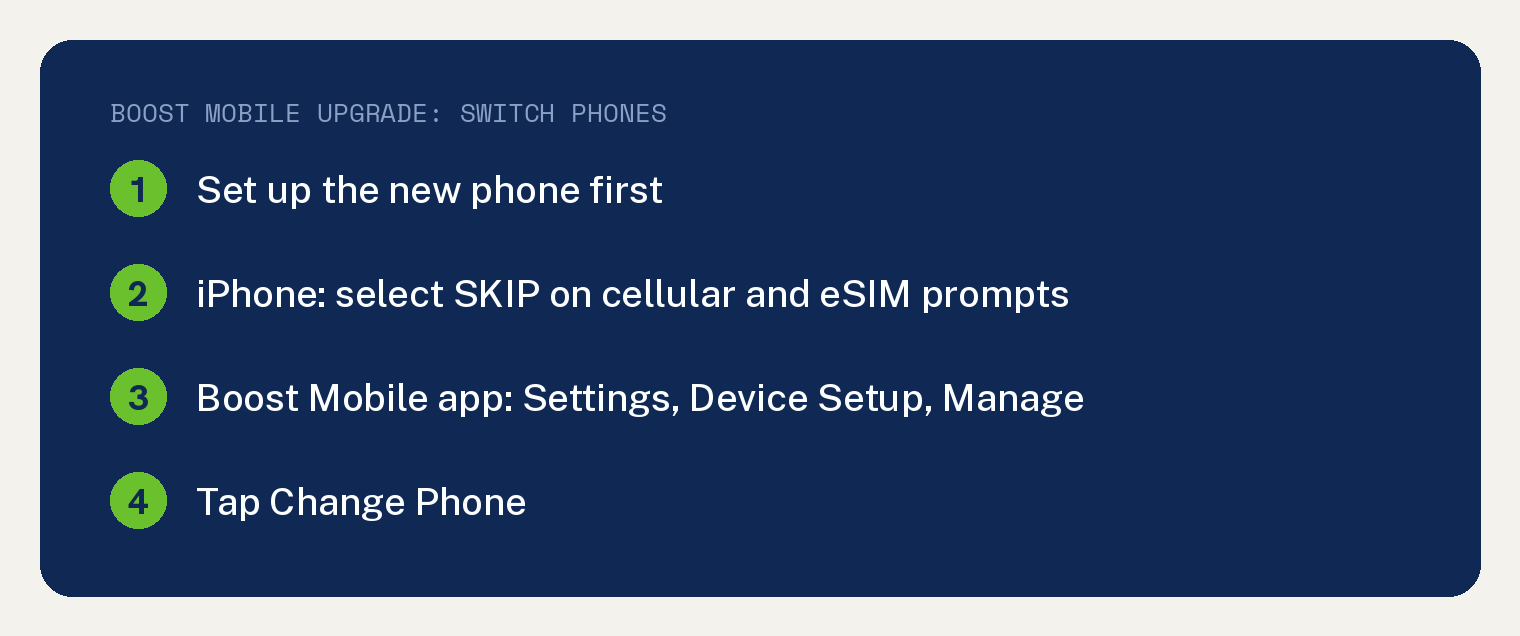
To switch phones on Boost Mobile, set up the new phone first, then open the Boost Mobile app and tap Settings, Device Setup, Manage under the appropriate line, and Change Phone. Boost prints that path on its pages for a new phone bought from Boost, as an upgrade or with a trade in.
Bought the new phone somewhere else? Boost’s bring your own device page has its own checklist, and it is further down.
Which Boost steps fit your new phone?
Where the new phone came from decides which Boost page you follow. Sorting it this way is our work; every step inside each path comes from Boost’s help center.
- Bought from Boost as an upgrade: Boost’s Upgrade your Device page, with one list for iPhone and one for Android.
- Bought from Boost with a trade in: Boost’s Upgrade Guide, which opens with “We’ve made trading-in your device easy.”
- Bought somewhere else: Boost’s bring your own device page.
Upgrade bought from Boost: the iPhone steps
- Turn on the new iPhone, connect to WiFi and update it to the latest software.
- Follow the on screen setup, which moves your apps, photos and data.
- Select SKIP on any prompt about transferring cellular settings or setting up eSIM.
- Download the Boost Mobile app and sign in.
- Tap Settings, then Device Setup, then Manage under the appropriate line, then Change Phone.
Boost’s own words for step 3: “Please select SKIP for any prompts about transferring cellular settings or setting up eSIM. This will be handled in the Boost Mobile app.”
Upgrade bought from Boost: the Android steps
- Turn on the new Android phone and follow the on screen setup, which moves your apps, photos and data.
- Download the Boost Mobile app and sign in.
- Tap Settings, then Device Setup, then Manage under the appropriate line, then Change Phone.
Boost ends its Android steps with a SIM note: “If your old device had a physical SIM card, remove it and insert it into your new phone.”
Lost the old card? Boost says to “contact Boost Customer Care or visit a Boost Mobile store for assistance.” Our guide on how to switch your SIM card to a different phone covers the tray itself.
Trading in your old phone? Prep it before you switch
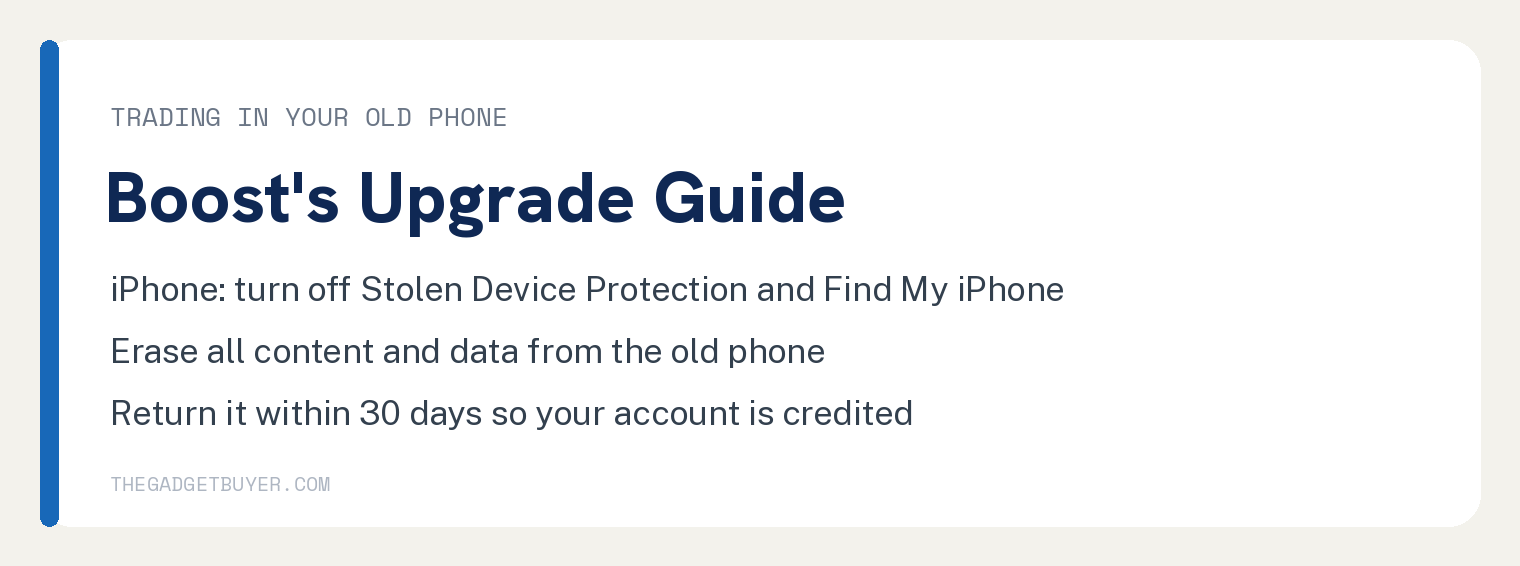
Boost’s Upgrade Guide starts on the old phone. For an iPhone, Boost lists “Turn off Stolen Device Protection on your old iPhone.” and then turning off Find My iPhone on that old iPhone.
For an iPhone or a Galaxy, the next move is the same. Turn on the new phone, set it near the old one, and follow the on screen setup and data transfer.
Then activate the new phone in Boost’s order:
- Connect the new phone to WiFi.
- Download the Boost Mobile app or scan the QR code.
- In the app, tap Settings, then Device Setup, then Manage, then Change Phone.
- Follow the prompts to activate.
Last, Boost says to factory reset the old phone, adding “Please ensure you erase all content and data from your old phone.” Then pack it and ship it by USPS.
Mind the deadline. Boost’s guide says “Your phone needs to be returned within 30 days to ensure your account is credited and avoids being charged the remaining loan balance on your old phone.”
Bought the new phone somewhere else?
Start with the unlock. Boost’s bring your own device page says “Most popular, unlocked phones can be activated on Boost Mobile.”
If the phone is still locked, ask the carrier it came from to unlock it. Boost warns “it might take up to two days, so plan ahead”.
Next, update the phone. Boost’s first step for finishing a bring your own activation reads “First, make sure you are running the latest version of software on your phone or device.”
Android owners have one more step. Boost says “If you’re activating an Android phone that you didn’t purchase from Boost Mobile, you’ll need to update your device settings by downloading the Boost Config App.”
If the phone still is not connecting to the network, Boost says to restart it. After that, “If you are still having issues, troubleshoot your phone or contact Boost Customer Care.”
Boost’s bring your own device page and its Prepare for Activation page do not print the Change Phone steps. The Prepare for Activation page says: “If you need extra help, hit up a Boost Mobile Activation Specialist at (866) 957-8278.”
Finish the eSIM on an iPhone or a Samsung
Boost’s iPhone eSIM page says: “Heads up! Make sure your iOS software is up-to-date before installing your new eSIM”
On an eSIM compatible iPhone, Boost says a notification titled Finish Cellular Setup appears on your home screen once your line is activated. Boost’s next step: “Open this notification to install your Cellular Plan and tap Continue.”
Cleared it by mistake? Go to Settings, then Cellular, then Set Up Cellular (or add eSIM).
On an eSIM compatible Samsung device, Boost names the notification Boost Cellular Plan Ready. Boost’s Samsung eSIM page says: “Open this notification and tap Continue.”
If it is gone, go to Settings, then Connections, then SIM card manager, then Add mobile plan.
Boost says that from there “Your mobile plan will be automatically downloaded and activate on the eSIM.”
Does Boost Protect move to the new phone?
Boost’s Upgrade Guide answers this in its FAQ: “Once you’ve activated your new phone, Boost Protect or Boost Protect with AppleCare Services on your old phone will be automatically removed.”
The same guide also says “If you have Boost Protect or Boost Protect with AppleCare Services, call us to ensure device coverage is updated to your new device.”
The guide’s FAQ adds: “If you did not purchase coverage during checkout, you will have 30 days from purchase to add Boost Protect or Boost Protect with AppleCare services in the Boost Mobile app or by contacting Boost Customer Care.”
On a different carrier? We have the same walkthrough for switching phones on Cricket Wireless, switching phones on Verizon and switching phones on Xfinity Mobile.