
How to Switch Phones on Verizon Yourself, SIM or eSIM
How to switch phones on Verizon comes down to two paths.
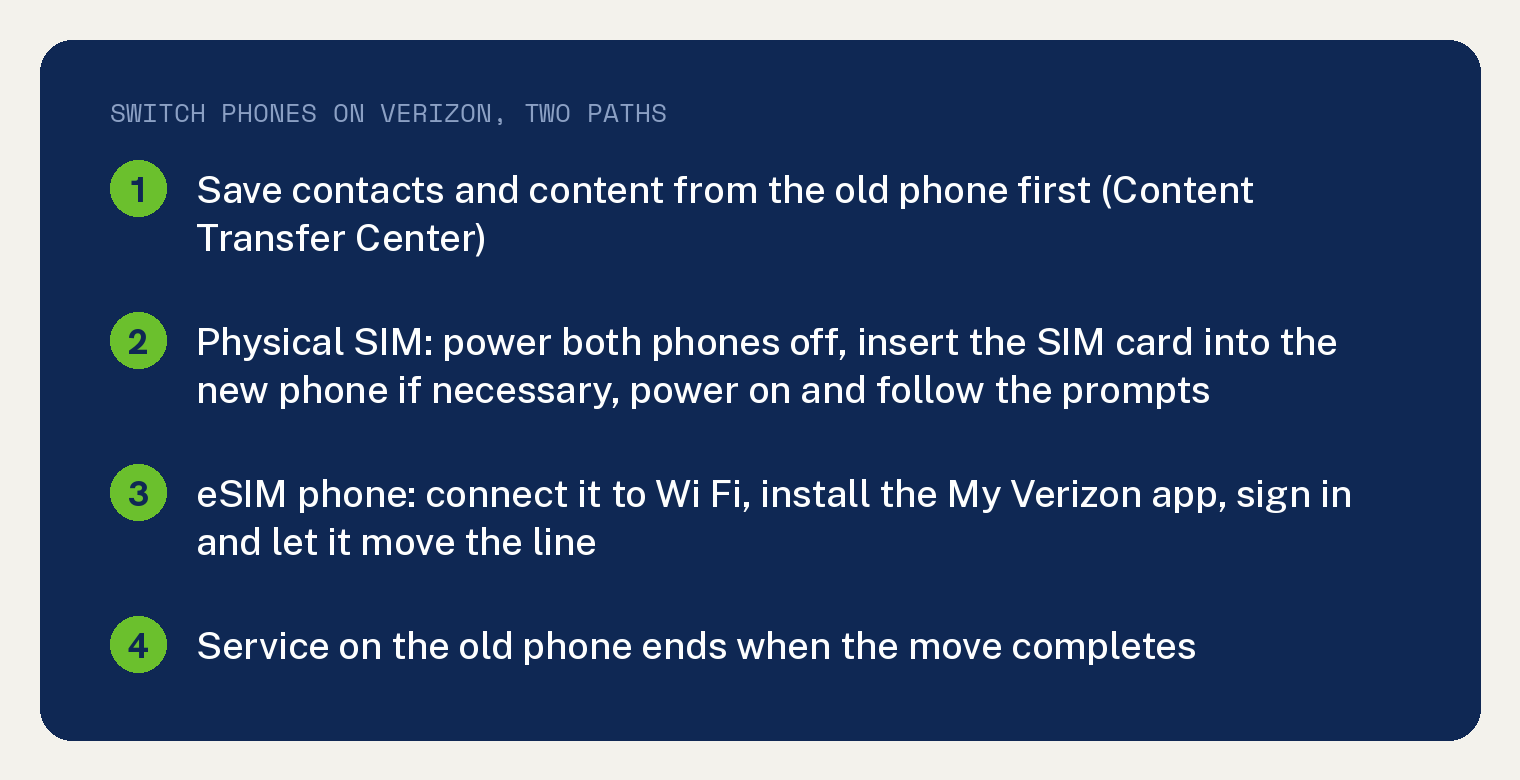
With a physical SIM, back up the old phone, power both phones off, move the SIM card into the new phone if it needs one, and turn the new phone on. With an eSIM phone, sign in to the My Verizon app on the new phone and let it move the line.
Both paths come from Verizon’s own support pages. The first page opens with “If you have an active Verizon account and a new device, this guide walks you through the activation process to ensure a smooth transition.”
Before you start
Save your contacts and content from the old phone first. Verizon’s step for both Android and iPhone reads “Save contacts and content on your old phone using the Content Transfer Center”.
Moving from an iPhone to an Android phone adds one step before anything else: turn iMessage off on the iPhone, under Settings, Messages, iMessage. Verizon’s line is “If you’re switching from an iPhone” then “ensure iMessage is turned off by navigating:” Settings, Messages, iMessage.
On an iPhone you can also use Apple’s own tools. Verizon’s iPhone steps add “If you use iCloud or iTunes, you can” transfer content, sync contacts or sync media.
Path 1: switch with a physical SIM card
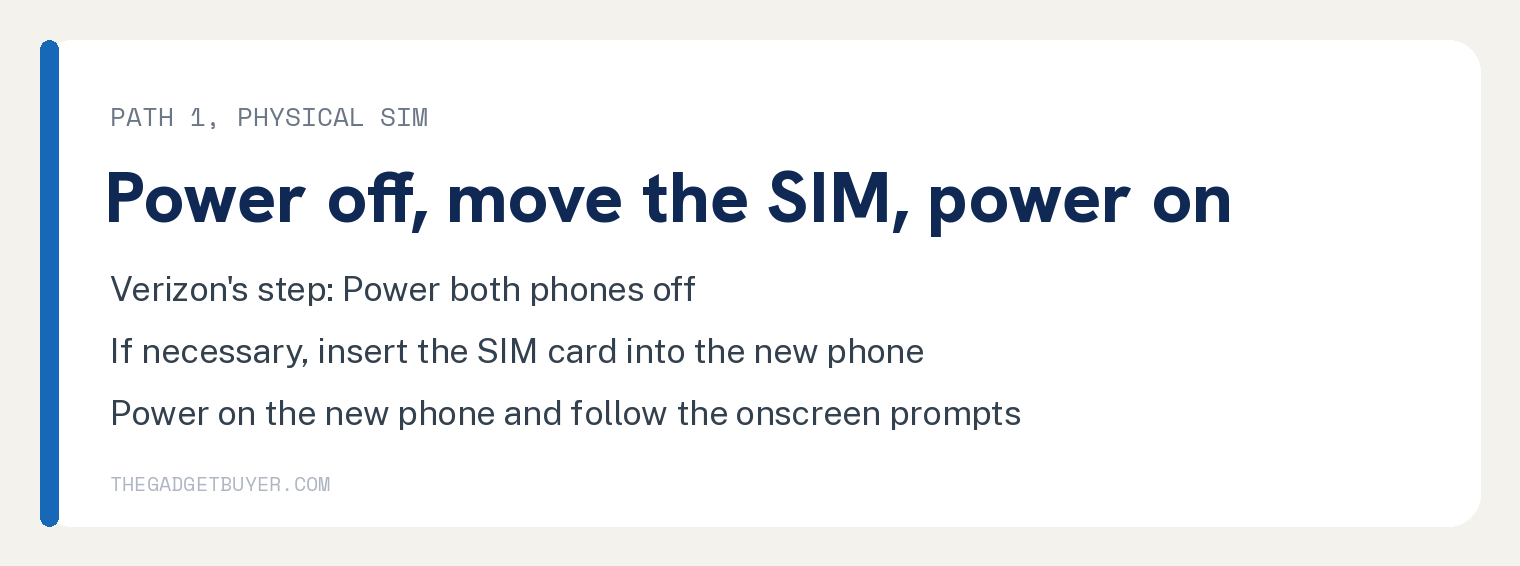
Turn both phones all the way off. Then move the SIM card into the new phone if necessary, turn the new phone on, and follow the prompts on its screen.
Verizon’s three steps for this part, in order: “Power both phones off.” then “If necessary, insert the SIM card into the new” phone, then “Power on the new phone then follow the onscreen prompts to complete activation and setup.”
When the new phone is up, put your content back. The Android steps end with “Restore your content to the new phone using the Content Transfer Center”, and the iPhone steps end the same way “or the other options listed in step 1.”
Path 2: switch to an eSIM phone in the My Verizon app
On the eSIM route Verizon says “No physical SIM is required.” The My Verizon app moves your number to the new phone, and Verizon lists the move as one of the app’s jobs: “Move an existing mobile number to a different eSIM-enabled smartphone or feature phone (bring your own device).”
Four things have to be true before the app will do it. Verizon’s list, under the condition “if all of these apply”: “You are a Verizon customer with a standard monthly mobile plan.” / “You are the Account Owner or an Account Manager” / “You have an eSIM compatible phone that’s unlocked.” / “You have the My Verizon app.”
To check for eSIM on a phone, open its settings and look under About or About Phone, which is where Verizon’s page sends you. The move itself costs nothing: “There is no charge (or fee) if you move your line using the My Verizon app.”
The steps in the app
Connect the new phone to Wi-Fi, install the latest My Verizon app from the App Store or Play Store on it, and sign in. Verizon says the app then “automatically guides you through the transfer process.”
If you are already signed in, go to the Mobile tab, select the line you want to move, scroll down and choose Change or replace device on this line or Activate or get SIM, then follow the prompts. Verizon’s note on this path: “Only the Account Owner or Account Manager can move existing lines of service.”
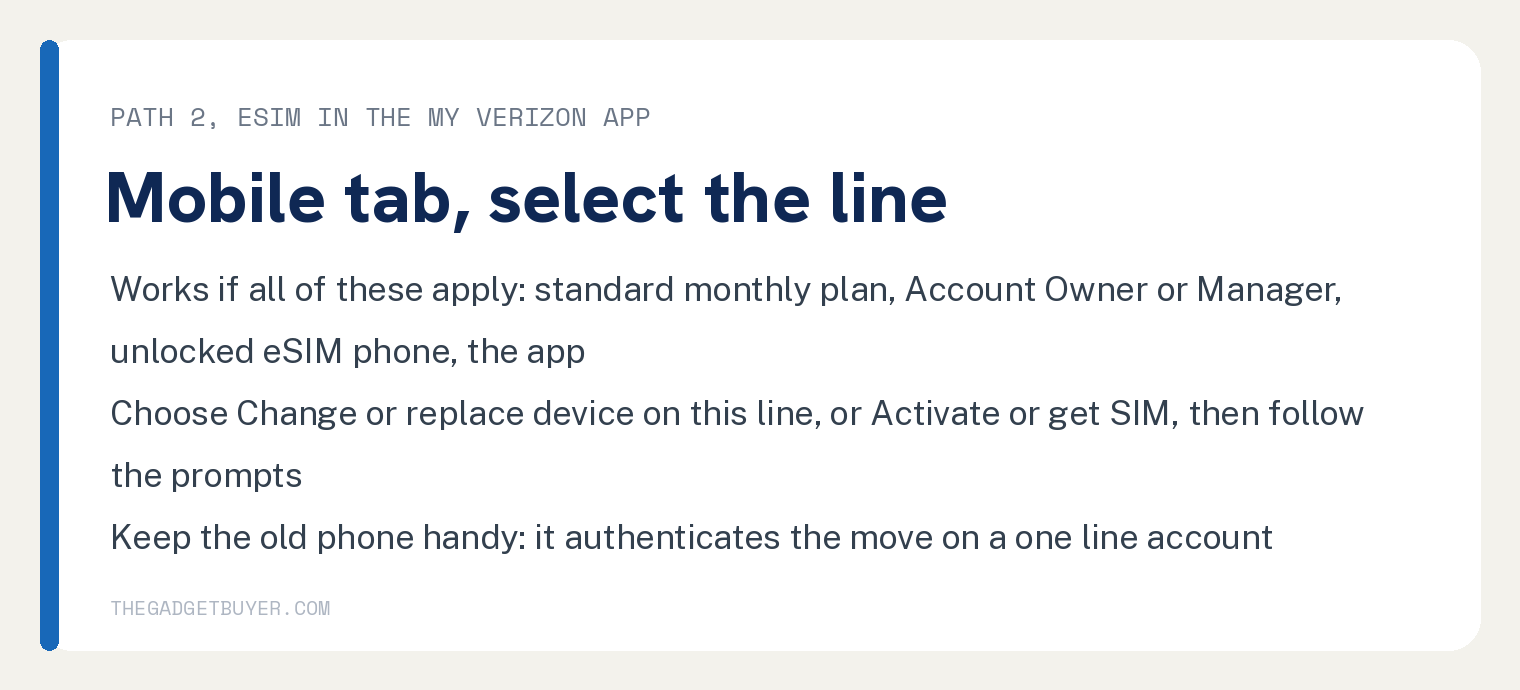
Keep the old phone within reach. Verizon’s answer to whether you need it reads “You need your old phone for authentication if there’s only one line on your account.” and adds that with multiple lines “you can use another device on the account to authenticate.”
Verizon’s page adds, under the line “When you use the My Verizon app:” “You won’t need the device IMEI number or SIM ICCID number.” / “No need to search and scan a QR Code.” / “Your service is activated instantly over Wi-Fi.” / “No physical SIM is required. No need to wait for a SIM card in the mail.”
What happens to the old phone
Service on the old phone ends when the move completes. Verizon’s wording: “After you move your number to the new device, service is deactivated on the old phone.”
If the old phone used a physical SIM card, the page says “you can remove and discard it.”
If calls fail after an eSIM transfer
After an eSIM transfer, restart the new phone first. Verizon’s troubleshooting answer on the eSIM page reads “Restart your phone if you have an issue with network connectivity.” and sends you to its calling help page if calls still fail after that.
For a transfer that stalls partway, see Verizon eSIM transfer not working. If the new phone says there is no SIM, see iPhone keeps saying no SIM available or SIM failure on an iPhone 13.
Where Verizon’s pages stop
Neither page prints how long activation takes. The words minutes and hours do not appear in either page’s steps or FAQ answers.
Neither page’s steps send you to a Verizon store. The only store named in either page’s steps is the App Store or Play Store, where the eSIM page has you download the My Verizon app.
The activation page’s steps name no phone call. The eSIM page names Verizon Customer Service for eSIM issues only.
Frequently asked questions
Can I switch phones on Verizon without going to a store?
Yes. Verizon’s activation page moves the SIM and turns the new phone on, and its eSIM FAQ moves the line inside the My Verizon app, and neither set of steps names a Verizon store.
Do I need my old phone to switch?
On the app route, yes when yours is the only line, which Verizon’s page puts as “for authentication”. With more than one line, Verizon says another device on the account can authenticate instead.
Can I move from a physical SIM to an eSIM on the same phone?
Yes, in the app. Verizon’s steps are “Sign in to the My Verizon app.” then “Go to the Mobile tab.” then “Scroll down and select” Get SIM, then follow the prompts.
Does switching phones on Verizon cost anything?
Moving your line in the My Verizon app is free, in Verizon’s words “There is no charge (or fee) if you move your line using the My Verizon app.”