
Can’t Add Card to Apple Wallet? Read the Message First
Can’t add card to Apple Wallet? Read the message on your screen first, because two Apple support pages send different messages to different places.
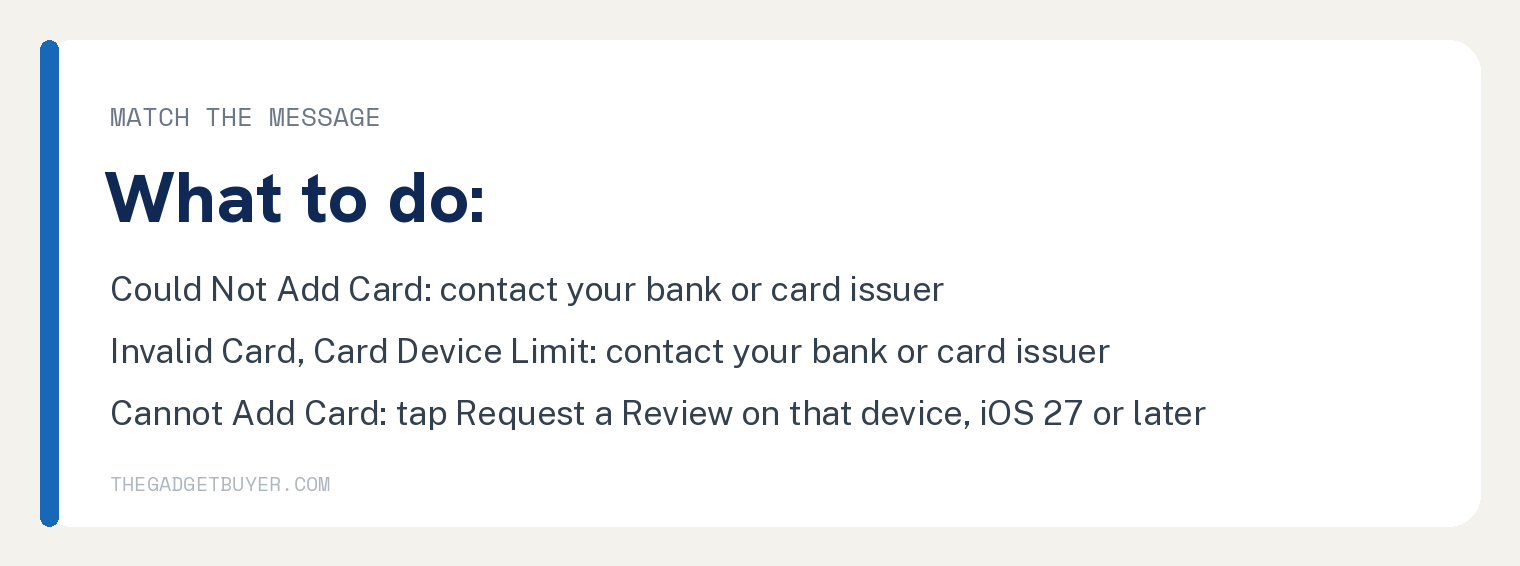
Apple says to contact your bank or card issuer if you see “Could Not Add Card”, “Invalid Card” or “Card Device Limit” while you add your card.
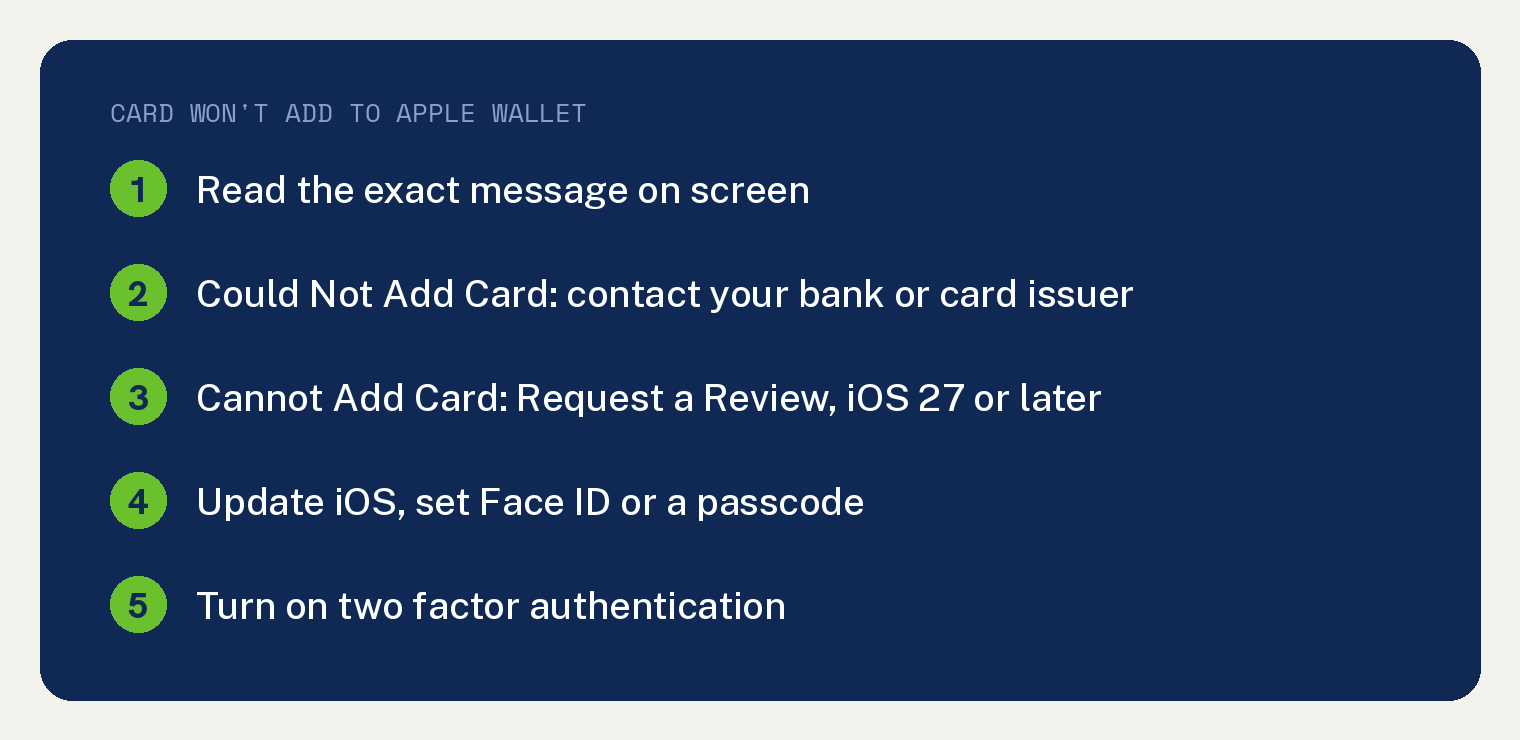
A “Cannot Add Card” screen with a Request a Review button goes to Apple instead. You request that review on the affected device, on iOS 27 or iPadOS 27 or later.
No message at all? Work through Apple’s checks below. They come from Apple’s If you can’t add a card page, its Set up Apple Pay page and its security reasons page.
Which Apple Wallet error message do you see?
Match the words on your screen to a row below. We joined two Apple pages into this one table, since each page names different messages.
| Message on screen | Next step | Where Apple says so |
|---|---|---|
| Could Not Add Card | Contact your bank or card issuer | If you can’t add a card page |
| Invalid Card | Contact your bank or card issuer | If you can’t add a card page |
| Card Device Limit | Contact your bank or card issuer | If you can’t add a card page |
| Cannot Add Card, with a Request a Review button | Tap Request a Review on that device (iOS 27 or iPadOS 27 or later) | Security reasons page |
Apple’s If you can’t add a card page lists the three bank messages under one step: “Contact your bank or card issuer if you see the following error messages while adding your card to Apple Wallet:”
What should you check on your iPhone first?
Confirm that your iPhone can use Apple Pay at all. Apple’s If you can’t add a card page lists six checks for that:
- Contact your card issuer to see if it supports Apple Pay.
- Update to the latest version of iOS. On other devices, update iPadOS, watchOS, macOS or visionOS.
- Set up Face ID, Touch ID, Optic ID or a passcode on your device.
- Make sure you are in a supported country or region.
- Check that your device is compatible with Apple Pay.
- Turn on two factor authentication for your Apple Account.
Next, Apple says to check for “service outages or connection issues.”
Keep your passcode on while you test. Apple’s Set up Apple Pay page warns: “If you sign out of iCloud or remove your passcode, all credit, debit, prepaid, transit, and student ID card will be removed from that device.”
If Face ID is the part that fails, see our Face ID troubleshooting steps for iPhone.
How do you add a card to Apple Wallet on iPhone?
Apple’s Set up Apple Pay page gives four steps for adding a debit or credit card on iPhone:
- In the Wallet app, tap the Add Card button. Tap Debit or Credit Card for a new card, or Cards Found For You for a card you used before.
- Tap Continue.
- Tap or hold your card close to your iPhone, or tap Enter Card Details Manually and follow the onscreen instructions.
- Finish any extra check your bank or card issuer asks for.
That last step depends on your bank. The Set up Apple Pay page explains: “Some banks or card issuers might require further authentication. They might ask you to provide more information or to download an app before approving your card for use with Apple Pay.”
What does Cannot Add Card with Request a Review mean?
Apple covers this screen on its security reasons page. That page says that “for security reasons, you might not be able to add payment cards to Apple Wallet on your iPhone, iPad, or Apple Watch, including new cards in Cards Found For You.”
The cause Apple gives is unusual activity: “This can happen if Apple Pay activity related to your Apple Account or device appears unusual.”
Cards already in your Wallet keep working. In Apple’s words, “All of the cards that you’ve already added to Wallet, including payment cards, will continue to work.”
To request a review:
- Make sure the device has iOS 27 or iPadOS 27 or later.
- Try to add the card. When you see Cannot Add Card, tap Request a Review.
- Read the guidance on screen. If you want to proceed, tap Send to Apple.
The request has to come from the affected device, so a phone call to Apple will not start one. On an earlier OS, Apple says “you’ll be prompted to update your device.”
For an Apple Watch, request the review from the Watch app on your paired iPhone. The watch needs watchOS 27 or later.
Apple says: “This review process is managed by Apple, not your card issuer.”
Apple might take a few days to review your request. When it finishes, Apple says the ability to add payment cards “will be reinstated or remain revoked.”
Apple’s security reasons page says: “If you try to add a payment card on the same device prior to Apple completing the review, you will see that your review is in progress.”
What if your Apple Account is locked or your card was declined?
A locked account can stop the card too. Apple’s If you can’t add a card page says you might not be able to add cards to Apple Wallet if your Apple Account is locked, inactive, or disabled.
For a disabled account, see how to fix an Apple ID disabled for security reasons.
A declined card is your bank’s call. Apple’s If you can’t add a card page says: “Apple does not approve or decline cards for use with Apple Pay. If your card was declined, contact your bank or card issuer.”
For a payment method declined on your Apple Account for purchases, see why your payment method was declined on Apple.
What if you still can’t add the card?
Contact your card issuer next. Apple’s Set up Apple Pay page says: “If you have any issues adding a card, contact your card issuer.”
Your issuer is also the one to ask whether your card works with Apple Pay. Apple says: “To check if your card is compatible with Apple Pay, contact your card issuer.”
If the card is already in Wallet but shows as expired, see why Apple Pay says your card is expired.
Sources
- If you can’t add a card to Apple Wallet to use with Apple Pay (Apple Support)
- Set up Apple Pay (Apple Support)
- If you can’t add cards to Apple Wallet because of security reasons (Apple Support)