
What to Do About an iPhone Not Backing Up to iCloud
iPhone not backing up to iCloud? Pick the fix that matches what your screen shows: a storage alert, a message that your last backup couldn’t be completed, a backup that runs too long, or a grayed out iCloud Backup option.
If there’s no message and the phone just never backs up by itself, Apple’s steps for automatic backup ask for four things: Back Up This iPhone turned on, a power source, a Wi-Fi network and a locked screen.
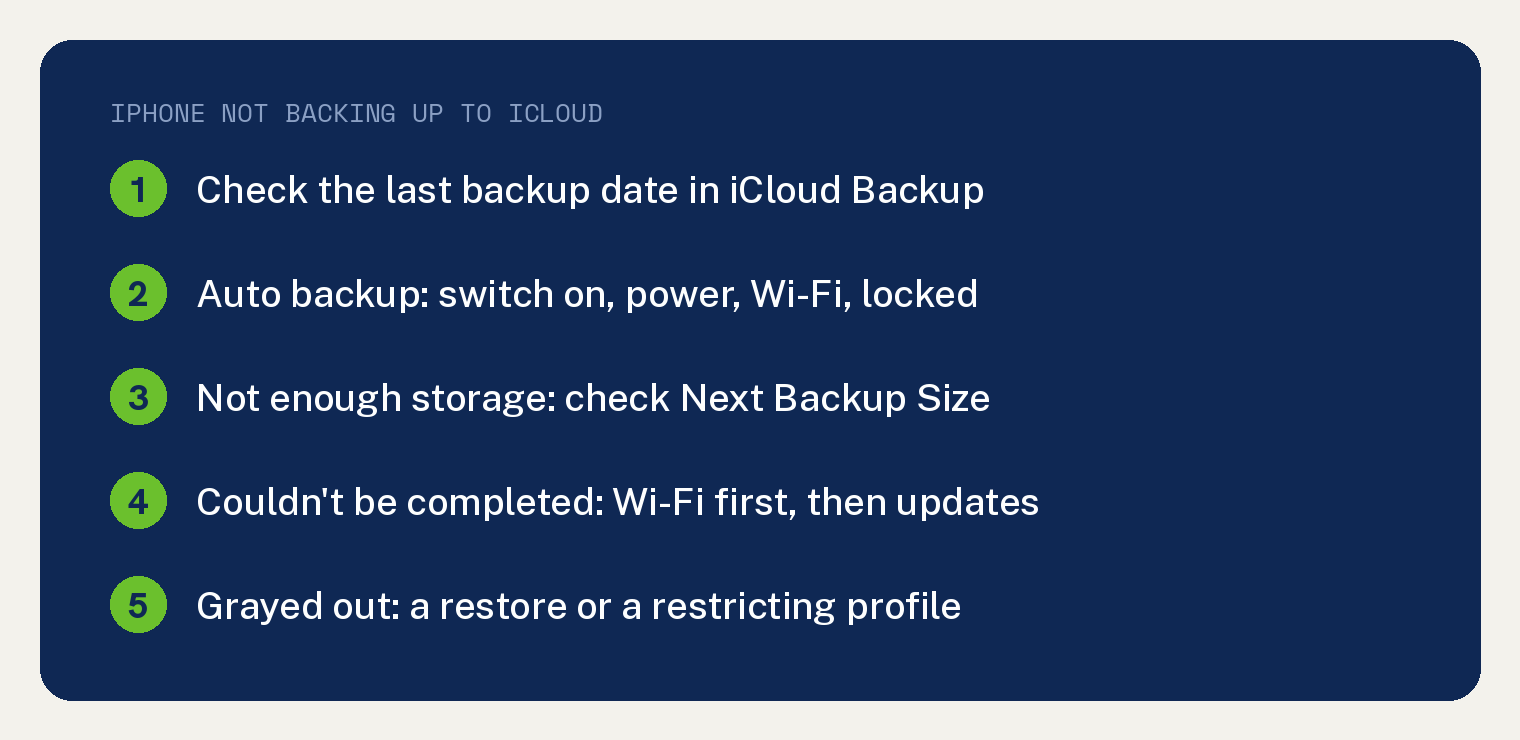
The steps below come from Apple’s If you can’t back up to iCloud page and its How to back up your iPhone or iPad with iCloud page. Both cover iPhone and iPad.
Which iCloud backup problem do you have?
Find what you see in the left column. The no message row comes from Apple’s How to back up page, and the other four rows come from its If you can’t back up page.
| What you see | First thing to check | Where Apple covers it |
|---|---|---|
| No alert, but the last backup date is old | Back Up This iPhone is on, plus power, Wi-Fi and a locked screen | How to back up page |
| An alert says there’s not enough iCloud storage | Next Backup Size | If you can’t back up page |
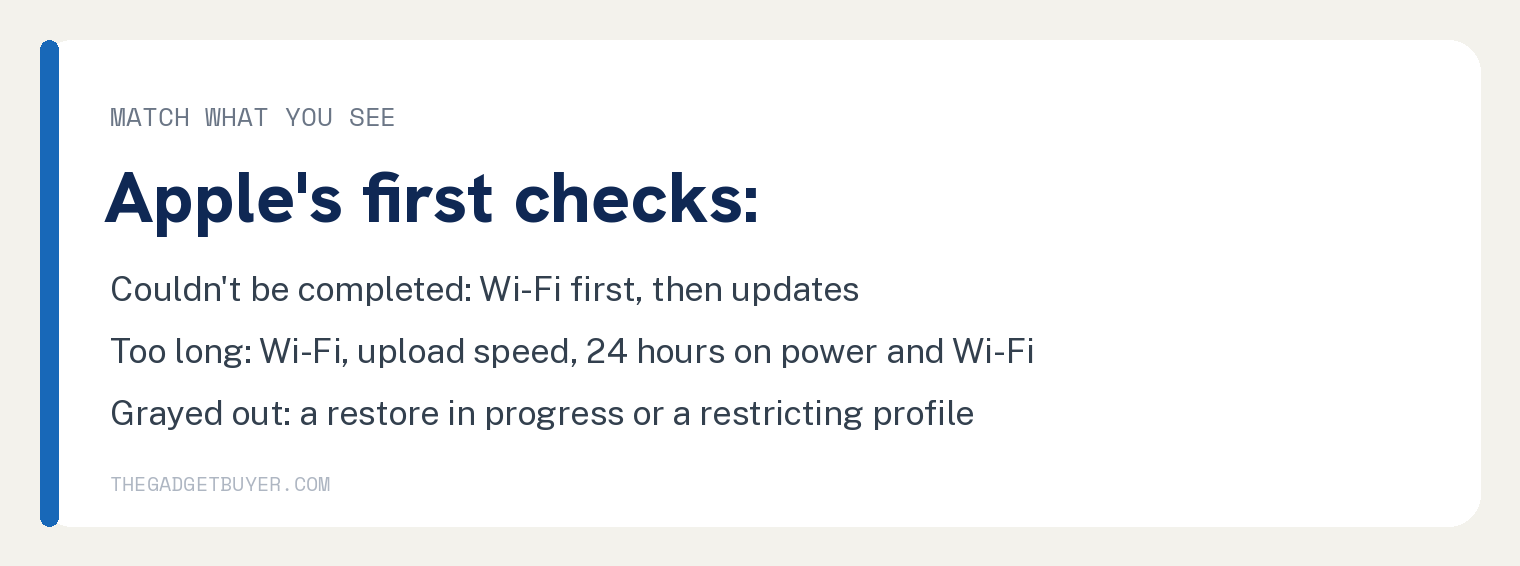
| A message says your last backup couldn’t be completed | Your Wi-Fi connection, then software updates | If you can’t back up page |
| The backup is taking longer than expected | Your Wi-Fi connection and upload speed | If you can’t back up page |
| The iCloud Backup option is grayed out | A restore still in progress, or a profile that restricts iCloud Backup | If you can’t back up page |
How do you check if your iPhone backed up to iCloud?
Look at the date of your last backup. Open the Settings app, tap your name, tap iCloud, then tap iCloud Backup.
Apple’s How to back up page says: “Under Back Up Now, the date and time of your last backup is shown.”
To test a backup right now, connect to Wi-Fi and tap Back Up Now. Stay connected to that Wi-Fi network until the process ends.
On a device with iOS 8 or earlier, Apple’s How to back up page sends you to a separate page instead.
Why won’t your iPhone back up to iCloud automatically?
Check these steps under Automatically back up with iCloud Backup, on Apple’s How to back up page:
- In Settings, tap your name, tap iCloud, then tap iCloud Backup. Turn on Back Up This iPhone.
- Connect your iPhone to a power source.
- Connect your iPhone to a Wi-Fi network.
- Make sure your iPhone’s screen is locked.
Plug the phone in on Wi-Fi and lock it. Then check the last backup date again later.
Apple’s iPhone User Guide says: “iCloud automatically backs up your iPhone daily when iPhone is connected to power, locked, and connected to Wi-Fi.”
The same guide says that on models that support 5G, “your carrier may give you the option to back up iPhone using your cellular network.” In iCloud Backup, the guide says to “turn Back Up Over Cellular on or off.”
What if it says there’s not enough iCloud storage?
Compare the size of your next backup with the space you have left. Four of the five steps on Apple’s If you can’t back up page find that size:
- Open the Settings app, then tap your name.
- Tap iCloud. Your used iCloud storage shows at the top.
- Tap Storage or Manage Account Storage.
- Tap Backups, then tap the device you’re using.
The If you can’t back up page notes: “Next Backup Size should show you the size of the next backup. It might take a few minutes for your device to calculate Next Backup Size.”
If the backup needs more space than you have, Apple gives two choices. You can “Delete information that you don’t need” to reduce the size of your backup, or “Upgrade your iCloud+ plan” to get more space.
To see what makes a backup large, read why your iPhone backup is so big and how to shrink it. If the phone itself is full after an upgrade, see iPhone storage full after upgrading iCloud.
Back up more than one iPhone to your account? See whether you can back up two iPhones to the same iCloud account.
How do you fix a backup that couldn’t be completed?
Start with your connection, then your software. Apple’s If you can’t back up page lists four steps for this message:
- Open the Settings app, then tap Wi-Fi to make sure that you’re connected to Wi-Fi.
- Open the Settings app, tap General, then tap Software Update. Download and install any available updates.
- Try to back up on another Wi-Fi network.
- Check that you have enough iCloud storage for the backup, using the steps in the not enough iCloud storage section.
If an update will not finish installing, see what to do when your iPhone is stuck on Preparing Update.
What if your iCloud backup is taking too long?
Give it time on power and Wi-Fi. Apple’s If you can’t back up page lists three steps for a backup taking longer than expected:
- Open the Settings app, then tap Wi-Fi to make sure that you’re connected to Wi-Fi.
- Check your upload speed.
- Leave your device connected to power and Wi-Fi for 24 hours.
Apple’s If you can’t back up page says: “If your backup still isn’t done, archive important data, then try these steps again.”
Not sure whether your home connection is the slow part? See how to tell if it’s your internet or your router.
Why is iCloud Backup grayed out?
Apple’s If you can’t back up page names two things to check when the iCloud Backup option is grayed out.
First, a restore may still be running. Open the Settings app, tap your name, tap iCloud, then tap iCloud Backup.
Apple’s If you can’t back up page says: “If your device is still being restored, you see “This [device] is currently being restored and will automatically back up when it is done.”” You can create a new backup after your device finishes restoring.
Second, check whether you installed a profile that restricts iCloud Backup. Open the Settings app, tap General, then tap VPN & Device Management to see a list of installed profiles.
What if your iPhone still won’t back up?
Check the last backup date in iCloud Backup after each fix, so you can see which one worked. Apple’s If you can’t back up page also links to its guide for when restore from iCloud backup failed, if a restore is your real problem.
Apple’s If you can’t back up page says: “Tell us more about what’s happening, and we’ll suggest what you can do next.” Get suggestions
Sources
- If you can’t back up to iCloud (Apple Support)
- How to back up your iPhone or iPad with iCloud (Apple Support)
- If restore from iCloud backup failed (Apple Support)
- Back up iPhone (iPhone User Guide)