
Find Out If It’s Your Internet or Your Router
Is it your internet or your router? Test one piece at a time: a second device first, then a restart of the modem and router, then a ping and a computer plugged straight into the modem.
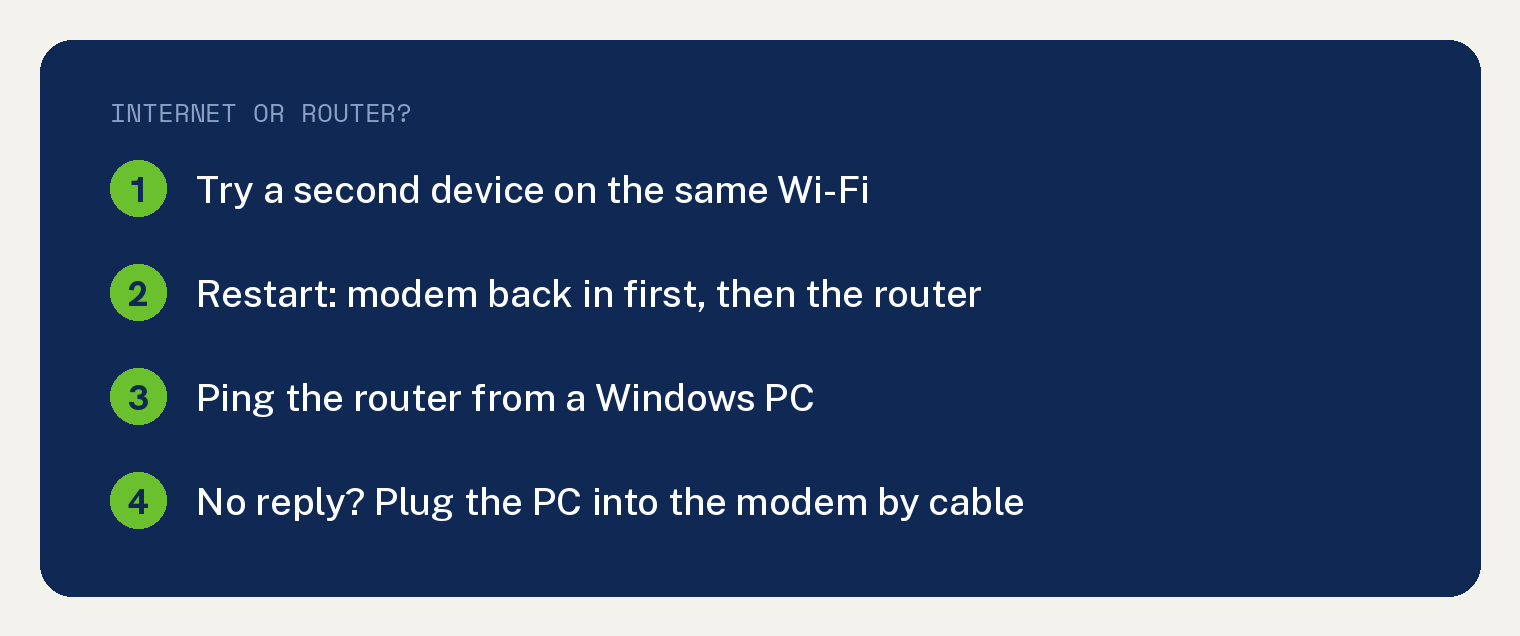
That last test is the one that names the router.
Microsoft’s Windows Wi-Fi page says: “If the results of the ping test indicate that you are not getting a reply from the router, try connecting your PC directly to your modem by using an Ethernet cable (if you can). If you can connect to the Internet using an Ethernet cable, it confirms the connection problem is due to the Wi-Fi router.”
Step 1: Try a second device
Connect a phone or another laptop to the same Wi-Fi. If it gets online, Microsoft’s page says “the source of the problem is likely due to your device.”
Sometimes the slow thing is the device itself. When the built in OS on my 2017 Sony Bravia turned painfully slow, I blamed my Wi-Fi first.
I reset my router and modem multiple times, and I even switched between the AT&T router and my custom mesh network router, hoping that would speed things up. In the end, it was the TV’s OS.
A Roku Streaming Stick 4K fixed it, and now it works great. If a TV is your slow device, see why your smart TV is so slow.
Step 2: Restart the modem and router, in order
Restarting helps create a new connection to your provider, and it temporarily disconnects everyone on your Wi-Fi. Microsoft’s Windows Wi-Fi page says: “The steps you take to restart your modem and router can vary, but here are the general steps.”
- Unplug the router’s power cable.
- Unplug the modem’s power cable. Some modems have a backup battery, so if the lights stay on, take the battery out.
- Wait at least 30 seconds or so.
- Put the battery back if you took it out, then plug the modem back in. Wait for its blinking lights to stop.
- Plug the router back in.
- Give both a few minutes to fully power on, then try to connect again.
If you have one modem and router combo box, Microsoft says “you only need to follow the steps for the single device.”
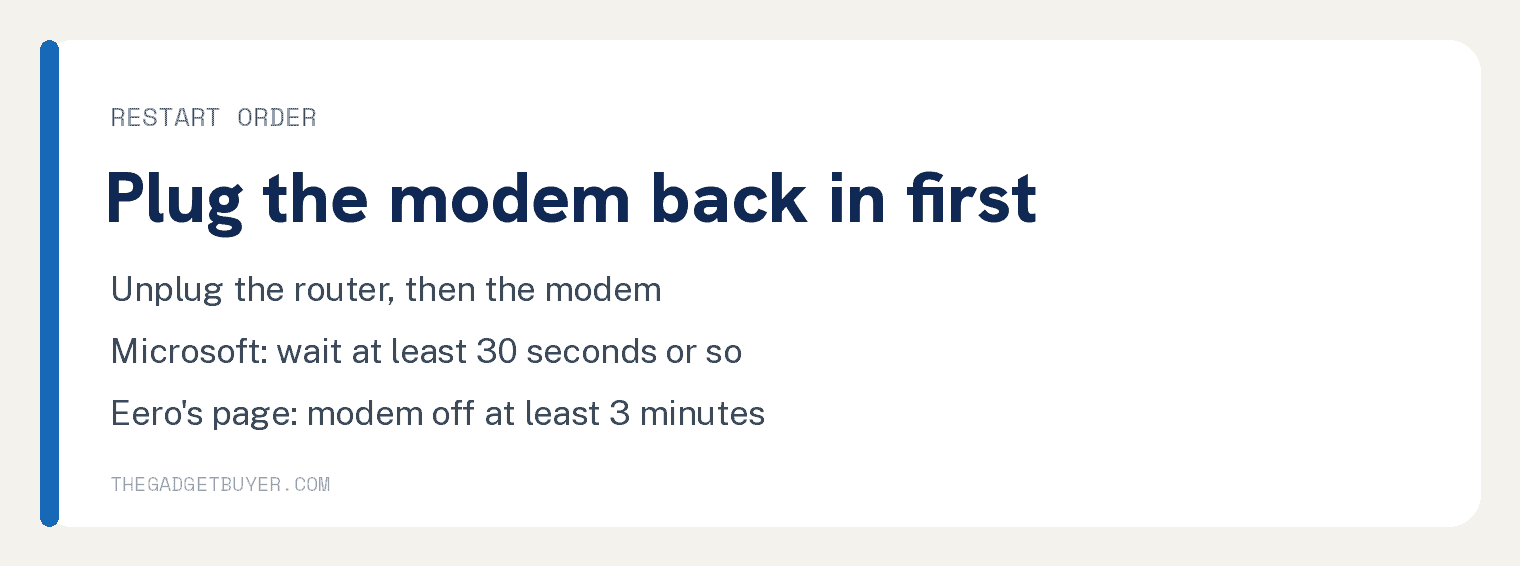
Eero’s offline page says to unplug the modem “for at least 3 minutes” and that it “may take 5-10 minutes to regain connectivity”.
Google’s Nest Wifi page says the modem “usually takes about 2 minutes” to come back, and its own Nest Wifi router “takes about one minute” after that.
Step 3: Ping the router, then try the cable
A ping test checks whether your computer can reach the router at all. Microsoft’s steps are written for a Windows PC:
- In the search box on the taskbar, type command prompt. To the right of Command Prompt, select Run as administrator, then Yes.
- Type ipconfig and press Enter. Find your Wi-Fi network in the results and write down the address next to Default gateway, for example 192.168.1.1.
- Type ping followed by that address, for example ping 192.168.1.1, and press Enter.
If you get replies, your computer reaches the router. Microsoft says “there might be a problem with your modem or ISP,” so go to the outage check in Step 4.
If you get no reply, plug the computer into the modem with an Ethernet cable, if you can. Getting online that way points at the router, and Microsoft’s next advice is to install the router’s latest firmware and check its documentation.
If the cable test fails too, or you have no Windows PC or Ethernet port to try it with, move on to Step 4.
Step 4: Check for an outage
Check your provider’s outage page from another device, such as your phone. Eero’s page says to check your ISP’s website for outage details, and Microsoft says to contact your ISP or check online on another device if you can.
If you call, Google’s network page lists questions to ask, starting with “Is there an internet service outage in my area?”
Step 5: Is your internet slow? Run a speed test
Google’s slow internet page says to test your internet speeds, and “If the results are less than you expected, contact your ISP”.
Your provider sets the speed coming into your home. Google says the ISP “controls the initial bandwidth and speed of the internet coming into your home,” and your speed could also be limited by your plan.
Google adds that your internet can be slow for a while when the provider is working on its network in your area or has made other changes.
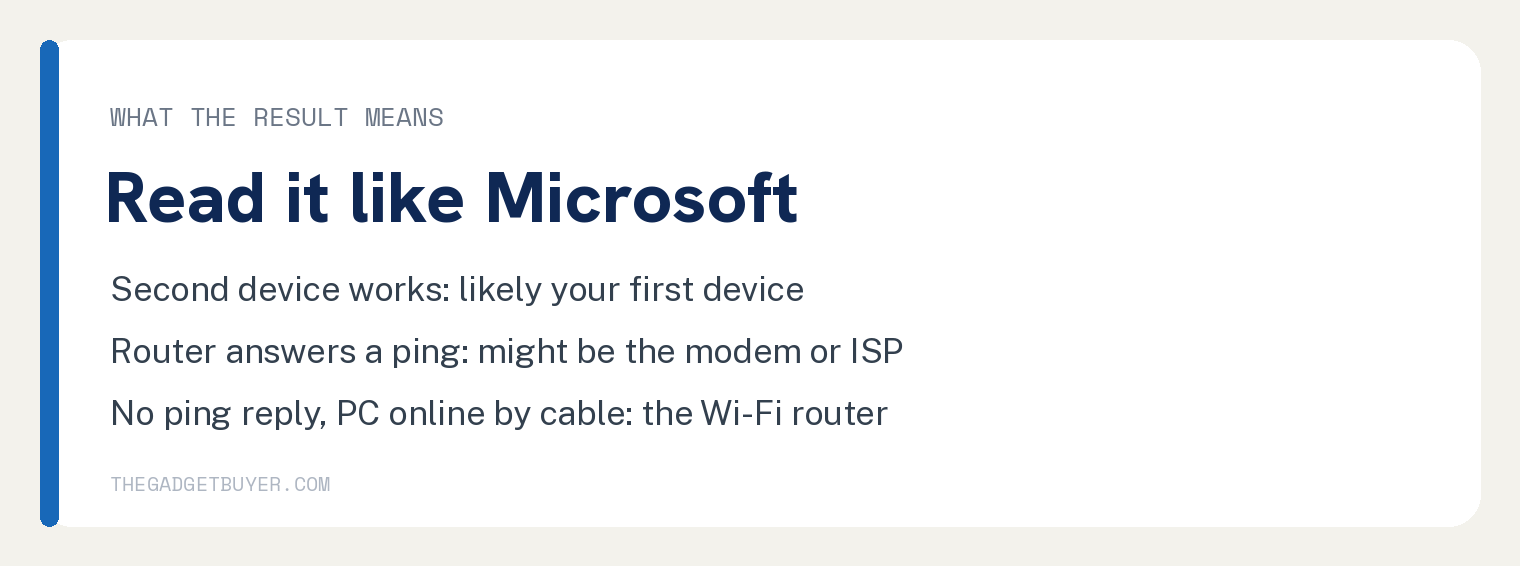
What each result tells you
| What you see | Where it points |
|---|---|
| A second device connects fine | Likely your first device, per Microsoft |
| The router answers a ping, the internet still fails | Might be the modem or the ISP, per Microsoft |
| No ping reply, then a computer on a cable from the modem gets online | The Wi-Fi router, per Microsoft |
| A speed test comes in under what you expected | Contact the ISP, per Google |
Check the cable between the modem and router
Google’s network page says “Connection issues can sometimes be caused by loose, disconnected, or damaged cables.” Eero says to try a different Ethernet cable and repeat its restart steps if its router still can’t connect.
For slow speeds, Google says “your internet speeds will be limited by the slowest component on your network.” Google recommends Cat 5e or Cat 6 cables for internet speeds faster than 100 Mbps.
Frequently asked questions
How do I know if my router is bad?
Ping it from a Windows PC. If there is no reply and the same computer gets online on a cable from the modem, Microsoft says that confirms the problem is the Wi-Fi router.
Should I restart the modem or the router first?
Bring the modem back first and let it finish starting up, then the router. Microsoft, Google’s Nest Wifi page and eero all put the modem back before the router.
How long should I leave the modem unplugged?
Microsoft says at least 30 seconds or so. Eero says at least 3 minutes for a modem on an eero network.
Google’s page “Troubleshoot slow internet on Google Nest Wifi or Google Wifi” says: “Unplug the power cable from the modem.” and “Wait 2 minutes.”
Does my provider control my speed?
Yes, for the speed coming into your home. Google says the ISP controls that, and your plan can limit it.
For provider steps, see Xfinity WiFi connected but no internet, T-Mobile Home Internet connected but no internet and why Verizon home internet is so slow. If the router keeps failing, do you need mesh WiFi or just a better router covers the next choice.