
iMessage Waiting for Activation on iPhone and What to Check
iMessage waiting for activation is one of the messages Apple says you might see while iMessage activates on your iPhone. Apple’s fix starts with three checks, your connection, your iOS version and your time zone, and then you turn iMessage and FaceTime off, restart your iPhone and turn both back on.
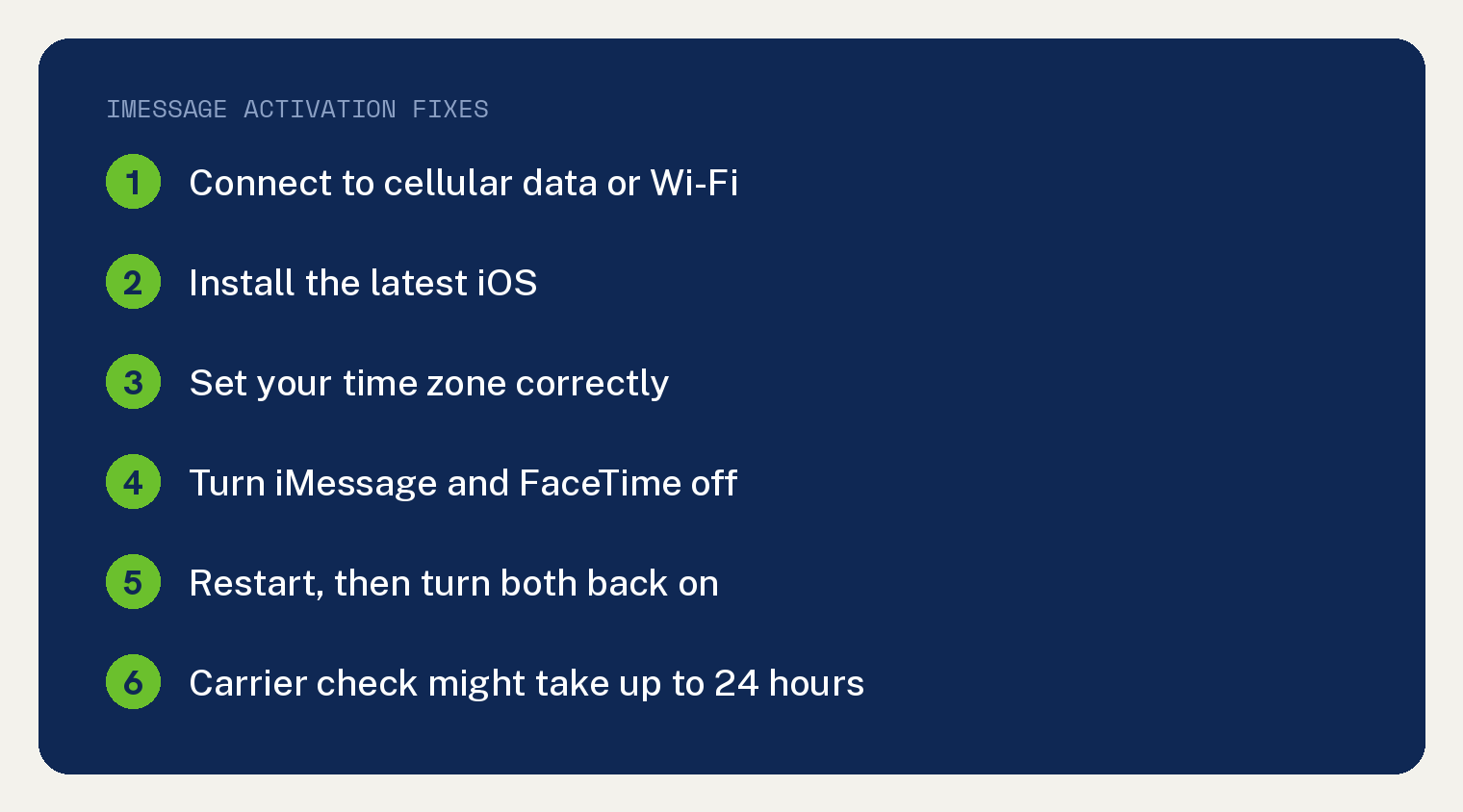
After that, give it time. If your phone number still has no check next to it in Settings, Apple says “It might take up to 24 hours for your carrier to verify your phone number with Apple.”
What does iMessage waiting for activation mean?
It shows up while your iPhone is activating iMessage. Apple says you need to activate iMessage on your iPhone before you can use it, and it lists Waiting for activation among five messages you might see during that step:
- Waiting for activation
- Activation unsuccessful
- An error occurred during activation
- Could not sign in, please check your network connection
- Unable to contact the iMessage server. Try again.
The same steps apply whichever of those messages you see. Apple’s page says “If you see an error message when you try to activate, follow these steps.”
Seeing the message on FaceTime instead? Read what waiting for activation means on FaceTime.
Which fix matches what you see on your iPhone?
Find the row that matches your screen, then go to that fix below.
| What you see | What Apple says to do |
|---|---|
| Waiting for activation, or another activation error | Check your connection, iOS and time zone, then turn iMessage and FaceTime off, restart and turn both back on |
| A spinning gear next to your phone number, with iMessage on | Leave iMessage on; your iPhone is trying to verify the number |
| No check next to your number after 24 hours | Ask your carrier whether you can send and receive international SMS |
| A new iPhone with iOS 26, eSIM set up later in Settings, and texts that fail, turn green or come from your email | Turn iMessage off and back on |
| A message saying the account is blocked due to reported spam | Try the online request; if no email comes back, Apple says the account is likely blocked |
The table is our own map of Apple’s page. Each fix in it comes from that page and is spelled out in the sections below.
What does your iPhone need before iMessage can activate?
Apple lists three checks to make before you sign in again.
- A connection. Connect to cellular data or Wi-Fi.
- Current software. Install the latest version of iOS. If that update hangs, see what to do when an iPhone is stuck on Preparing Update.
- The right time zone. Open the Settings app, tap General, then tap Date & Time and make sure your time zone is set correctly.
Your iPhone also needs SMS to activate your phone number with iMessage and FaceTime. That text might cost money. Apple says “Depending on your carrier, you might be charged for this SMS.”
If a prompt says “Your network provider may charge for SMS messages used to activate iMessage and FaceTime”, tap Turn On to allow possible SMS charges.
How do you turn iMessage and FaceTime off and back on?
Switch both off, restart, then switch both back on. These are Apple’s six steps:
- In the Settings app, tap Apps.
- Tap Messages, then turn off iMessage.
- Go to Settings, then tap Apps again.
- Tap FaceTime, then turn off FaceTime.
- Restart your iPhone.
- Turn iMessage and FaceTime back on.
The restart buttons depend on your model, and Apple’s restart page splits them by iPhone model. On every model, Apple says to “Drag the slider, then wait 30 seconds for your device to turn off.”
Why is there a spinning gear next to your phone number?
The gear means your iPhone is still trying to verify your number, so leave iMessage on. Apple says that when iMessage is on and the gear appears, “your device automatically attempts to verify your phone number. There is no need to repeatedly turn iMessage off and on.”
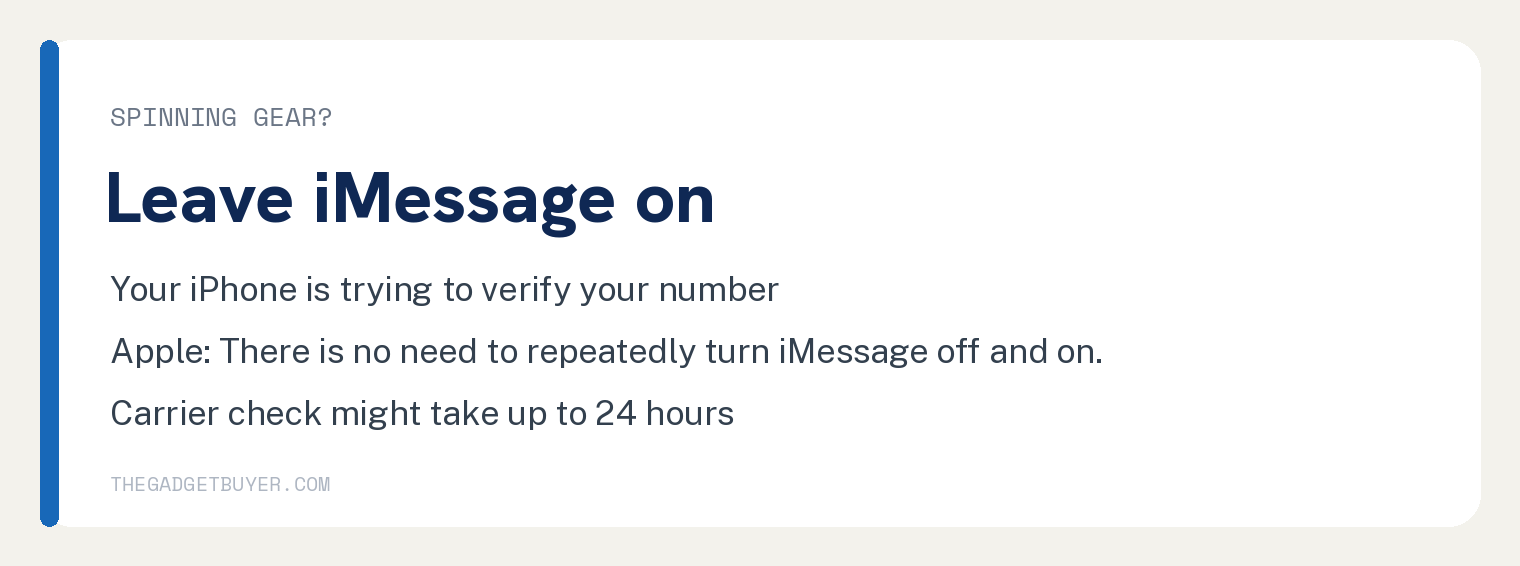
So run the off and on steps once, then wait. Apple’s page says to “wait up to 24 hours after you try the troubleshooting steps above.”
What if your number still has no check after 24 hours?
Contact your carrier. Apple says to “Contact your carrier to make sure that you can send and receive international SMS messages and wait up to 24 hours after you try the troubleshooting steps above.”
Can you activate iMessage online?
Apple’s iMessage and FaceTime activation page gives an online route in three steps:
- Go to apple.co/IMFT-mac.
- Under Enable Apple Account, tap Get Started.
- Sign in to your Apple Account and follow the onscreen instructions. If you use a phone number with FaceTime and iMessage, make sure to enter that phone number.
Then watch your inbox. Apple says “You will receive an email if your account is ready for iMessage and FaceTime use.”
Can you use iMessage with an email address instead?
Yes. Apple says “You can also use your email address with iMessage and FaceTime.”
First sign in to your Apple Account and review the email addresses on file, including the one you’re trying to verify. Update any address that is wrong, then click Resend next to the address you want to verify.
Then choose that address in Messages. Open the Settings app, tap Apps, tap Messages, then tap Send & Receive and choose your email address.
Using both your number and your email can split your chats. Apple says “you might start or receive separate conversation threads with the same contacts.”
Why didn’t iMessage turn on after you set up an eSIM on iOS 26?
Turn iMessage off and back on yourself. Apple says “iMessage does not activate automatically after you set up an eSIM in Settings later.”
This applies when you set up a new iPhone with iOS 26 and did not activate iMessage or your eSIM during setup. The fix is in the Settings app: tap Apps, tap Messages, then turn iMessage off and back on.
Until then, Apple says “Your messages might cause a Not Delivered alert, appear as SMS/RCS messages in green bubbles, or come from your email address instead of a phone number.” For more on green bubbles, see why texts turn from blue to green on an iPhone.
What if your iMessage account is blocked?
Look for one of two error messages. If you still can’t sign in, Apple says you might see “An error occurred while activating iMessage or FaceTime” with a Get Help button, or “iMessage or FaceTime Activation Failed. This account is blocked due to reported spam.”
Then check your inbox after the online request above. If no email arrives, Apple says “your account is likely blocked from iMessage and FaceTime and a request to remove the block was not approved.”
Texting might still work. Apple says “You might still be able to send and receive SMS, MMS, or RCS messages if you use an iPhone with a cellular plan and you turn off iMessage.”
Apple adds that “You might also be able to use iMessage or FaceTime with your email address instead of your phone number.” The email steps are in the section above, and we also explain how to turn off text messages on an iPhone.
Sources
- If you can’t turn on or sign in to iMessage or FaceTime on your iPhone (Apple Support)
- Restart your iPhone (Apple Support)