
Samsung TV Screen Mirroring Not Working: Galaxy Fixes
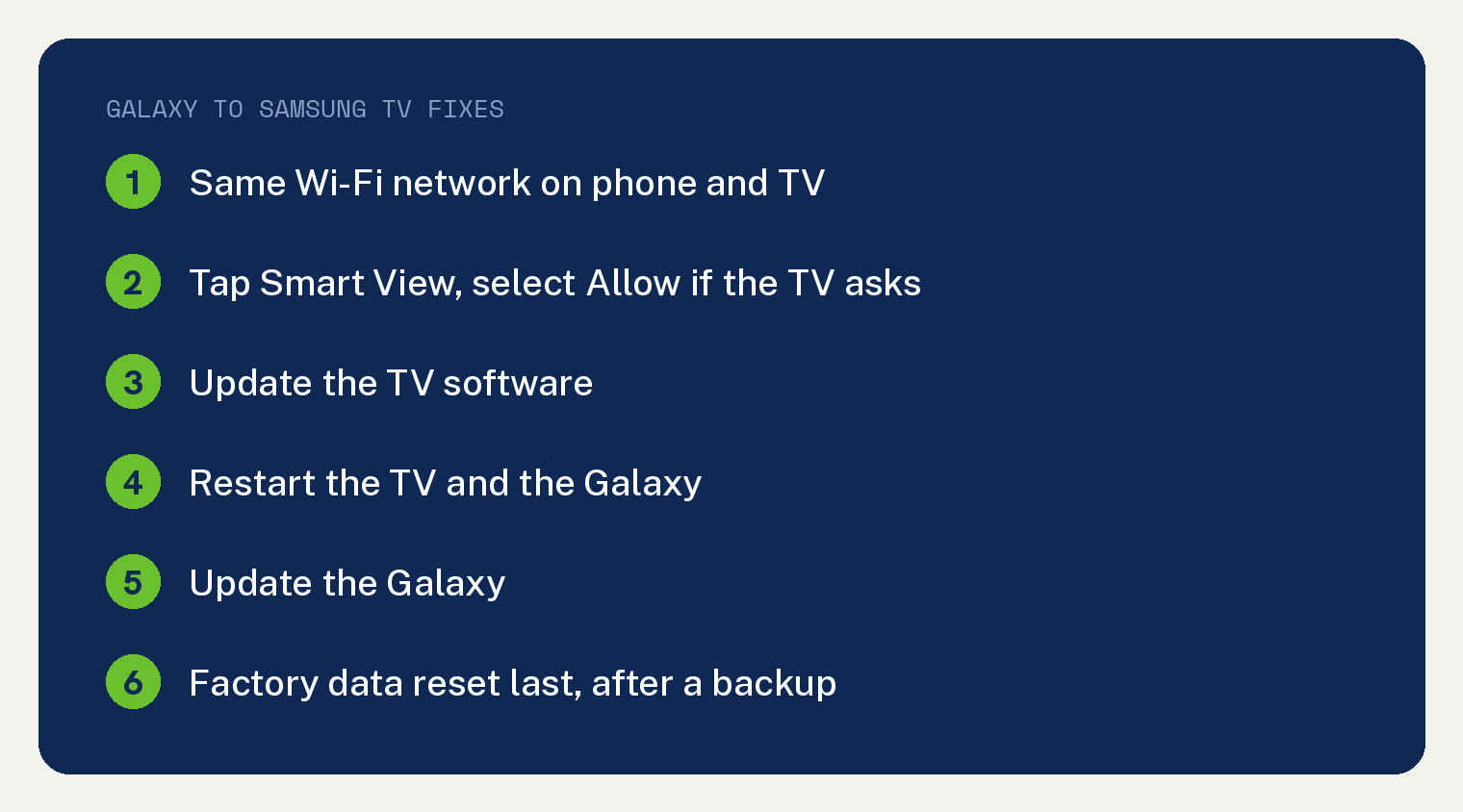
Samsung TV screen mirroring not working from your Galaxy phone or tablet? Put the phone and the TV on the same Wi-Fi network, then start Smart View and select Allow on the TV if it asks.
If it still fails, restart both. Samsung’s Galaxy guide says “restarting or rebooting your device will usually solve the issue.”
The steps below come from two Samsung pages: its Galaxy Smart View troubleshooting guide and its Screen mirroring to your Samsung TV page. They are written for a Galaxy phone or tablet using Smart View.
What Smart View needs before it can mirror
Your Galaxy needs Android 4.3 or above, and the TV needs Miracast. Samsung says Smart View “can be used with Galaxy phones and tablets running Android 4.3 or above and with devices that support Miracast wireless display technology.”
Samsung adds that Miracast “is built into most newer Samsung smart TVs.” Both devices also have to share a network: “Devices must be on the same Wi-Fi network as the TV for screen mirroring.”
Look for Smart View in Quick settings. Samsung says it “is located in the Quick settings panel.”
The Galaxy guide also warns that “Smart View screen mirroring is not available on all devices.” It adds that “DRM-protected contents cannot be mirrored.”
Fix Samsung TV screen mirroring in this order
This order is ours, and it keeps the factory data reset for last because that step erases the phone.
Samsung also notes that “Available screens and settings may vary by wireless service provider, software version, and device model.”
- Put both on the same network. On the Galaxy, swipe down from the top right to open Quick settings, then touch and hold the Wi-Fi icon. “Here you can check if it’s connected to the right network and can change it if needed.” Make sure the TV is on and on that same Wi-Fi network. If a VPN setting error appears, disconnect from your VPN. If the TV keeps dropping its connection, see our fix for a Samsung TV that keeps disconnecting from WiFi.
- Start Smart View and allow it on the TV. Open Quick settings, tap Smart View, pick your TV from Available devices, then tap Start now. “If prompted, enter a PIN or allow access to complete the connection.” If the TV asks for permission, select Allow on the TV.
- Update the TV. Samsung says “Make sure your TV’s software is up-to-date.” On a Samsung TV, check for updates from the Settings menu. Samsung adds, “Consult your manufacturer if you have another brand of TV.”
- Restart the TV and the phone. On “Most Samsung TVs”, press and hold the Power button on the remote until the Samsung logo appears, or unplug the AC power cord and plug it back in. On the Galaxy, press and hold the Side button and Volume down button until the power menu appears, then tap Restart and Restart again.
- Update the Galaxy. Open Settings, then tap Software update or System updates. “It will vary between models.” Tap Download and install or Check for software updates. The phone has to be online and “charged to at least 50% before installing a software update.”
- Factory data reset, last. Samsung’s tips say “If the problem persists, perform a factory data reset on the phone or tablet.” Back up first. Samsung warns, “All your data will be erased.” You may need your Samsung account password or Lock screen password, and “If you have encrypted your SD card, it must be decrypted before resetting your device.” Keep the phone on the wall charger, since the reset “may take up to an hour.” Then open Settings, search for Factory data reset, tap Factory data reset again, and tap Reset.
Still stuck after the reset? Samsung’s guide says: “If you are still encountering any issues, please visit a Samsung walk-in service center or you can schedule a repair service online.”
Why doesn’t my Samsung TV show up in Smart View?
Check that the TV is on and joined to the same Wi-Fi network as your phone. Then check the TV itself, since Samsung says “Some TVs may require you to switch inputs or turn on screen mirroring.”
Samsung’s page points you to “Check your TV’s user manual for specific details.” If the TV will not join Wi-Fi at all, start with how to connect a Samsung TV to WiFi.
How do I stop my Samsung TV asking to Allow every time?
Turn off Access Notification on the TV. Samsung says “On a Samsung TV, you can bypass allowing permission for your device to access your TV.”
Go to All Settings, then Connections, then External Device Manager. Open Device Connect Manager, select Access Notification, and set it to Off.
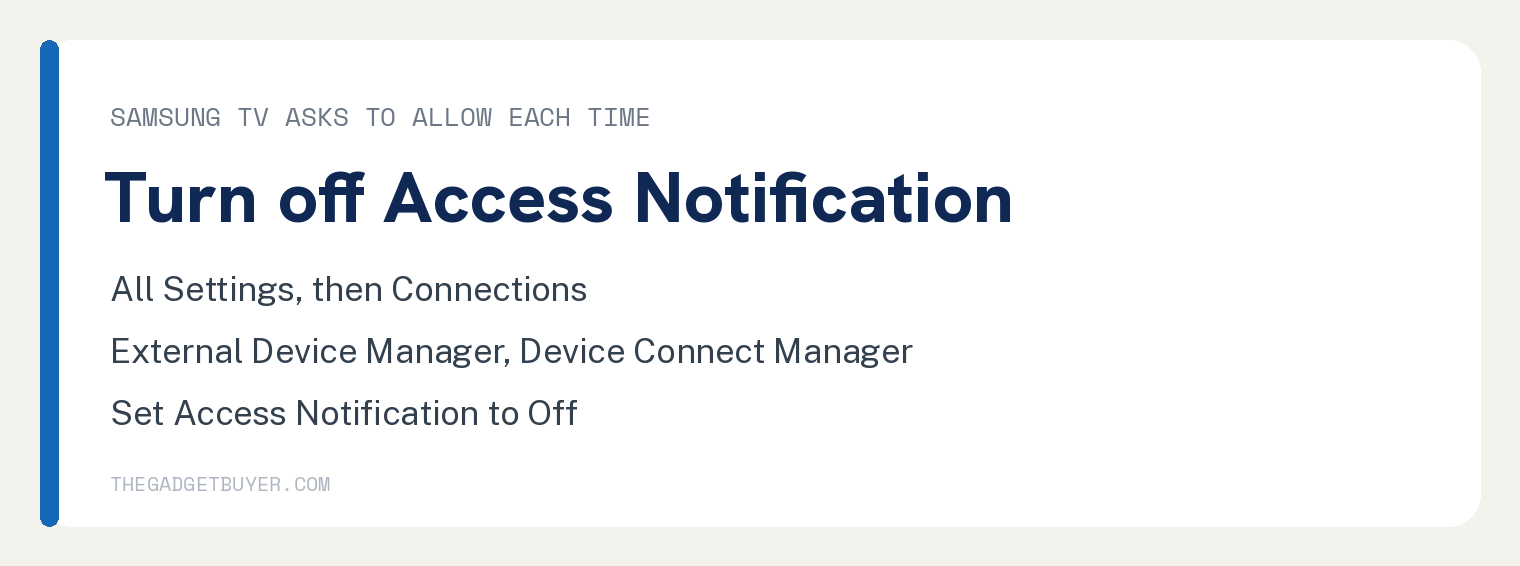
With it off, Samsung says the TV will “automatically connect with the device when using Smart View.”
Why does my phone screen look small on the TV?
Change the aspect ratio inside Smart View. Samsung’s two pages name that menu differently, so look for either label.
The Galaxy guide says to tap the blue Smart View icon, then “Phone or tablet aspect ratio.” The mirroring page says to tap the Smart View icon, then More options, Settings, and “Phone aspect ratio.”
Samsung’s mirroring page adds that “Most TVs will look best with a 16:9 aspect ratio.”
What if my phone screen keeps turning off while mirroring?
Give the phone a longer screen timeout. Samsung’s tip is “From Settings, search for and select Screen timeout.” Then “adjust the settings so your phone or tablet stays on for longer.”
Can you mirror from the SmartThings app instead?
Yes, when the TV is on and connected to your SmartThings account. Open SmartThings, select the TV, tap More options (the three vertical dots), then tap Mirror screen (Smart View) and Start now.
Then “Give your TV permission to access your device, if needed.”
Do these steps work from an iPhone?
No. Smart View is the Galaxy feature, and Samsung’s mirroring page says “For iPhones, the screen mirroring feature is called AirPlay”.
Samsung says AirPlay 2 is available on “select Samsung TV models” from 2018 to 2025, with the iPhone on the same Wi-Fi network as the TV. Its AirPlay 2 streaming page has the iPhone steps.
If apps on the TV will not open at all, see our fix for Samsung TV apps not loading.
Sources
- Galaxy phone or tablet Smart View or Screen Mirror issues (Samsung US Support)
- Screen mirroring to your Samsung TV (Samsung US Support)
- How to stream from an iPhone using AirPlay 2 (Samsung US Support)