
Samsung TV Keeps Disconnecting From WiFi: Samsung’s 8 Steps
When a Samsung TV keeps disconnecting from WiFi, Samsung’s own order for a bad connection has eight steps, and the first one is to disconnect the other devices on your network to see if the TV improves. Samsung’s page never prints the phrase keeps disconnecting; its section for a set that connects and then performs badly is “TV connects to Wi-Fi, but has a bad connection”, and it ends with Samsung’s own line that the TV does not need service.
This article is that section in Samsung’s order. Three fixes, a network reset, a manual DNS server and a firmware update by USB, sit in a different section of the same page, and this article says where.
Why does a Samsung TV keep dropping WiFi?
In its bad connection section, Samsung ties a connection that will not stay stable to signal: “If the TV is far away from the router or if there are obstacles in the way, it’s possible that the signal is strong enough to connect to but not strong enough to maintain a stable connection.”
Samsung names two more causes in its first step, both about load. If disconnecting other devices makes the TV improve, Samsung says it may mean “You have more connected devices than your router can handle” or that you are using all the bandwidth your ISP provides and “may need to upgrade your service plan with your provider.”
Samsung’s eight steps for a bad connection
These follow Samsung’s eight step headings for the bad connection section, in Samsung’s order. The menu paths are Samsung’s; under the network path Samsung notes you “may need to open General settings and then select Network on some TV models.”
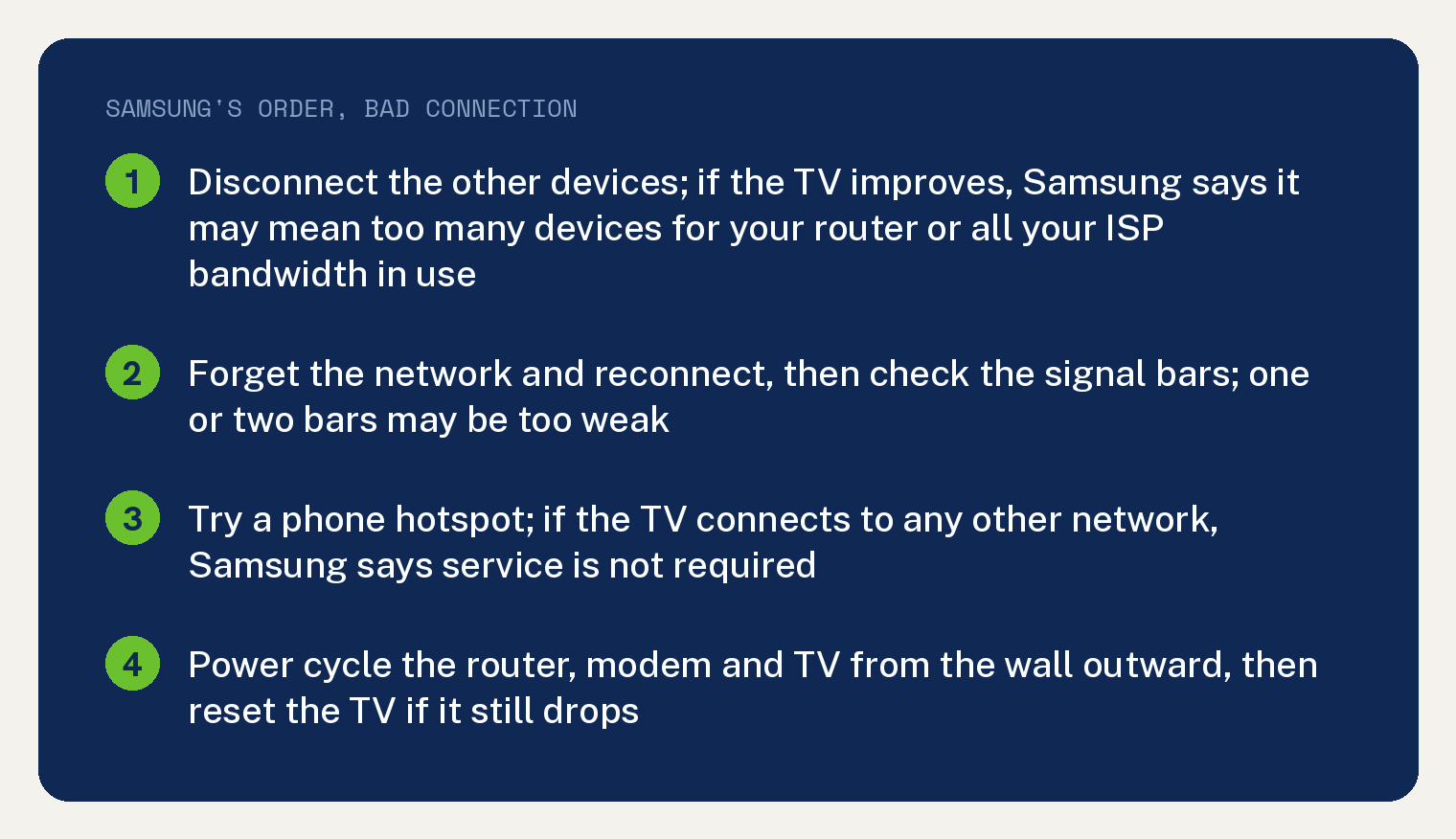
- Disconnect other devices. Check whether phones, tablets, game consoles, computers, laptops and smart appliances on the same network also have a bad connection, then try disconnecting all of them. If the TV improves, Samsung’s two meanings above apply.
- Forget the network and reconnect. Go to All Settings, Connection, Network, Open Network Settings, select Wireless, scroll to the bottom of the list, select Manage Saved Networks, pick the network and select Delete, then reconnect from the Wireless page.
- Check the signal strength. Samsung: “If it is only one or two bars, the signal may be too weak for the TV to effectively connect to the internet.” The fix Samsung gives is to move the router and TV closer, or add something like a repeater.
- Check the router’s bandwidth allocation settings. Samsung’s rule: “if your TV had a good connection but the connection became faulty immediately after changing the settings on your router, then the change is likely the cause of the issue.” Samsung says you may need to revert the settings.
- Try a different network. Samsung: “If you have a phone with hotspot capabilities, have it create a network and try to connect the TV to the hotspot.”
- Power cycle the network equipment. Samsung: “Unplug every network-related device (router, modem, etc.), and the TV.” Then plug them back in one at a time, starting at the wall, and let each finish booting before the next.
- Reset the TV. Go to All Settings, General (or General and Privacy), Reset, and enter your PIN; Samsung says the default is 0000.
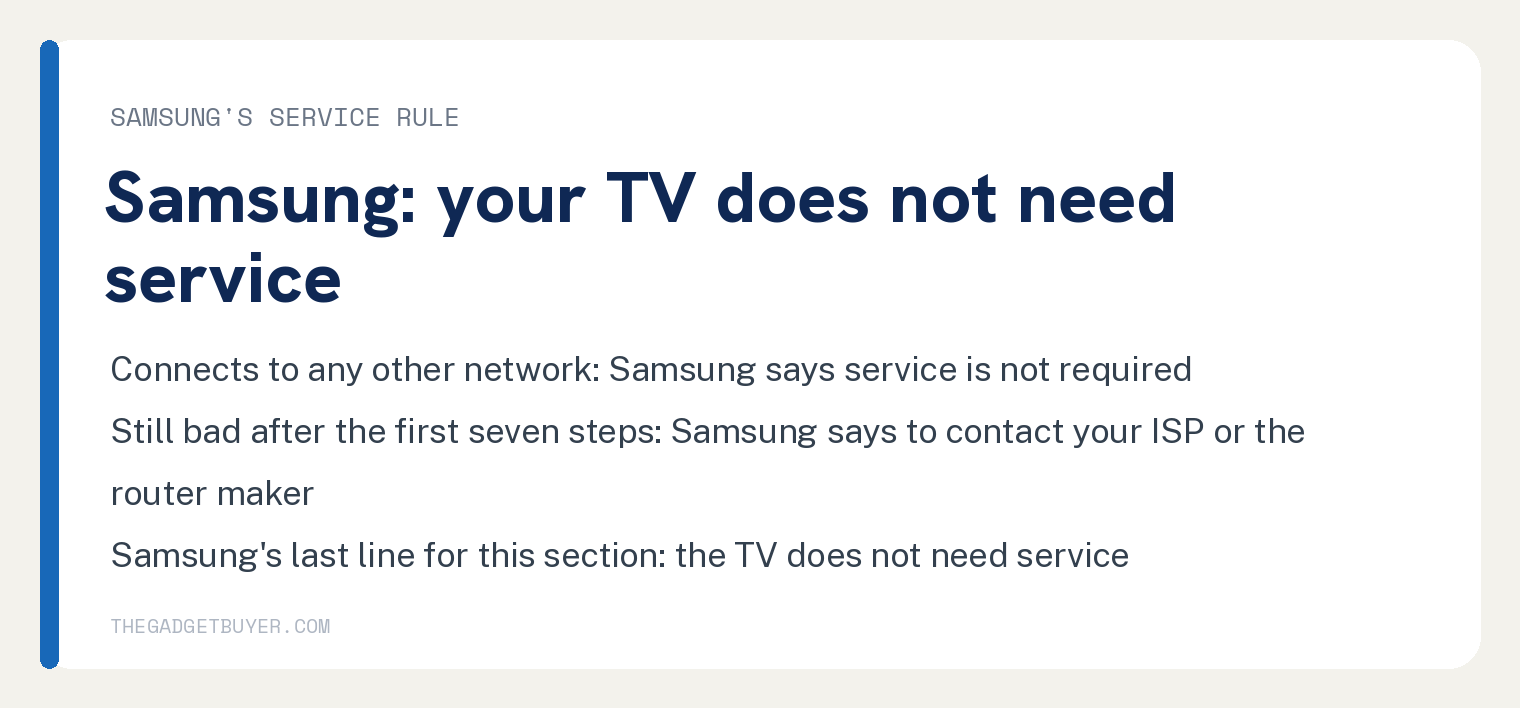
- Contact your ISP or the router maker. Samsung’s last line for this section: “Your TV does not need service.”
Does a Samsung TV that drops WiFi need service?
Samsung’s rule sits in step 5: “If the TV can connect to any other network, service is not required, and the issue is with the original network.” Step 8 closes the section the same way, with the line that the TV does not need service.
Router settings are the job of the ISP or the router maker in Samsung’s words: “If at any point you need assistance with configuring settings on your router, contact your ISP or the manufacturer of the router.”
Where are the network reset, DNS and firmware steps?
Samsung prints them in its section “TV will not connect to my Wi-Fi”, and this article labels them as that section’s steps.
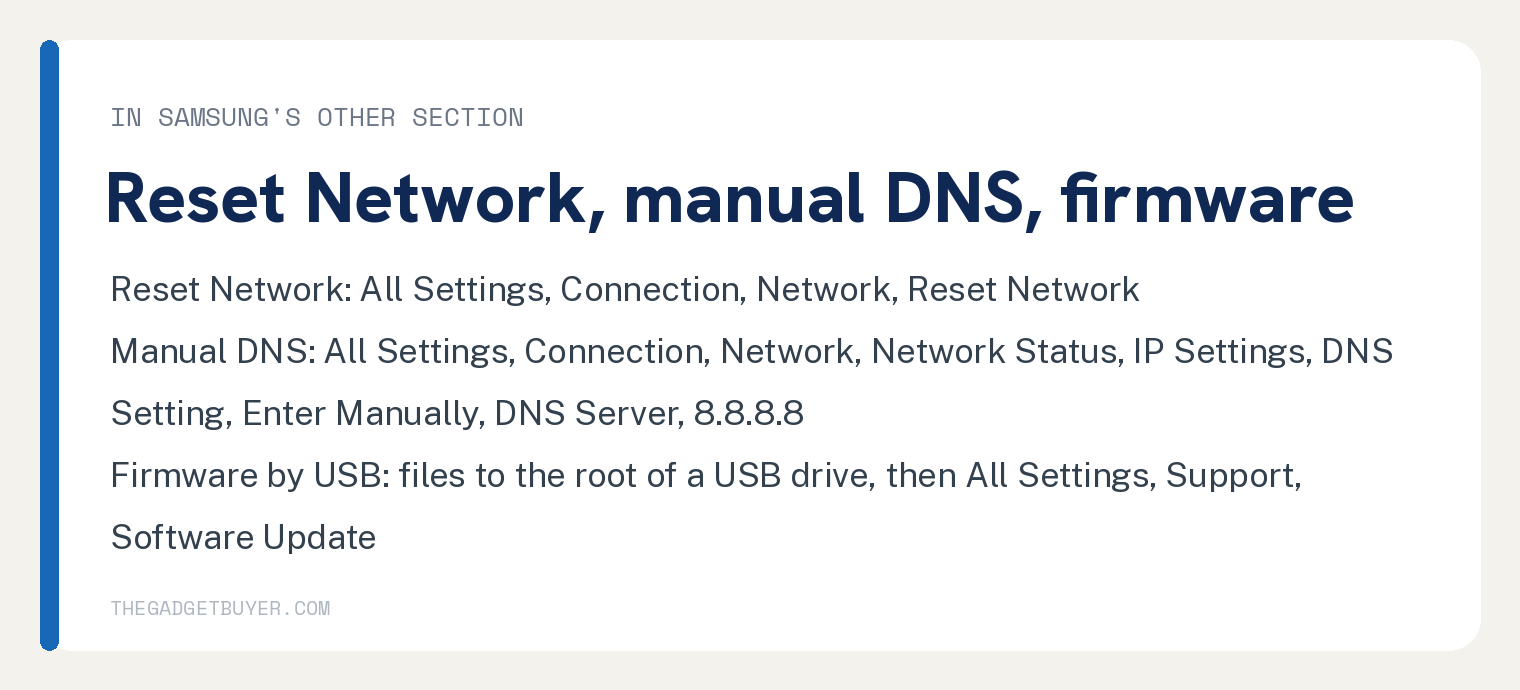
Network reset: “Reset the network on your TV.” The path Samsung gives is All Settings, Connection, Network, Reset Network, then connect again.
Manual DNS: Samsung’s step is “Try setting a manual DNS server.” and the value it prints is “Enter 8.8.8.8 and then try connecting again.” The path runs through Network Status, IP Settings, DNS Setting, Enter Manually, then DNS Server. Under that path Samsung notes you “may need to open General settings and then select Network on some models.”
Firmware: Samsung’s step is “Update your TV’s firmware using a USB device.” with the files extracted to the root of a USB drive and the update started from All Settings, Support, Software Update. Samsung’s last line for that step: “Wait for the TV to reboot and turn back on before removing the USB.”
Frequently asked questions
Should I switch the TV to 2.4GHz or 5GHz?
Samsung’s page prints no band switch step. In its does not see section, Samsung names models that cannot see 5GHz at all: “As an example, certain 2018 models (NU6***, NU71**, NU72**, and NU73**) only support 2.4Ghz networks.” Samsung adds: “They cannot detect or connect to a 5Ghz network.”
Is SmartThings, Anynet+ or a power saving setting dropping the connection?
Samsung’s WiFi page prints no SmartThings, HDMI CEC or power saving step. Its eight steps for a bad connection are the list above.
The WiFi dropped right after I changed a router setting. What does Samsung say?
Change it back. Samsung’s note in its will not connect section: “If your TV was previously connected to your network but lost connection immediately after a change to the settings on your router, then the change to your settings is likely the cause of the issue and should be changed back.”
Can I use a wired connection instead?
Samsung’s page has a fourth section, “TV will not connect to my wired network”, with 11 steps of its own. See also our guide to connecting a Samsung TV to WiFi without an adapter and our guide to using an iPhone hotspot with a Samsung TV. Apps that will not load on a connected set are a different problem; see our guide to Samsung TV apps not loading.