
What a T-Mobile Gateway Red Light Means on the Askey
A T-Mobile gateway red light on the Askey LTE Wi-Fi Gateway means something different on each of its four lights. On that model, a red battery light is normal, and red on the power, Wi-Fi or LTE light points to an error.
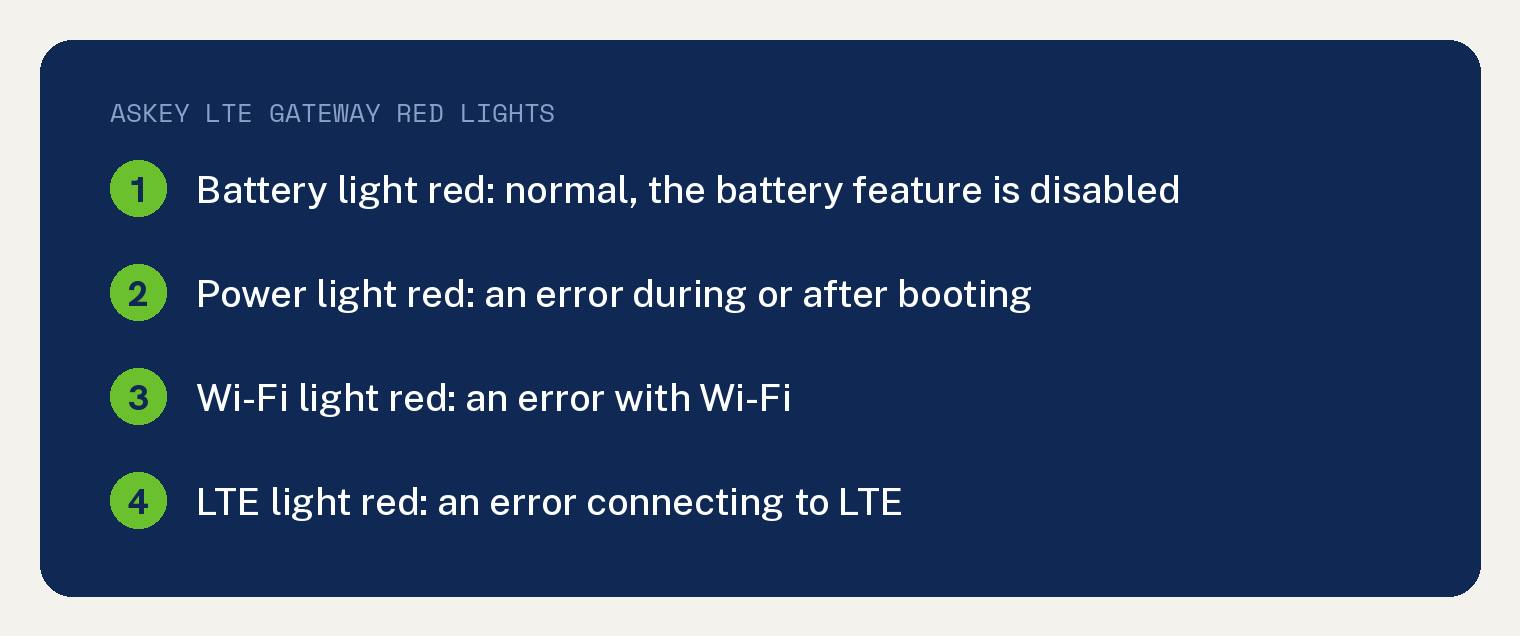
T-Mobile’s Askey gateway page says the battery feature is disabled and the battery “Light will always show red.” Flashing red on the front light, after you press the LTE button, means “Weak LTE signal.”
Each red light on the Askey gateway, with our first check
T-Mobile describes one front light for power and three top lights for battery, Wi-Fi and LTE on this gateway. The red meanings below are quoted from T-Mobile’s Askey page.
The last column is our own pairing of each light with a step or screen from that same page.
| Askey light | T-Mobile’s meaning | Our first check |
|---|---|---|
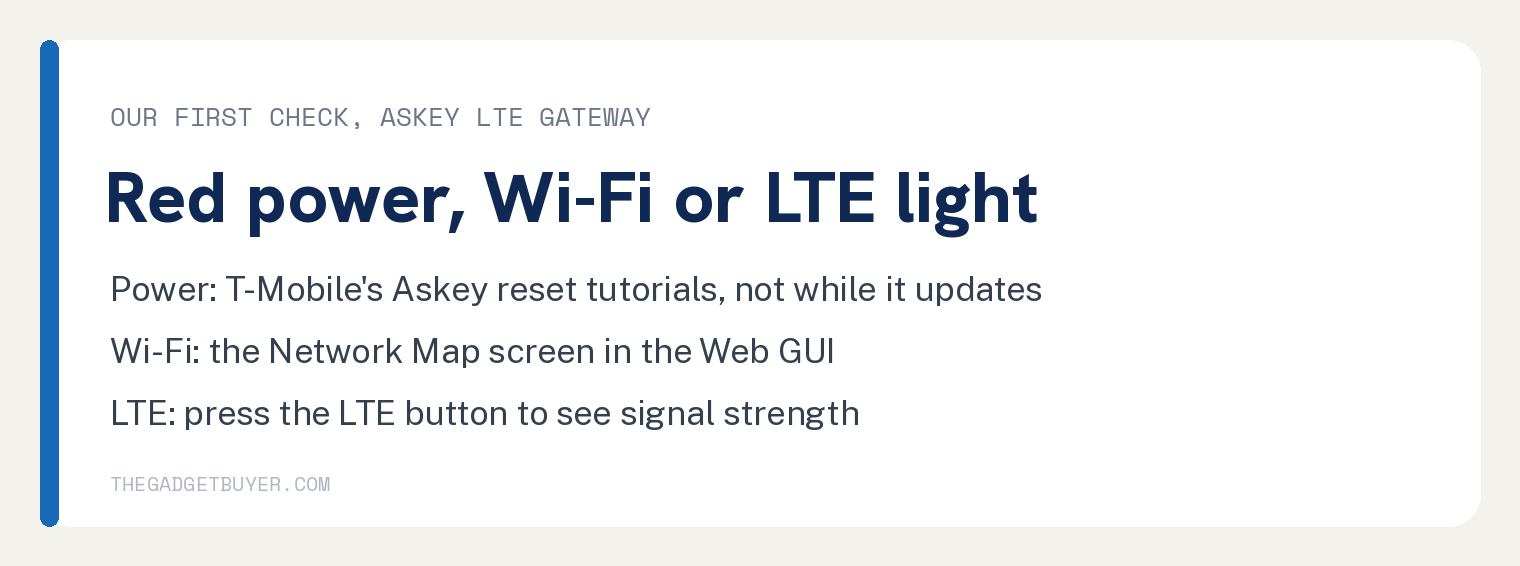
| Power (front), red | “There was an error during or after booting” | T-Mobile’s Askey reset tutorials, outside the update window |
| Battery (top 1), red | “Light will always show red” | Nothing to fix |
| Wi-Fi (top 2), red | “There is an error with Wi-Fi” | Network Map in the Web GUI |
| LTE (top 3), red | “There is an error connecting to LTE” | Press the LTE button |
| Front, flashing red after the LTE button | “Weak LTE signal” | Signal strength on the Web GUI Status screen |
Why is the battery light red on the Askey gateway?
A red battery light on the Askey gateway is normal and needs no fix. T-Mobile’s Tech Specs for this gateway list the battery as “Disabled. Light will always show red.”
Red LTE light or flashing red: check the signal
A red LTE light on the Askey gateway means “There is an error connecting to LTE.” The first check we suggest is the signal.
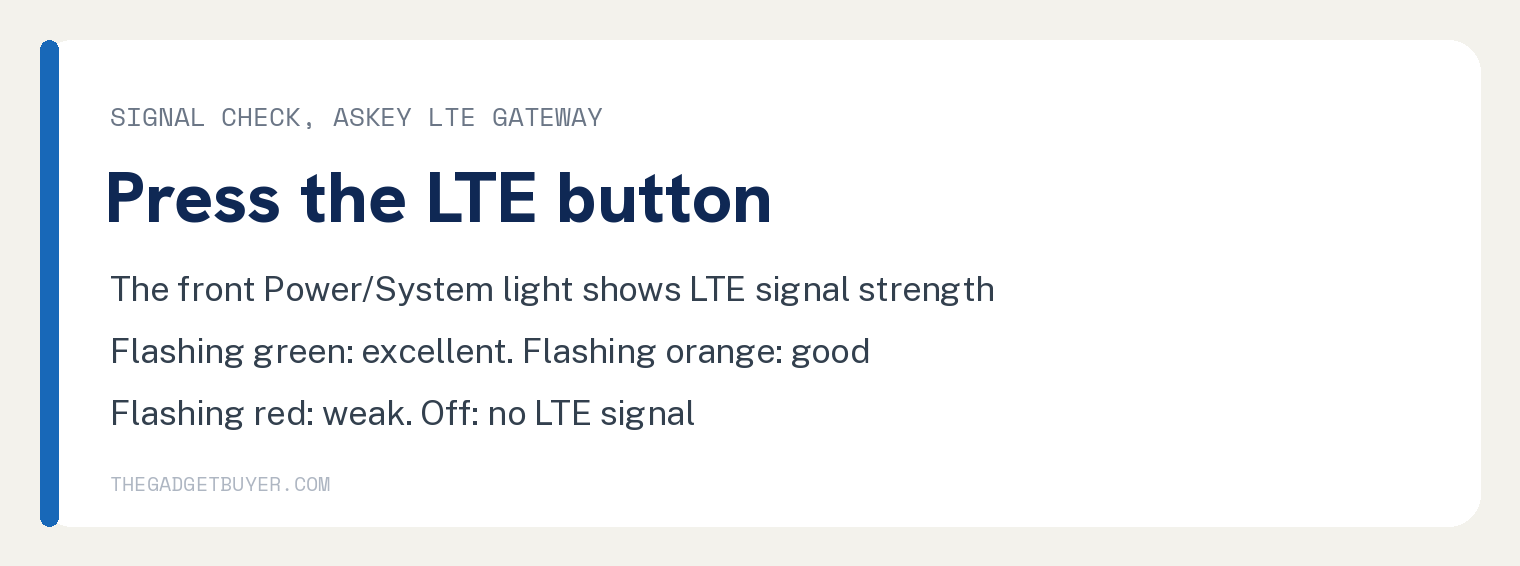
Press the LTE button on the front of the gateway. T-Mobile says “the LTE signal strength will display on the Power/System LED.”
Read the front light against T-Mobile’s four signal states for this model:
| Front light after the LTE button | Signal |
|---|---|
| Flashing green | “Excellent LTE signal” |
| Flashing orange | “Good LTE signal” |
| Flashing red | “Weak LTE signal” |
| Off | “No LTE signal” |
For a second look, connect a device to the gateway by Wi-Fi or Ethernet and log in to the Web GUI at https://192.168.12.1. Open Basic, then Network, then Status, which lists “Signal strength and SIM status for the LTE connection.”
If the LTE light stays red, our next stop is T-Mobile’s Troubleshooting guides, linked from the Need help? box on its Askey page.
Red Wi-Fi light: how to check it in the Web GUI
A red Wi-Fi light on the Askey gateway means “There is an error with Wi-Fi.” Green means Wi-Fi is on, and an unlit Wi-Fi light means Wi-Fi is off.
Connect a device to the gateway by Wi-Fi or Ethernet, open a web browser and go to https://192.168.12.1 to log in.
For devices bought before December 31, 2019, the default username and password is admin. For devices bought after that date, “the default password will match the Wi-Fi Password on the label.”
Open Basic, then Network, then Network Map to see the Internet, Ethernet and Wi-Fi connections. T-Mobile’s key for that screen: “A green check means connected. A red X means disconnected or disabled.”
The Status screen under Basic and Network lists the “Wi-Fi network name, status, mode, channel, and bandwidth.”
If the Wi-Fi light is off, open Basic, then Network, then Wi-Fi, and pick 2.4 GHz or 5 GHz at the top. The first setting listed there is “Turn Wi-Fi on or off.”
T-Mobile notes “You must change 2.4 and 5 GHZ settings separately.” Then “Select Save if you make any changes.”
To choose which band a device should join, see our guide Spectrum 2.4 or 5GHz? Every Router Has Both. How to Pick.
Red power light: when to reset and when to wait
A red power light on the Askey gateway means “There was an error during or after booting.” Flashing orange on that light means “System is booting,” and green means it is powered on and ready.
For reset steps, T-Mobile’s Askey page says: “For more gateway steps, such as instructions on how to install your SIM or reset your gateway, check out our Tutorials.”
Check the clock first. T-Mobile says firmware updates “are pushed out automatically when available” and “Updates happen between 1 am and 3 am PST”.
T-Mobile warns: “Do not restart the gateway when it’s updating. The gateway will automatically restart once the update is complete.”
Can you check the Askey gateway in the T-Life app?
Yes. T-Mobile’s T-Life page says Askey owners “can manage their settings from within the T-Life app using a web wrapped Askey Web GUI experience.” The same section of that page says: “The gateway must be connected to the T-Mobile Network and able to receive data.”
In the app, Askey owners see the message “This gateway isn’t supported by the T-Life app.” Select Manage with web tool, wait for the screen titled LTE Wi-Fi Gateway, then enter your account information and select Log in.
Power, Wi-Fi and LTE lights green but nothing loads
On the Askey gateway, green means “System is powered on and ready” on the power light, “Wi-Fi is on” on the Wi-Fi light and “LTE is connected and ready” on the LTE light. The battery light stays red either way.
If those three lights are green and pages still will not load, use our guide to finding out if it’s your internet or your router.
What if your T-Mobile gateway is not the Askey?
The red light meanings in this guide come from T-Mobile’s Askey LTE Wi-Fi Gateway page only, so they belong to that model. Its firmware notes name it the “Askey TM-RTL0102.”
For any other model, start with T-Mobile’s Troubleshooting guides. Our T-Mobile Home Internet connected but no internet checks follow T-Mobile’s five steps, which start with diagnostics in the T-Life app.