
How to Fix AT&T Visual Voicemail Not Working
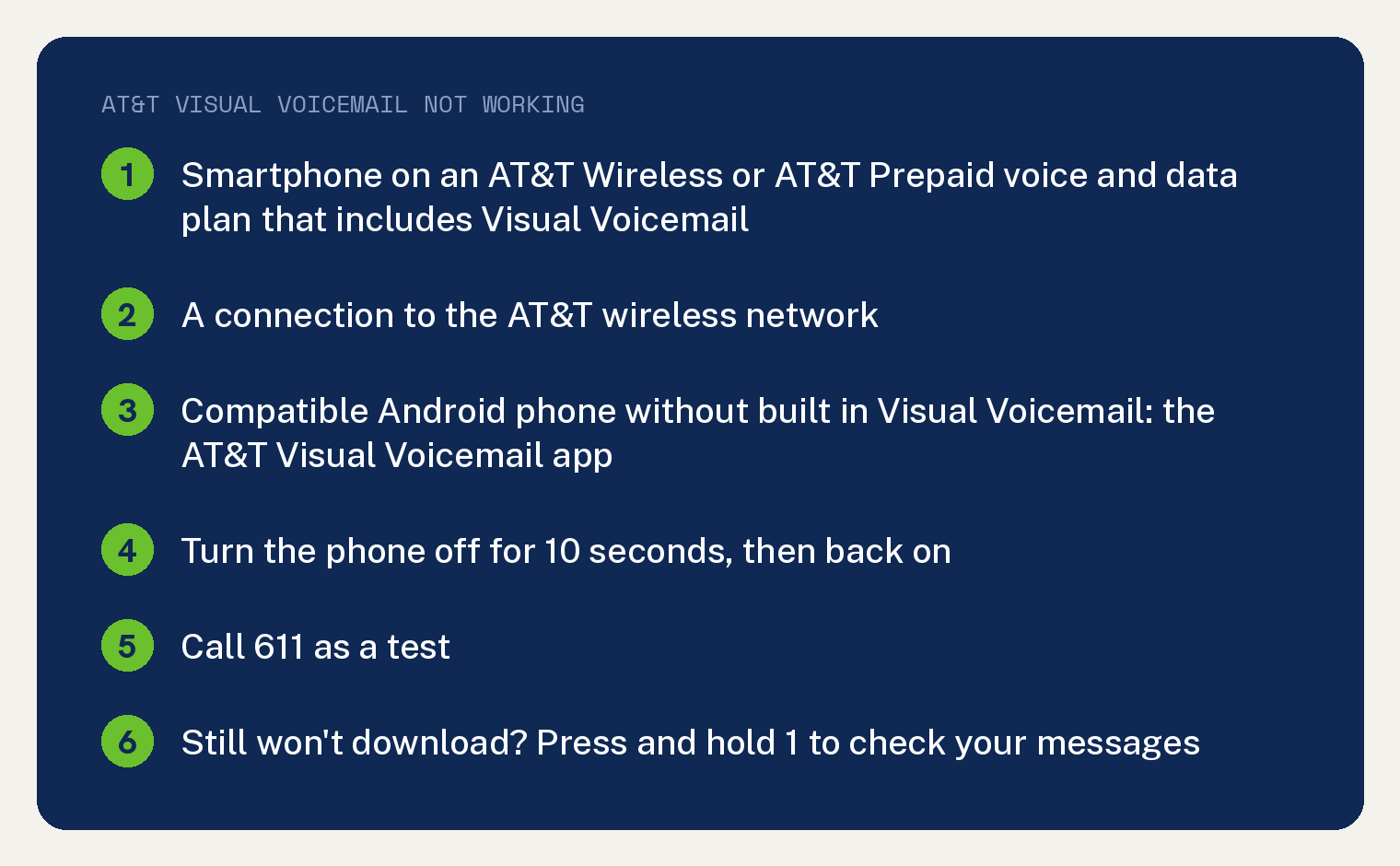
AT&T Visual Voicemail not working on your iPhone or Android phone? Check the three things AT&T says Visual Voicemail needs, then run AT&T’s signal check: turn the phone off for 10 seconds, turn it back on, and call 611 as a test.
You can still hear your messages while you fix it. Press and hold 1 on the keypad to call voicemail.
What does AT&T Visual Voicemail need to work?
AT&T’s voicemail setup page lists three things. The third one applies only to some Android phones.
- A smartphone on an “AT&T Wireless or AT&T Prepaid voice and data plan that includes Visual Voicemail”.
- A connection to the AT&T wireless network.
- The AT&T Visual Voicemail app, if you have a compatible Android smartphone that doesn’t have built in Visual Voicemail.
Visual Voicemail also depends on cellular data. AT&T’s page on using voicemail says the messages “download to your smartphone over a wireless cellular data connection”.
Setup has to happen on your own phone. AT&T says “You can’t set up voicemail from another phone.”
How to fix AT&T Visual Voicemail that won’t download
AT&T’s troubleshooting page files Visual Voicemail under its coverage and signal check. It says “Your phone needs a wireless connection to receive calls, access voicemail, download Visual Voicemail messages, and get voicemail alerts.”
Run AT&T’s steps in this order:
- Turn your phone off for 10 seconds, then back on.
- Call 611 as a test.
- If the test call goes through, press and hold 1 to call voicemail. If it fails, confirm you have wireless coverage.
Still nothing in the inbox? AT&T’s troubleshooting page covers that case: “If Visual Voicemail won’t download, press and hold 1 to check your messages.”
How do I check my voicemail while Visual Voicemail is down?
Call your mailbox from the keypad. For an AT&T Wireless phone, AT&T says to press and hold 1, enter your voicemail password if prompted, and any new unheard messages will begin to play.
On an iPhone, Apple’s guide gives a second route: tap Voicemail, then follow the instructions.
From another phone, AT&T’s voicemail page says “You can also check your messages from another phone by calling your 10-digit wireless number, then pressing the * key when you hear your voicemail greeting.” Then follow the prompts.
Apple’s iPhone guide says to press * or # “depending on your carrier”. On AT&T, the key AT&T’s own page names is *. Our guide to checking iPhone voicemail from another phone walks through that call.
Where is Visual Voicemail on my phone?
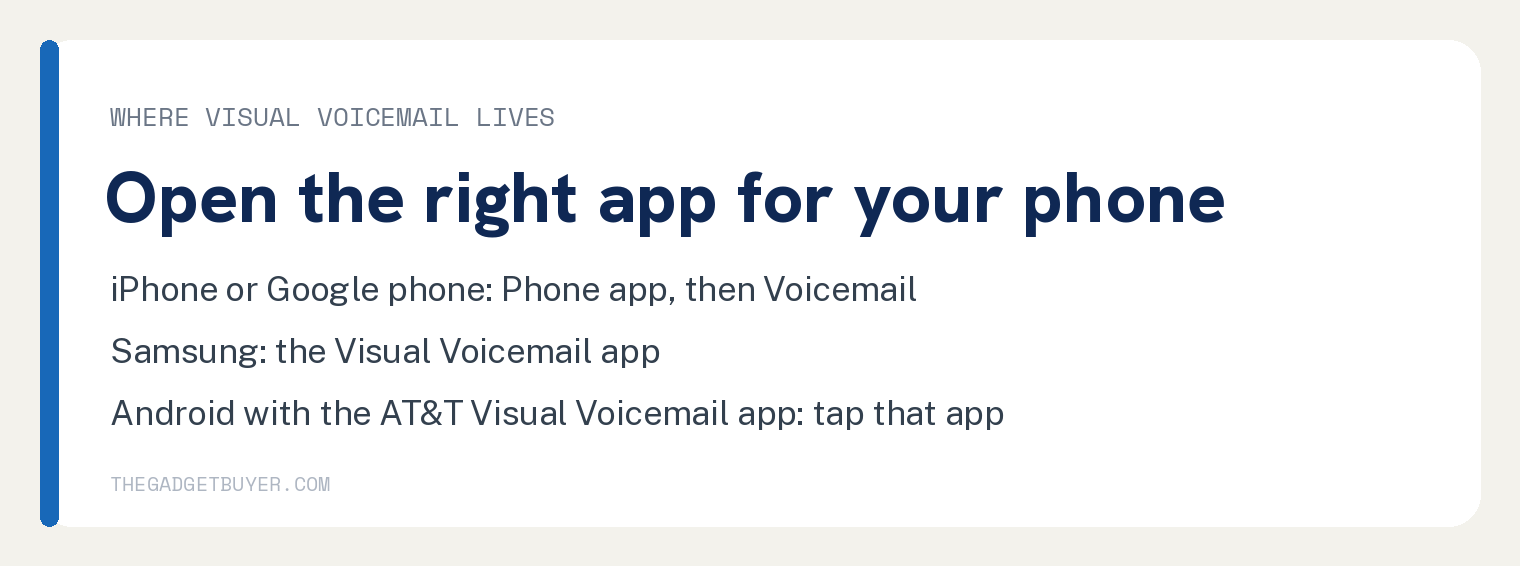
It depends on the phone. AT&T’s voicemail page splits it three ways:
- iPhone or Google smartphone: open the Phone app, tap Voicemail, then tap the message you want to hear.
- Samsung smartphone: open the Visual Voicemail app and choose the voicemail you want to hear.
- Android smartphone with the AT&T Visual Voicemail app: tap that app, then choose the message.
Setup on a Samsung phone, or in the AT&T Visual Voicemail app, starts by opening the app. Then AT&T says to “Follow the prompts to set up your password and greeting.”
For Google and other Android phones, AT&T’s setup page points to its step by step Visual Voicemail help.
Set up Visual Voicemail again after a new phone or SIM card
A phone or SIM swap can mean starting over. AT&T’s troubleshooting page says “If you have a new phone, or recently changed your phone or SIM card, you may need to set up your voicemail.”
Do it within 60 days of activation. AT&T warns that otherwise “it’ll be automatically removed from your account.”
On an iPhone, AT&T’s setup steps are: tap Phone, then Voicemail, select Set Up, and follow the prompts to set up your password and greeting.
For the iPhone 16 Pro Max, AT&T’s device page adds: “If your Voicemail Icon does not appear try restarting your phone.” That page’s steps use the Classic Phone app layout, and it says “If you’re on the Unified layout instead, go to the Calls tab, tap the icon in the top-right corner, then tap Voicemails.”
Apple’s iPhone guide also warns about SIM changes: “Your voice messages may also be deleted if you change your SIM card.”
Visual Voicemail works, but no alerts arrive
On iPhone, Samsung and Google phones, alerts sit in the phone’s own settings. AT&T says “You can update visual voicemail notifications and alerts for iPhone, Samsung, and Google smartphones in the device Settings.”
In the AT&T Visual Voicemail app, open the app, select Settings, then tap Notifications to turn alerts on or off.
AT&T’s troubleshooting page sends you to these alert settings when you aren’t getting voicemail alerts and you aren’t traveling outside its wireless coverage area.
Quick answers on AT&T Visual Voicemail
How many messages does AT&T Visual Voicemail hold?
Up to 40 messages for 30 days, AT&T says. Each message can be up to 4 minutes long.
Does Visual Voicemail work on AT&T Prepaid?
Yes, when the plan includes it. AT&T’s setup page lists a smartphone on an AT&T Wireless or AT&T Prepaid voice and data plan that includes Visual Voicemail as the first requirement.
Why are all my calls going to voicemail?
AT&T’s troubleshooting page points to Call Forwarding for that. Its link covers turning Call Forwarding on and off “to fix issues when all or none of your calls are going to voicemail.”
On an iPhone, see why an iPhone goes straight to voicemail and what to check when your iPhone is not ringing on incoming calls.
My phone is on T-Mobile. Where do I look?
Use our T-Mobile Visual Voicemail not working guide for that carrier.
Sources
- Troubleshoot your wireless voicemail (AT&T Support)
- Set up voicemail on your mobile phone (AT&T Support)
- Use voicemail on your mobile phone (AT&T Support)
- Setting up your voicemail (AT&T device help center, iPhone 16 Pro Max)
- Check your voicemail on iPhone (Apple iPhone User Guide)