
iPhone Not Ringing on Incoming Calls and What Stops It
An iPhone not ringing on incoming calls sends you hunting for one setting, and two of Apple’s own support pages cover the problem.
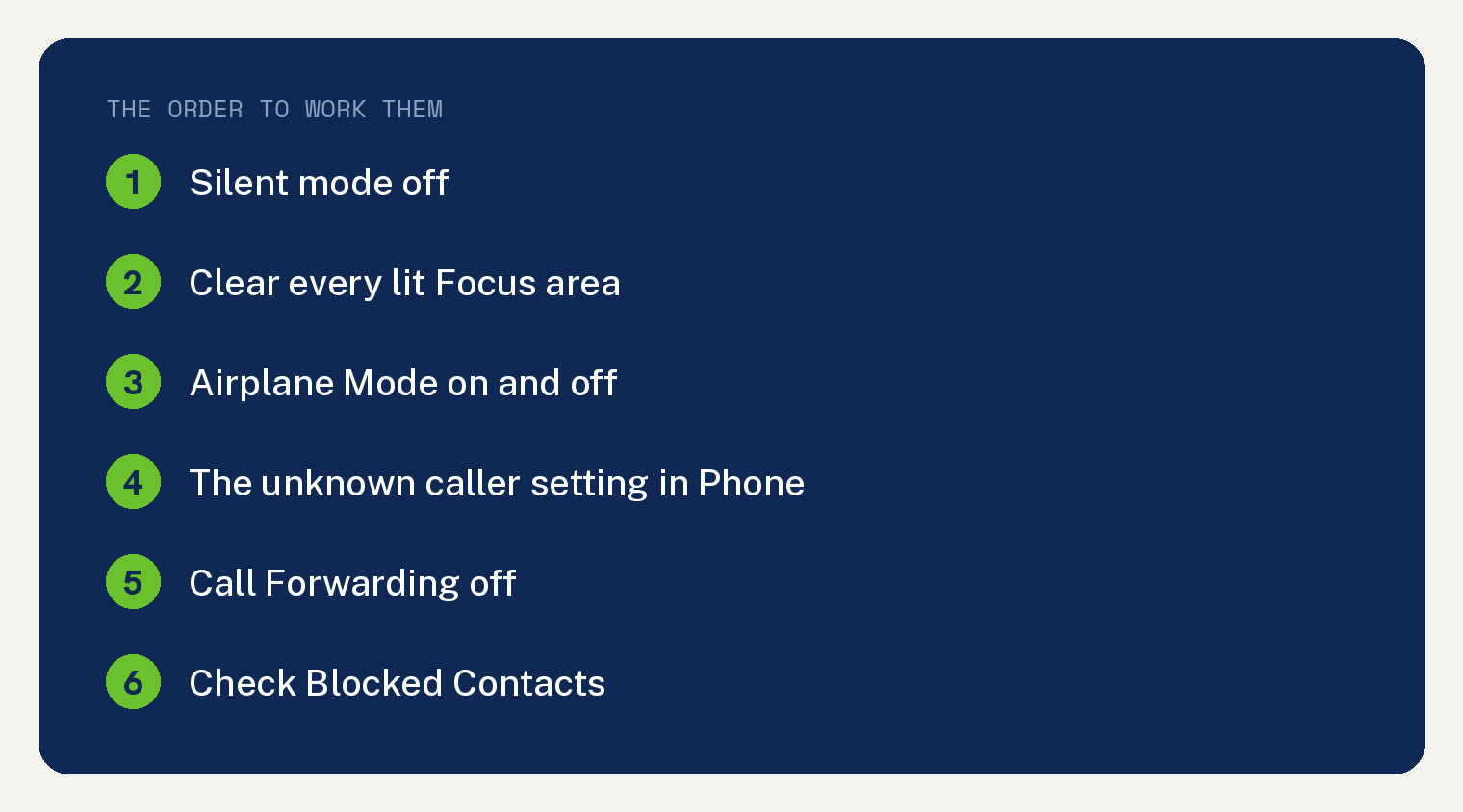
Both pages were read end to end on October 10, 2026, and the settings they name are below in the order to work them: Silent mode, your Focus areas, Airplane Mode, the unknown caller setting inside the Phone app, Call Forwarding, Blocked Contacts, and Wi-Fi Calling. The software checks both pages name, and the network and carrier checks on the page about calls that fail, come after those seven.
Across Apple’s two pages the unknown caller setting on that screen carries different labels. Both are below, with the path that is the same on both.
What Apple says causes it
Apple’s page on calls that fail or cannot be received opens with the short version. It reads: “You might not be able to make or receive calls on your iPhone if you have certain settings turned on, if your software isn’t up to date, or if there’s a problem with your network.”
That is three places to look, and settings are the first of the three. Apple’s other page, the one about calls going straight to voicemail, narrows it to two: “Check your Phone app and Focus settings to make sure you receive incoming calls.”
The page about calls that fail also says how to work its own list: “If you can’t make or receive calls on your iPhone, complete these steps, testing after each step.”
So call yourself from another phone after each change below, rather than changing five things and testing once.
Step 1. Turn Silent mode off, then clear your Focus areas
The voicemail page puts two items under its “Before you begin” heading. The second of the two reads: “Turn Silent mode off on your iPhone”.
On that page the item is a link and nothing else, so neither of the two pages cited here prints the action for turning Silent mode off.
Focus is next on the same page, which reads: “Swipe down from the top-right corner of your screen to open Control Center.”
Then: “Check your focus areas (for example, Do Not Disturb, Sleep, Work, and so on).”
For one that is lit, the page reads: “If you see a focus area highlighted, tap and then tap again to turn it off.”
The other Apple page reaches the same control from Settings: “In the Settings app, tap Focus and then Do Not Disturb. Make sure Do Not Disturb is off.”
For a longer walk through of that screen, see our guide to switching Do Not Disturb off on an iPhone. There is a separate setting that switches itself on in a moving car, covered in turning off Do Not Disturb While Driving.
Step 2. Airplane Mode on and off
The page about calls that fail puts this second in its own settings list, after opening Settings. Apple writes the control name as a link, so the unbroken span reads “on and off. Wait five seconds between turning Airplane Mode on and off.”
Airplane Mode appears twice in that page’s markup and zero times in the voicemail page’s, counted on October 10, 2026.
Step 3. The unknown caller setting, and the labels Apple uses for it
This is the step worth slowing down for, because Apple’s two pages use different labels for the setting on that screen. On both pages the path is Settings, then Apps, then Phone.
Counted in the voicemail page’s markup on October 10, 2026, two of its bullets at that screen cover unknown callers.
The first reads: “Under Screen Unknown Callers, tap to select Never. This means calls from unknown contacts ring on your iPhone and are not silenced.”
The second reads: “Under Call Filtering, tap to turn off Unknown Callers. This means calls from unknown contacts appear with other calls in your Recent calls list, and are not filtered to an Unknown Callers list.”
Counted the same way on the same date, the page about calls that fail names one unknown caller control at that screen, under a different label.
It reads: “In the Settings app, tap Apps and then Phone. Tap Silence Unknown Callers. If the setting is on, a caller must be listed in your Contacts or Recents.”
That page adds a second route through, for a caller who has “shared their number in Mail or sent you a message using that number for their call to go through.”
And the remedy Apple names for a caller you do want to hear from: “Add their number to Contacts to ensure the phone rings.”
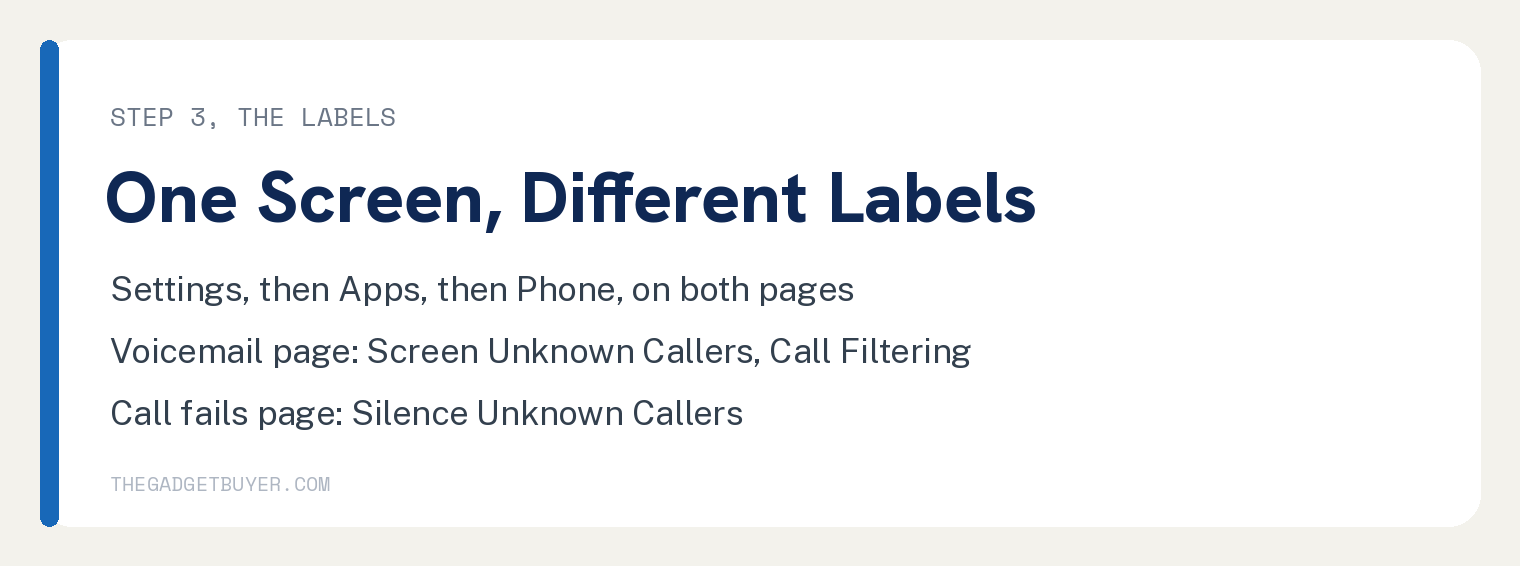
So go to Settings, then Apps, then Phone, and act on whichever of those labels your own iPhone shows you.
Apple states a limit on that setting as well: “Calls from some third-party apps might not go through.”
Step 4. Call Forwarding
Call Forwarding appears three times in the page about calls that fail and zero times in the voicemail page, counted in the page markup on October 10, 2026. A reader who followed the voicemail page alone was never given this step.
Apple’s wording for it: “In the Settings app, tap Apps and then Phone. Tap Call Forwarding and make sure Call Forwarding is off.”
Step 5. Blocked Contacts
The voicemail page says: “Scroll down and tap Blocked Contacts to review unintentionally blocked callers.” It then gives the undo: “If you want to unblock a phone number, swipe left and tap Unblock.”
The other page gives the same destination as a path: “In the Settings app, tap Apps and then Phone. Tap Blocked Contacts.”
Step 6. Wi-Fi Calling, then the carrier
The voicemail page carries one more bullet at the Phone screen: “Under Calls, tap to turn on Wi-Fi Calling. This means your phone uses Wi-Fi Calling when a cellular connection is weak or unavailable.”
That bullet ends with a condition, and the page breaks the sentence with links, so the unbroken parts read “If you don’t see” the setting “in your settings,” and the carrier “might not offer the feature.”
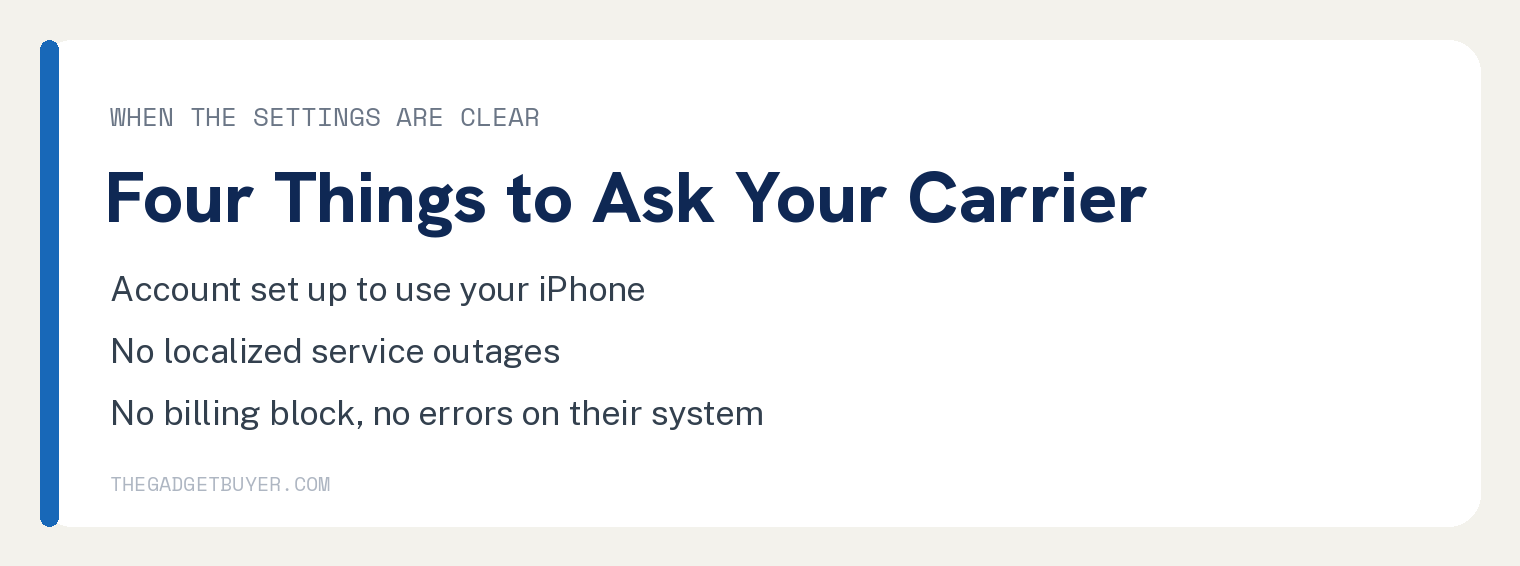
When every setting above is clear, the other Apple page sends you to your carrier. It asks you to make sure that:
- “Your account is set up to use your iPhone.”
- “There aren’t any localized service outages.”
- “Your account doesn’t have a billing-related block.”
- “Your calls don’t have errors on the carrier system.”
That page also carries one step with no setting attached: “Try to make or receive calls in another location.”
It carries a software check and a network settings reset as well. Its own description of the reset reads: “This will erase all current saved settings, including Wi-Fi passwords, preferred networks, and VPN and APN settings that you’ve used before.”
Its path runs “Open the Settings app.”, then “Tap General.”, then “Tap Transfer or Reset iPhone.”, then “Tap Reset.”, then “Tap Reset Network Settings.”
Leave that step until the four carrier questions above are answered, because it undoes saved network settings you will have to enter again.
Step 7. The software checks both pages name
The voicemail page lists one item before everything else, alongside Silent mode: “Update your iPhone to the latest iOS”.
The page about calls that fail carries its own heading, “Update your software”, with a carrier settings update and an iOS software update under it. On the second of the two it adds: “Some updates might require a Wi-Fi connection.”
The two pages side by side
| Control | Straight to voicemail page | Call fails page |
|---|---|---|
| Silent mode | Named, under Before you begin | Not named |
| Airplane Mode | Not named | Named, second in its settings list |
| Focus and Do Not Disturb | Named, from Control Center | Named, from Settings |
| The unknown caller setting | Screen Unknown Callers, and Call Filtering | Silence Unknown Callers |
| Call Forwarding | Not named | Named |
| Blocked Contacts | Named | Named |
| Wi-Fi Calling | Named, under Calls | Not named |
| A software update | Named, under Before you begin | Named, under its own heading |
| What to do about it | Read both. Either page on its own leaves out a control the other names. | |
What these two Apple pages do not mention
Two things a reader may expect to find are absent from both of the Apple pages cited here.
Attention Aware Features appears zero times in the markup of either page, measured on October 10, 2026. The lower case form and the hyphenated form return zero on both as well.
Every string count in this section was taken from the saved markup of the two pages at the URLs in Sources, and each one can be reproduced against those pages.
The ringer volume slider is absent too. The word volume appears zero times on both pages, as do ringtone, Ring/Silent and Sounds and Haptics.
The voicemail page does name Silent mode once, and that is step 1 above.
That is a statement about these two pages at these two URLs on that date, and nothing wider. Apple’s other pages are outside what was checked here.
If the trouble is a text alert with no sound rather than a call, there is a different first check, covered in no text sound on iPhone.
Questions readers ask
My iPhone rings for some callers and not others
Start with the unknown caller setting in step 3 and with Blocked Contacts in step 5. Both of those act on who is calling rather than on the phone as a whole, and Apple’s named remedy for a caller you want is to add their number to Contacts.
Does Do Not Disturb send calls to voicemail
Neither cited page states whether Do Not Disturb routes a call to voicemail, and the page on calls going straight to voicemail names your focus areas under its first Check heading, listing Do Not Disturb as one of its examples. Clear every highlighted focus area in Control Center, then test with another phone.
My iPhone rings when nobody is calling
That is the opposite problem and it has its own cause list. It is covered in is your iPhone ringing for no reason.
Which of Apple’s two pages should I follow
Both of them. Each page names a control the other leaves out, and Call Forwarding is in the markup of one page and not the other, counted on October 10, 2026.
Sources
- If calls don’t ring and go straight to voicemail on your iPhone, Apple Support, published July 14, 2026. Read October 10, 2026.
- If your call fails or you can’t receive calls on your iPhone, Apple Support, published July 15, 2026. Read October 10, 2026.