
Before You Swap Cables on an iPad Not Showing Up in Finder
Unlock the iPad, then answer each alert you see: Allow on the Mac, Trust on the iPad. Those two screens come first with an iPad not showing up in Finder, ahead of any cable swap.
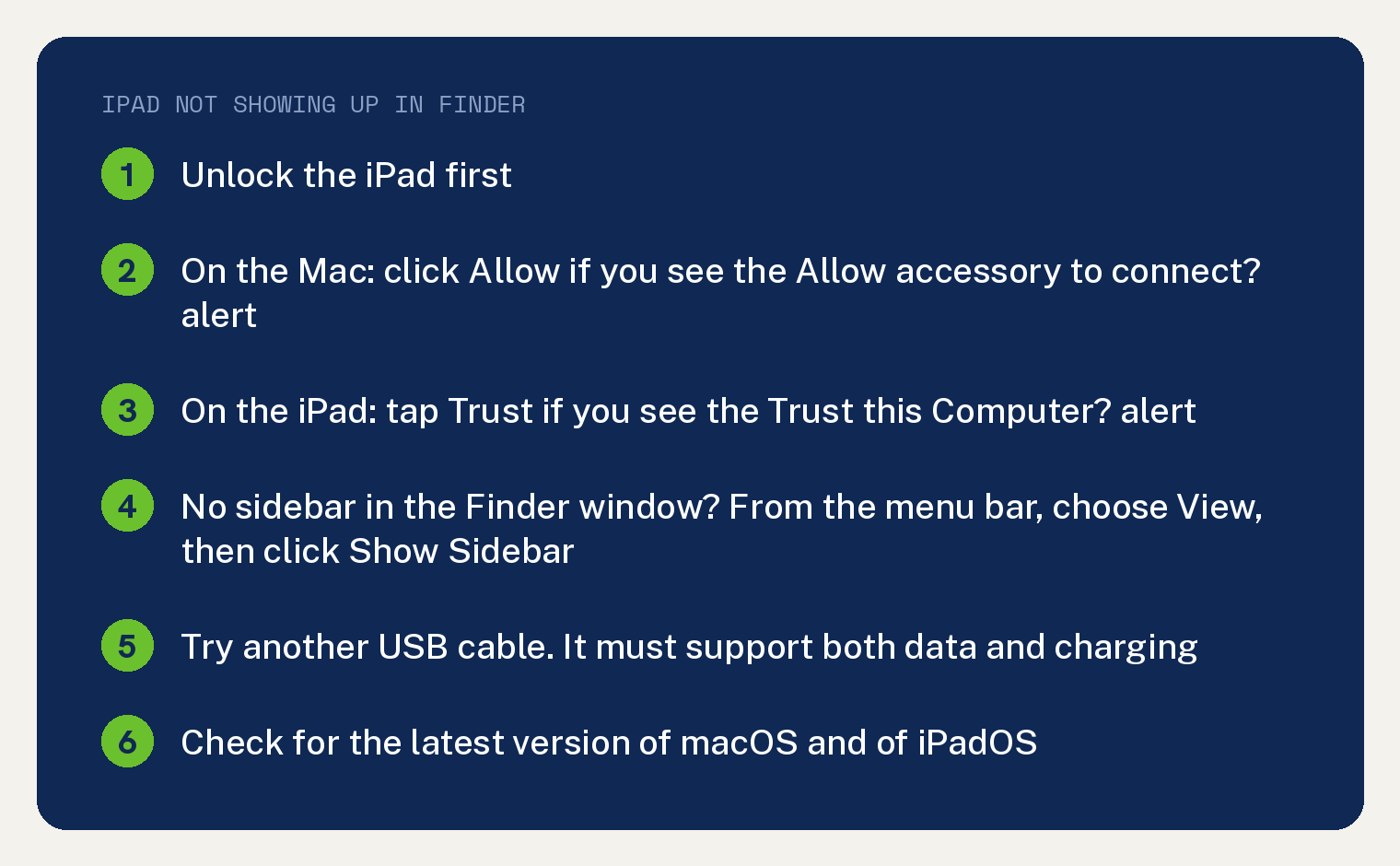
Still out of the Finder sidebar after that? Make sure the sidebar is showing, then work through Apple’s cable and software checks.
Apple spreads these checks over seven of its support pages. The order is ours.
Does the iPad need to be unlocked to show up in Finder?
Yes, by default. Apple writes on its Allow USB and other accessories to connect to your iPhone or iPad page: “By default, you need to first unlock your iPhone or iPad to connect to an accessory or computer — like USB or Thunderbolt devices, Smart Connector accessories for iPad, or a Mac or PC.”
Wake the iPad and enter your passcode, if you have one, before you look at the Mac. Apple’s Mac User Guide for macOS Sequoia 15 asks for one thing more: “Make sure that the device is unlocked and the Home Screen is visible.”
Unlocked and still nothing? Apple’s iPhone or iPad accessories page gives a replug order for an accessory that is still not recognized after you unlock: “Disconnect it from your device, unlock your device, then reconnect the accessory.”
With a Mac, that means you pull the cable out of the iPad, unlock the iPad, then plug the cable back in.
The setting behind this lives on the iPad. Open the Settings app, tap Privacy & Security, scroll down to Security, then tap Wired Accessories.
Apple’s default there is Automatically Allow When Unlocked, which that accessories page describes this way: “Automatically approve accessories when they connect to your unlocked iPhone or iPad (default setting).”
If the screen stays black when you try to wake it, start with our guide to an iPad that won’t turn on. If it shows a disabled message and will not unlock, read what the iPad Is Disabled Connect to iTunes message means.
Which alerts do I click when I plug an iPad into a Mac?
We count three prompts across Apple’s pages, two on the Mac and one on the iPad. You may not see all three, so answer each one that does appear.
| Prompt | Screen | What to click |
|---|---|---|
| “Allow accessory to connect?” | Mac | Click Allow |
| A dialog asking you to trust the device | Mac | Select Trust This [Device] |
| “Trust this Computer?” | iPad | Tap Trust |
Apple describes the first one for Mac laptops with Apple silicon. Its Allow USB and other accessories to connect to your Mac page reads: “When you use a new or unknown USB accessory, Thunderbolt accessory, or SD card with your Mac laptop with Apple silicon, you get an alert that asks you to allow the accessory to connect.”
A locked Mac cannot say yes. On those laptops, per that Mac accessories page, “If your Mac is locked, you need to unlock it before you can allow an accessory to connect.”
Clicked Don’t Allow by mistake? Unplug the iPad and plug it back in.
From Apple’s Mac accessories page: “If you click Don’t Allow in the alert, your Mac won’t recognize the accessory or give it access to the data on your Mac. The next time you connect the accessory, you’ll be asked to allow it again.”
On a Mac laptop with Apple silicon, you can see how the Mac is set. From the Apple menu, choose System Settings, click Privacy & Security, then scroll down and click Accessories.
The menu there is named “Allow accessories to connect”, and Apple’s default on those laptops is Ask for new accessories: “Manually approve new accessories the first time they connect (default setting).”
The second prompt is on Apple’s About the ‘Trust This Computer’ alert page: “If you see a dialog asking you to trust the device, select Trust This [Device] to allow the device to appear in the sidebar.” The bracket is Apple’s own, on a page that covers iPhone, iPad and iPod touch.
The third prompt is the one on the iPad’s screen. Apple’s Trust page says an alert asks whether you trust the computer when you connect to it for the first time, and “If you want to trust your computer, tap Trust.”
What if the Trust This Computer alert never shows on the iPad?
Reset the iPad’s location and privacy settings, then connect it again. Apple’s If your computer doesn’t recognize your iPhone or iPad page sends you to that reset if you don’t see the alert, or if you accidentally tapped Don’t Trust.
Tapped Don’t Trust and would like to skip the reset? A replug is worth a try first, since Apple’s Trust page says of a computer you chose not to trust: “The alert message appears every time that you connect your device to that computer.”
The five steps are on Apple’s About the ‘Trust This Computer’ alert page.
- Go to Settings.
- Tap General.
- Tap Transfer or Reset [Device].
- Tap Reset.
- Tap Reset Location & Privacy.
Apple’s Trust page prints the third label with [Device] in it, on a page that covers iPhone, iPad and iPod touch. On an iPad it reads Transfer or Reset iPad, per the iPadOS 27, iPadOS 26 and iPadOS 18 editions of Apple’s iPad User Guide page Reset iPad settings to their defaults.
This reset leaves your content alone. In the words of that iPad User Guide page: “You can return your iPad settings to their defaults without erasing your content.”
To keep a copy of your current settings, follow that iPad User Guide page: “If you want to save your settings, back up iPad before resetting it. For example, if you’re trying to solve a problem but resetting iPad doesn’t help, you might want to restore your previous settings from a backup.”
The guide prints a warning beside the Reset step: “WARNING: If you choose the Erase All Content and Settings option, all your content is removed.”
After the reset, per Apple’s Trust page: “Now when you connect your device to formerly trusted computers, the alert message will ask whether you trust that computer.”
If the alert still will not appear, or the Mac does not accept your answer, Apple’s Trust page has six steps and one instruction to go with them: “Try again after each step.”
- Make sure the Mac has the latest version of macOS. Apple’s step also covers the latest version of iTunes or the Apple Devices app, and adds a line for iTunes for Windows.
- Disconnect and reconnect your device from your computer.
- Restart your computer.
- Restart your iPad.
- Reset your location and privacy settings, the five steps earlier in this section.
- Reset your network settings: go to Settings, tap General, tap Transfer or Reset [Device], tap Reset, then tap Reset Network Settings.
Step 6 has a cost, and Apple prints it beside the step: “This also resets Wi-Fi networks and passwords, cellular settings, and VPN and APN settings that you’ve used before.”
Apple’s Trust page covers iPhone as well. Our guide on how to let your computer access your iPhone walks through that alert on a phone.
iPad trusted but still not in the Finder sidebar
Check the Finder window itself, because the sidebar is where a connected iPad is listed. On Apple’s If your computer doesn’t recognize your iPhone or iPad page: “Your device appears in the sidebar of the Finder window.”
No sidebar in the window? Apple’s two steps on that page are short: from the menu bar, choose View, then click Show Sidebar.
If Show Sidebar is grayed out, Apple’s Mac User Guide page Customize the Finder sidebar on Mac has the way through: “If Show Sidebar is dimmed, choose View > Show Toolbar.”
That line appears in the guide’s macOS 27, macOS Tahoe 26 and macOS Sequoia 15 editions.
The sidebar can also be set to leave items out. The same Customize the Finder sidebar on Mac page gives the route: choose Finder > Settings, click Sidebar, then select or deselect items.
The macOS Sequoia 15 edition of the Mac User Guide names the box to check, on its page for a device that doesn’t appear in the sidebar: “Below Locations, select the CDs, DVDs, and iOS Devices checkbox.”
Then look at the sidebar again, below Locations, to see if the iPad is showing.
Why is my iPad charging but not showing up in Finder?
A charging iPad is not proof that the Mac can read it. On a Mac laptop with Apple silicon, Apple’s Allow USB and other accessories to connect to your Mac page puts it this way: “Accessories can still charge your Mac (or themselves) even if you choose Don’t Allow.”
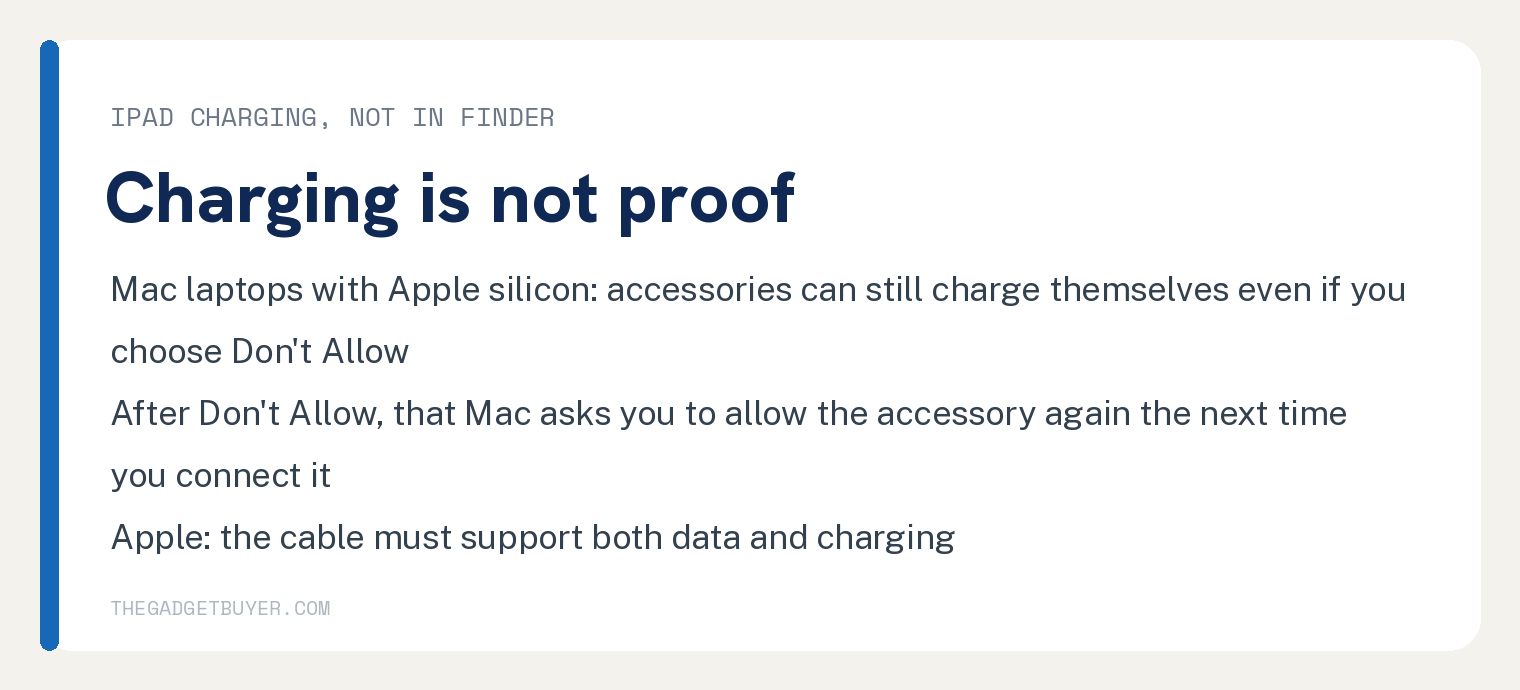
An iPad that is not charging either points back to the connection. From the macOS Sequoia 15 edition of Apple’s Mac User Guide: “When your Mac and device are connected correctly, you should see that your device is charging.”
From there, Apple’s If your computer doesn’t recognize your iPhone or iPad page lists six checks for a Mac that still doesn’t recognize the device.
- Check your USB cable and connection. If the iPad doesn’t chime or vibrate when connected to your Mac, unplug the USB cable and check the charging port for debris.
- Try another USB cable. Apple’s rule: “The cable must support both data and charging.”
- Try another USB port or Mac.
- Check for “VPN and other third-party security software”.
- Check that the Mac is using the latest version of macOS.
- Check that the iPad is using the latest version of iPadOS.
If the iPad itself refuses to update, see our guide to an iPad that won’t update to iPadOS 26.
If none of the six brings the iPad into Finder, Apple’s If your computer doesn’t recognize your iPhone or iPad page follows that list with one more line: “If your computer still doesn’t recognize your device, you might need to contact support for service.”
Sources
- If your computer doesn’t recognize your iPhone or iPad (Apple Support)
- About the ‘Trust This Computer’ alert message on your iPhone, iPad, or iPod touch (Apple Support)
- Allow USB and other accessories to connect to your Mac (Apple Support)
- Allow USB and other accessories to connect to your iPhone or iPad (Apple Support)
- If your device doesn’t appear in the sidebar when connected to Mac (Mac User Guide, macOS Sequoia 15)