
Apple Pencil Not Connecting to iPad: Fixes by Model
An Apple Pencil not connecting to iPad needs two checks first: a Pencil model that works with that iPad, and the connection Apple prints for that model. Apple Pencil Pro and Apple Pencil (2nd generation) attach to a magnetic connector, Apple Pencil (USB-C) connects with a USB-C cable, and Apple Pencil (1st generation) plugs in.
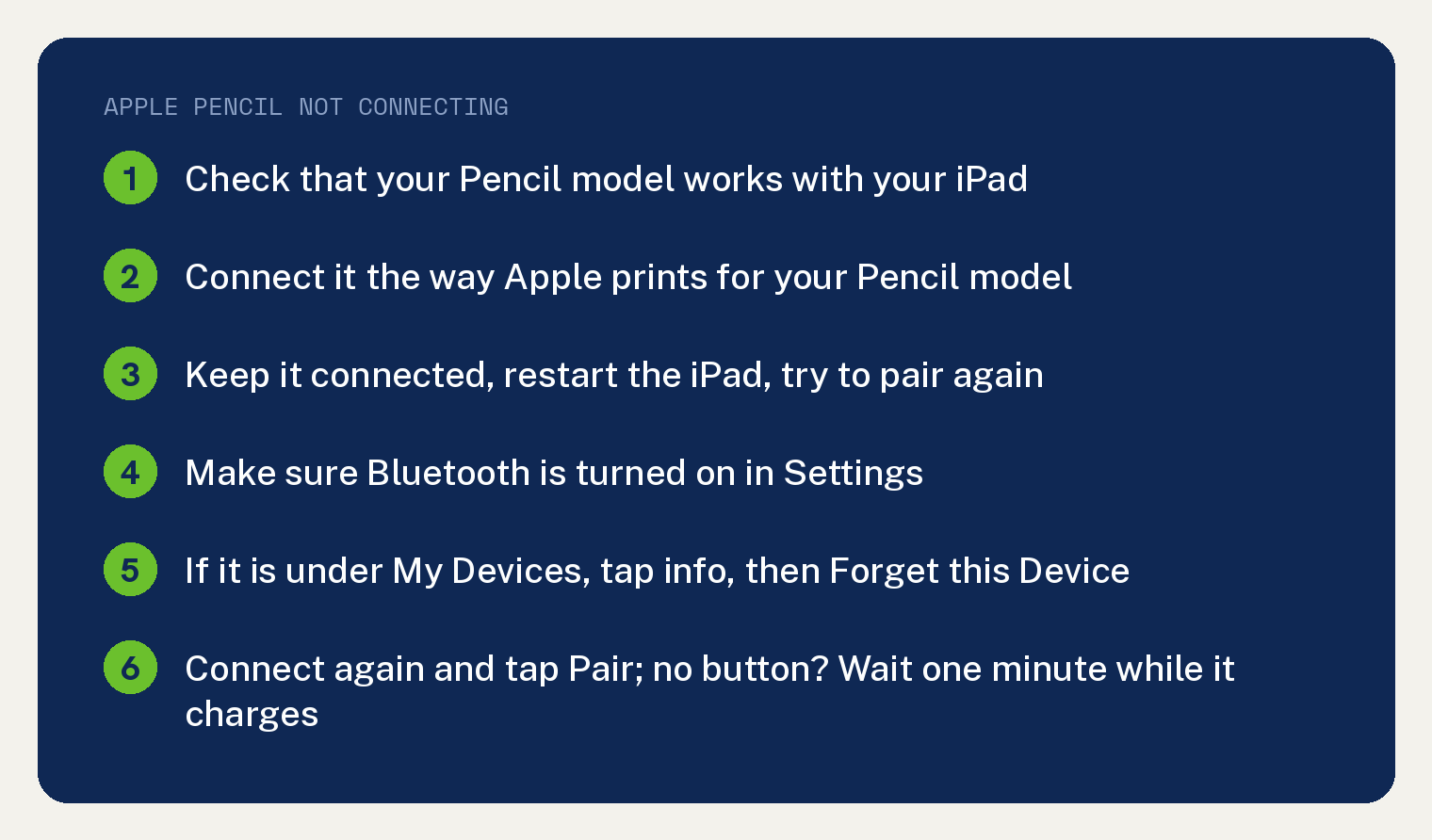
If it still won’t pair, Apple’s fix is to keep the Pencil connected, restart the iPad, turn on Bluetooth, forget the Pencil under My Devices if it is listed, then connect it again and tap Pair when the button appears.
Does my Apple Pencil work with my iPad?
It does when your iPad is on Apple’s list for that Pencil. Apple’s pairing help puts this check under Before you begin: “Make sure that you have the Apple Pencil model that works with your iPad.”
Apple’s Apple Pencil compatibility page gives one list per Pencil. Apple Pencil Pro needs iPadOS 17.5 or later and one of these iPad models:
- iPad Pro 13-inch (M4 and M5)
- iPad Pro 11-inch (M4 and M5)
- iPad Air 13-inch (M2, M3, and M4)
- iPad Air 11-inch (M2, M3, and M4)
- iPad mini (A17 Pro and A20 Pro)
Apple Pencil (USB-C) works with these models with iPadOS 17.1.1 or later, and with iPhone Duo with iOS 27.2:
- iPad Pro 13-inch (M4 and M5)
- iPad Pro 11-inch (M4 and M5)
- iPad Pro 11-inch (1st, 2nd, 3rd, or 4th generation)
- iPad Pro 12.9-inch (3rd, 4th, 5th, or 6th generation)
- iPad Air 13-inch (M2, M3, and M4)
- iPad Air 11-inch (M2, M3, and M4)
- iPad Air (4th or 5th generation)
- iPad (A16)
- iPad (10th generation)
- iPad mini (A17 Pro and A20 Pro)
- iPad mini (6th generation)
- iPhone Duo
Apple Pencil (2nd generation) works only with four iPad models: iPad mini (6th generation), iPad Air (4th or 5th generation), iPad Pro 12.9-inch (3rd, 4th, 5th, or 6th generation) and iPad Pro 11-inch (1st, 2nd, 3rd, or 4th generation).
Apple Pencil (1st generation) works only with these iPad models:
- iPad mini (5th generation)
- iPad (6th, 7th, 8th and 9th generation)
- iPad (A16), with the adapter below
- iPad (10th generation), with the adapter below
- iPad Air (3rd generation)
- iPad Pro 12.9-inch (1st and 2nd generation)
- iPad Pro 10.5-inch
- iPad Pro 9.7-inch
For those two marked models, Apple’s note reads: “USB-C to Apple Pencil Adapter required with this iPad to pair and charge Apple Pencil.”
Apple’s pairing help also says to update your iPad to the latest software before you begin. If that update stalls, our guide to an iPad that won’t update to iPadOS 26 covers it.
How do I connect my Apple Pencil to pair it?
Use the connection Apple prints for your model. The iPad User Guide has one pairing page per Pencil, and the table below puts them side by side. The table is ours.
| Pencil | How Apple says to connect it to pair |
|---|---|
| Apple Pencil Pro | Attach it to the magnetic connector on the long side of the iPad |
| Apple Pencil (2nd generation) | Attach it to the magnetic connector on the right side of the iPad |
| Apple Pencil (USB-C) | Slide open the end, connect it to the USB-C charge cable that came with your iPad, plug the other end into the iPad’s USB-C connector, then tap Tap to Connect |
| Apple Pencil (1st generation), iPad with a Home button | Remove the cap, plug it into the iPad’s Lightning connector, then tap Pair when the button appears |
| Apple Pencil (1st generation), iPad (10th generation) and iPad (A16) | Remove the cap, plug it into the USB-C to Apple Pencil Adapter, connect the adapter to the iPad with the USB-C charge cable that came with your iPad, then tap Pair when the button appears |
Each magnetic model has its own side. Apple’s Pair and charge Apple Pencil Pro with iPad page says to attach it “to the magnetic connector on the long side of your iPad.”
Pairing a 1st generation Pencil with iPad (10th generation)? Apple’s pairing help says to have the required USB-C to Apple Pencil Adapter and a compatible cable, such as the USB-C Charge Cable, ready first.
What do I do when the Pair button doesn’t appear?
Work through Apple’s eight steps in order. They come from Apple’s support article If you can’t pair Apple Pencil with your iPad:
- Connect the Pencil to the iPad. With Apple Pencil Pro or Apple Pencil (2nd generation), center it on the magnetic connector. With Apple Pencil (1st generation) and iPad (6th through 9th generations), remove the cap and plug it into the Lightning connector. With Apple Pencil (1st generation) and iPad (10th generation), remove the cap, plug the Pencil and a USB-C cable into the USB-C to Apple Pencil Adapter, then plug the other end of the cable into the iPad.
- Keep the Pencil connected, restart the iPad, and try to pair again.
- Go to Settings, tap Bluetooth, and make sure Bluetooth is turned on.
- On the same screen, look for the Pencil under My Devices. If you find it, tap info, then tap Forget this Device.
- Connect the Pencil again and tap the Pair button when it appears after a few seconds.
- If the Pair button doesn’t appear, wait one minute while the Pencil charges. Then connect it again and wait until the Pair button appears.
- If an Apple Pencil Pro or Apple Pencil (2nd generation) still does not pair, remove any cases or covers from the iPad, then try again.
- If the Pair button still doesn’t appear, Apple’s last step reads: “you might need service.”
For Apple Pencil (USB-C), the iPad User Guide’s route is the USB-C charge cable that came with your iPad. Slide open the end of the Pencil, connect the cable, plug the other end into the iPad, then tap Tap to Connect.
If Bluetooth on the iPad gives you trouble with other accessories too, our guide to iPad Bluetooth not connecting walks through Apple’s fixes.
Why does my Apple Pencil need to pair again?
With Apple Pencil (USB-C) or Apple Pencil (1st generation), a restart ends the pairing, so plug it in and pair it again. Apple’s 1st generation page says: “Apple Pencil stays paired until you restart your iPad, turn off Bluetooth®, or pair with another iPad.”
Apple’s USB-C page names the same three events, with iPhone Duo added: a restart, turning off Bluetooth, or pairing with another iPad or iPhone Duo.
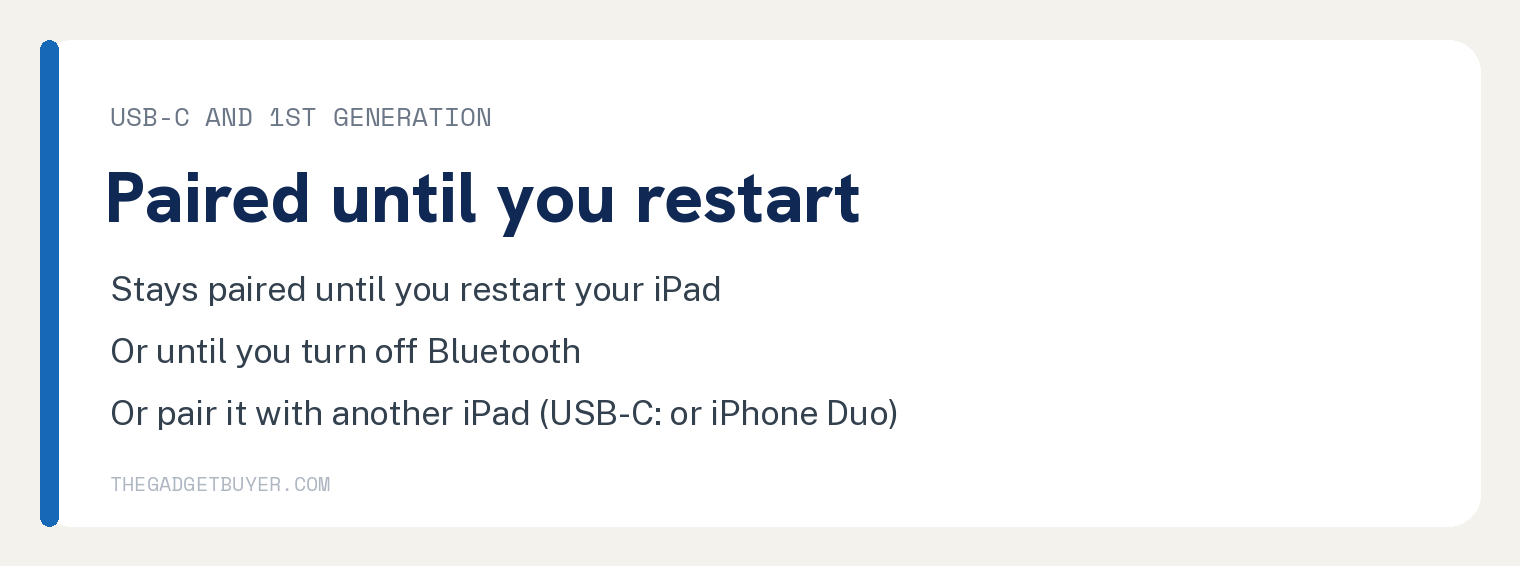
The 1st generation page adds the fix: “Just pair Apple Pencil again when you’re ready to use it.”
Moving one Pencil between two iPads? Our guide to using one Apple Pencil on two iPads covers that switch.
If your Pencil pairs and then keeps dropping, see our guide to an Apple Pencil that keeps disconnecting.
How do I charge my Apple Pencil so it can pair?
Charge it through the same connection you pair it with. Apple’s pairing help says: “You might need to charge your Apple Pencil before you can use it.”
- Apple Pencil Pro and Apple Pencil (2nd generation): make sure Bluetooth is turned on in Settings, then Bluetooth. Then attach the Pencil to the magnetic connector, on the long side for Pro and the right side for 2nd generation.
- Apple Pencil (USB-C): it charges while plugged into your iPad. Apple’s tip adds the USB-C charge cable and power adapter that came with your iPad.
- Apple Pencil (1st generation): it charges while plugged into your iPad. On an iPad with a Home button, if your pencil came with an Apple Pencil Charging Adapter, you can also use the Lightning Cable and power adapter that came with your iPad. On iPad (10th generation) and iPad (A16), Apple’s tip is the USB-C charge cable and power adapter that came with your iPad.
To check the charge, Apple’s iPad User Guide offers two places: the Batteries widget, or Settings, then Apple Pencil.
Sources
- If you can’t pair Apple Pencil with your iPad (Apple Support)
- Apple Pencil compatibility (Apple Support)
- Pair and charge Apple Pencil (USB-C) with iPad or iPhone Duo (iPad User Guide)
- Pair and charge Apple Pencil (2nd generation) with iPad (iPad User Guide)
- Pair and charge Apple Pencil (1st generation) with iPad (iPad User Guide)