
6 Fixes for iPad Bluetooth Not Connecting
An iPad Bluetooth not connecting problem almost always comes down to a saved pairing record that went bad. Open the Settings app, tap Bluetooth, tap the small i in a circle next to the accessory, tap Forget This Device, then pair it again.
That one move clears the broken link and reconnects most speakers, keyboards, and earbuds.
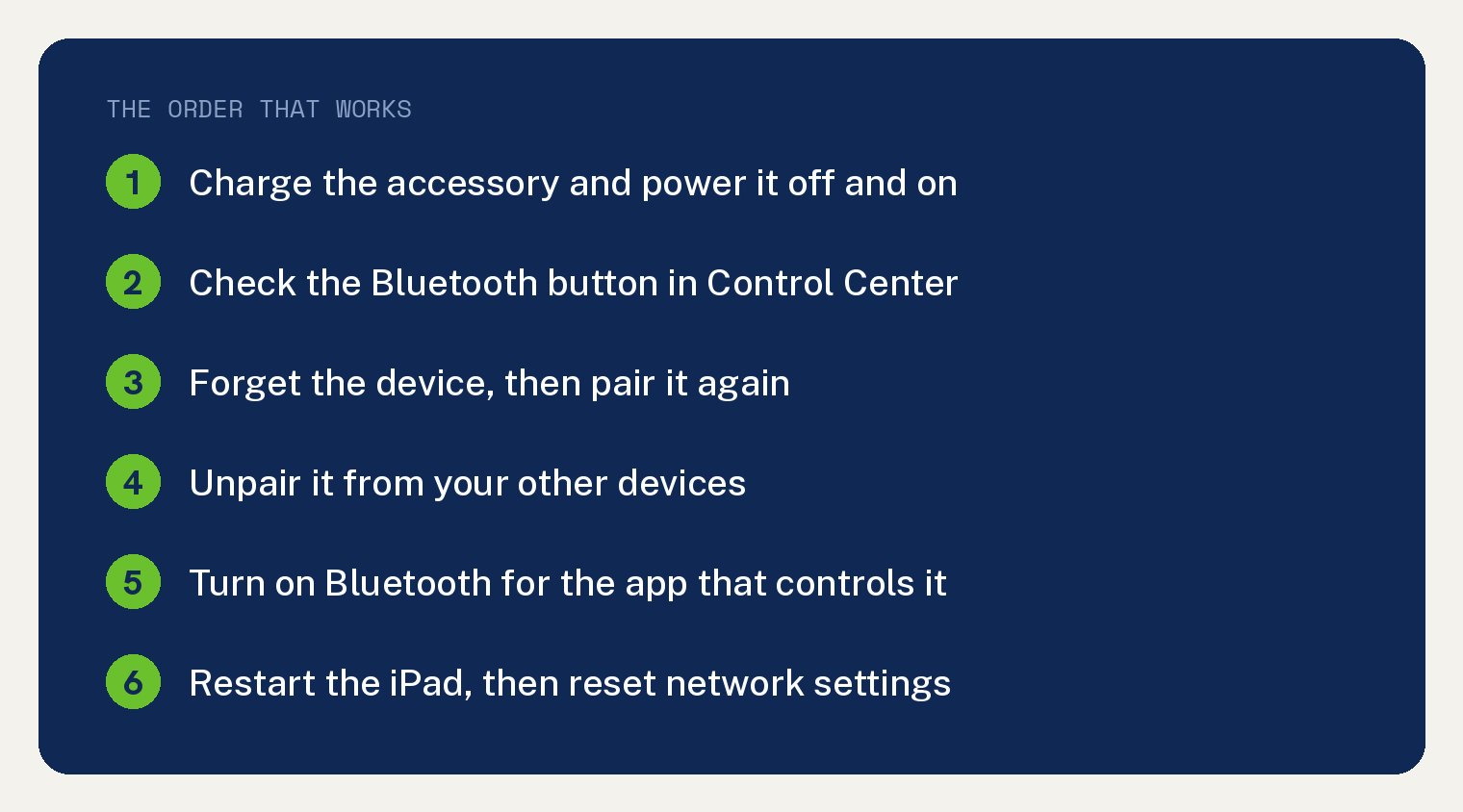
The six fixes below start where Apple’s own checklist starts, with the accessory itself, and end with the deepest software reset.
Every Settings path here was checked against Apple’s current iPad User Guide, on iPadOS 26.6, the release Apple shipped on July 27, 2026.
Why your iPad Bluetooth is not connecting
Three causes cover nearly every case.
The first is a stale pairing record. Your iPad stores a profile for each accessory, and a firmware update or a low battery event can leave that profile pointing at nothing.
The second is power and distance. Apple states the iPad must sit within about 33 feet, or 10 meters, of the accessory to pair, and an accessory with a flat battery never advertises itself at all.
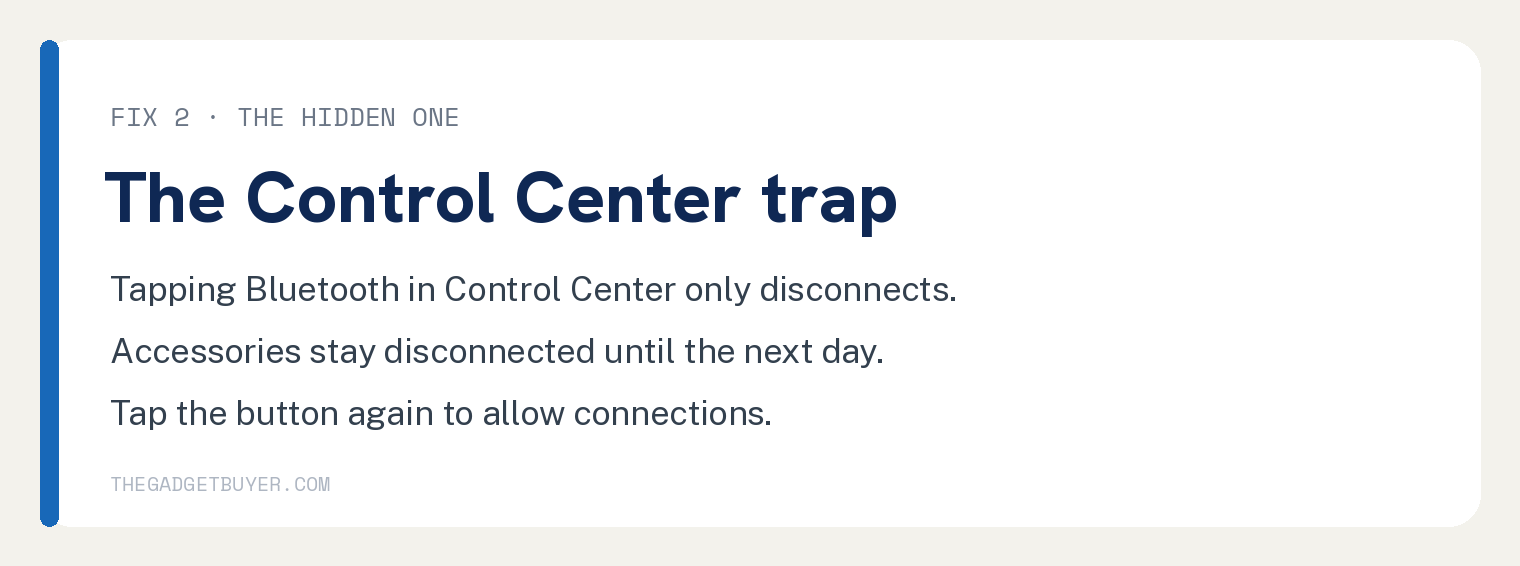
The third is the Bluetooth button in Control Center. Tapping it disconnects every accessory from your iPad until the next day while the radio stays on, so Settings still shows Bluetooth switched on and nothing reconnects.
Match your symptom to the fix that solves it.
| Symptom | Likely cause | Start with |
|---|---|---|
| Accessory never appears in the list | Not in discovery mode or out of power | Fix 1 |
| Bluetooth is on and nothing reconnects | Control Center disconnected everything | Fix 2 |
| Accessory shows Not Connected | Stale pairing record | Fix 3 |
| Pairs with your phone and not the iPad | Another device is holding it | Fix 4 |
| Connects, and its app finds nothing | App Bluetooth permission is off | Fix 5 |
| Every accessory fails at once | Damaged network settings | Fix 6 |
Fix 1: Charge the accessory and turn it off and on
Apple puts the accessory itself at the top of its checklist.
A speaker or keyboard with a weak battery stops broadcasting long before it looks dead.
- Plug the accessory into power and leave it long enough to take a charge. Charging lights differ by brand, so check that the indicator light comes on.
- Turn the accessory off with its own power button. The light should go dark.
- Turn it back on and hold its pairing button until the light blinks. A blinking light means it is in discovery mode.
- Move the iPad within a few feet of the accessory.
- Open the Settings app, the gray gear icon on your Home Screen, and tap Bluetooth.
- Wait for the accessory name to appear under Other Devices, then tap it.
- Type the PIN if the iPad asks for one. Apple says to check the instructions that came with the accessory.
The name moves up to My Devices and reads Connected when it works.
Battery powered earbuds behave the same way, which is why pairing Galaxy Buds with an iPad starts with the charging case.
Fix 2: Check the Bluetooth button in Control Center
This is the cause people miss.
Apple’s iPad guide says the Control Center Bluetooth button disconnects your accessories until the next day, and it tells you to tap the button again to allow connections.
Someone taps it to quiet a speaker, and every accessory refuses to reconnect for the rest of the day.
- Swipe down from the top right edge of the screen to open Control Center.
- Find the Bluetooth button in the top left group of controls, beside Airplane Mode and WiFi. Apple lets you rearrange Control Center, so it sits elsewhere if you moved it.
- Look at the Bluetooth button before you tap anything. A blue button means connections are already allowed.
- A white button means accessories stay disconnected, so tap it once to allow connections again. Apple documents that tap, and the colors are what iPadOS 26.6 shows on screen.
- Swipe up from the bottom center of the screen to close Control Center.
- Play something and listen. The accessory should reconnect on its own.
If it stays silent, open the Settings app, tap Bluetooth, turn the switch off, wait five seconds, then turn it back on.
Fix 3: Forget the device and pair it again
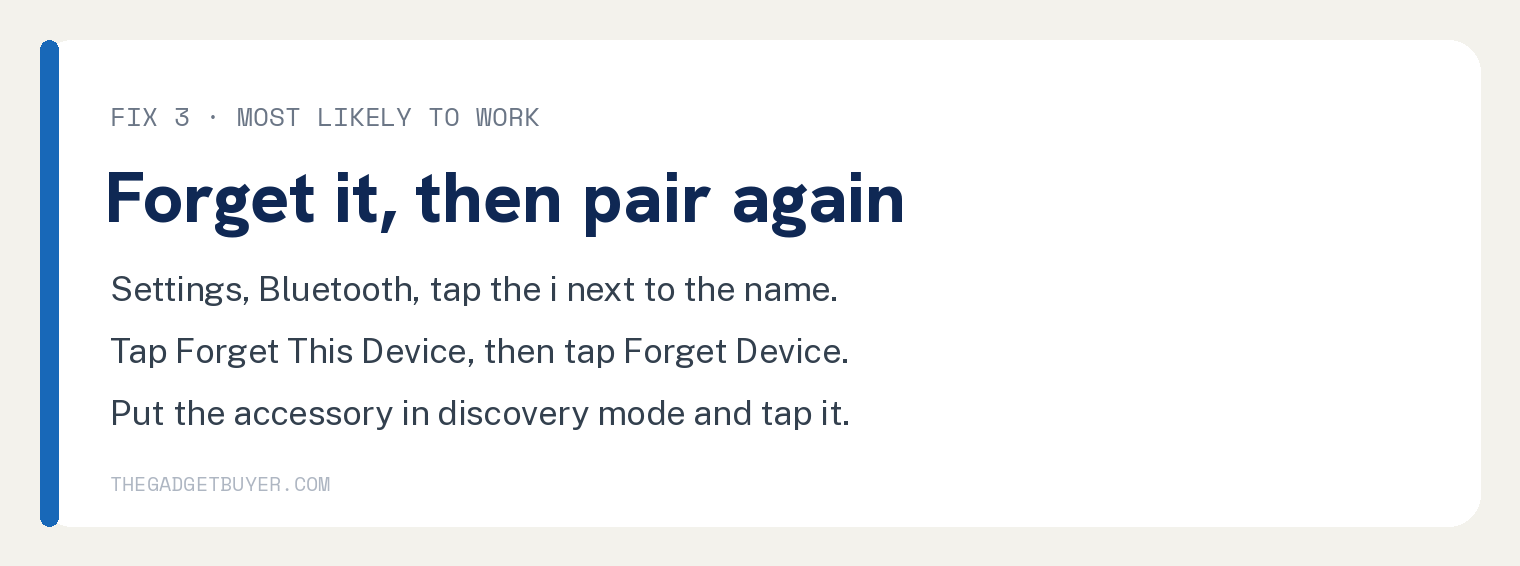
This is the fix that clears a stale pairing record, and it resolves the majority of these cases.
- Open the Settings app and tap Bluetooth.
- Find the accessory under My Devices.
- Tap the small i in a circle to the right of its name.
- Tap Forget This Device at the bottom of the panel.
- Tap Forget Device to confirm. The name disappears from My Devices.
- Put the accessory back in discovery mode by holding its pairing button until the light blinks.
- Tap the accessory name when it appears under Other Devices.
The iPad builds a fresh profile and the accessory reads Connected. Apple applies the same logic to earbuds, which is covered in the guide to how AirPods work with an iPad.
One warning worth knowing: forgetting AirPods on your iPad also unpairs them from every other device signed in to your Apple Account.
Fix 4: Unpair the accessory from your other devices
Most Bluetooth accessories stream to one device at a time. When your phone or laptop grabs it first, the iPad sits there searching.
Apple’s guidance is direct: if the accessory pairs with some devices and not your iPad, unpair it everywhere else first.
- Pick up the phone, tablet, or laptop that connects to the accessory today.
- Open its Bluetooth settings and forget or remove the accessory there.
- Turn Bluetooth off on that device so it stops grabbing the accessory.
- Return to the iPad, open Settings, and tap Bluetooth.
- Tap the accessory name under Other Devices to pair it.
Speakers that support two sources at once behave differently, and our page on connecting two Bluetooth headphones to one iPad explains where that limit sits.
Fix 5: Turn on Bluetooth for the app that controls it
Fitness trackers, smart lights, and label printers pair fine and then do nothing, because the app that runs them lost its Bluetooth permission.
- Open the Settings app and tap Privacy & Security in the left column.
- Tap Bluetooth. The screen lists every app that asked for Bluetooth access.
- Find the app that controls your accessory.
- Tap its switch so it turns green.
- Swipe up from the bottom of the screen, pause in the middle, then lift your finger. Exposé opens and shows your open apps.
- Swipe up on that app card to quit it.
- Open the app again and let it scan for the accessory.
An app missing from that list has never requested Bluetooth. Delete it, install it again from the App Store, and tap OK on the permission prompt.
Sign in details and in app data go with the delete, so have your login ready.
Fix 6: Restart your iPad, then reset network settings
Restarting clears the Bluetooth process that has jammed. Do this before the reset, since it costs nothing.
- Open the Settings app and tap General.
- Scroll to the bottom and tap Shut Down.
- Drag the slider to the right and wait until the screen goes fully black.
- Press and hold the top button until the Apple logo appears.
- Enter your passcode to open the iPad, then try the accessory again.
If the iPad is frozen, force a restart instead.
On an iPad with no Home button, press and release the volume button nearest the top button, press and release the volume button farthest from it, then hold the top button until the Apple logo appears.
On an iPad with a Home button, hold the top button and the Home button together until the logo appears.
Reset network settings when no accessory will connect at all.
- Open the Settings app and tap General.
- Scroll down and tap Transfer or Reset iPad.
- Tap Reset at the bottom of the screen.
- Tap Reset Network Settings in the list that slides up.
- Enter your passcode, then tap Reset Network Settings to confirm.
- Wait for the iPad to restart, then pair the accessory from Settings and Bluetooth.
Apple’s iPad User Guide lists what that reset touches.
| What it affects | What happens |
|---|---|
| Saved WiFi networks | Removed, so you retype passwords |
| VPN settings | Removed unless a profile installed them |
| Trusted certificates | Changed back to untrusted |
| iPad name | Reset to iPad |
| Bluetooth pairings | Apple does not list these, so pair again if they drop |
| Photos, apps, messages | Untouched |
Have your WiFi password ready before you tap Reset. The same warning applies to an iPad that will not connect to WiFi, where this reset is also the last software step.
If nothing worked
Install any pending iPadOS update first. Open Settings, tap General, tap Software Update, and tap Download and Install if one is waiting.
The walkthrough for an iPad that will not update to iPadOS 26 covers what to do when that stalls.
Apple also notes that turning on Airplane Mode can remove audio interference between the iPad and an accessory. Turn it on in Control Center, then switch Bluetooth back on from the same panel.
Check that the accessory uses Bluetooth at all. The older Bose headphones my family takes on flights plug into a headphone jack, so no Bluetooth setting will ever reach them.
Then call the accessory maker and ask whether the model supports iPadOS 26. The maker owns compatibility for its own hardware.
Apple says to contact Apple Support in three situations: the Bluetooth switch will not turn on or appears grayed out, no Bluetooth accessory of any kind will connect, or the maker has confirmed the accessory works correctly.
Those three point at the iPad hardware or its software image. An iPad that also reboots on its own is showing a deeper fault, and our page on an iPad that keeps restarting on its own explains that pattern.
iPad Bluetooth questions people ask
Why does my iPad say Not Connected under Bluetooth?
Not Connected means the iPad remembers the accessory and cannot reach it right now. The accessory is out of power, out of range, or connected to another device. Charge it, bring it close, then forget it in Settings and Bluetooth and pair it again.
How do I reset Bluetooth on an iPad?
There is no single Bluetooth reset button. Turning the switch off and on in Settings and Bluetooth handles most cases. To clear one accessory completely, forget it in Settings and Bluetooth, then pair it again.
Why will my iPad not find my Bluetooth speaker?
A speaker only appears in the list while it broadcasts in discovery mode, which usually means holding its Bluetooth button until the light blinks fast. Speakers already connected to a phone stay silent to your iPad. Turn Bluetooth off on the phone and try again.
Does resetting network settings delete anything on my iPad?
Apple says it removes saved WiFi networks and most VPN settings, renames the iPad back to iPad, and marks manually trusted certificates as untrusted. Your photos, apps, and messages stay in place. Keep your WiFi password handy so you can rejoin your network afterward.
Should I use Reset All Settings instead of Reset Network Settings?
Reset All Settings clears far more, including your keyboard dictionary, location settings, privacy settings, and Apple Pay cards. Reset Network Settings is the smaller move and the right one for a connection problem. Apple confirms neither option deletes your data or media.
How close does my iPad need to be to pair over Bluetooth?
Apple puts the pairing range at about 33 feet, or 10 meters. Walls, metal shelving, and microwave ovens cut that number down. Streaming range usually stretches further than pairing range: I keep a JBL speaker on the back deck, and it plays fine while I walk all around my quarter acre back yard.