
iPad Won’t Connect to WiFi? 8 Fixes That Work
When your iPad won’t connect to WiFi, the quickest fix is to turn WiFi off and back on, then restart the iPad. If it still will not join, forget the network and type the password again.
Most WiFi problems come from a small software glitch, a wrong saved password, or a router that needs a reboot.
Go through the steps below in order. The first few clear most cases in a couple of minutes.
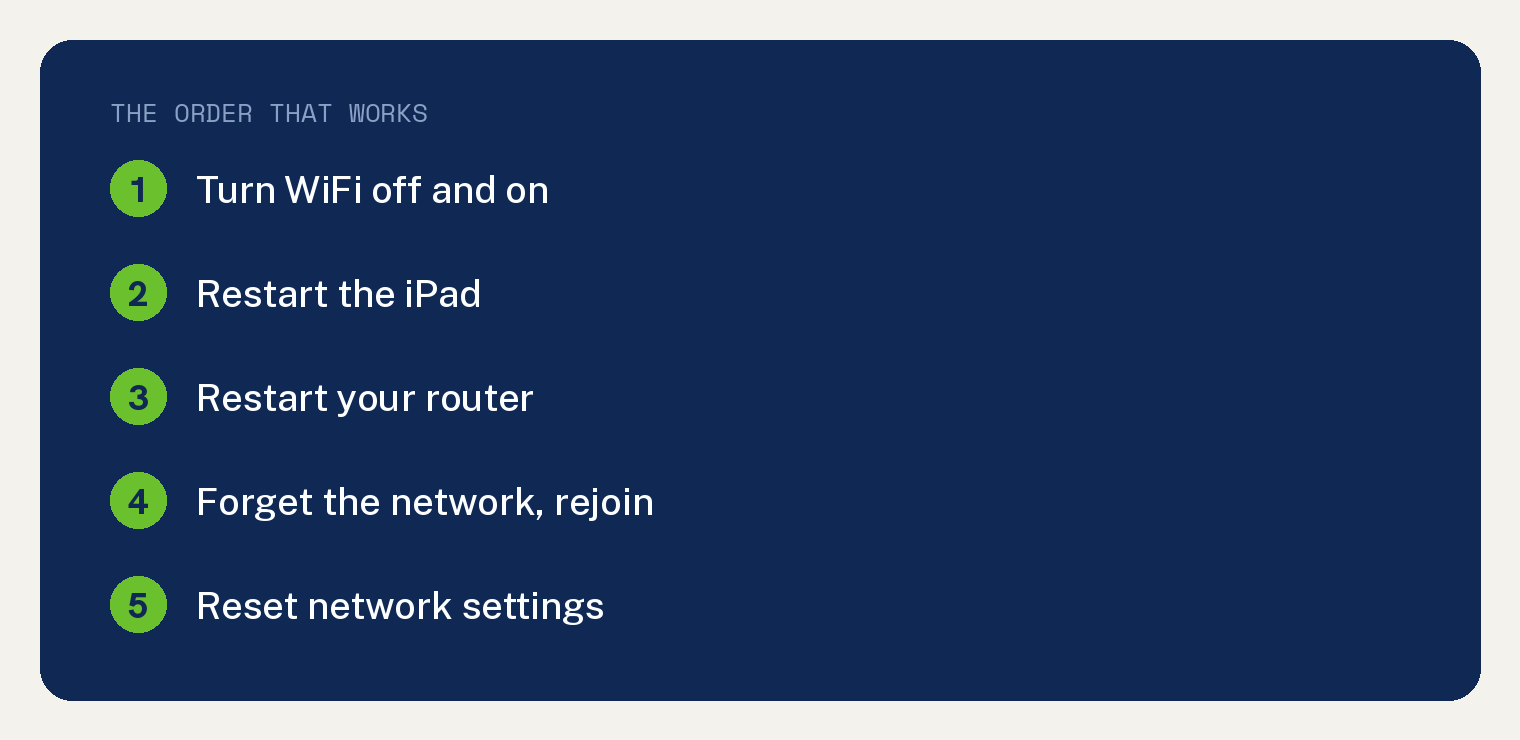
Why won’t my iPad connect to WiFi?
A handful of things keep an iPad off the network.
A minor software hiccup is the most common, and a simple restart usually clears it.
A saved network holding an old password, a router that needs a reboot, or Airplane Mode left on can all block the connection.
WiFi trouble also shows up right after an iPadOS update, which is normal and fixable.
Fix 1: Turn WiFi off and back on
This resets the connection fast.
- Swipe down from the top right corner to open Control Center.
- Tap the WiFi icon, which looks like curved lines, to turn it off.
- Wait a few seconds.
- Tap it again to turn WiFi back on.
Fix 2: Check that Airplane Mode is off
Airplane Mode shuts off WiFi completely.
In Control Center, look for the airplane icon. If it is highlighted, tap it once to turn Airplane Mode off.
Then make sure the WiFi icon is on.
Fix 3: Restart your iPad
A restart clears the software glitches behind most WiFi drops.
- Press and hold the top button and either volume button until the power off slider appears.
- Drag the slider to turn the iPad off.
- Wait 30 seconds.
- Press and hold the top button until the Apple logo appears.
Fix 4: Restart your router
Often the router is the real problem, not the iPad.
Unplug your router and modem for 30 seconds, then plug them back in.
Wait for the lights to go solid, then try to connect the iPad again.
Fix 5: Forget the network and rejoin
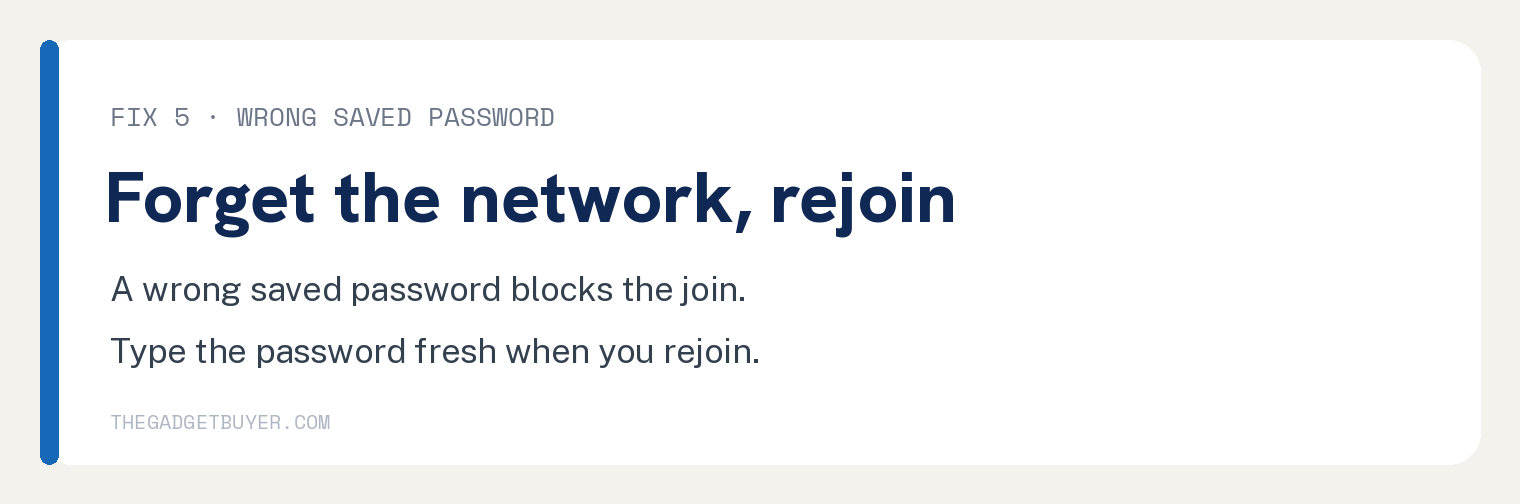
This clears a saved network that has a wrong or old password.
- Open the Settings app, the gray gear icon.
- Tap WiFi.
- Tap the letter i in a circle next to your network name.
- Tap Forget This Network, then confirm.
- Tap your network again and type the password carefully.
Fix 6: Check your date and time
A wrong clock can quietly block network connections.
- Open Settings, tap General, then tap Date and Time.
- Turn on Set Automatically.
Then try the WiFi again.
Fix 7: Update your iPad software
An outdated iPadOS version can cause WiFi bugs.
- Open Settings, tap General, then tap Software Update.
- If an update is listed, tap Download and Install.
If you cannot update over WiFi, connect the iPad to a computer to update it.
Some sites still act up even on a good connection. Our guide on why some websites will not load on an iPad covers that.
Fix 8: Reset network settings
Save this for last, since it erases your saved WiFi networks and passwords.
- Open Settings, tap General.
- Tap Transfer or Reset iPad.
- Tap Reset, then tap Reset Network Settings.
- Enter your passcode and confirm.
The iPad restarts, and you can join your network fresh with the password.
If nothing worked
Test another device on the same network. If your phone also fails to connect, the problem is the router or your internet provider.
If only the iPad fails after every step, contact Apple Support, since it may be a hardware issue.
Running into other iPad trouble? We also cover an iPad that will not charge and an iPad that will not turn on.
Frequently asked questions
Why does my iPad connect to WiFi but have no internet?
This usually means the network is up but your internet is down, or the router needs a reboot. Restart the router and check that other devices can get online.
Why did my iPad stop connecting after an update?
WiFi trouble right after an iPadOS update is common. Restart the iPad, and if it continues, reset network settings and rejoin your network.
Why does my iPad keep dropping WiFi?
Frequent drops point to a weak signal, a crowded network, or a router problem. Move closer to the router and reboot it, then forget and rejoin the network.
Will resetting network settings delete my photos or apps?
No. It only erases saved WiFi networks, passwords, and related settings. Your photos, apps, and files stay in place.