
How to Fix an Apple ID Disabled for Security Reasons
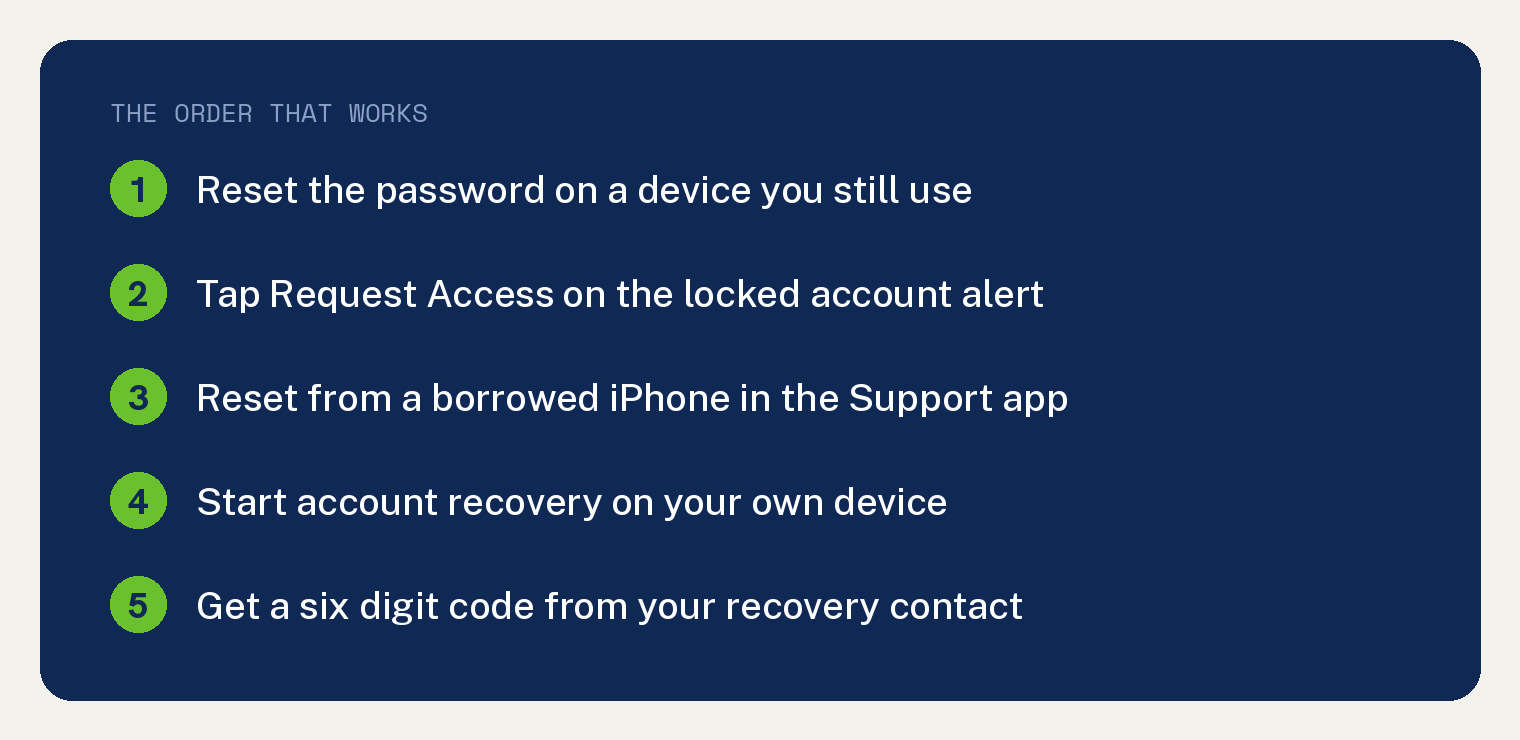
An Apple ID that is disabled or locked for security reasons comes back the same way every time: you reset the password. On an iPhone you are still signed in to, open Settings, tap your name, tap Sign In & Security, then tap Change Password.
Apple renamed Apple ID to Apple Account, so its support pages now say Apple Account. Same login, same password, same steps.
Below are the ways back in, ordered by how fast they work.
Why did Apple disable my Apple ID for security reasons?
Apple locks the account automatically to protect it. Its support page lists the exact messages you might see:
- This Apple Account has been disabled for security reasons
- You can’t sign in because your account was disabled for security reasons
- This Apple Account has been locked for security reasons
Apple says this can happen when you or someone else enters your password or other account information incorrectly too many times.
So a wrong password typed over and over on an old iPad in a drawer can trip it. So can someone else guessing at your email address.
A screen that says iPhone Unavailable is a separate problem about the device passcode. Our guide on an iPhone that says unavailable covers that one.
How do you reset the password on a device you still use?
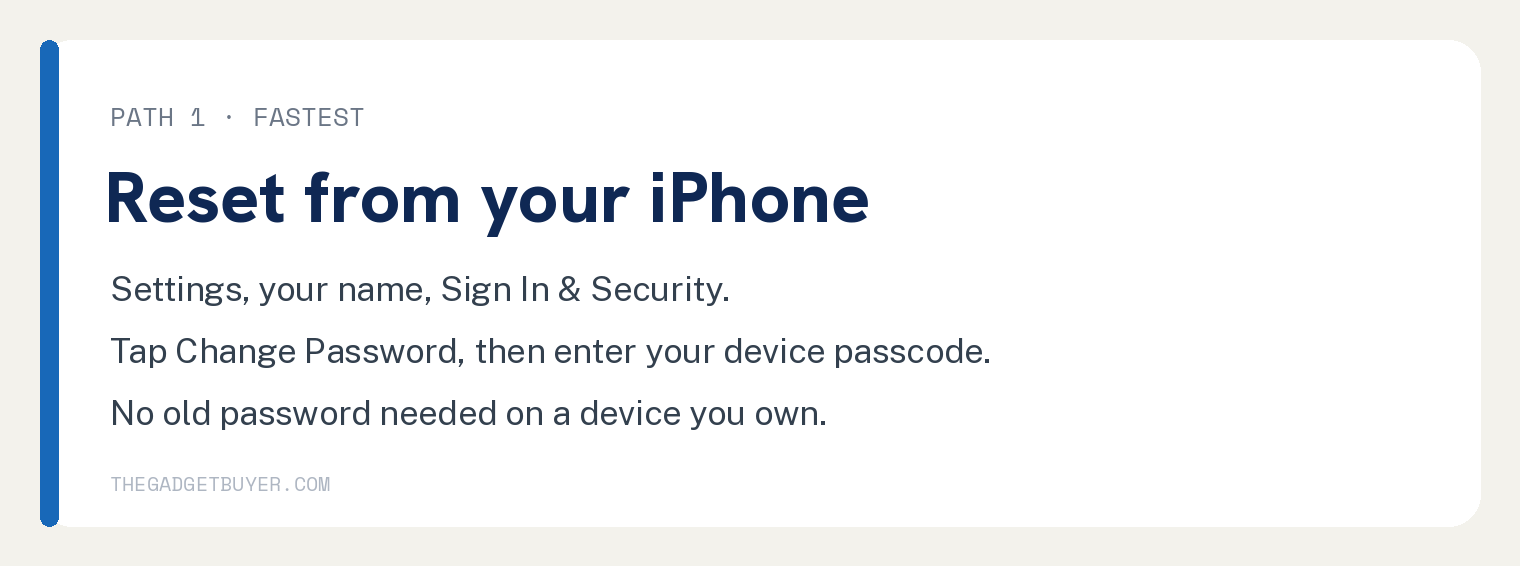
This is the fastest path, and it works even while the account is locked.
- Open the Settings app (the gray gear icon on your home screen).
- Tap your name at the very top. You should land on your account screen with iCloud and Media & Purchases listed.
- Tap Sign In & Security.
- Tap Change Password.
- Enter the passcode you use to open the iPhone. Your passcode is the proof that the account is yours, so you do not need the old password.
- Type a new password, type it again to confirm, then follow the rest of the prompts on screen.
On a Mac, choose System Settings from the Apple menu, click your name, click Sign In & Security, then click Change Password and enter the password you use to sign in to the Mac.
Apple notes that you might be required to wait one hour before changing your Apple Account password or other critical security settings. That delay comes from Stolen Device Protection, and Apple says it applies when your iPhone is away from a familiar location like home or work.
For the password rules Apple enforces and what to do on each device afterward, see our guide on how to reset a forgotten Apple ID password.
What if the alert says your account is locked?
Apple offers a second door for accounts that show as locked or not active.
- Read the alert on screen. If you see a Request Access button, tap it.
- Follow the prompts. Apple then reviews the request and tells you whether it can restore access.
- No button in the alert? Open a browser, go to Apple’s request access page for a locked account, then follow the prompts.
Apple says you might be able to request access this way. It is worth trying before you commit to the long path.
How do you get in without a device of your own?
Borrow an iPhone or iPad from a family member or a friend. Apple also says you can visit an Apple Store and ask to use a device.
- On the borrowed iPhone, open the Apple Support app. Download it free from the App Store if it is not already installed.
- Scroll down to Support Tools.
- Tap Reset Password.
- Tap Help Someone Else.
- Enter your own Apple Account email address or phone number, tap Continue, then follow the steps on screen.
Apple states that any information you enter this way is not stored on the borrowed device.
You can also go to iforgot.apple.com in any browser.
Apple says the reset process on the web might take a little longer. It also says the browser sends you to a trusted device when one is available.
Can a recovery contact get you in faster?
Yes, if you set one up before you got locked out. A recovery contact is someone you trust who can generate a six digit recovery code for you.
Apple’s order of operations matters here. Your contact can only pull a code after you have already started account recovery on your own device.
- Start account recovery on your iPhone, iPad, or Mac and verify the account information Apple asks for.
- Call your recovery contact or ask them in person. Apple warns that a code should only ever be given directly to the person who asked for it.
- On their device they go to Settings, tap their name, tap Sign In & Security, tap Recovery Contacts, then scroll to Account Recovery For and tap your name.
- They tap Get Recovery Code and read you the six digits.
- Enter that code on your device. You should then be able to set a new password and sign back in.
Apple says the account recovery process can take longer when you have no recovery contact to help.
How long does Apple account recovery take?
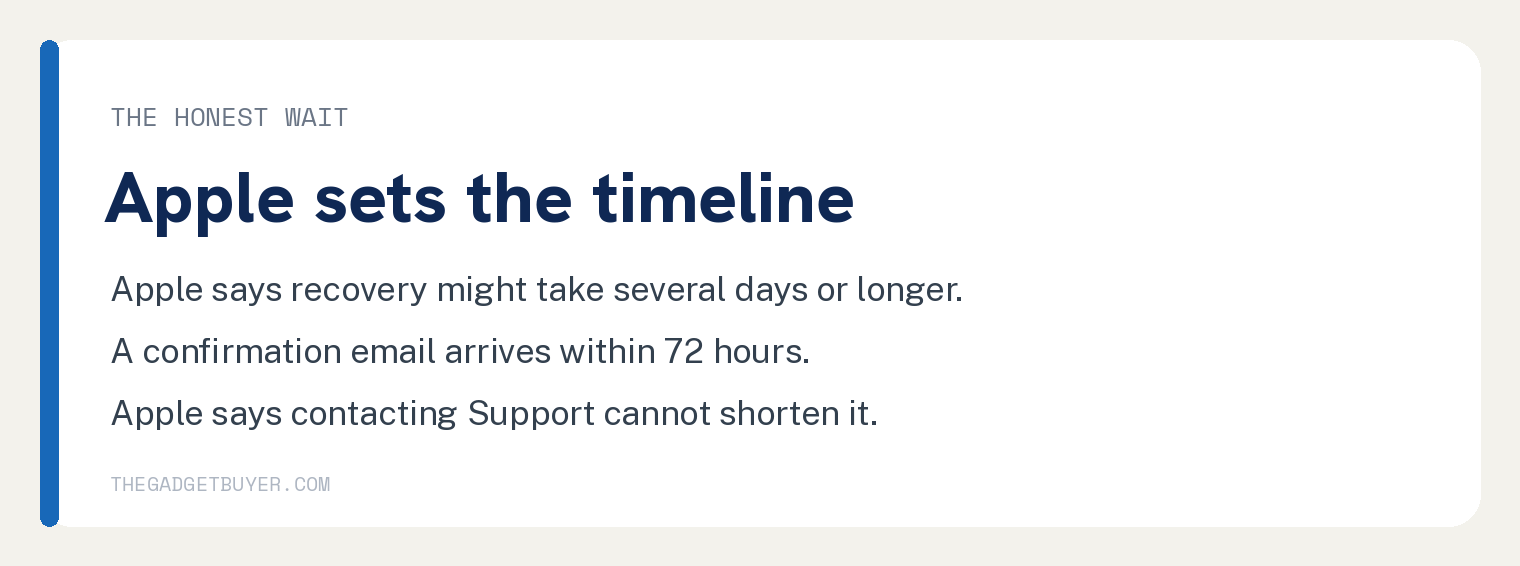
Apple publishes no fixed number of days. Its wording is that it might take several days or longer before you can use your account again after you start account recovery.
You do get a firm promise on one thing. Apple says the confirmation email with the date and time you can expect to regain access arrives within 72 hours.
Apple’s own answer to whether the waiting period can be shortened is no. Its support page states plainly that contacting Apple Support cannot help you shorten this time.
Two rules protect the clock while you wait:
- Turn off every other device signed in to the account. Apple says the recovery request is cancelled automatically if the account is in use during the request.
- You can keep using the one device where you started the request, as long as you began in Settings, System Settings, or the Apple Support app. Apple says that if you started on the web, turn that device off too if you can.
To check where you stand, go to iforgot.apple.com and enter the same email address or phone number you used to start the request.
If your memory comes back and you sign in successfully, Apple says the wait cancels on its own.
What if Apple denies the request?
Some requests come back with an alert that says this Apple Account is locked and can’t be used. Apple offers two options at that point.
The first is to create a new Apple Account. Our guide on creating an iCloud account without a phone number walks through that setup.
The second applies to hardware. If you need help removing Activation Lock and you hold proof of purchase documentation, Apple accepts an Activation Lock support request.
Skip every tool and service that advertises an account or Activation Lock bypass. Those are scams, and a factory reset leaves Activation Lock in place.
The honest path runs through the original owner. They go to icloud.com/find, sign in, select the device, erase it, then select Remove This Device.
Our guide on a previous owner’s Apple ID locking your iPhone covers that case in full.
How do you keep it from happening again?
Set up a recovery contact today. Apple lets you add up to five, and the setup lives at Settings, your name, Sign In & Security, Recovery Contacts.
Apple asks that all of your devices run iOS 15, iPadOS 15, or macOS Monterey 12 or later. It also asks that both of you have iMessage turned on and that both of you are over 13.
Consider a recovery key too, with your eyes open. Apple describes it as a secret 28 character code, and setting one up turns off Apple’s standard account recovery process.
Apple also warns that if you cannot produce your recovery key, you will be locked out of your account permanently.
Apple says to keep that key on paper in a safe place, and to avoid storing it in the Passwords app, iCloud Photos, Notes, or iCloud Drive. You cannot open any of those apps while you are locked out.
Keep your trusted phone number current while you still have access. Our guide on an Apple ID verification code that never arrives shows where to check it.
Sign out old devices you no longer use. A retired iPad running a stale password is one of the quiet ways accounts get locked in the first place.
Frequently asked questions
Is my Apple ID the same thing as my Apple Account?
Yes. Apple renamed Apple ID to Apple Account and says you sign in with the same email address or phone number and password. Every step above applies to both names.
Does a factory reset restore a disabled Apple Account?
No. Wiping the device leaves the account exactly as it was, and Activation Lock survives a factory reset. A password reset is the route back into the account.
Can Apple Support speed up my account recovery?
No. Apple answers this directly on its account recovery page: contacting Apple Support cannot help you shorten this time.
Does Verification Required mean my account is disabled?
No. Apple says that message and the billing problem message both mean you have an unpaid balance. Until you pay it, Apple says you might be unable to make new purchases, download free apps, or use subscriptions.
Why does my iPhone keep asking for the password after I reset it?
Each service signs in on its own schedule, so iCloud, the App Store, and Messages may each ask once. Our guide on an iPhone that keeps asking for your Apple ID password covers the loop that will not stop.
What if the message says my Media & Purchases account is disabled?
That is a separate alert with its own button. Apple says you might be able to request reactivation by tapping Continue right in the alert.