
iPhone Keeps Asking for Apple ID Password? 7 Real Fixes
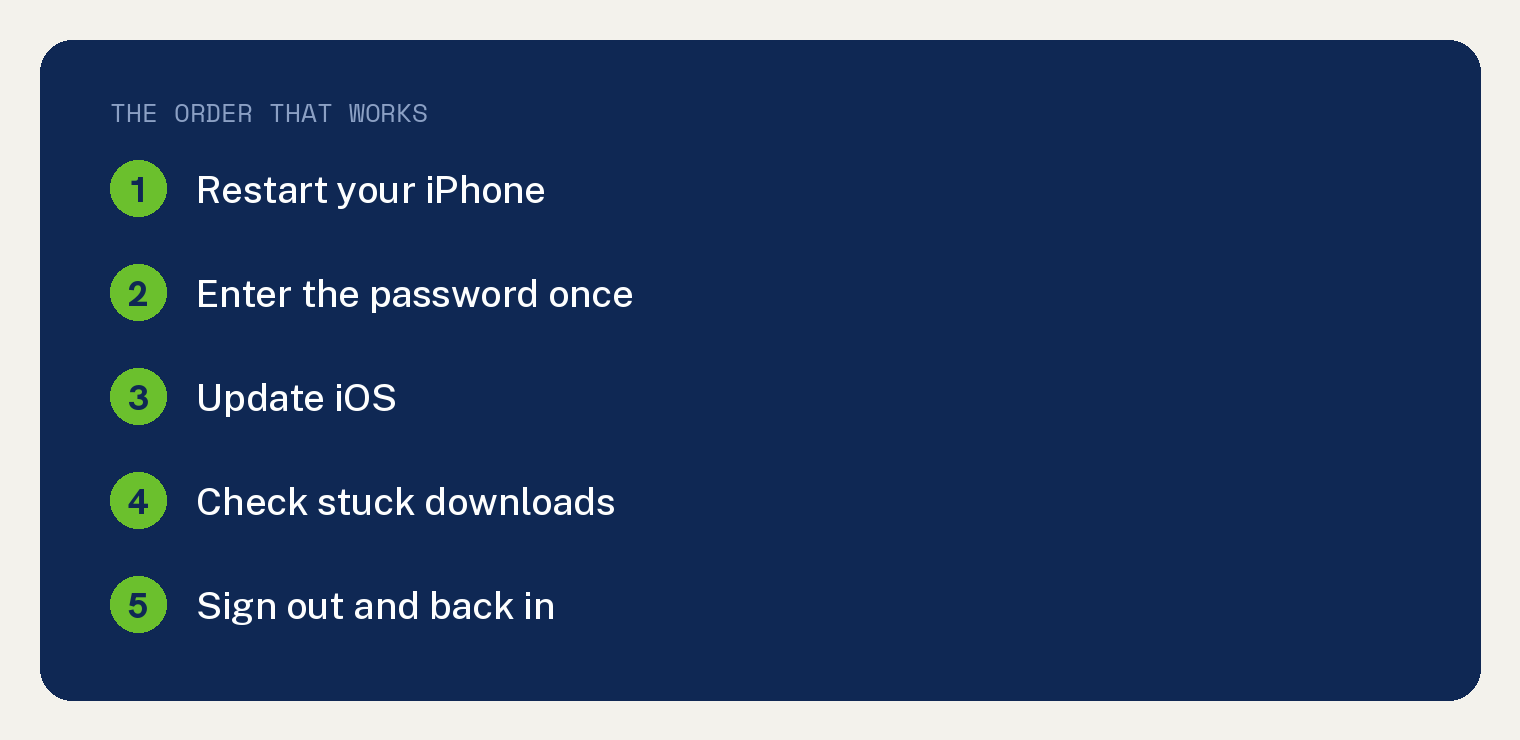
When your iPhone keeps asking for your Apple ID password, the fix that works most often is signing out of your account and signing back in. A simple restart is worth trying first because it often clears the glitch on its own.
The popup loop usually starts after a password change, an iOS update, or a stuck App Store download. The 7 fixes below run from fastest to most involved.
One naming note: Apple now calls the Apple ID an Apple Account, so your screen may show either name. Same account, same password.
Steps below were checked against Apple’s current iOS documentation in July 2026.
Why Does My iPhone Keep Asking for My Password?
The prompt is usually one of your Apple services failing to check in.
The most common trigger is a recent password change. You changed the password on another device or on the web, and one service on this iPhone is still holding the old one.
Stuck downloads cause it too. An app update or purchase that never finished keeps poking the App Store for a login.
The rest are glitches: an interrupted iOS update, a hiccup in iCloud, or a bug in an older iOS version.
Fix 1: Restart Your iPhone
Turn the phone off, wait a minute, and turn it back on.
On an iPhone with Face ID, hold the side button and either volume button until the power off slider appears. Slide it, wait, then hold the side button until the Apple logo shows.
If the popup stays gone, you are done. If it comes back within a day, keep going.
Fix 2: Enter the Password Once, Correctly
This sounds obvious, but the loop sometimes continues just because the prompt was canceled again and again.
When the popup appears, type your current Apple Account password and let it finish. If it accepts the password and stops asking, the service just needed to catch up.
Not sure the password is right? Test it at account.apple.com in a browser, and reset the password if you cannot get in there.
Fix 3: Update iOS
Apple has fixed this exact bug in past iOS updates, so get current.
- Open the Settings app (the gray gear icon).
- Tap General.
- Tap Software Update.
- If an update is waiting, tap Update Now and let the phone finish.
Plug the phone into a charger during the update so it does not stop partway.
Fix 4: Check for Stuck App Store Downloads
A frozen download nags you for a password until it finishes or gets canceled.
- Open the App Store (the blue icon with a white A).
- Tap your profile picture in the top right corner.
- Scroll down to see pending updates and downloads.
- If anything looks stuck, tap it to pause, then tap again to resume. Or cancel it entirely.
Also check the home screen for a dim app icon with a loading circle. Press and hold it, then choose to pause or cancel the download.
Fix 5: Sign Out and Back In
This is the fix that clears the loop most often, because it forces every Apple service to accept your current password fresh.
Before you start, know your Apple Account password. You will need it to sign back in.
- Open the Settings app.
- Tap your name at the very top.
- Scroll to the bottom and tap Sign Out.
- Enter your password to turn off Find My iPhone if asked.
- Choose to keep a copy of your data on the phone when offered.
- After signing out, restart the phone.
- Go back to Settings, tap the sign in banner at the top, and sign in again.
Your photos, contacts, and iCloud data sync back after you sign in. Give the phone a few minutes on WiFi to settle.
Fix 6: Check Apple’s System Status
Sometimes the problem is on Apple’s end, and no amount of tapping on your phone fixes it.
Visit Apple’s System Status page in a browser. Look for green dots next to iCloud, App Store, and Apple Account.
If something shows an outage, wait it out. The popups stop when Apple’s servers recover.
Fix 7: Contact Apple Support
If the loop survives everything above, something deeper is wrong with the account or the phone.
Use the Apple Support app or apple.com/support to chat or schedule a call. Tell them you have already restarted, updated iOS, and signed out and back in, so they can skip the basics.
FAQ: Apple Account Password Prompts
Is the popup ever a scam?
The system popup itself is real, but be careful where you type your password. If a prompt appears while browsing a sketchy website, close it and enter your password only in Settings or the App Store instead.
Why did this start right after I changed my password?
Each Apple service on the phone checks in separately, and some are slow to ask for the new password. Signing out and back in updates all of them at once.
What if I forgot my Apple Account password?
Reset it from Settings: tap your name, then Sign In and Security, then Change Password. If you are locked out entirely, you may need your Apple ID security questions or recovery options.
Could someone else be using my account?
Repeated prompts alone do not mean you were hacked, but it is smart to check. Here is how to see where your Apple ID is being used and remove devices you do not recognize.
Does this affect purchases?
It can. If your payment is also failing, see our guide on what to do when your payment method is declined on Apple.