
Apple ID Verification Code Not Arriving: What to Do
When your Apple ID verification code is not arriving, start with the device in your pocket. The six digit code almost always shows up right on a trusted iPhone, iPad, or Mac you are already signed in on, so a text message is not the default way it reaches you.
Apple now calls this login an Apple Account, though most people still search for it as an Apple ID. The steps below work the same under either name.
Check your trusted device for a sign in notification, tap Allow, and read the code. If that device is not near you, you can still ask Apple to text or call your trusted phone number.
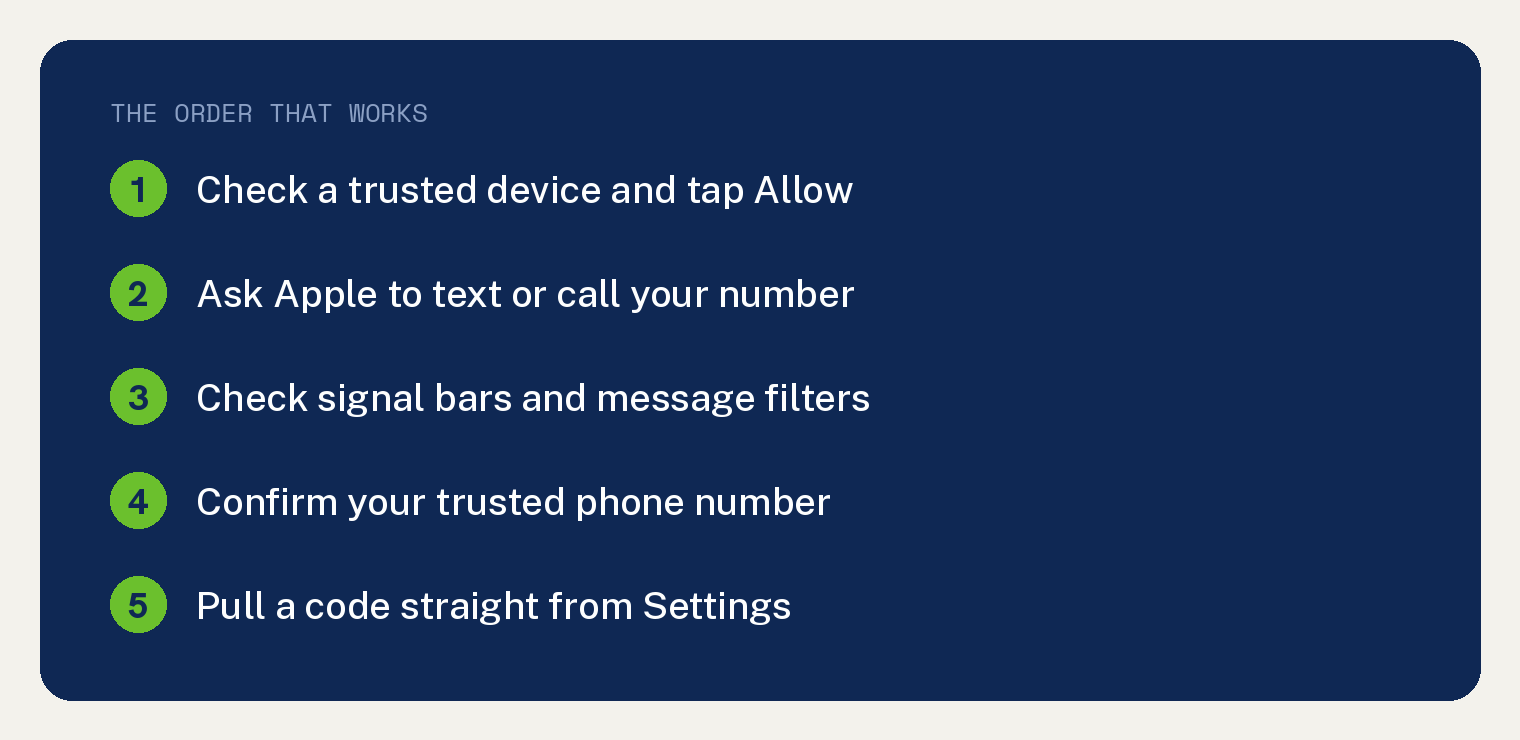
Look for the Code on a Trusted Device You Own
When you sign in on a new device or browser, the code shows on your other Apple devices as a notification. You have to tap Allow before the number appears.
- Leave the new device or browser open on the verification code screen.
- Pick up a trusted device that is already signed in to your account, such as your iPhone or Mac. Look for a notice that says your Apple Account is being used to sign in.
- Tap or click Allow. A six digit code appears on the screen.
- Type that code on the new device to finish signing in.
The notice may show a map of where the sign in started. That map follows the network address, so it can point to a nearby city instead of your exact spot. If the sign in is you, tap Allow anyway.
Want to keep tabs on which gadgets can do this? You can see where your Apple Account is signed in and drop any device you no longer use.
Ask Apple to Text or Call Your Trusted Number
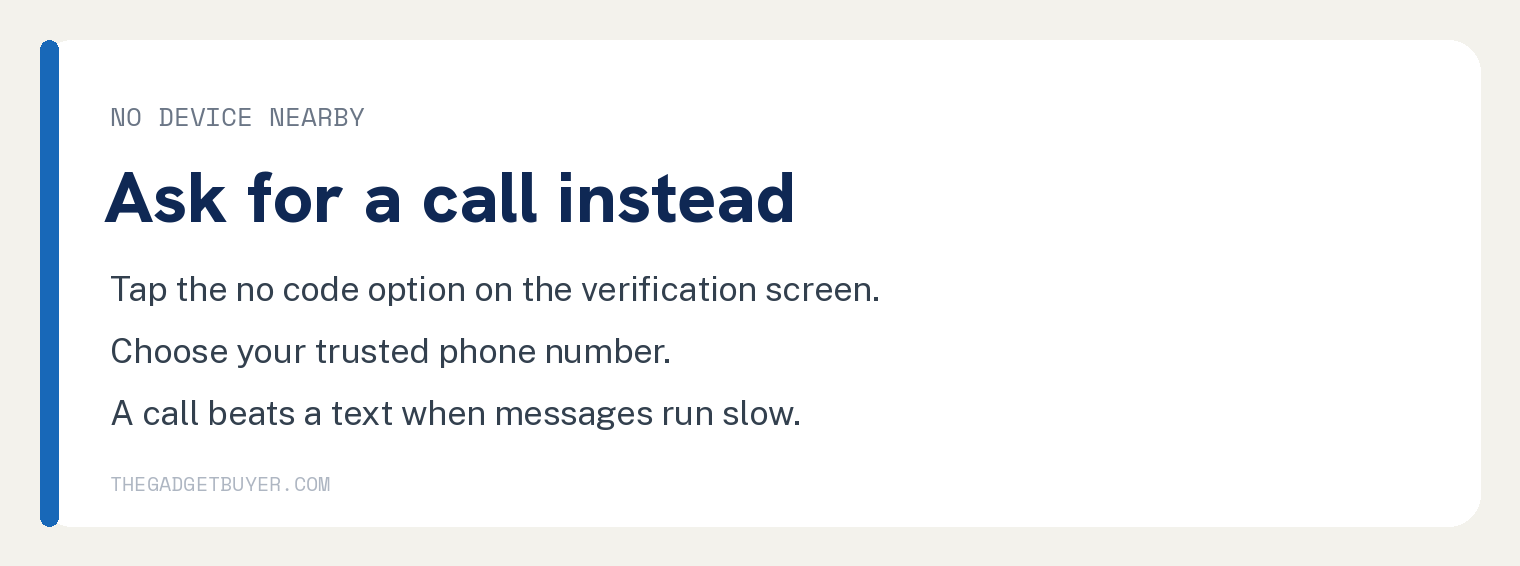
No trusted device nearby? You can have the code sent to your trusted phone number instead.
- On the verification code screen, tap “Didn’t Get a Code?” or “Can’t get to your devices?”
- Choose to send the code to your trusted phone number.
- Wait for a text message or phone call from Apple with your six digit code.
- Enter the code on the new device to sign in.
A phone call helps when texts run slow. Pick the call option if a message has not shown up within a minute.
Check the Messages App and Your Signal
A weak WiFi or cellular signal can hold up a texted code. A message filter can also tuck it out of sight.
- Look at the top of your screen and confirm you have signal bars or a WiFi symbol. Move to a spot with better signal if you see none.
- Open the Messages app and check the Unknown Senders list, since a code from Apple can land there.
- To catch alerts next time, open Settings and tap Apps.
- Tap Messages, scroll to Unknown Senders, tap Allow Notifications, then turn on Time Sensitive messages.
Restart the phone if a text still stalls. A quick power cycle clears a stuck cellular connection and often lets the code through.
Confirm Your Trusted Phone Number Is Correct
Codes go to the number Apple has on file. An old number means the text never reaches you.
- On a trusted iPhone or iPad, open Settings and tap your name.
- Tap Sign In and Security, then tap Two Factor Authentication.
- Read the trusted phone numbers listed there and check that yours is current.
- Tap Add a Trusted Phone Number to add a working one, and remove any number you no longer use.
Keep a second number on file, like a family member’s phone, so you have a backup if your iPhone goes missing. If you set up your account with no number at all, here is how to use an Apple Account without a phone number.
Get a Code Straight From Settings
If a trusted device is signed in but never shows the notice, you can pull a code by hand. This works even when that device has no internet.
- On the trusted iPhone or iPad, open Settings and tap your name.
- Tap Sign In and Security.
- Tap Get Verification Code.
- Read the six digit code and type it on the new device.
This is handy when the code keeps failing to appear on its own. If your phone also keeps asking for your Apple Account password, sorting that out often steadies the code prompts too.
If Nothing Worked
Sometimes you have no trusted device and no working phone number, so no code can reach you. In that case you move to account recovery.
- Try to sign in to your Apple Account.
- Select “Didn’t Get a Code?” or “Can’t get to your devices?” on the verification code screen.
- Choose “Can’t use [phone number]”.
- Follow the onscreen steps to start account recovery.
Account recovery can take a few days or longer, based on the account details you can provide. Apple says contacting support will not speed it up, so plan for the wait.
If you can reach a trusted device but forgot your password, reset your Apple Account password first, then request a new code. Buying a used phone that still holds someone else’s login is a different fix, so learn how to clear a previous owner’s Apple Account before you sign in.
Frequently Asked Questions
Why does my Apple ID verification code not arrive as a text?
By design, the code shows on your trusted devices as a notification you tap Allow on. A text or call only comes when you ask for one on the code screen.
Can I get an Apple Account code without any trusted device?
Yes. On the verification code screen, tap “Didn’t Get a Code?” and have the code sent to your trusted phone number as a text or call.
Why is the code slow to reach my new iPhone?
A weak signal, a full Messages filter, or an out of date trusted number can all delay a texted code. Check your signal, look in Unknown Senders, and confirm the number on file.
How long does Apple account recovery take?
It can take a few days or longer, depending on the details you can give to prove the account is yours. Contacting Apple will not make it faster.