
iPhone or Android? Switch Phones on Spectrum Mobile
Your two phones decide how you switch phones on Spectrum Mobile. An iPhone to iPhone move runs inside the new iPhone’s setup, a move from Android onto a newer Android uses a QR code, and a move between iPhone and Android, or onto an older Android, means moving the physical SIM card.
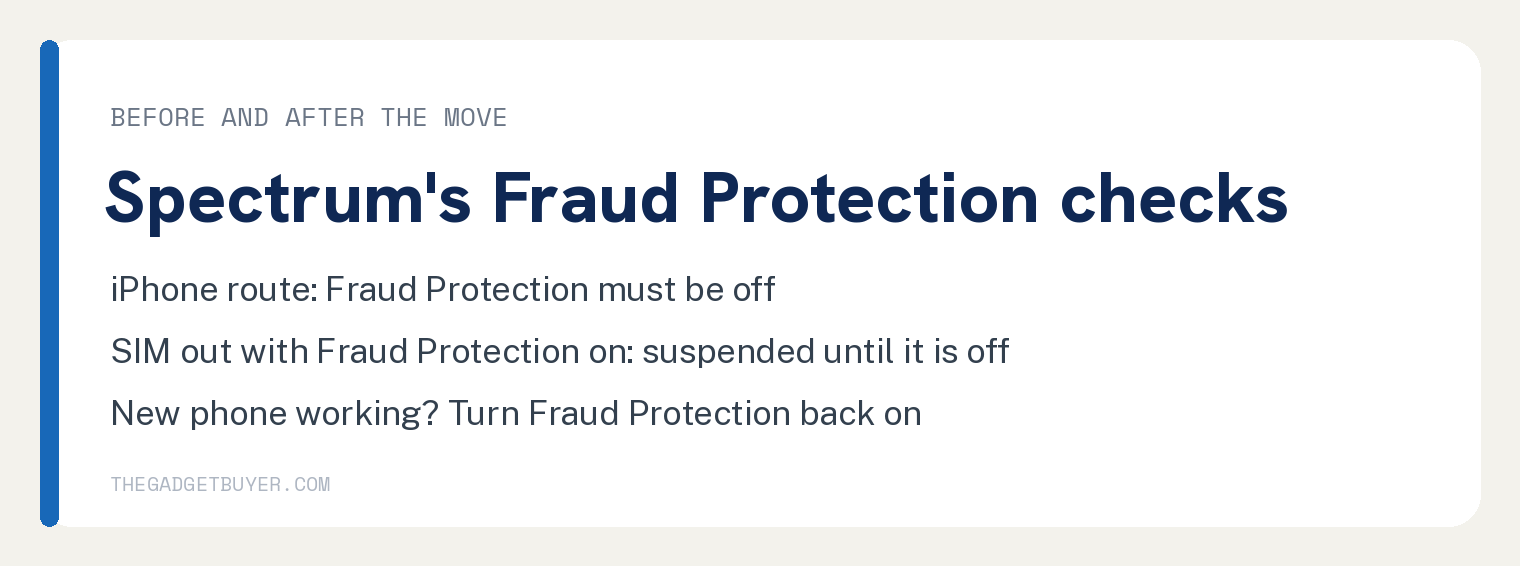
Check Fraud Protection before you start. Spectrum’s iPhone route requires it off, and Spectrum suspends the account if a SIM comes out of a phone while it is on, until you turn the feature off.
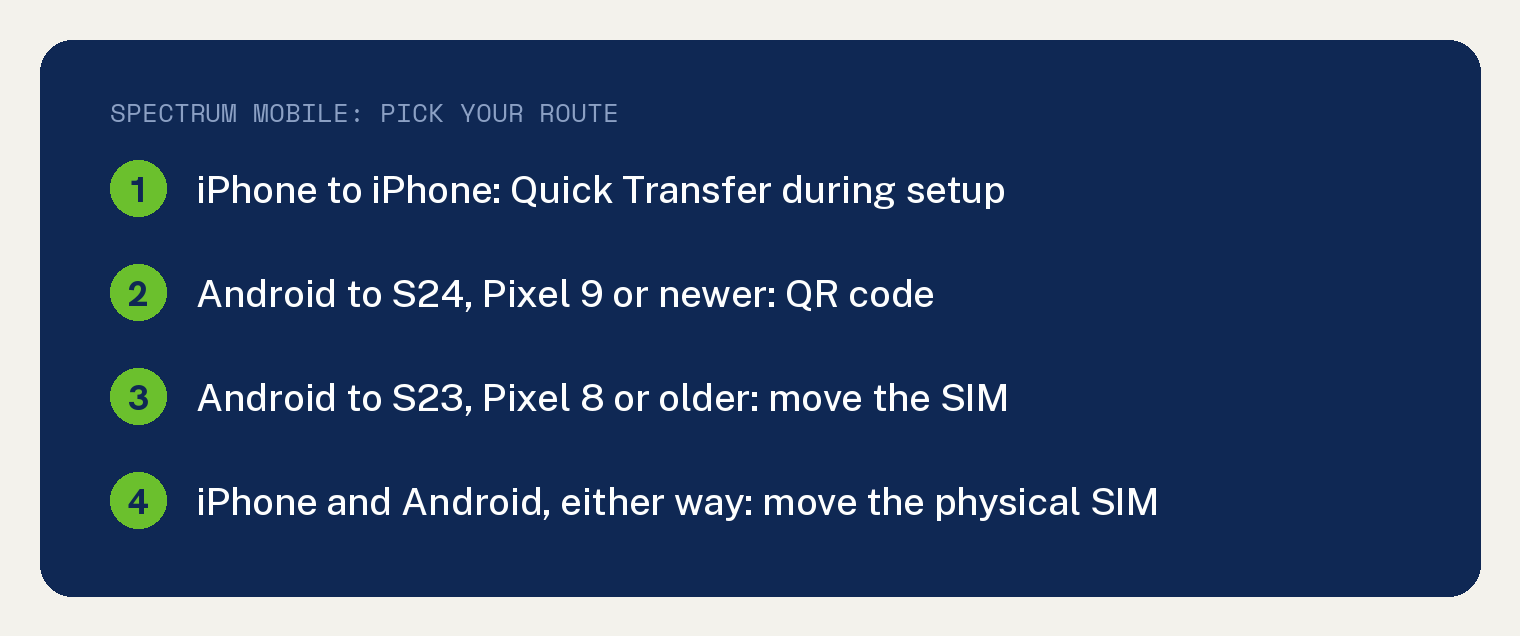
Old phone, new phone: which Spectrum route is yours?
Spectrum’s own transfer picker asks “How are you transferring?” and offers four choices: “Apple to Apple”, “Apple to Android”, “Android to Apple” and “Android to Android”. This table puts each choice next to the Spectrum page it opens and what that page asks of you.
| Your phones | Spectrum’s route | First thing to check |
|---|---|---|
| iPhone to iPhone | Quick Transfer during setup | Fraud Protection off |
| Android to an S24, Pixel 9 or newer | Transfer with a QR code | Both phones with you |
| Android to an S23, Pixel 8 or older | Move the SIM card | Both phones turned off first |
| iPhone to Android, or Android to iPhone | Move the SIM card | A physical SIM card |
The Android to Android choice opens Spectrum’s Android model picker, which offers “S24, Pixel 9 or newer” and “S23, Pixel 8 or older”. The first opens the QR code page and the second opens the SIM card page.
For an iPhone pair, Spectrum’s iPhone page adds: “If you don’t have access to your current iPhone, or if your devices don’t match the requirements above, return to the” Welcome to Spectrum Mobile “page and follow prompts to find activation instructions for your device.”
Moving a line on another carrier? See how to switch phones on Xfinity Mobile.
Is Fraud Protection on? Settle it before the move
Turn Fraud Protection off for the iPhone route and before you remove a SIM card. Spectrum’s iPhone requirements include “Fraud Protection for your Spectrum account must be turned off.”
The SIM card warning is on Spectrum’s Fraud Protection page: “If Account Fraud Protection is turned on and you remove a SIM from your device, your account will be suspended until you turn the feature off.”
The setting starts out off. Spectrum says “Account Fraud Protection is turned OFF by default, but you can update your preferences from your mobile device or online account.”
The menu path to the setting appears in Spectrum’s steps for turning it on, which begin “Sign in to your Spectrum account online or to My Spectrum App using your Primary username and password.” Then select More, then Settings, then choose Sign In & Security and select Mobile Fraud Protection.
How do you move service from one iPhone to another?
Use Quick Transfer, which runs while you set up the new iPhone. Spectrum’s scope line reads “The following applies only to iPhone-to-iPhone transfers. iPads are not eligible.”
Spectrum says “You must meet the below eligibility requirements”, and its list has six items:
- The old iPhone is an iPhone 11 or newer and unlocked.
- The old iPhone is active with Spectrum Mobile, connected to WiFi and has a passcode on.
- The new iPhone is an iPhone 12 or newer, unlocked, with eSIM.
- Both iPhones have Bluetooth on, the same iCloud account and iOS 16.4 or newer.
- You have an active Spectrum username and password.
- Fraud Protection for your Spectrum account is off.
Then follow Spectrum’s six steps:
- Turn on the new iPhone and set it next to the old one, with Bluetooth on for both.
- When the Set Up New iPhone prompt shows on the old iPhone, follow the onscreen instructions.
- Keep going through setup on the new iPhone until you see Transfer Phone Number, then select the line to move.
- Confirm the transfer, and enter the code shown on the new iPhone if you are asked for one.
- Wait for the cellular plan to activate on the new iPhone.
- Send a text or make a call using cellular data to confirm it worked.
Step 5 also ends the old iPhone’s SIM. Spectrum says “Your previous SIM is deactivated when the cellular plan on your new iPhone activates.”
Moving your messages as well? See whether text messages transfer to a new iPhone.
How do you move service to a Pixel 9, S24 or newer?
This route moves the line with a QR code while you hold both phones. Spectrum’s page opens: “You can transfer your Spectrum Mobile service from your current Android phone to a Google Pixel 9 series or newer.”
First make sure the old phone has an active Spectrum Mobile SIM, has screen lock on, runs the latest available software and is on WiFi. Spectrum also says “Make sure both phones are with you during setup.”
- Turn on the new phone and select Get Started on the Welcome screen.
- On the old phone, find the Transfer SIM to New Device notification and select Next.
- On the new phone, when asked to Set up using another device, select Pixel or Android Device.
- Use the old phone to scan the QR Code shown on the new phone.
- Keep going through setup on the new phone and follow the prompts to finish the transfer.
- Send a text and make a call to confirm it worked.
No notification in step 2? Spectrum says “If you don’t see the prompt in Step 2, you can access the transfer manually:” on the new phone, open Settings, go to Connections and select Network & Internet, select SIM Manager/SIM, select Add eSIM, then select Transfer from another phone.
Spectrum’s Pixel 9 or newer page carries this note above its steps: “If your device was purchased from a retail store or device manufacturer outside of Spectrum, learn more about bringing your own device to Spectrum Mobile.”
Going between iPhone and Android, or to an older Android? Move the SIM card
An iPhone to Android move, or the reverse, uses the physical SIM card. Spectrum’s Apple to/from Android page says “You can transfer your physical SIM card between your Apple and Android devices.”
Spectrum does not currently support moving an eSIM between the two. In the same page’s words, “transferring your embedded SIM (eSIM) between Apple and Android devices is not currently supported by Spectrum.”
If your old phone runs on an eSIM, Spectrum’s upgrade FAQ answers under “Can I keep my SIM Card when I upgrade?”: “If you had an eSIM in your previous device, you’ll need a new one when you upgrade. Be sure to back up your data, and contact us for a new or replacement eSIM.”
The move onto an S23, Pixel 8 or older Android is the same job. Spectrum’s page for those phones and its Apple to/from Android page print the same eight steps, word for word:
- Turn both phones off.
- Find the SIM card tray on the side of the old phone.
- Open the tray by pushing a SIM ejector tool or a paperclip into its hole.
- Remove the SIM card.
- Open the tray on the new phone.
- Line the SIM card up with the notch in the corner of the tray.
- Gently push the tray back into the slot.
- Turn the new phone on, then send a text and make a call to confirm the transfer worked.
Step 4 removes the SIM, the moment Spectrum’s Fraud Protection warning covers, so check that setting before you open the tray. For the SIM swap in general, see our guide to switching a SIM card to a different phone.
Leaving an iPhone for Android? Read about forwarding iMessage to Android.
Will your plan, Second Line and chats move over?
Your data plan stays the same. The upgrade FAQ answers “No, the new device will continue on the same data plan you were using before.”
A Second Line needs a dual SIM phone. The FAQ says “If your new phone supports dual SIM, your Second Line will transfer over. If you upgrade or switch to a device that isn’t dual SIM compatible, your Second Line will not transfer over.”
Going from a 4G phone to a 5G phone changes the card. Spectrum says “If you’re upgrading from a 4G device to a 5G device, you’ll need to use the new 5G SIM card provided to you.”
Moving to a new Android? Turn off RCS messaging first.
In its trade in answer, the FAQ says “If you switch to a new Android device, be sure to turn off RCS messaging before the swap. If not, chat features may keep working for up to eight days, even if you’ve removed the SIM card.”
Back on an iPhone and seeing green bubbles? Here is why texts turn from blue to green on an iPhone.
After the switch, turn Fraud Protection back on
Once the new phone texts and calls, turn the setting back on if you switched it off. On the iPhone route, Spectrum writes “After you’ve confirmed that your activation was successful, make sure that Fraud Protection is re-enabled.”
Its Fraud Protection page adds “Turning on Account Fraud Protection is encouraged to help secure all mobile lines on your account from unauthorized number transfers or SIM swaps.”
Spectrum’s seven steps to turn it on:
- “Sign in to your Spectrum account online or to My Spectrum App using your Primary username and password.”
- Select More, then Settings.
- Choose Sign In & Security, then select Mobile Fraud Protection.
- Select Verify Identity. Spectrum says “You’ll be sent a six-digit code through SMS or email.”
- Enter the code and select Continue, or select Resend Code for a new one.
- Once the code is accepted, select Continue.
- Select Turn On, then select Done on the confirmation screen.