
How to Switch Phones on Xfinity Mobile, App or Transfer
How to switch phones on Xfinity Mobile comes down to one app and one shortcut. The Xfinity app activates a new phone on your existing line after a one time passcode, and on select phones of the same type from Apple, Samsung, Google Pixel or Motorola, a quick transfer moves the eSIM phone to phone without the app.
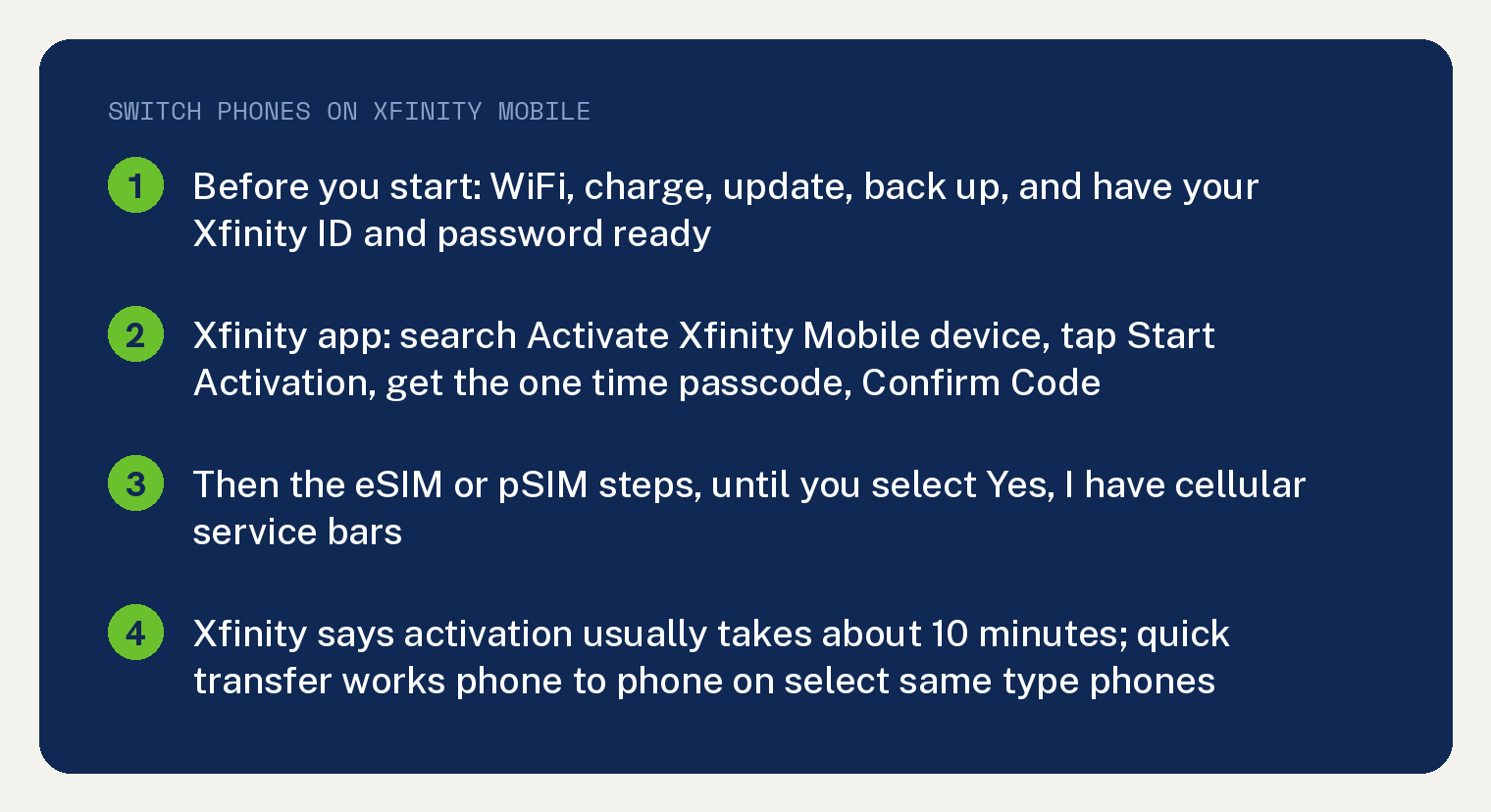
The activation page sets the time expectation up front: “Activation times vary. It usually takes about 10 minutes.” Both paths below follow Xfinity’s own support pages.
Before you start, on either path
Put the new phone on WiFi, charge it or plug it in, update it, and back up what matters. Xfinity’s six item list for the app path reads “Connect your device to WiFi.” / “Make sure it’s fully charged or plugged in.” / “Update to the latest software.” / “Save important things, like voicemails, photos, and files.” / “Have your previous account number and PIN handy if you’re transferring your number.” / “Have your Xfinity ID and password ready.”
Who can do it depends on the Xfinity ID. Xfinity says “A Primary or Manager Xfinity ID can activate any device on the account. Members can activate a device linked to their line.”
Path 1: activate the new phone in the Xfinity app
Open the Xfinity app, tap the search icon in the top corner of the Overview tab, type Activate Xfinity Mobile device, and tap your device. Xfinity’s page also gives a Services tab route: go to the Services tab, scroll to Connect compatible equipment, tap Activate more devices, scroll to Mobile, and pick Purchased from Xfinity or Purchased elsewhere.
Then tap Start Activation. A one time passcode goes to an email address on file or to the number on the phone or SIM being replaced, so select Send Code, enter it, and tap Confirm Code.
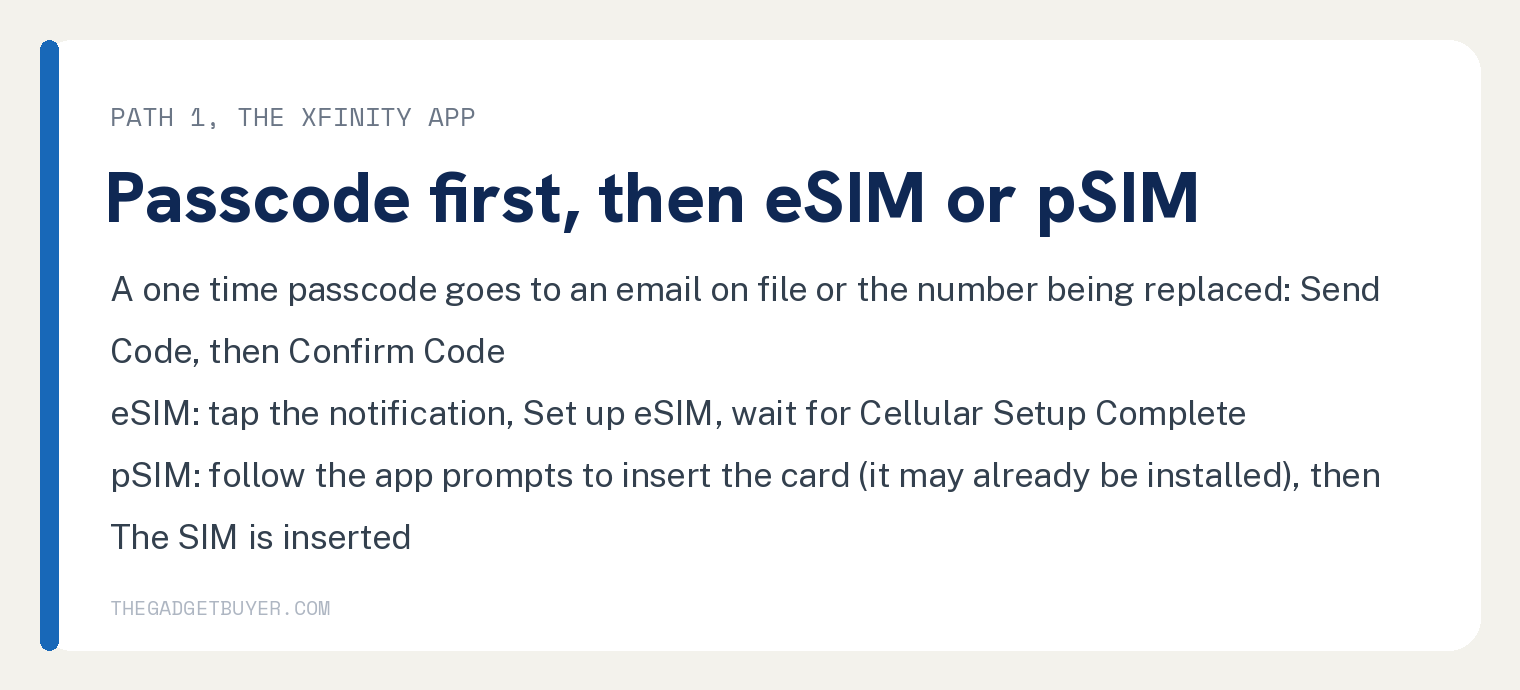
The page’s line for that step: “You need a one-time passcode sent to an email address on file or the phone number linked to the device or SIM being replaced. Select Send Code.” Xfinity also says “You will be asked to confirm your identity before setting up your device” by tapping a notification in the app or entering a code sent through email or text.
After that, the page says “find out if you need to follow eSIM or pSIM activation steps to finish the process.”
If the new phone uses an eSIM
A notification invites you to set up the eSIM. Tap it, select Set up eSIM, follow the installation steps on the screen, and wait for the Cellular Setup Complete message.
Back in the Xfinity app, check for cellular bars at the top of the phone, select Yes, I have cellular service bars, and tap Continue. Xfinity’s wording for the confirmation is “Select Yes, I have cellular service bars” then “Then, tap Continue”.
If the new phone uses a SIM card
Follow the prompts in the app to put the physical card in, and note that “The pSIM may already be installed in your device.” Once it is in, select The SIM is inserted, confirm you have cellular bars, and finish the same Yes, I have cellular service bars step.
The check at that point reads “Confirm you have cellular bars at the top of the device. Xfinity Mobile should now show as your listed provider.”
If the eSIM does not download
The page gives a QR code and a manual address for that case. Its line: “If for any reason the eSIM doesn’t automatically download, scan the QR code below, and follow the prompts.”
Failing that, “you can also enter a URL (website address) in your device to download the eSIM.” The page says to “make sure your device is connected to WiFi” first.
On Apple devices the step is “Enter cct.vzw.otgeuicc.com in the SM-DP+ Address field.” On Samsung Galaxy devices it is “Enter LPA:1$cct.vzw.otgeuicc.com”, and on Google Pixel and Motorola devices it is “Enter LPA:1$cct.vzw.otgeuicc.com$”, each inside the menu path the page lists for that brand.
Path 2: quick transfer from the old phone
Quick transfer sets the new phone up from the old one, with no app. Xfinity’s description: “If you have another phone with the latest software, you can use quick transfer to set up your new device automatically. You don’t need to use the Xfinity app to transfer service.”
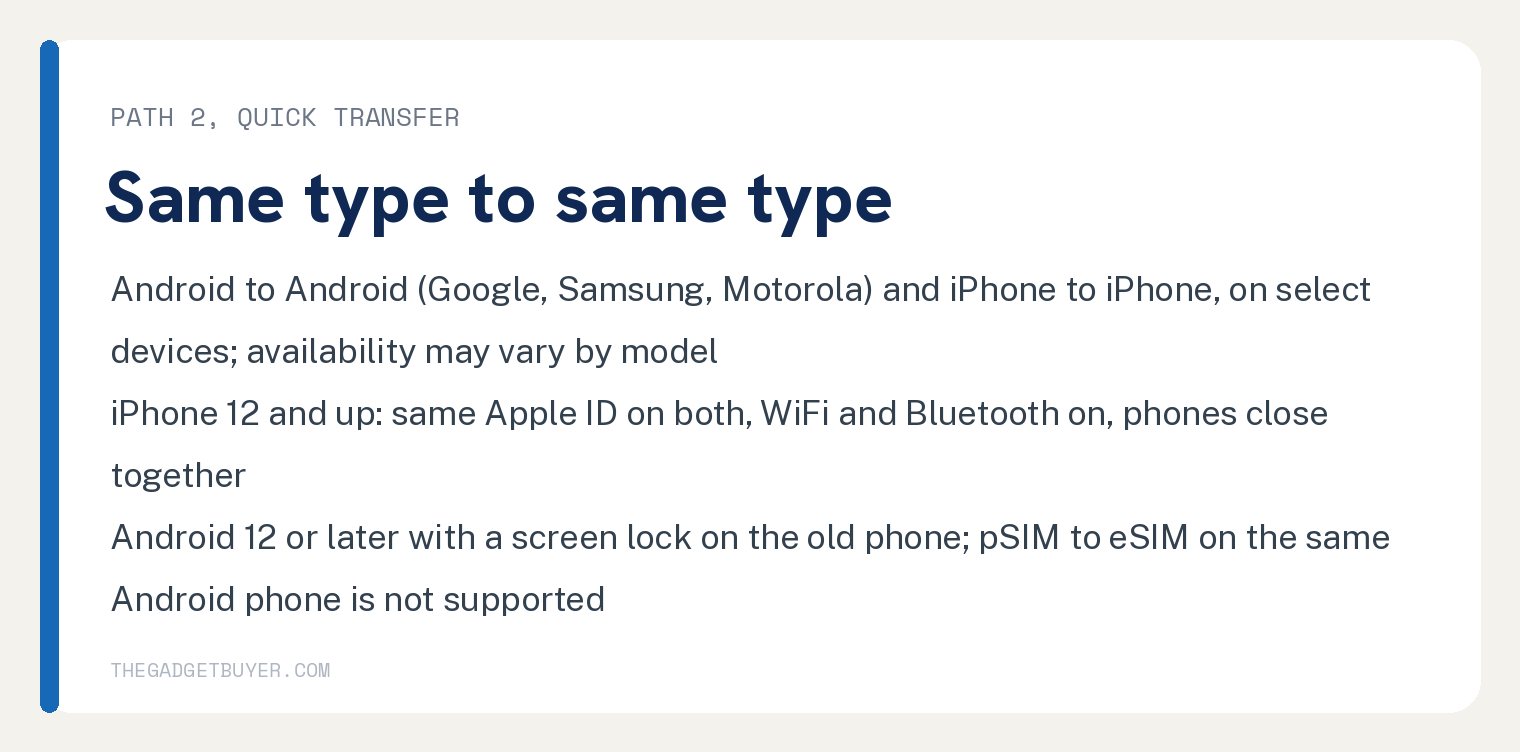
It works between the same type of phone. Xfinity’s note reads “eSIM quick transfer works between the same device types: Android to Android (Google, Samsung, Motorola) and iPhone to iPhone.”
Brand and model matter too: “Quick transfer is available on select Apple, Samsung, Google Pixel, and Motorola devices running the latest software. Availability may vary by model.” Before you begin, turn on WiFi and Bluetooth, turn Number Lock off, update both phones, and have your Xfinity ID and password ready.
Pick a quiet moment for it. The tip on the page: “Quick transfer uses both devices at the same time, so pick a time when you don’t need your old device for a few minutes.”
iPhone to iPhone (iPhone 12 and up)
Sign in with the same Apple ID on both iPhones, turn on WiFi and Bluetooth on both, and lay them close together. Xfinity lists three jobs for this feature, each on an existing line: moving a physical SIM to an eSIM on a new iPhone, moving an eSIM from one iPhone to another, and converting a pSIM to an eSIM on the same iPhone.
To do it from the Settings menu, go to Settings, Cellular, Set Up Cellular, select Transfer from Nearby iPhone, select Continue, enter the verification code from the new iPhone on the old one, choose the number, select Continue, then select Transfer Number. Sign in to your Xfinity Mobile account if asked, and Xfinity says “Wait for the network to be ready. This may take a few moments; don’t close your screen.”
After your phone is connected, select Okay. When you see Cellular Setup Complete, select Done.
Android to Android
Both phones need Android 12 or later, a screen lock on the old phone, and Google Play Services up to date. Xfinity’s own note: “Physical SIM (pSIM) to eSIM same device is not supported for Androids.”
On a Pixel 6 or newer, Xfinity gives two ways, during setup on the new phone or later in settings. The later path goes Settings, Network & Internet, SIMs, Add SIM, then Transfer a SIM from another device, pick the type of device you are switching from, select Next on the old phone, scan the QR code on the new phone with the old one, select Transfer on the new phone, confirm your lock code or pattern on the old phone, and select Done on both when the SIM has moved.
Samsung and Motorola phones have their own step lists on the same Xfinity page, under the same Android 12 conditions.
Where Xfinity’s pages stop
Neither page prints a fee for activating a device or moving a line. The words fee and charge do not appear in either page’s steps.
Neither page’s steps send you to a store. The word store does not appear in either page’s steps.
For a line that is still with another carrier, Xfinity’s app page says to “Have your previous account number and PIN handy if you’re transferring your number.” Switching on another carrier is covered in how to switch phones on Verizon and how to switch phones on Cricket Wireless, and a home connection that drops is covered in Xfinity WiFi connected but no internet.
Frequently asked questions
Can I switch phones on Xfinity Mobile without going to a store?
Yes. The Xfinity app activates the new phone after a one time passcode, quick transfer moves an eSIM phone to phone, and neither page’s steps name a store.
How long does it take to activate a new phone on Xfinity Mobile?
Xfinity’s app page says “Activation times vary. It usually takes about 10 minutes.” For quick transfer the page says the time depends on your devices and the network step “may take a few moments”.
Can I turn my physical SIM into an eSIM on the same phone?
On an iPhone 12 or newer, yes, on an existing line. Xfinity’s steps for it start with “Go to Settings > Cellular > Convert to eSIM.” On Android, Xfinity says “Physical SIM (pSIM) to eSIM same device is not supported for Androids.”
Who on the account can activate the phone?
Xfinity says “A Primary or Manager Xfinity ID can activate any device on the account. Members can activate a device linked to their line.”