
Xfinity WiFi Connected but No Internet, One Device or All
Xfinity WiFi connected but no internet means the first thing to find out is whether one device is failing or every device is. Xfinity’s own troubleshooting page tells you to check that, and for a single device this article puts two of Xfinity’s checks first: whether the phone joined the xfinitywifi hotspot instead of your home network, and whether the WiFi name or password changed.
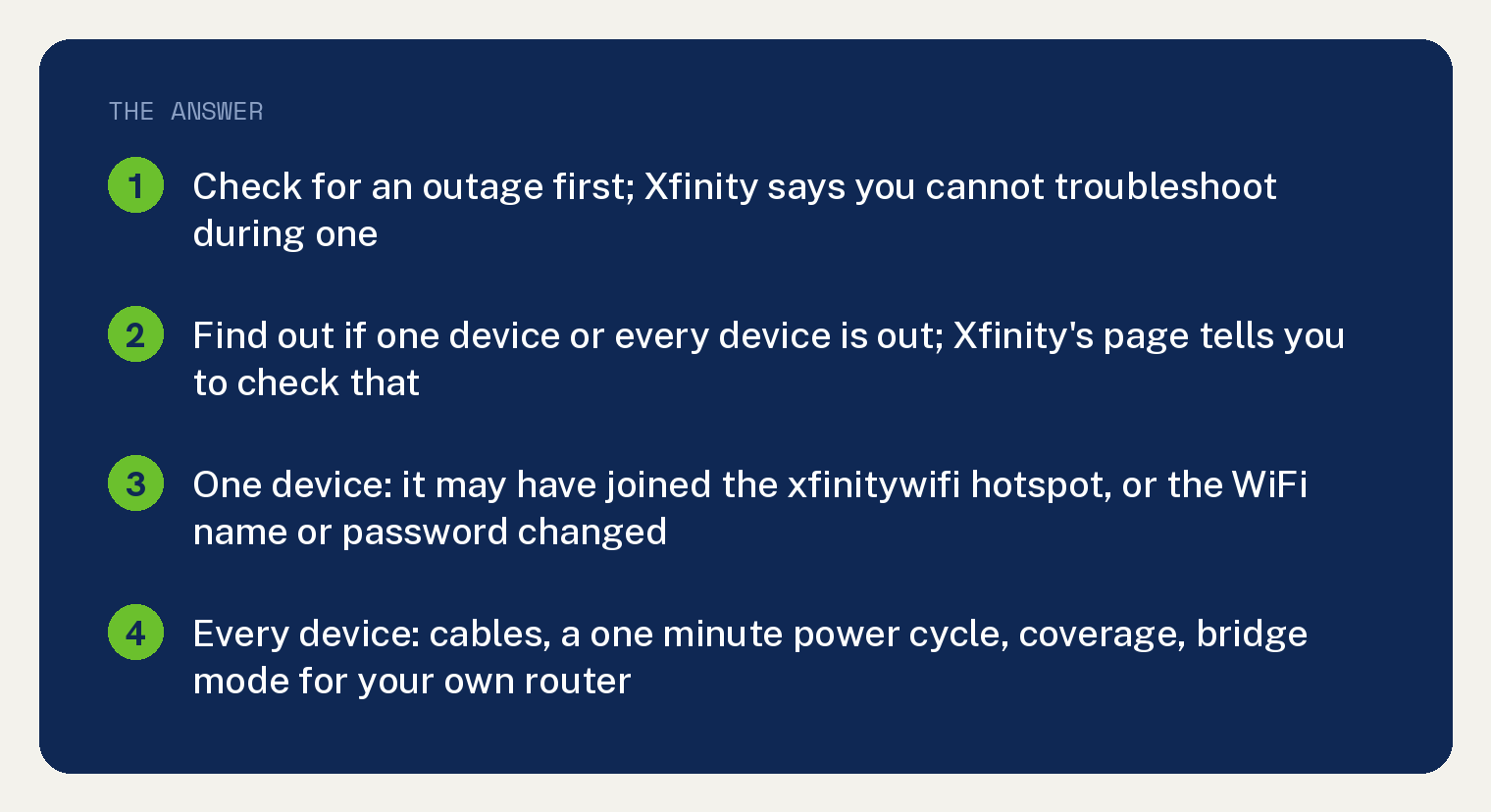
Xfinity’s page never prints the phrase connected but no internet. It prints ten tips for any connection problem, and this article sorts them for that one case, with Xfinity’s line under each step.
Is Xfinity down right now?
Check for an outage before you touch anything, because Xfinity says you cannot troubleshoot during one. Its words: “While in an outage, you won’t be able to troubleshoot.”
Xfinity says the Support page on xfinity.com alerts you to an outage and that you can check the Outage Map any time. Our guide to an Xfinity router blinking orange covers what the gateway lights mean, because Xfinity’s connection page prints no light colour check.
Is it one device or every device?
Try a second phone or laptop on the same WiFi. Xfinity’s tip: “Check multiple internet-capable devices to see if the problem is with one or the entire network.”
Xfinity adds what a one device problem tends to need: “Single device issues are often fixed by updating network settings or restarting your personal device.”
When more than one device is out, Xfinity’s first tip is its Assistant: “If the issue affects multiple personal devices, use Xfinity Assistant to find outages, perform diagnostics, and troubleshoot.”
One device is connected but nothing loads
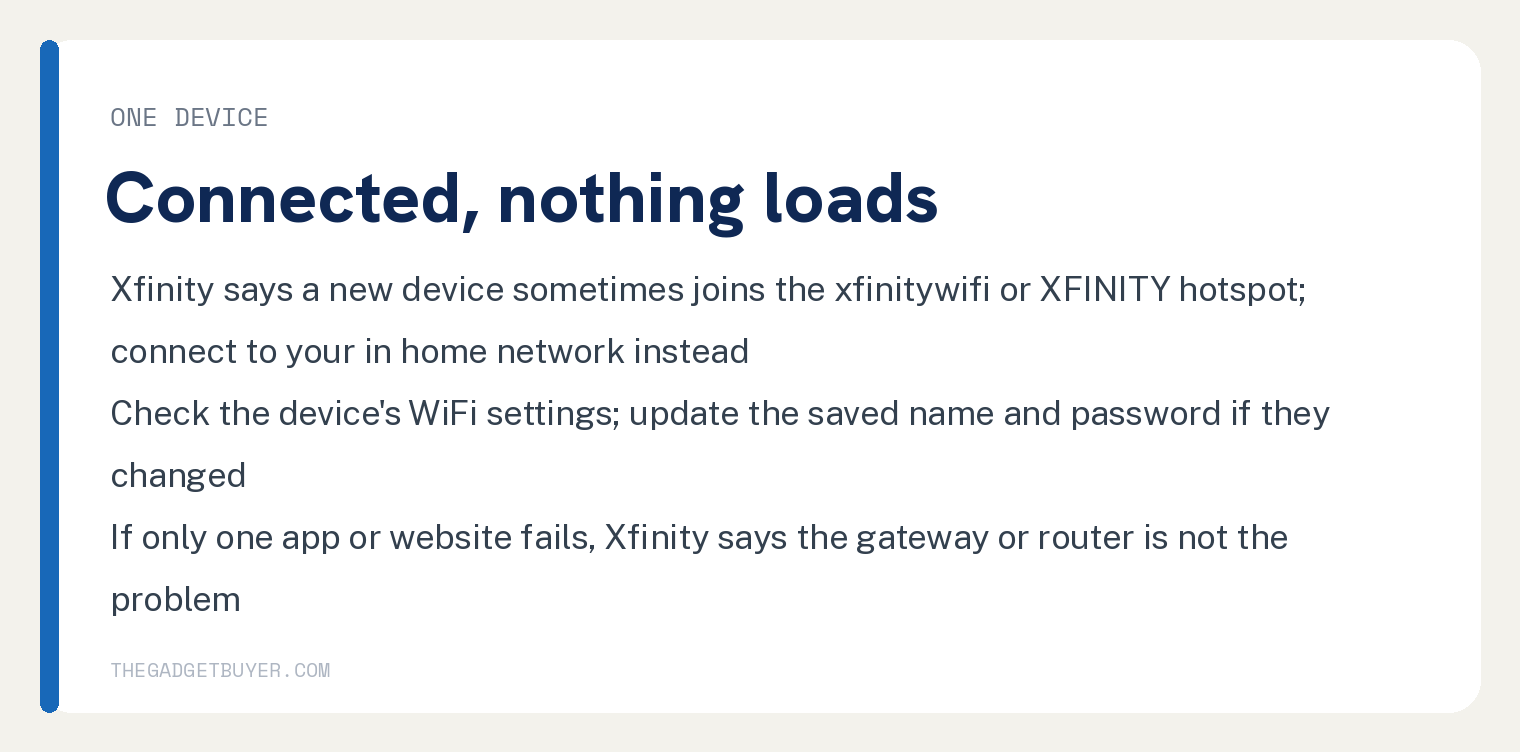
Start with which network the device joined. Xfinity’s page names the trap: “Sometimes a new device will try to join an Xfinity WiFi hotspot (xfinitywifi or XFINITY). Connect to your in-home WiFi network instead.”
Then check the WiFi settings on the device. Xfinity says to make sure WiFi is on and the device is connected to your in home WiFi network.
Next, a changed name or password. Xfinity’s tip is to check whether the WiFi network name and password were changed and, if necessary, update the device’s WiFi settings to the new ones.
Then rule out one app. Xfinity: “If it’s specific to one app or website, the problem isn’t with the gateway or router.”
Every device is connected but nothing loads
Four of Xfinity’s ten tips cover the equipment. Here they are as five steps in our order, including the power cycle Xfinity prints inside its own modem tip.
- Cables. Push every cable in and tighten the coax at the wall and at the modem or gateway. Xfinity: “Confirm equipment cables are plugged in and the coaxial cable is tightened as much as possible to both the wall outlet and your modem/gateway.”
- Power cycle. Xfinity’s line: “Unplug the power from your modem or gateway, wait one minute, and then plug it back in.” Xfinity prints that sentence inside its tip for people who use their own modem, and the sentence names the modem or gateway.
- Coverage. Get closer to the gateway or router. Xfinity: “Make sure you are within a reachable WiFi coverage area from the gateway or router.”
- Your own router. Xfinity’s tip: “If you’re using your own router in addition to your gateway, make sure the gateway has bridge mode enabled.”
- Your own modem. Xfinity says to confirm it is compatible with Xfinity Internet service.
Xfinity also asks you to confirm the account is paid up, through Manage billing in the Xfinity app or the Billing tab on xfinity.com.
Which Xfinity tool troubleshoots the connection for you?
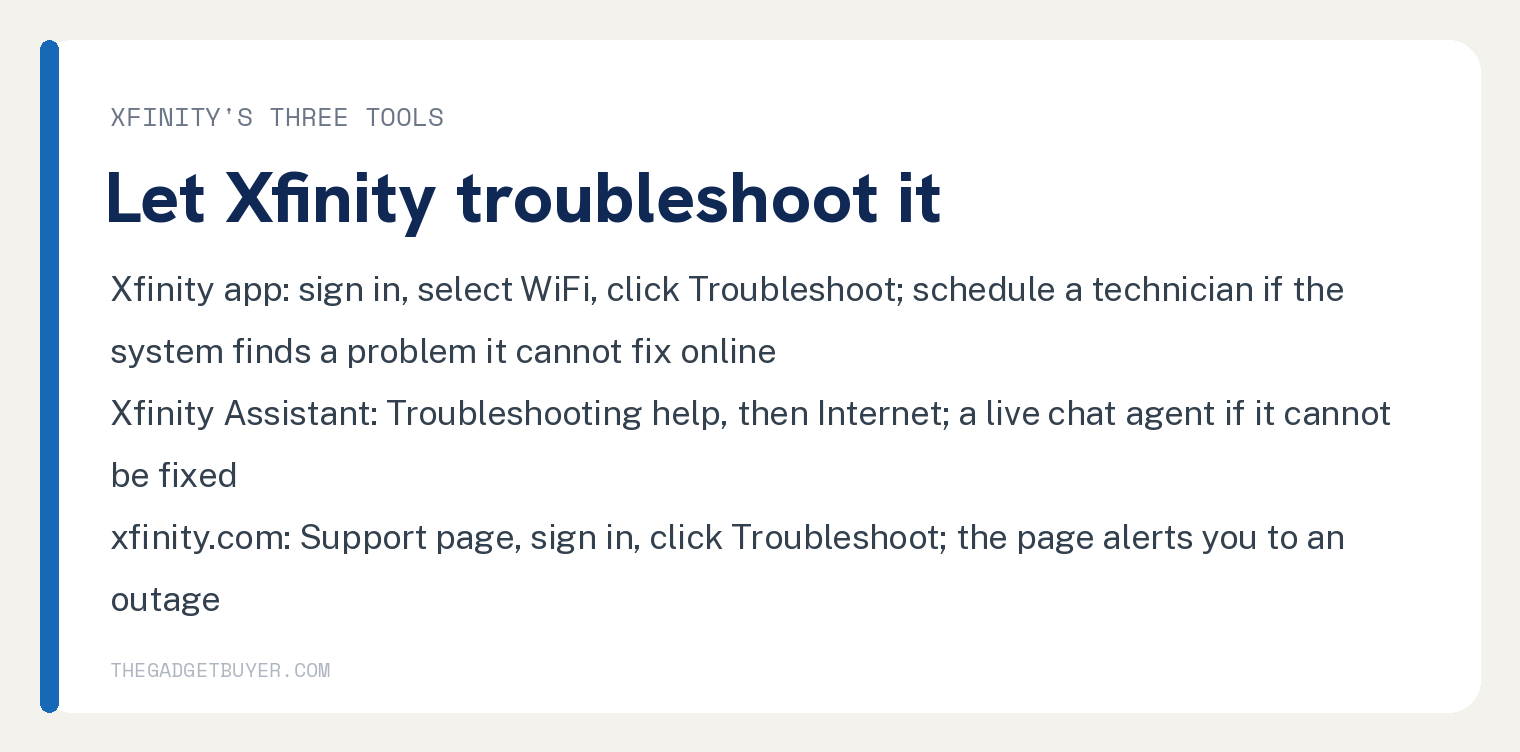
Xfinity’s page gives three ways to troubleshoot: Xfinity Assistant, the Xfinity app and xfinity.com.
In the Xfinity app, sign in with the Primary Manager or Member’s Xfinity ID and password, select WiFi and click Troubleshoot. If the test will not run after you click Troubleshoot, Xfinity says to update the app to the latest version. Xfinity adds: “Schedule a technician if our system finds a problem it can’t fix online.”
In Xfinity Assistant, sign in, select Troubleshooting help, choose the Internet option and follow the prompts. Xfinity’s next step there: “Connect with a live chat agent if your issue can’t be fixed.”
On xfinity.com, go to the Support page, sign in with your Xfinity ID and password, and click Troubleshoot to begin.
Frequently asked questions
Why does my phone say connected to Xfinity WiFi but no internet?
For one device, this article puts two of Xfinity’s checks first: whether it joined the xfinitywifi or XFINITY hotspot instead of your home network, and whether the home network’s name or password changed. Xfinity says to connect to your in home WiFi network, and to update the device’s WiFi settings to the new name and password, if necessary.
Should I restart the Xfinity gateway or reset it?
Xfinity’s connection page prints a power cycle and no reset. Its words: “Unplug the power from your modem or gateway, wait one minute, and then plug it back in.” The words reset and factory reset appear nowhere on the page.
Do I need to change DNS or IP settings?
Xfinity’s page prints no DNS or IP address step. The nearest line is its one device tip, which names “updating network settings or restarting your personal device.”
What if the WiFi keeps dropping instead of staying connected?
That is a different symptom, covered in our guide to Xfinity WiFi that keeps disconnecting. A green blinking light has its own guide too: what a green blinking light on an Xfinity modem means. Xfinity Stream failing on a Roku is a separate app problem, covered in our guide to Xfinity Stream not working on Roku.