
How to Switch Phones on Cricket Wireless, eSIM or SIM Card
How to switch phones on Cricket Wireless depends on what the two phones use. With eSIM, the transfer runs on the two phones and ends with a test call; with a physical SIM card, Cricket’s upgrade page says to put the new SIM card in the new phone before you activate it.
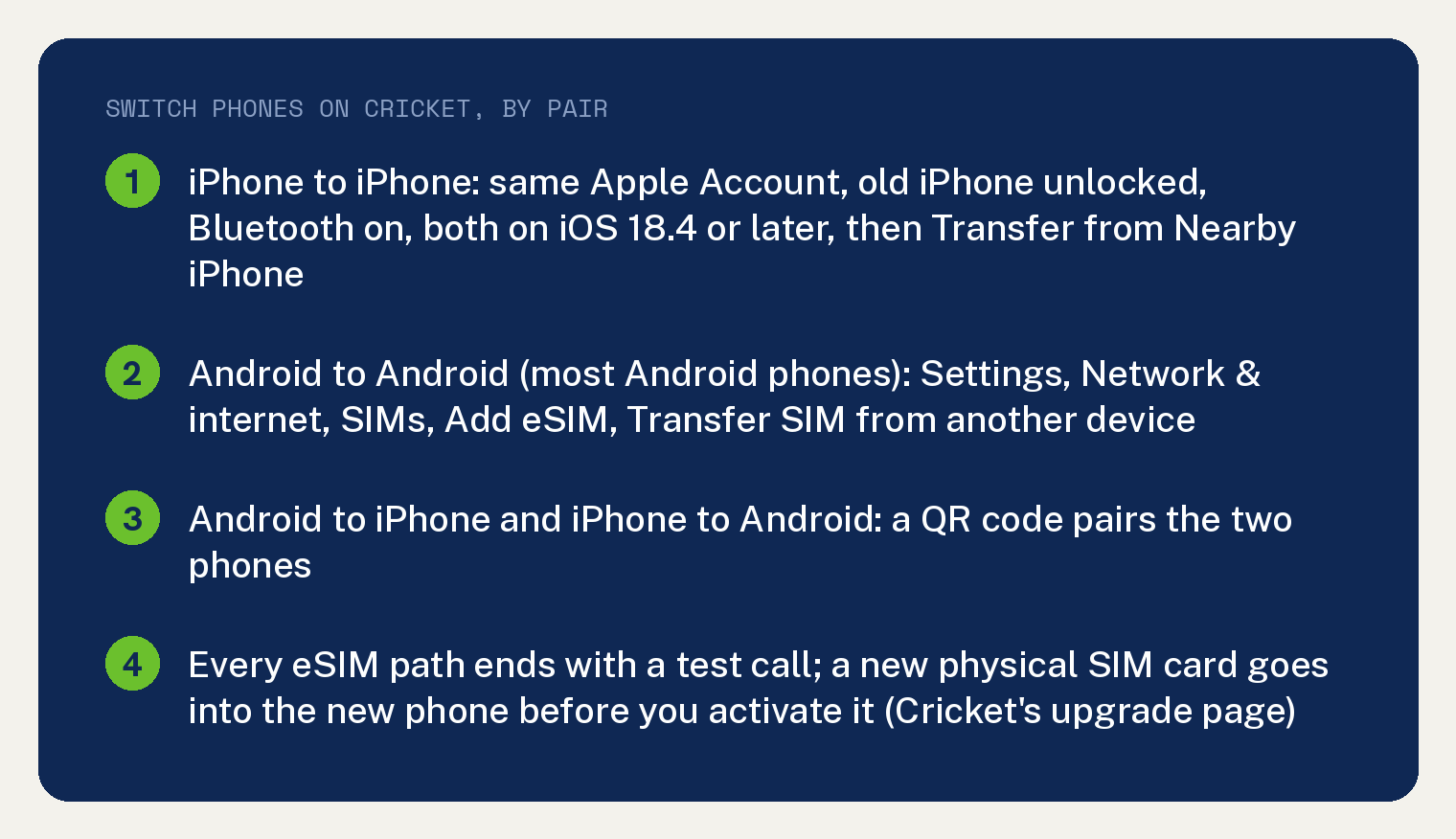
Every step below comes from two Cricket support pages, and each path keeps Cricket’s order.
Pick your path by the two phones in your hands
Cricket’s eSIM page gives four procedures, one for each pair: iPhone to iPhone, Android to Android, Android to iPhone, and iPhone to Android. Find yours below, and whichever one you follow, the last step on every path is the same: “Make a test call to confirm service is working”.
If your new phone takes a physical SIM card instead, skip to the physical SIM section near the end.
iPhone to iPhone
Four things have to be true before you start. Cricket’s list: “You’re signed in to both devices with your Apple Account” / “Your previous iPhone is unlocked using the device passcode” / “Both devices are nearby with Bluetooth turned on” / “Both devices are on iOS 18.4 or later”.
If the new iPhone is still in its setup screens, tap Transfer from Nearby iPhone when it offers, choose the number or plan to move, and follow the prompts on both phones. Cricket’s wording is “When prompted during the initial device setup, tap Transfer from Nearby iPhone” then “Choose the phone number or cellular plan you want to transfer”.
If the new iPhone is already set up, open Settings, tap Cellular, tap Set Up Cellular or Add eSIM, then choose a plan or tap Transfer From Nearby iPhone. Confirm on the old iPhone, enter the verification code from the new one if asked, and wait, which Cricket says “may take a few minutes”.
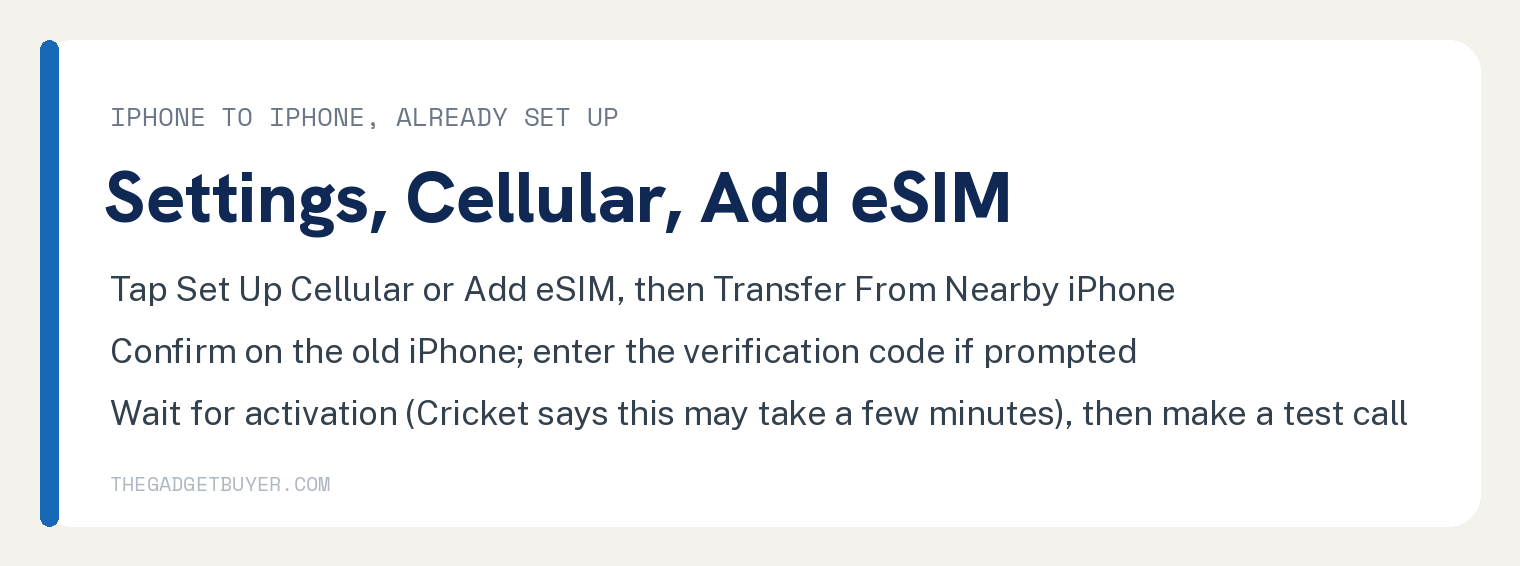
If a prompt appears, tap Finish Setting Up Your Carrier’s Cellular Plan, then make the test call. Cricket adds: “Once your new phone Is active, your old pSIM or electronic SIM will deactivate automatically.”
Android to Android
Cricket scopes this one to most Android phones: “You can transfer your number between most Android phones using eSIM by following the steps below:”. On the new phone open Settings, tap Network & internet (or Connections), select SIMs or SIM Manager, and tap Add eSIM.
Choose Transfer SIM from another device, confirm on the old phone with its PIN or screen lock, follow the prompts, and make the test call. Cricket’s confirm step reads “On your old phone, confirm the transfer using your PIN or screen lock”.
Android to iPhone
Before you start, update both phones, put them next to each other, and keep both screens on. Those are Cricket’s three lines: “Ensure both devices have the latest software updates installed” / “Place both phones next to each other” / “Keep both screens on so you can follow the prompts”.
On the iPhone open Settings and tap Set Up Cellular, or on an iPhone that is already set up tap Cellular then Add eSIM. Then tap Transfer from Android, and a QR code appears on the iPhone.
Scan that code with the Android camera, select the number, tap Transfer, confirm if asked and choose it as the primary eSIM, then tap Done on the iPhone and OK on Android, and make the test call. Cricket’s close for this path: “Once complete, your Android SIM will deactivate.”
If the QR code will not scan
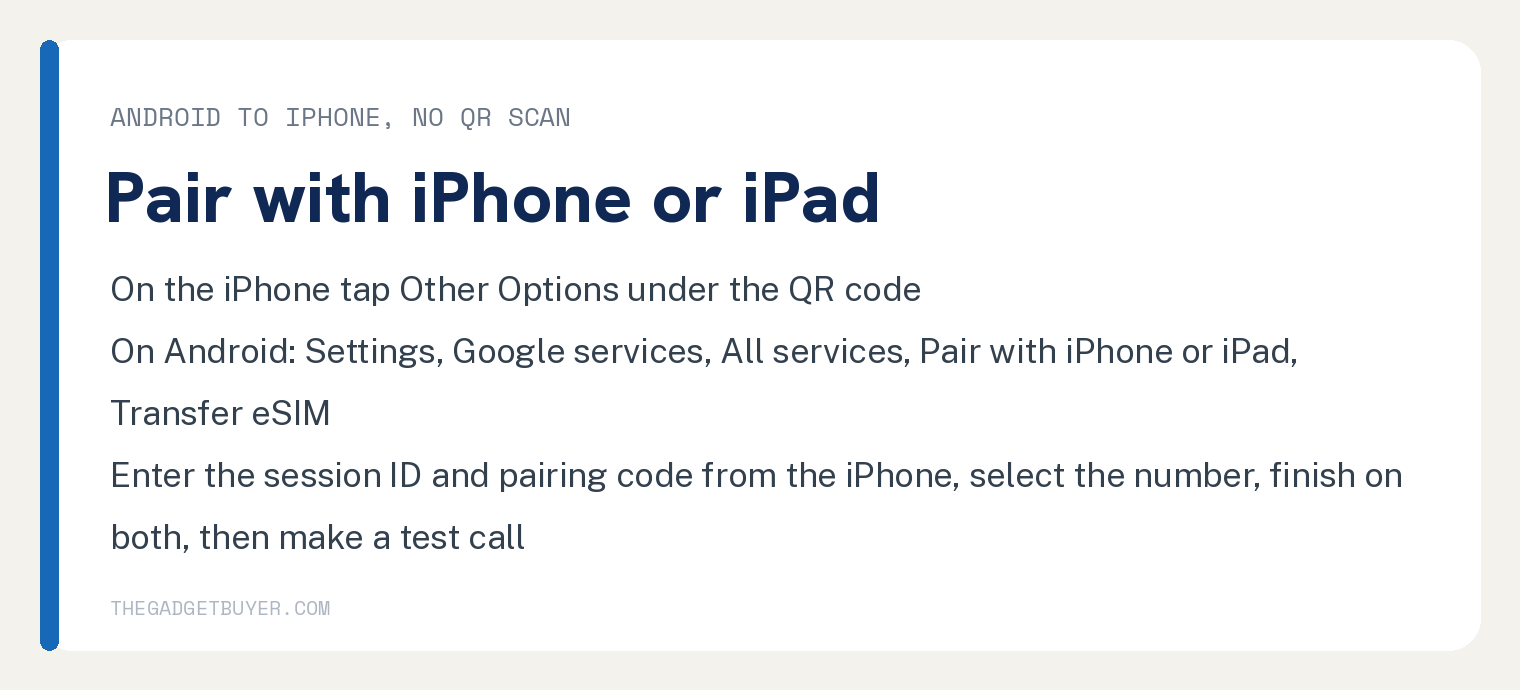
Tap Other Options under the QR code on the iPhone. On the Android phone open Settings, tap Google services, then All services, tap Pair with iPhone or iPad, tap Transfer eSIM, and enter the session ID and pairing code from the iPhone.
Cricket’s two key lines there are “Tap Pair with iPhone or iPad” and “Enter the session ID and pairing code from your iPhone”, followed by selecting the number, completing setup on both phones and making the test call.
iPhone to Android
Turn the Android phone on and connect it to Wi-Fi, open Settings, find Network & internet, choose SIMs, tap Transfer a SIM from another device, choose iPhone, and scan the QR code with the iPhone. Cricket’s step is “Tap Transfer a SIM from another device” then “Choose iPhone”.
On the iPhone tap Continue to accept the request, choose the number and tap Continue, confirm with Face ID or your passcode, and tap Done. Back on the Android phone, Cricket says to “look for Cricket SIM transferred message and tap Done”, then make the test call.
Physical SIM: put the card in first
When the new phone comes with a physical SIM card, Cricket’s upgrade page puts the card in before you activate: “Make sure you insert your new SIM card into your new phone BEFORE you activate it.”
Then select Activate from the top of the navigation bar. The same line says “you’ll need to come back and select Activate from the top of the navigation bar to get your new phone up and running.”
Neither Cricket page prints steps for moving an existing SIM card from an old phone to a new one.
That page is about upgrading through Cricket, and its rules are for that: “You can upgrade your phone only once every 365 days;” and “A $25 device upgrade fee applies to phone upgrades in Cricket stores and online.” Cricket’s eSIM transfer page prints no fee at all.
Where Cricket’s pages stop
The eSIM page prints steps for eSIM transfers only, and its physical SIM lines say that eSIM removes the need for one and that a physical SIM on an eSIM capable phone already on Cricket can be converted in the phone’s settings. The physical SIM activation line lives on the upgrade page.
The only numbered version on the eSIM page is iOS 18.4 or later, under iPhone to iPhone. The Android to iPhone section asks for the latest software updates on both phones, and no other section prints a version line.
If you have trouble with the transfer, Cricket’s help line is to call Cricket at 800 274 2538 or visit a Cricket store. Switching on another carrier is covered in how to switch phones on Verizon and how to switch phones on Metro, and Cricket’s network is covered in is Cricket as good as AT&T.
Frequently asked questions
Can I switch phones on Cricket without going to a store?
Yes. The four eSIM transfers run on the two phones, and Cricket’s eSIM FAQ says eSIM capable iPhones and Android devices “can be activated online or at any Cricket Retail store.” For a physical SIM, Cricket’s upgrade page says to insert the new SIM card into the new phone and then “select Activate from the top of the navigation bar”.
Can I turn my physical SIM into an eSIM on the same phone?
Yes. Cricket’s FAQ says that if you are already on the Cricket network with an eSIM capable phone and a physical SIM inserted, “you can convert your cellular plan to an eSIM in your phone’s settings.”
I deleted my eSIM. What now?
After a hard reset, choose Keep Your SIM or Keep Your Cellular Plan when the phone offers it, and never Delete All. If you need more help, Cricket says to contact Customer Support “or dial 611 to have a new eSIM downloaded to your phone and activated.”
What happens to my old phone’s SIM?
On the iPhone to iPhone path Cricket says the old pSIM or electronic SIM deactivates automatically once the new phone is active, and on the Android to iPhone path “your Android SIM will deactivate.” The other two sections print no deactivation line.