
How to Fix AirPlay Not Working on Apple TV
AirPlay not working on Apple TV? Turn AirPlay on in the Apple TV’s Settings, and put your iPhone, iPad or Mac on the same Wi-Fi network as the Apple TV.
If it still fails, restart both devices. That restart is the next step on Apple’s own troubleshooting page.
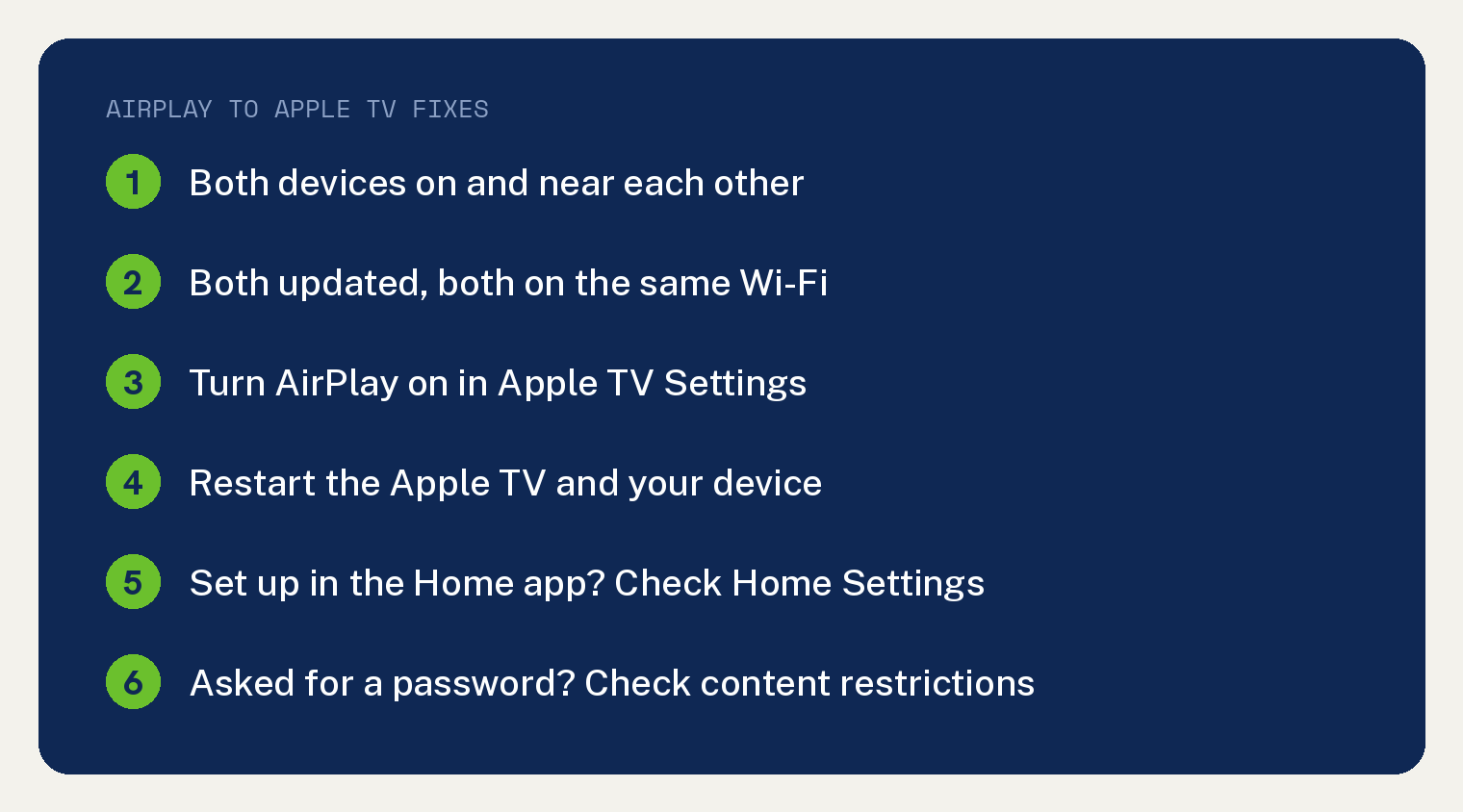
The steps below follow Apple’s AirPlay troubleshooting page in its own order. The Apple TV 4K menu paths come from Apple’s Apple TV 4K User Guide.
Apple notes that “Not all features and content are available in all countries or regions or on all Apple TV hardware models.”
Fix AirPlay on Apple TV in this order
Test AirPlay after every step, and stop once the picture shows up. Apple says “After each step, see if you still need help.”
- Turn both devices on and keep them close. Apple’s first check is that your devices “are turned on and near each other.”
- Update both and join the same Wi-Fi. Apple says to “Check that the devices are updated to the latest software and are on the same Wi-Fi network.” On Apple TV 4K, go to Settings, then System > Software Updates, select Update Software, then select Download and Install. Apple says “During the update process, don’t disconnect your Apple TV 4K. The status light may flash slowly during the update process.” The full Apple TV 4K update steps are in Apple’s guide. If the Apple TV is not online at all, see how to get internet on Apple TV with Wi-Fi or Ethernet.
- Turn AirPlay on. On the Apple TV, open Settings, open the AirPlay menu, and turn AirPlay on. Apple’s page says “On Apple TV, go to Settings, General, AirPlay and turn AirPlay On.” Your Apple TV may show that menu under a different name, covered in the next section. Then check Allow Access, which Apple’s guide says will “Set who can use AirPlay with this” Apple TV 4K.
- Restart both. Apple says to “Restart the devices that you want to use with AirPlay or screen mirroring.” On Apple TV 4K, open Settings, then go to System and select Restart. You can also “Disconnect Apple TV from the power outlet, wait five seconds, then reconnect it.”
- Check Home Settings, if you set up the Apple TV in the Home app. Apple says to “check to make sure that Home Settings aren’t restricting AirPlay.” In the Home app, tap or click the More button, select Home Settings, then select Speakers & TV.
- Asked for a password on the Apple TV? Apple says to “check your Apple TV content restrictions. Alternatively, you might need to adjust your AirPlay password settings.”
Where is the AirPlay setting on Apple TV?
Open Settings on the Apple TV and look for one of these menu names. Apple uses each of them on its own pages, so open whichever one your Apple TV shows.
- Settings, General, AirPlay: Apple’s AirPlay troubleshooting page.
- Settings, then AirPlay and Apple Home: Apple’s Apple TV 4K User Guide for tvOS 27.
- Settings, then AirPlay and HomeKit: Apple’s AirPlay password page for Apple TV 4K and Apple TV HD.
- Settings, then AirPlay (Apple TV 3rd generation): the same password page says to “go to Settings > AirPlay > Security and turn on Require Device Verification.”

Matching these names is our own note.
Inside that menu, check the AirPlay switch. The guide says it lets you “Turn AirPlay on or off to allow devices to stream content to this” Apple TV 4K.
Who is allowed to AirPlay to your Apple TV?
Allow Access decides who can stream. On Apple TV 4K, go to Settings, then AirPlay and Apple Home, select Allow Access, and pick one of four options:
- Everyone: anyone can stream to the Apple TV 4K.
- Anyone on the Same Network: anyone connected to the same network as you can stream.
- Only People Sharing This Home: only people you have added to your home in the Home app can stream.
- Require Password: a password is needed to stream.
Apple’s Apple TV 4K User Guide says “Only people you’ve added to your home in the Home app can stream content to your Apple TV 4K.” So with Only People Sharing This Home picked, a guest who is not in your home cannot AirPlay to it.
Pick a wider option if a visitor needs to stream.
Not sure which Apple TV to pick from the list? Give each one a name and a room. Apple’s password page says that is “so you can easily identify it when you use AirPlay.”
In the guide, Room and Name sit in the same AirPlay and Apple Home menu. For Room, “Choose a room already listed in your Home app, or choose a room from the Suggested Rooms list.”
Why does Apple TV ask for a password or code?
Apple’s password page for Apple TV 4K and Apple TV HD says “The first time you use AirPlay with your Apple TV, you’ll see an onscreen password. Enter the password into your device to stream content to Apple TV.”
When you mirror an iPhone or iPad, Apple’s iPhone AirPlay page says “If an AirPlay passcode appears on your TV screen or Mac, enter the passcode on your iPhone or iPad.”
If you pick Require Password, Apple’s password page says “A password will be required before anyone can stream content to your Apple TV.”
Apple’s password page says “If you see a password notification on your Apple TV and you aren’t trying to use AirPlay, you might need to adjust your AirPlay settings.”
How do you start AirPlay from an iPhone, iPad or Mac?
To mirror an iPhone or iPad, open Control Center, tap the Screen Mirroring button, then select your Apple TV 4K in the list of AirPlay devices. To end it, open Control Center, tap Screen Mirroring, then tap Stop Mirroring.
On iPhone X or later, or iPad with iPadOS 13 or later, swipe down from the upper right corner to open Control Center. On iPhone 8 or earlier, or iOS 11 or earlier, swipe up from the bottom edge. Related guide: record your screen on iPhone in Control Center.
To send one video, start playing it, tap the AirPlay button in the video window, then select your Apple TV 4K.
On a Mac with macOS Big Sur or later, open Control Center in the menu bar, click Screen Mirroring, then choose the Apple TV 4K. On macOS Catalina or earlier, click the AirPlay button in the menu bar, then choose the Apple TV 4K.
Want your iPhone to offer the Apple TV for you? Apple’s troubleshooting page says to set Automatically AirPlay to Ask or Automatic, in Settings, General, AirPlay & Continuity.
Ask gives you “suggested AirPlay connection notifications.” Automatic gives you both suggested and automatic ones.
Both need the iPhone and the Apple TV on the same Wi-Fi network. For an Apple TV, Apple also says to “make sure you sign in to the same iCloud account as your iPhone or iPad.” If you would rather switch AirPlay off, see how to turn off Apple AirPlay.
Why is the AirPlay picture cropped or boxed in?
Use AirPlay Display Underscan on the Apple TV 4K, in Settings, then AirPlay and Apple Home. If the picture looks cropped, Apple says to “turn on AirPlay Display Underscan to show the entire image.”
Black bars around the picture instead? Apple says “If you see black bars around the image, turn this setting off.”
Why is there video but no sound?
Check the volume on both ends. When you stream video to an Apple TV and hear nothing, Apple says to “make sure that the volume is turned up and not muted on both your device and your television or receiver.”
Why won’t one app AirPlay?
The app may not support it. Apple’s iPhone AirPlay page says “Some video apps might not support AirPlay.”
In that case, Apple says to “check the App Store on your Apple TV to see if that app is available.”
Still stuck after every step? Apple’s troubleshooting page closes with “If you still can’t use AirPlay after trying these steps, contact Apple Support.”
Sending to a smart TV instead of an Apple TV? For an LG set, see our LG TV AirPlay troubleshooting guide.
Sources
- If screen mirroring or streaming isn’t working on your AirPlay-compatible device (Apple Support)
- Adjust settings for AirPlay and Apple Home on Apple TV 4K (Apple TV 4K User Guide)
- Use AirPlay to stream audio and video to Apple TV 4K (Apple TV 4K User Guide)
- If you’re asked to enter an AirPlay password on Apple TV 4K and Apple TV HD (Apple Support)
- Use AirPlay to stream video or mirror the screen of your iPhone or iPad (Apple Support)