
Fix an iPad Camera Not Working or Stuck on Black
To fix an iPad camera not working, take off any case, film or accessory that might block the camera or put a magnet near it, then restart the iPad. If your photos are blurry, clean the front and back lenses with a microfiber cloth.
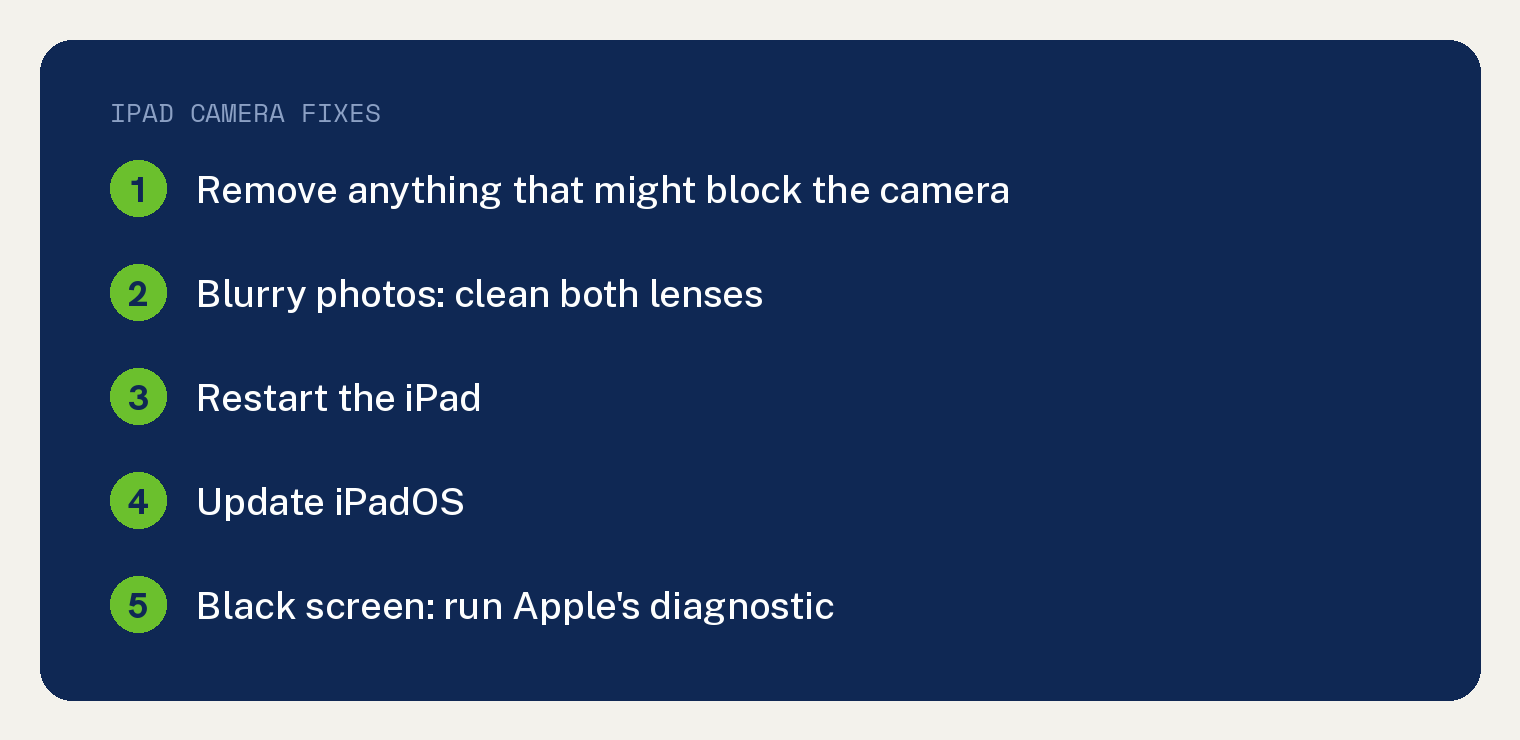
If that fails, update iPadOS and take a test photo. If your iPad has a front and rear camera, check whether one or both are failing. A camera screen that stays black has its own Apple diagnostic.
First steps for any iPad camera problem
Apple’s camera and flash page covers iPhone and iPad together, and it puts three steps first. Start with whatever covers the lens.
- “Remove any case, film, or accessory (such as a polarizer, extender, or magnifier) that might block the camera or flash or that places a magnet near the camera.”
- If photos are blurry, clean the front and back camera lenses with a microfiber cloth.
- Restart the iPad.
How to restart your iPad
The steps depend on whether your iPad has a Home button. They come from Apple’s Restart your iPad page.
Without a Home button:
- “Press and hold either volume button and the top button until the power off slider appears.”
- Drag the slider and wait 30 seconds for the iPad to turn off.
- Press and hold the top button until you see the Apple logo.
With a Home button:
- “Press and hold the top button until the power off slider appears.”
- Drag the slider and wait 30 seconds for the iPad to turn off.
- Press and hold the top button until you see the Apple logo.
From Control Center: Apple’s restart page says “In iOS 18 and later, you can turn off your device from Control Center.”
- Swipe down from the top right corner of the screen to open Control Center.
- “Press and hold the Power button in the top-right corner of your screen, then let go.”
- Drag the slider, wait 30 seconds, then press and hold the top button until the Apple logo shows.
A frozen iPad needs a different step. Apple says: “If your device is frozen or unresponsive, force restart your device.”
For a frozen screen, see our guide to why an iPad keeps freezing. If it will not come back on, see what to do when an iPad won’t turn on.
Still not working? Match the symptom to the fix
Find what you see, then go to its step. The symptoms and steps are Apple’s; the table that pairs them is ours.
| What you see | Apple’s step for it |
|---|---|
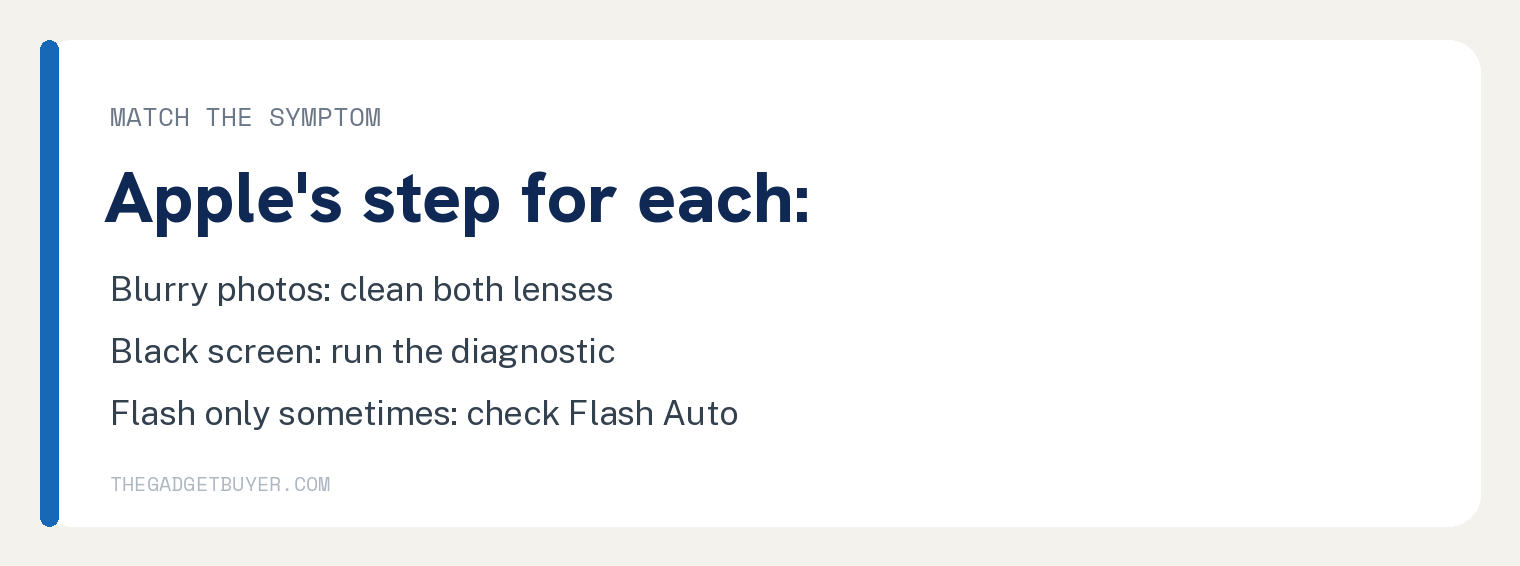
| Blurry photos | Clean the front and back lenses with a microfiber cloth |
| Motion blur in low light | Remove a lens converter, metallic case or magnetic lens mount |
| Black camera screen | Run Apple’s camera diagnostic |
| One camera fails | Tap the rotate button to check the other camera |
| Flash works only sometimes | Check whether the camera is set to Flash Auto |
Update iPadOS and test the camera
Update the iPad next, then test the camera. These are the first four of Apple’s five camera checks; the fifth, for a black screen, has its own section below.
- Update your iPad to the latest version of iPadOS. If the update itself fails, see how to fix an iPad that won’t update to iPadOS 26.
- Test the camera by trying to take a photo.
- “If your device has a front and rear camera, check if one or both aren’t working. To switch cameras, tap the rotate button.”
- “If you see motion blur in low-light situations and you use a lens converter, metallic case, or a magnetic lens mount, try removing the accessory.”
iPad camera screen is black
A black camera screen gets its own test. Apple says: “If the camera screen is black, use iOS Diagnostics to test the camera:”
- “Start Recovery Assistant by turning off your device and pressing and holding the side button when your device starts up.”
- Tap Diagnostics Mode and follow the on screen steps.
- When it asks you to choose a diagnostic, tap Mobile Resource Inspector, then tap Start Diagnostic.
If Mobile Resource Inspector finds an issue, Apple’s next step is service.
iPad flash or flashlight not working
Test the flashlight first. On an iPad, swipe down from the upper right corner of the screen to open Control Center, then tap the Flashlight button.
If the flash fires only some of the time, check its setting.
“If the flash works only sometimes, your camera might be set to Flash Auto. To choose a different setting, open the Camera app and tap the flash button.”
Not sure your model has a flash at all? Check our list of which iPads have a flashlight.
When to get service for your iPad camera
Apple sends you to service when Mobile Resource Inspector finds an issue. The same goes for a camera or flash that still acts up after these steps: “If the camera or flash still isn’t working properly, you might need service.”
Sources
- If the camera or flash on your iPhone or iPad isn’t working (Apple Support)
- Restart your iPad (Apple Support)