
Pixel Watch Not Syncing With the Google Health App
A Pixel Watch not syncing with the Google Health app gets two steps from Google: check the watch’s connections, then restart your phone and reinstall the Google Health app. Both come from the Pixel Watch section of Google’s sync troubleshooting page, which sits below a separate section for Fitbit trackers and watches.
What should I check when my Pixel Watch won’t sync?
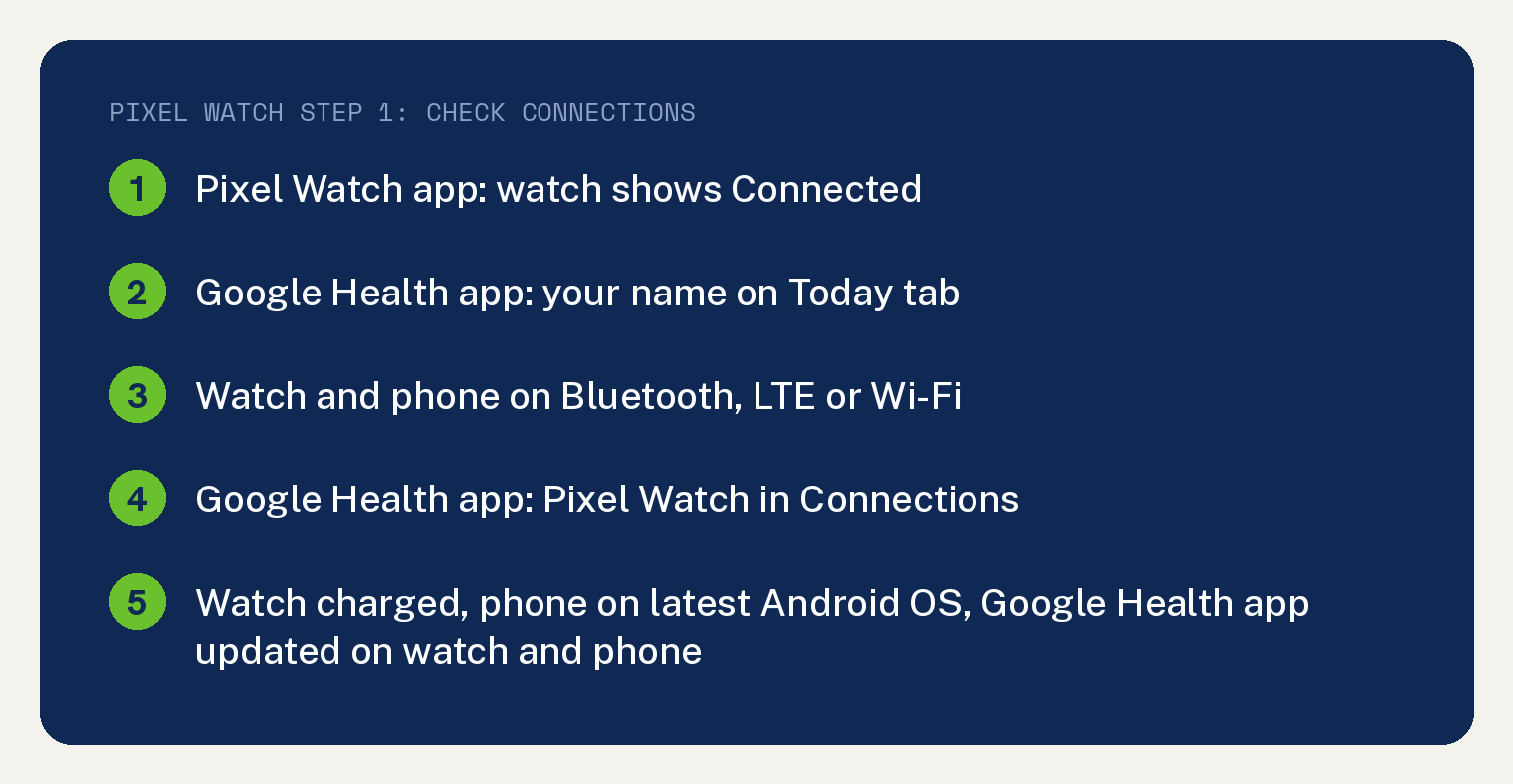
Check five things, in the order Google lists them under Step 1: Check your connections in the Troubleshoot Google Pixel Watch section of its sync troubleshooting page.
- Your watch shows as Connected on the home screen in the Google Pixel Watch app.
- Your name appears in the greetings section of the Google Health app’s Today tab.
- Your watch and phone are connected to Bluetooth, cellular data (LTE), or Wi-Fi.
- In the Google Health app, tap Connections and check that Google Pixel Watch is in the list.
- “Ensure the watch is charged, the phone is running the latest Android OS, and the Google Health app is updated on both the watch through the Play Store and the phone.”
If your data syncs and only alerts are missing, see our guide to fixing Pixel Watch notifications that are not working.
Pixel Watch still not syncing? Restart your phone and reinstall the app
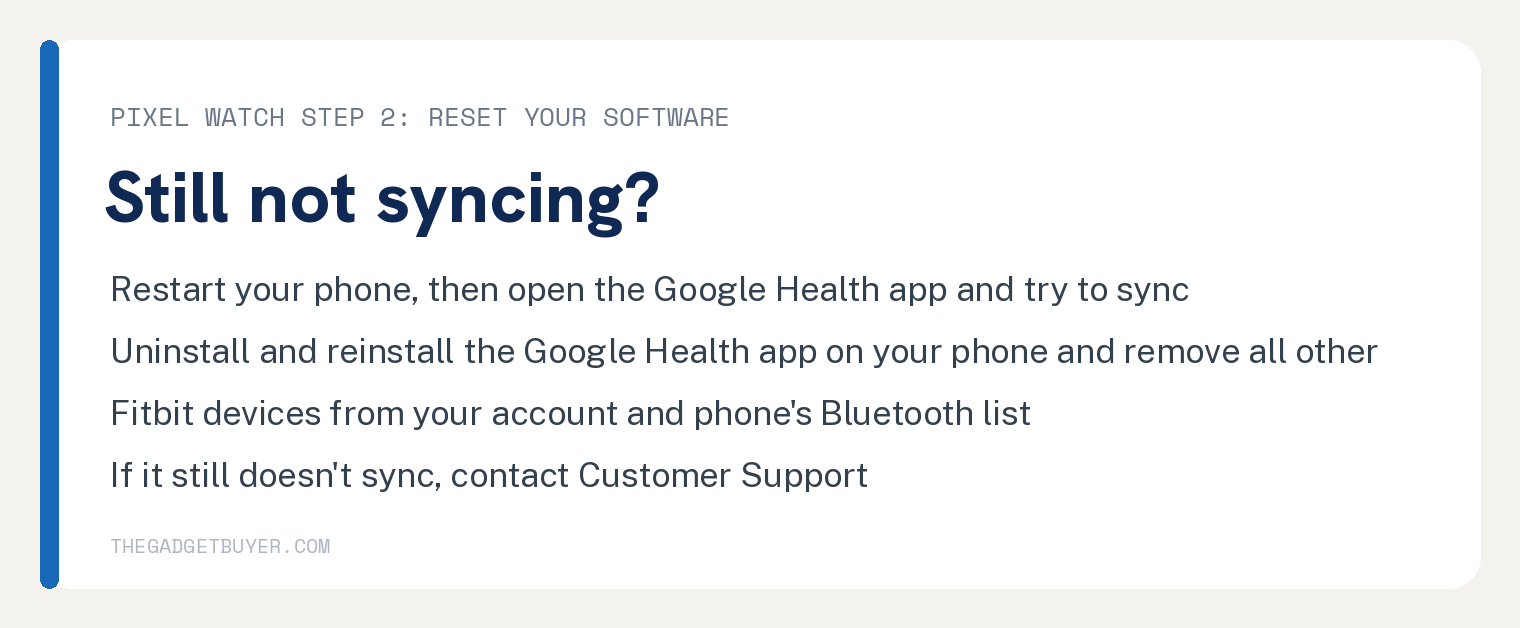
Restart your phone, then uninstall and reinstall the Google Health app on your phone. That is Step 2: Reset your software, the second and last step in the Troubleshoot Google Pixel Watch section of Google’s sync troubleshooting page.
After the phone restarts, Google says to “open the Google Health app and try to sync.”
The reinstall part also tells you to remove all other Fitbit devices from your Google Health account and from your phone’s list of connected Bluetooth devices. If it still doesn’t sync after that, Google says to contact Customer Support.
How do I force my Pixel Watch to sync?
Pull down on the Today tab of the Google Health app. That is Google’s answer to how to manually sync a tracker or watch: “With your device nearby, open the Google Health app on your phone. On the Today tab, tap and hold on the screen and pull down.”
The same answer offers a Sync Now option too: in the Google Health app, tap Connections at the top left, then Sync.
You can also leave it to the watch. Google’s Pixel Watch get started page says “Google Pixel Watch automatically syncs with the Google Health app on your phone.”
Can Battery saver or Bedtime mode stop the sync?
They can for Fitbit data, Google says. One of the three notes in the Important list at the top of Google’s sync troubleshooting page reads: “Battery saver mode and Bedtime mode limit background data connectivity. Fitbit data may not sync if any of these modes are turned on, and data will only sync once they’re turned off.”
To restore connectivity, the same note says to interact with your device or turn off Bedtime mode or Battery saver mode.
Google words that note for Fitbit data and places it above every device section on the page, the Pixel Watch section included.
Why is old data missing after I moved my account to Google Health?
Old data might not show up right away after a recent move to the Google Health app. Google’s sync troubleshooting page adds: “Large historical transfers may take up to 48 hours.”
If the move itself will not go through, see our guide on what fixes it when you can’t move your Fitbit account to Google.
Is the Fitbit app the same as the Google Health app?
Yes. Google’s changes page says that on May 19, 2026, the Fitbit app became the Google Health app, and that “The app has been redesigned and rebranded”.
The Fitbit name still shows in the first line of Google’s Pixel Watch sync section: “If you can’t transfer data from your watch to your Fitbit account, refer to the information below.”
For the full story of the switch, see where the Fitbit app went.
Are Pixel Watch sync steps different from Fitbit steps?
Yes. Google’s sync troubleshooting page gives the Pixel Watch its own section, headed Troubleshoot Google Pixel Watch, apart from the section headed Troubleshoot Fitbit Trackers & Watches.
Steps such as “Turn it off for 3 seconds, then back on.” for Bluetooth and “Restart your tracker or watch.” sit under the Fitbit heading, and neither appears in the Pixel Watch section.
Own a Fitbit tracker instead? Our Fitbit syncing fix for the Google Health app and our Fitbit won’t sync checklist follow that section.