
Fitbit Won’t Sync? Try These Fixes in Order
Your Fitbit won’t sync, so the steps and heart rate it tracked all day never reach your phone. Nine times out of ten the cause is a dropped Bluetooth link between the tracker and your phone. The device itself is rarely the problem.
The fastest fix: bring your Fitbit right next to your phone, make sure Bluetooth is on, open the Google Health app, and pull down on the screen to sync by hand.
Heads up on the app name. In 2026 the Fitbit app became the Google Health app, and most people now sign in with a Google Account. Your Fitbit device still works the same way, so every step below uses the Google Health app.
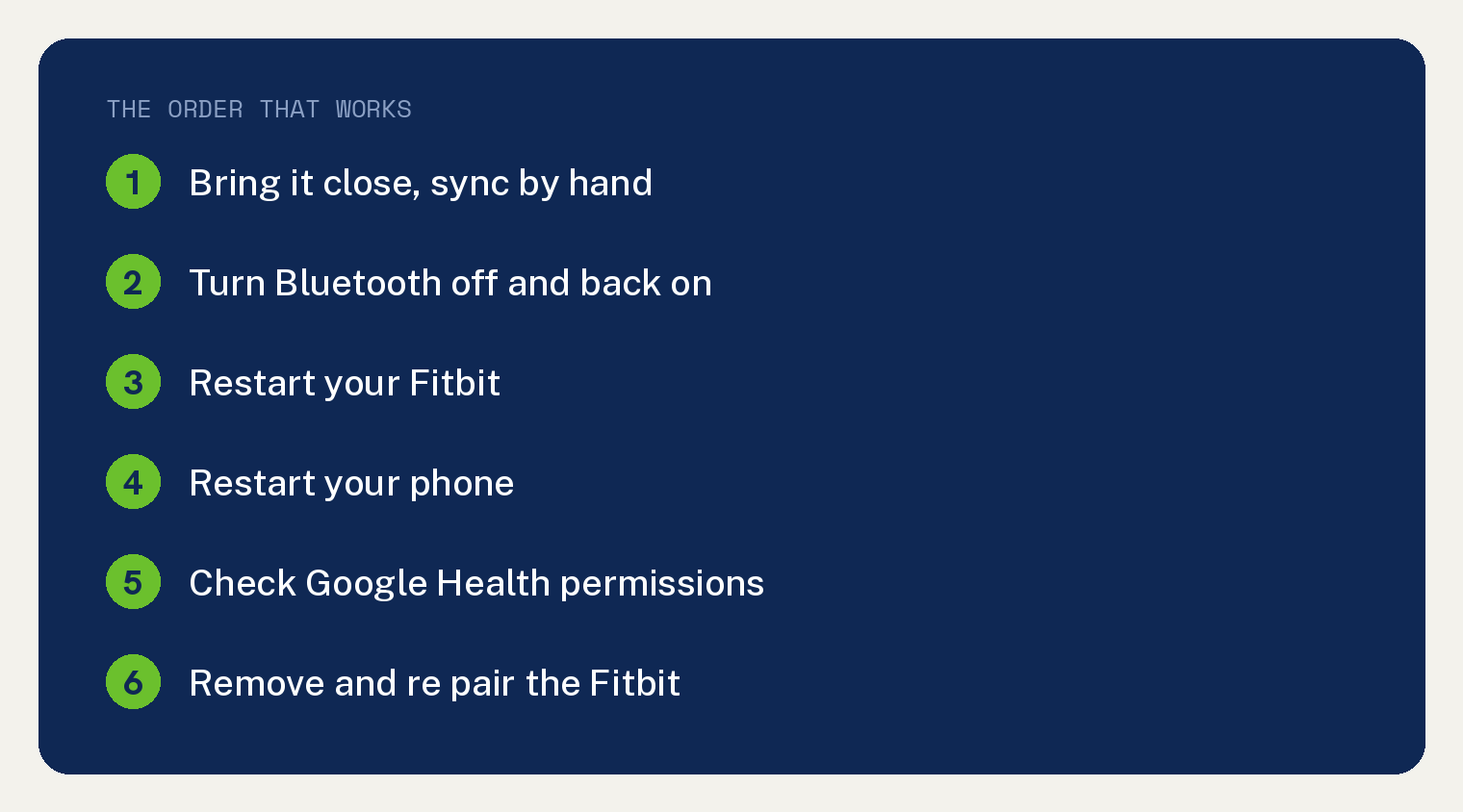
Work through the fixes in order. Most people are synced again by the third one.
Why does a Fitbit stop syncing?
Three causes cover almost every case.
Bluetooth dropped. Your Fitbit talks to your phone over Bluetooth. If the connection stalls or the tracker drifts out of range, new data has nowhere to go. This is the same root cause behind a Fitbit that keeps disconnecting from Bluetooth.
The app or phone got in the way. A stale app, a missing permission, or a second phone signed into the same account can all block a sync.
Something needs an update or a restart. An out of date app, an old phone OS, or a tracker that has been running for weeks without a reboot will quietly stop syncing until you reset it.
Fix 1: Bring it close and sync by hand
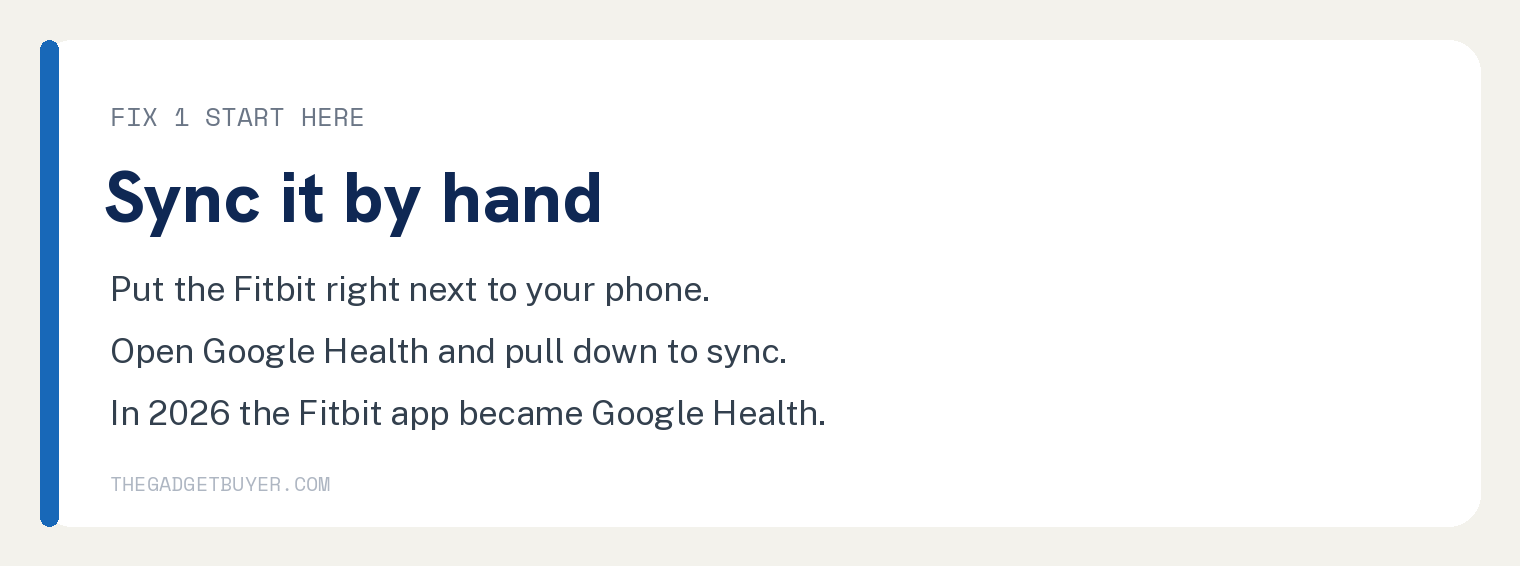
Start here every time. A manual sync tells you fast whether the link is alive.
- Set your Fitbit within a few feet of your phone.
- Open the Google Health app.
- At the top left, tap Connections.
- Tap and hold anywhere on the screen, then pull down until a progress bar appears at the top.
- Let go and wait for the bar to fill.
You should see the bar reach the end and your latest steps or heart rate update. If it does, you are done. If the bar stalls or nothing changes, go to Fix 2.
Fix 2: Turn Bluetooth off and back on
A quick Bluetooth reset clears most stuck connections.
- Open your phone Settings.
- Tap Bluetooth. On many Android phones this sits under Connected devices, then Connection preferences.
- Turn Bluetooth off.
- Wait at least 3 seconds, then turn it back on.
- Confirm your phone also has WiFi or cellular data, since the app needs internet to push data to your account.
- Open Google Health and pull down to sync again.
You should see the tracker connect and the sync finish. Still stuck? Restart the Fitbit itself.
Fix 3: Restart your Fitbit
A restart turns the tracker off and on without erasing any data. The button steps change by model, so use yours.
Charge 5 and Charge 6:
- Swipe down from the clock screen to find the Settings app.
- Tap Settings, then Restart Device, then Restart.
Versa 4, Versa 3, Sense 2, and Sense: press and hold the side button for 10 seconds until the Fitbit logo appears, then release. If your Versa 4 is acting up in other ways too, that guide covers more.
Inspire 3:
- Swipe down from the clock screen to open the Settings app.
- Swipe up and tap Restart Device, then Restart.
When the clock face comes back, open Google Health and try to sync. If your screen stays blank or frozen instead of restarting, work through a black or unresponsive Fitbit screen first.
Fix 4: Restart your phone
The tracker is only half the link. A phone reboot clears Bluetooth glitches on the other end.
- Power your phone off the normal way.
- Wait about 10 seconds.
- Turn it back on.
- Open Google Health and pull down to sync.
You should see data move within a few seconds of the app opening.
Fix 5: Check the Google Health app permissions
If the app cannot use Bluetooth or location in the background, syncs fail silently. This is a common cause after a phone update.
On Android:
- Open Settings, then Apps, then Google Health.
- Tap Permissions.
- Turn on Location and Nearby devices (Nearby devices appears on Android 12 and up).
On iPhone:
- Open Settings and scroll to Google Health.
- Turn on Bluetooth.
Reopen the app and sync. The progress bar should now fill normally.
Fix 6: Update the app, your phone, and your Fitbit
Old software is a quiet sync killer, especially right after the switch to Google Health.
- Update the Google Health app from the App Store or Google Play.
- Install any pending phone system update.
- In Google Health, check whether your Fitbit has a firmware update waiting and install it.
- If you still sign in with an old Fitbit account, move it to a Google Account, which is now required to use the app.
After each update, try one more manual sync. A stalled sync can also sit on Google’s end, so if only one day of data is missing, wait an hour and try again before going further.
Fix 7: Remove and re pair your Fitbit
Save this for last, since you set the tracker up again afterward.
- In Google Health, tap Connections at the top left.
- Select your Fitbit and choose Disconnect device.
- Open your phone Bluetooth settings and tap Forget on any Fitbit still listed.
- Make sure the app is not still open on a second phone signed into the same account, since a Fitbit pairs to one phone at a time.
- Back in Google Health, add the device again and follow the on screen setup.
You should see it pair fresh and pull in your data. Confirm your tracker is charged before this step, because a near dead battery mimics a sync failure. If you are unsure, here is when to charge your Fitbit.
If nothing works
At this point you have ruled out software. A tracker that still refuses to sync after a re pair, or one that keeps dying, points to a hardware fault.
Contact Google support through the Google Health app. If your Fitbit is under warranty, ask about a replacement. If it is out of warranty and failing, weigh the repair against a new device.
My family owned three Fitbits. Battery life was terrible on all of them, and all three died beyond repair far faster than they should have for the price. One was replaced under warranty. The other two were out of warranty, so we ate the loss and stopped buying Fitbits. A sync stall is usually a quick fix, but if yours keeps failing alongside dying batteries, that is a reliability signal worth respecting. In my words: “so much potential for that brand, but I’ve pretty much given up on them. Too many other options now.” If you are ready to look elsewhere, compare Garmin watches against Fitbit before you buy.
Frequently asked questions
Does my Fitbit need WiFi to sync?
No. Your Fitbit syncs to your phone over Bluetooth. Your phone then needs WiFi or cellular data to send that information to your account.
Why did my Fitbit app turn into Google Health?
In 2026 the Fitbit app was rebranded as the Google Health app. Your Fitbit device still works the same, and you sign in with a Google Account.
Can a Fitbit sync to two phones at once?
No. It pairs to one phone at a time. A second nearby phone signed into the same account can block syncing, so remove the app or turn off Bluetooth on that phone.
How do I force a manual sync?
Open the Google Health app, tap Connections at the top left, then tap and hold and pull down until the progress bar appears.
My Fitbit still won’t sync after re pairing. What now?
Contact Google support from the app. If the tracker is faulty and still under warranty, ask about a replacement.
Sources
Google Health Help: Why won’t my Fitbit device sync?
Google Health Help: Restart your Fitbit device
Google Health Help: What is new with the redesigned Google Health app