
Fix Pixel Watch Notifications Not Working in 4 Places
To fix Pixel Watch notifications not working, check four places: your Android phone’s notification settings, the Google Pixel Watch app, the settings on the watch, and the watch’s connection. Before you change anything, Google’s fix page asks you to update both devices, then unlink the watch and pair it again.
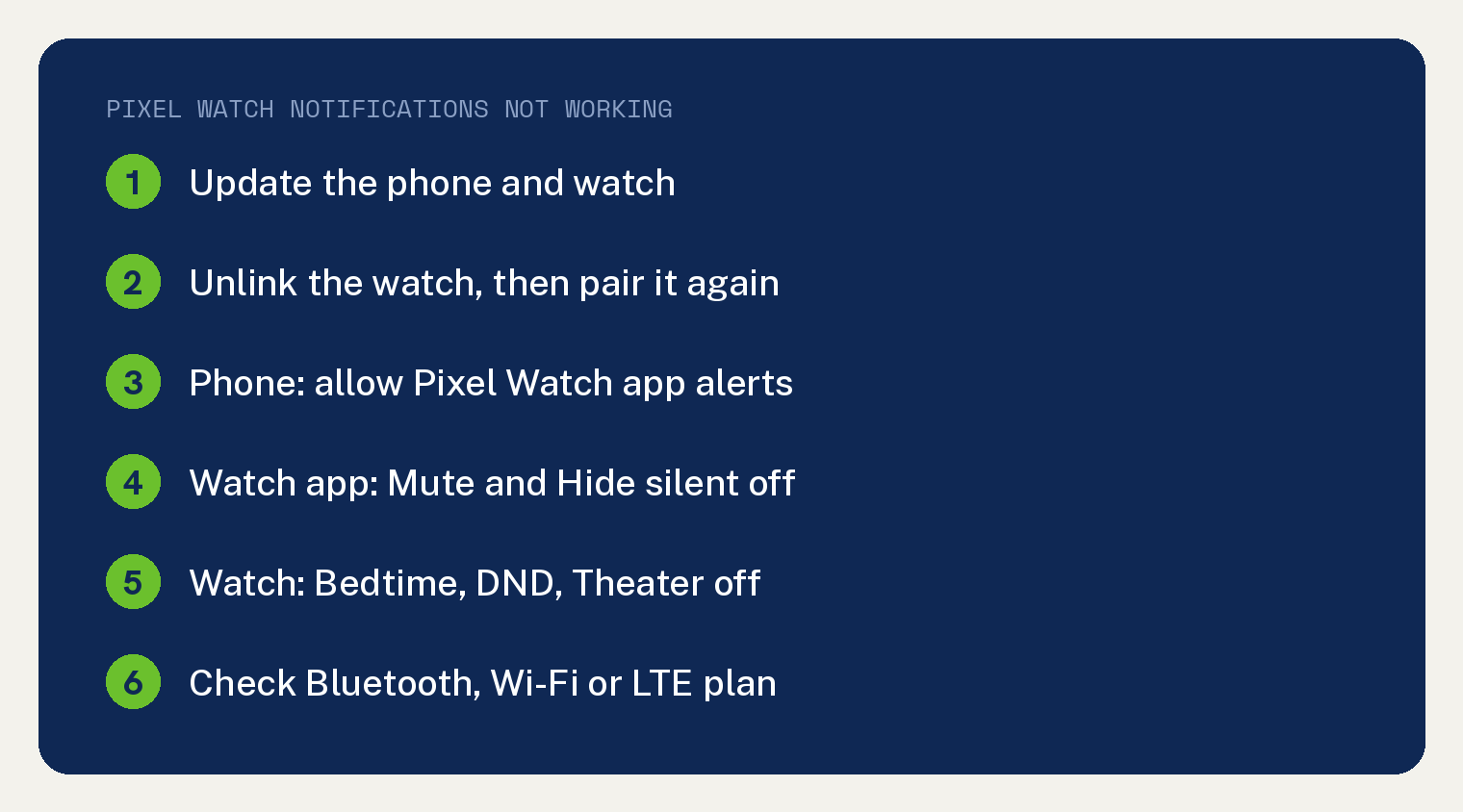
The checks below follow Google’s page Fix notification issues on your Google Pixel Watch, in Google’s order. Its opening line: “Use this article when you troubleshoot your Google Pixel Watch’s notifications.”
Wear a Fitbit tracker instead? Our guide to Fitbit notifications not working covers those models. On an Apple Watch, see Apple Watch not getting notifications.
Do these two things before you change a setting
Update your phone and watch, then unlink the watch and pair it again. Each of the three settings sections on Google’s page opens with those two steps.
The phone section words the first one this way: “Check for system updates to ensure your phone and watch have the latest software versions.”
The second is the same in all three: “Unlink your watch in the Google Pixel Watch app, then pair it again.” Google links its Pixel Watch set up guide for the pairing part.
Google’s tables are for what is left after that: “If you still encounter notification issues after updating and relinking your devices, refer to the table below:”
Which setting is blocking your notifications?
Match the cause to the place you fix it. Google spreads seven causes over three separate tables, then adds a connection check; this table puts them in one view. The table is ours, and every cause in it is Google’s.
| Cause Google names | Where to fix it |
|---|---|
| Phone alerts for the Google Pixel Watch app turned off | Phone Settings |
| Those phone alerts set to silent | Phone Settings |
| Google Pixel Watch app notifications not turned on | Google Pixel Watch app |
| Silent on the phone and hidden in the app | Google Pixel Watch app |
| Alerts set to Mute while you use the phone | Google Pixel Watch app |
| Watch silenced when you are not wearing it | Watch Settings |
| Bedtime, Do Not Disturb or Theater mode on | Watch, swipe down |
| No Bluetooth or Wi-Fi, and no LTE carrier plan | Watch Settings, Connectivity |
| One app’s alerts missing (Google’s Wear OS page) | That app on your phone; Google says its Wear OS steps “may vary based on your manufacturer, device, and software version” |
Turn on Pixel Watch alerts in your phone’s settings
Your Android phone has to allow notifications from the Google Pixel Watch app. Google’s first cause is “Phone notifications for the Google Pixel Watch app are turned off.”
- On your phone, open Settings.
- Tap Notifications, then App notifications, then Google Pixel Watch.
- Turn on All Google Pixel Watch notifications.
Google’s tip: “You can customize your notification preferences. However, you need to turn on General notifications so your Google Pixel Watch app’s phone notifications aren’t silent.”
If those alerts are set to silent, do the three steps above, then two more. Go to Other and tap General notifications, then turn on Show notifications and select Default.
Check Mute and Hide silent in the Google Pixel Watch app
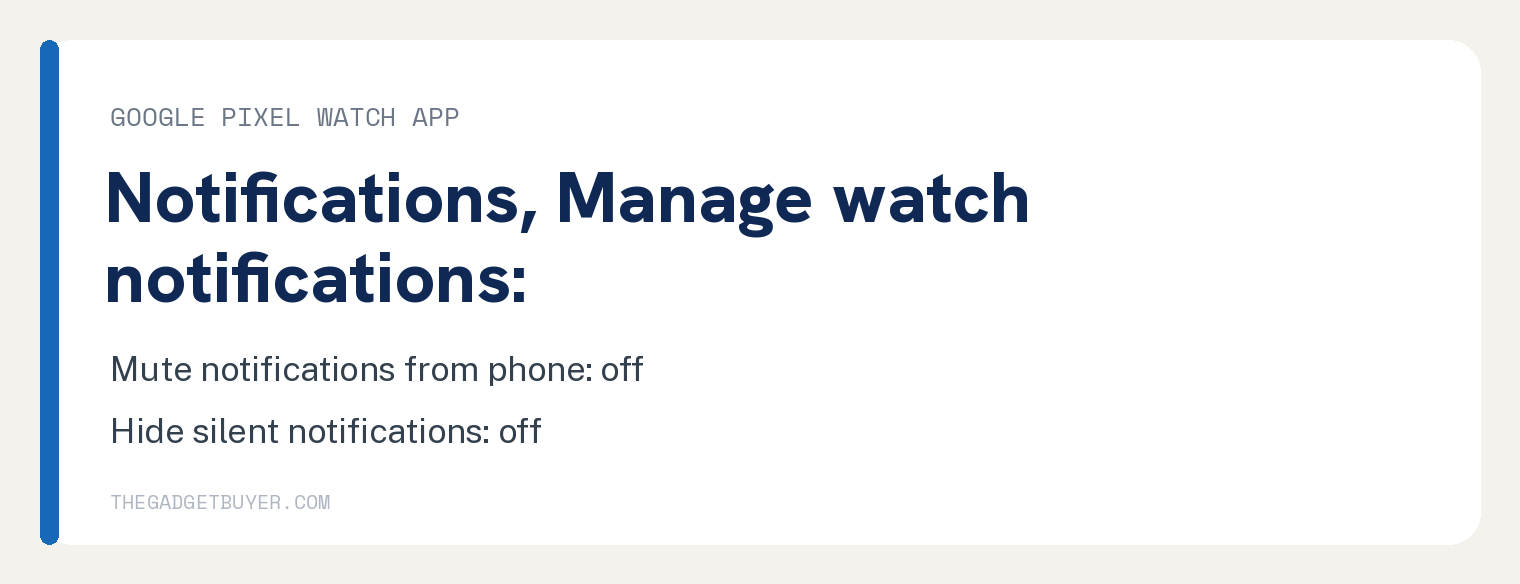
Turn off two switches in the Google Pixel Watch app on your phone. Open the app, go to Notifications, and in the “Manage watch notifications” section make sure Mute notifications from phone and Hide silent notifications are both off.
Each switch blocks a different case. With Mute on, Google says “Notifications received while you use your phone don’t appear on your watch if they’re set to Mute.”
Hide silent catches the case where the phone side is set to silent too: “Notifications for the Google Pixel Watch app are set to silent on your phone, and silent notifications are hidden in the Google Pixel Watch app.”
Turn off the watch settings that silence alerts
On the watch itself, check one setting and three modes. Start with the setting if alerts stop when the watch is off your wrist: Google lists “Notifications are set to silent when you don’t wear your watch.”
- On the watch, go to Settings.
- Tap Vibration, then Silence watch when not being worn.
- Make sure Silence watch when not being worn is off.
Next, the modes. Google says that when Bedtime, Do Not Disturb or Theater is on, “notifications are disabled”.
Swipe down on the watch face and make sure Bedtime, Do Not Disturb and Theater mode are all off. Google’s tip for reading the icons: “Disabled icons have a dark background.”
Make sure the watch is connected
Your watch needs Bluetooth, Wi-Fi or, on an LTE watch, a carrier plan to get alerts. Google’s line: “If you don’t receive notifications, confirm that your Pixel Watch is connected to Bluetooth, Wi-Fi, or you have an LTE-enabled watch.”
Keep the phone on as well. Google’s tip: “The phone paired with your watch must be turned on to receive notifications.”
- On the watch, swipe down.
- Tap Settings, then Connectivity, then Bluetooth, and turn on Bluetooth.
- Swipe right to go back to the menu, tap Wi-Fi and turn on Wi-Fi.
If you see a network connection error, Google links a separate page to fix issues connecting to Wi-Fi.
Not using Bluetooth or Wi-Fi? Then check the LTE side: “If you don’t use Bluetooth or Wi-Fi, confirm that your watch has an LTE carrier plan:” Swipe down on the watch, then tap Settings, Connectivity and Mobile.
Health and fitness features on the watch have their own help center. Google’s page sends you to Google Health Help “For assistance with Fitbit, health and fitness features on your Google Pixel Watch”. For data that stops syncing in the Google Health app, see Fitbit not syncing in the Google Health app, and for a Fitbit tracker, our Fitbit won’t sync fixes.
What if only one app’s notifications are missing?
Open that app on your phone and make sure its own notifications are on. Google’s general Wear OS help page covers this case, with a warning that applies to every step on it: “The steps below are for Wear OS and may vary based on your manufacturer, device, and software version.”
Its line for a single app reads: “If a specific app’s notifications aren’t showing up, open the app on your phone and check its settings to make sure notifications are turned on.”
The same page gives the reason: “Your watch uses the notification settings you have on your phone, so if your phone doesn’t vibrate or make a sound for an app, your watch won’t vibrate.”
Quick answers about Pixel Watch alerts
Does my phone need to stay on for Pixel Watch notifications?
Yes. Google’s connection tip says “The phone paired with your watch must be turned on to receive notifications.”
Why do notifications stop when I take my Pixel Watch off?
Google lists this cause: “Notifications are set to silent when you don’t wear your watch.” Turn off Silence watch when not being worn under Settings, then Vibration, on the watch.
How do I tell if Do Not Disturb is on?
Swipe down on the watch face and look at the icons. Per Google, “Disabled icons have a dark background.” Make sure Do Not Disturb, Bedtime and Theater mode are off.
Sources
- Fix notification issues on your Google Pixel Watch (Google Pixel Watch Help)
- I’m not getting notifications on my watch (Wear OS by Google Help)