
Fitbit Notifications Not Working and Google’s Fix by Phone
Fitbit notifications not working is a problem Google’s own help page splits by phone: its iPhone quick tips point at the Share System Notifications switch in your phone’s Bluetooth settings, and for any phone its verify list starts with distance, because “Your phone must be within 30 feet of your Fitbit device to receive notifications.”
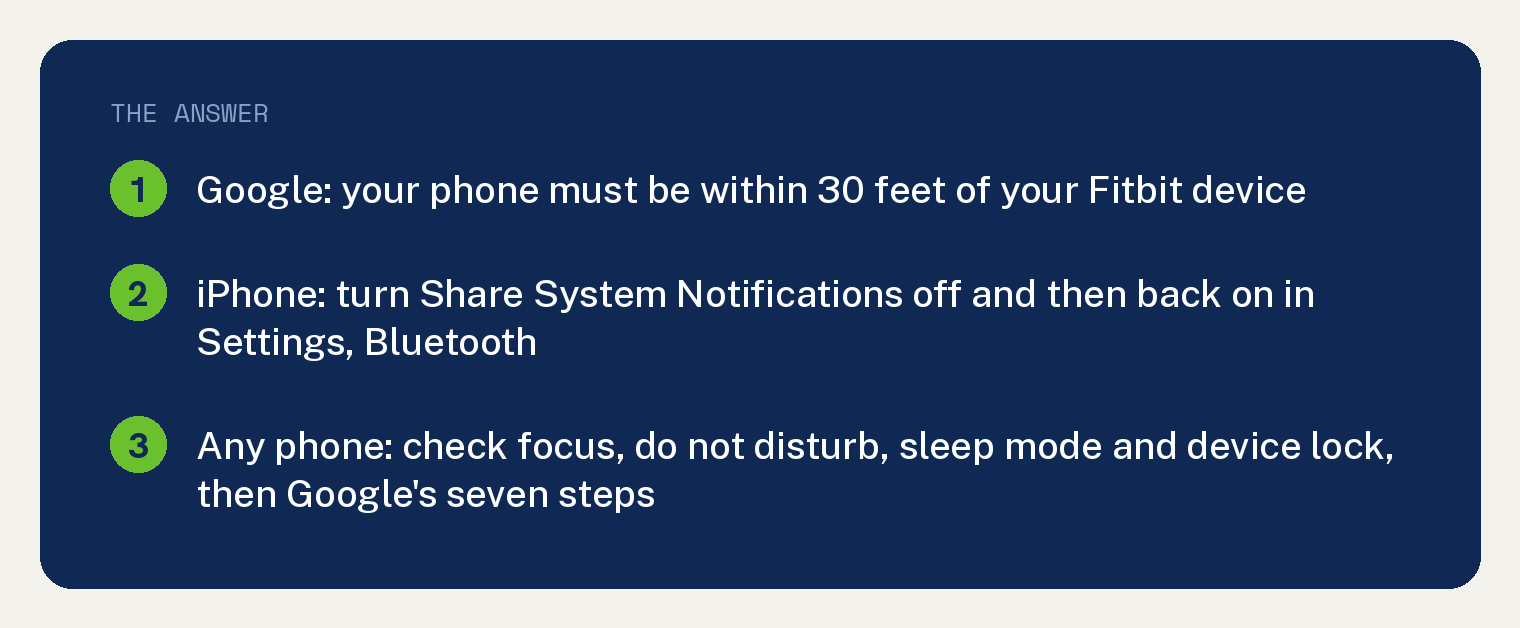
Every Google statement below is quoted from one Google Health Help page, “Change phone notifications on my Fitbit device”, linked in the Sources section. The order is ours: the one minute check first, then Google’s full list.
Which phone you have decides where Google sends you
Under its first paragraph, Google’s page says “If you can’t get notifications, refer to:” and then names two places: “Troubleshooting quick tips for iPhones” for iPhone users and “Why are notifications delayed or missing” for Android users.
Both sections are on the same page and both are quoted below. This article follows Google’s split.
iPhone first check: the Share System Notifications switch
Google’s iPhone section, “Troubleshooting quick tips for iPhones”, opens under “Updates” with: “Make sure the Google Health app, your phone, and your Fitbit device are up-to-date.”
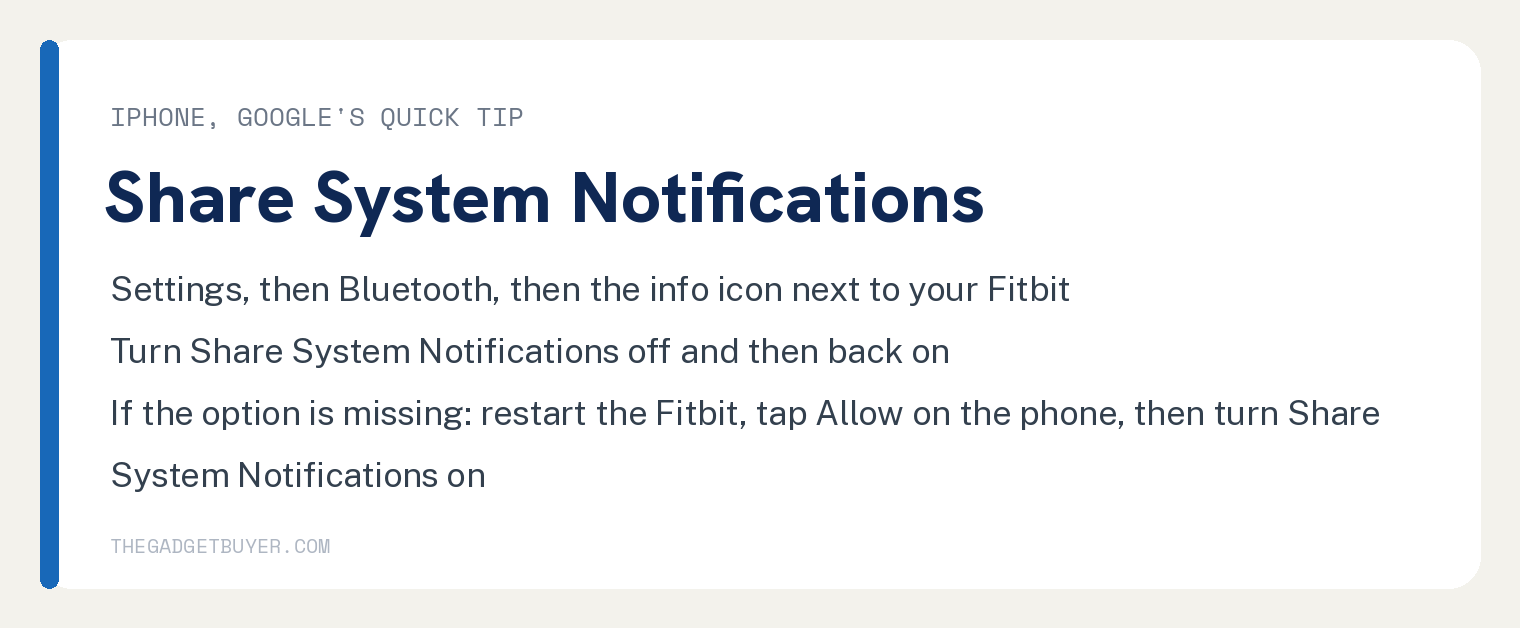
Its next heading is “Share system notifications”. The second step there reads: “Turn Share System notifications off and then back on.”
Google adds a branch: “If you don’t receive the Share system notifications option:” then “Restart your Fitbit device.”, “Tap Allow when you receive a message on your phone asking if you want your Fitbit device to show notifications.” and a last step that ends “next to the name of your Fitbit device and turn on” “Share System Notifications”.
The same switch appears in Google’s longer troubleshooting list under the step “Reset system notifications (iPhones and iPads)”. Google’s steps there: “On your phone, tap” Settings, then Bluetooth; “Tap the information icon next to the name of your Fitbit device.”; “Turn Share System Notifications off and then back on. If you can’t find the Share System Notifications option:” followed by “Restart your Fitbit device.”, “Tap Allow when you receive a message on your iPhone or iPad asking if you want your Fitbit device to show notifications.”, “Tap the information icon next to the name of your Fitbit device” and “Turn on Share System Notifications”.
Two more iPhone checks Google prints
Under “Show previews”, Google says to open Settings, then Notifications, and “Make sure Show Previews is set to” “Always or When Unlocked”.
Under “App notification settings”, Google’s lead in reads: “For each app that sends notifications, tap” Settings, then Notifications, then the app’s name, and verify three settings Google lists as “Allow Notifications”, “Alerts Notification Center” and “Show Previews”, the first two set to On and the last to “Always or When Unlocked”.
Google closes that section with: “If you still don’t get notifications after trying these tips:” then “Verify that you set up notifications correctly.” and “Try the complete set of troubleshooting steps. Refer to” “Why are notifications delayed or missing”.
Google’s verify list, for any phone
Under “Why are notifications delayed or missing”, Google’s first sub heading is “Step 1: Verify your settings”, and its lead in keeps two qualifiers: “Notifications may skip or stop occasionally for several reasons. Verify the following:”
Google groups the list under four headings. The table below keeps Google’s headings and Google’s sentences.
| Google’s heading | What Google says to check |
|---|---|
| “Check your phone” | “Your phone must be within 30 feet of your Fitbit device to receive notifications.” “You won’t get text notifications if you have the conversation open on your phone. Your Fitbit device shows new, unread texts.” “You won’t get notifications if you turned on settings such as focus, do not disturb, quiet hours, or driving mode on your phone.” |
| “Check your Fitbit device” | “You won’t get notifications on your Fitbit device if you turned on the do not disturb or sleep mode setting.” “If device lock is active on your Fitbit device, tap your Fitbit device’s screen to unlock your device.” “Check if notifications are turned off on your device.” |
| “Check your Bluetooth connection” | “You’re using multiple Bluetooth devices. If you have multiple Bluetooth devices paired to your phone, you may have trouble using more than one at the same time.” “The connection between your phone and Fitbit device dropped. If you have an Android phone, make sure Enable Notification Widget is on.” “Make sure the Google Health app is allowed to run in the background on your phone.” |
| “Check for syncing and updates” | “Your device was syncing. Syncing can sometimes prevent or delay a notification.” “You just updated the Google Health app. Restart your phone and try setting up notifications again.” |
Google’s seven troubleshooting steps, in Google’s order
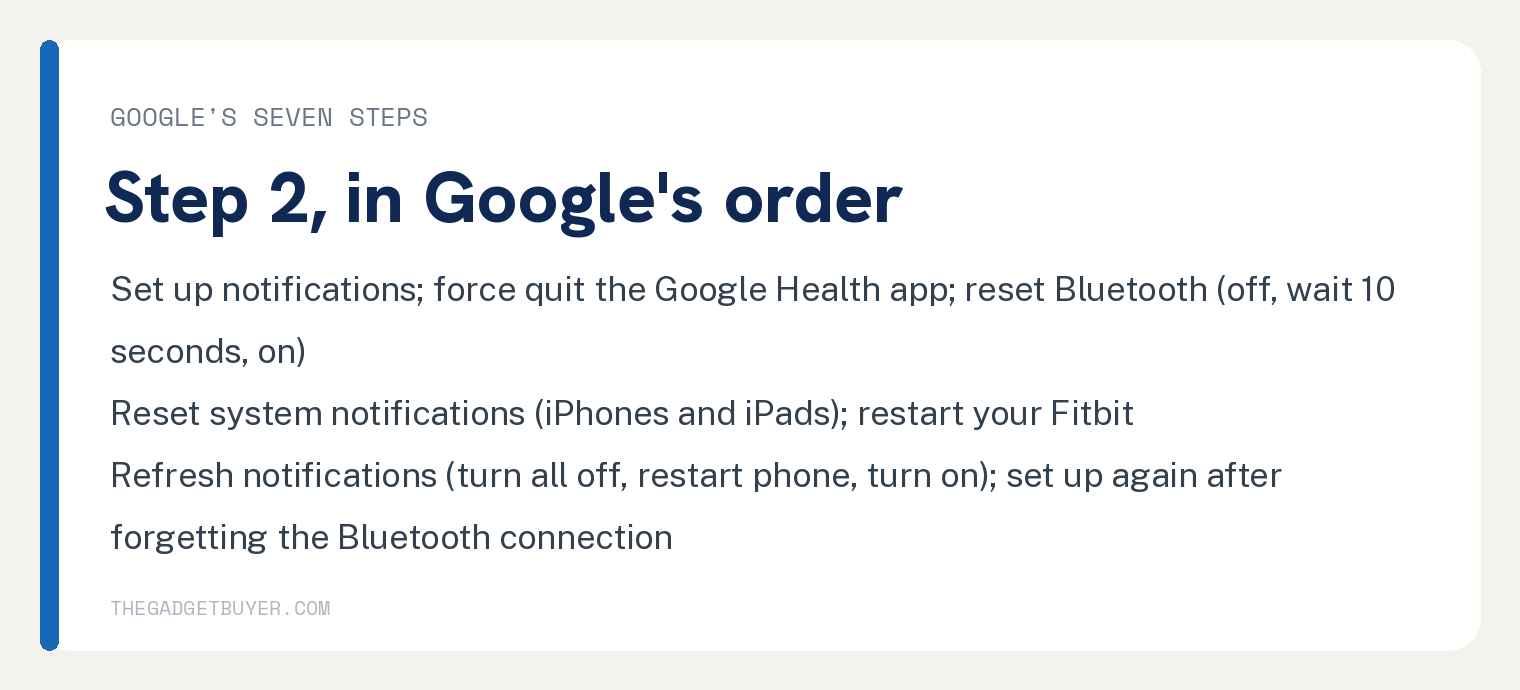
Under “Step 2: Complete the troubleshooting steps”, Google’s lead in reads: “If you reviewed the list above and can’t get notifications to work, try the following:”
- “Make sure notifications are set up”. Google’s line: “Make sure your phone is set to receive notifications from your Fitbit device.”
- “Force quit the Google Health app, then reopen it to sync your Fitbit device.”
- “Reset Bluetooth”. The steps: “On your phone, tap” Settings, then Bluetooth; “Turn off Bluetooth on your phone.”; “Wait 10 seconds, then turn it back on.”; “Open the Google Health app to sync your Fitbit device.”
- “Reset system notifications (iPhones and iPads)”, quoted in the iPhone section above.
- “Restart your Fitbit device”. Google’s sub steps: “Restart your device.” and “Open the Google Health app to sync your Fitbit device.” Google links its restart page here; this site covers a Fitbit Versa 4 that is not working, which quotes Google’s restart steps.
- “Refresh notifications”. The steps: open the Google Health app; “At the top left, tap” “Connections”, then your device; “Tap Notifications” “then turn off all notifications.”; “Restart your phone.”; “Open the Google Health app and turn notifications back on, then sync your Fitbit device.”
- “Set up notifications again”. Google says: “Tell your phone to “forget” the bluetooth connection to your Fitbit device:” with the steps “On your phone, tap” Settings, then Bluetooth; “Tap the information icon or gear icon next to the name of your Fitbit device.”; “Find the option to forget the device.”; then “Open the Google Health app and set up notifications again, then sync your Fitbit device.”
If the tracker will not sync at all, this site covers a Fitbit not syncing in the Google Health app. If the app itself looks unfamiliar since the change, this site covers where the Fitbit app went.
Check do not disturb and sleep mode on your model
Google’s verify list names the tracker’s own “do not disturb or sleep mode setting” as a cause. Under “How do I turn my Fitbit device’s notification setting on or off”, Google prints a path per model.
Under “Charge 5, Charge 6, Inspire 3, and Luxe”: “Swipe down from the clock face to access quick settings. Turn on DND mode or Sleep mode to turn notifications off. Make sure both settings are turned off to receive notifications.”
Under “Sense 2 and Versa 4”: “Swipe down from the clock face on your watch to access quick settings. Turn on do not disturb or sleep mode to turn notifications off. Make sure both settings are turned off to receive notifications.”
Under “Sense and Versa 3”, the first step differs: “Swipe right from the clock face on your watch to access quick settings.”
Under “Versa, Versa Lite Edition, and Versa 2”: “Swipe down from the top of your screen. After your notifications appear, swipe down again to open the control center.” Then: “Make sure you check your do not disturb and sleep mode settings.”
Under “Charge 4”: “Press and hold the button, and swipe left to the quick settings screen.” followed by a second step that begins “Check your DND”.
Google also prints headings for other models and for “Google Pixel Watch series” in that section. This article does not reproduce those.
The same section opens with the app side: “You can turn off notifications from the Today tab in the Google Health app to prevent notifications.” The path Google prints is to open the app, “At the top right, tap your Profile picture or Initial”, then “Google Health settings”, then “Push notifications”.
To turn a tracker fully off instead, this site covers how to turn off your Fitbit.
Frequently asked questions
Why do Fitbit notifications stop when I am reading the text on my phone?
Google’s verify list says: “You won’t get text notifications if you have the conversation open on your phone. Your Fitbit device shows new, unread texts.”
Do I need to be close to my phone?
Google says: “Your phone must be within 30 feet of your Fitbit device to receive notifications.”
Is there an error code to look up?
The “Android phone & tablet” view of Google’s notifications page, saved October 14, 2026, prints no error code; the strings error, Error and code appear nowhere on it.
Does my phone’s iOS version matter?
The view of Google’s notifications page saved for this article on October 14, 2026, its “Android phone & tablet” tab, prints none of the strings iOS, iOS 17, iOS 18 or iOS 26. The page also has an “iPhone & iPad” tab, which this article did not read. Google’s iPhone quick tips section says: “Make sure the Google Health app, your phone, and your Fitbit device are up-to-date.”