
Google Health App Keeps Crashing on Your Android Phone
When the Google Health app keeps crashing, check Google’s status dashboard, confirm your phone runs Android 14 or higher, and update the app. If it still closes, restart the phone, force stop the app, clear its cache, and keep an uninstall and reinstall for last.
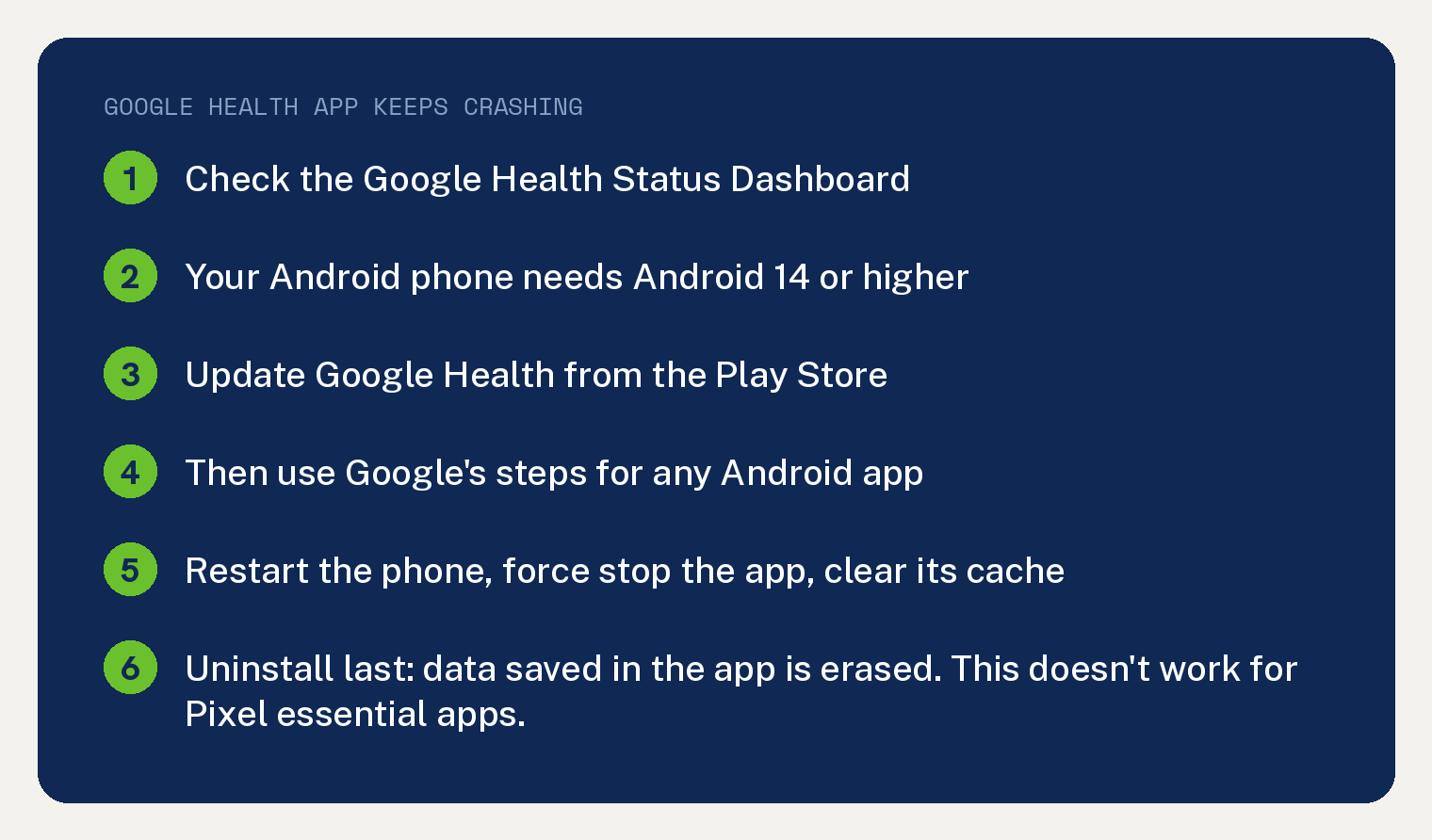
Which of these steps did Google write for Google Health?
The first three checks come from Google Health pages. The rest are Google’s steps for any installed Android app, and its Play help page says they apply when an app is “Crashing.” or “Won’t open.”
The Google Health help pages we read carry no step written for the app crashing, so this guide applies Google’s general Android steps to Google Health and covers Android phones.
Is Google Health down for everyone?
Check the Google Health Status Dashboard before you change anything on your phone. Google says “This page provides status information on the services that are part of Google Health.”
If the dashboard does not list your problem, Google says “If you are experiencing an issue not listed here, please contact Support.”
Does your phone meet Google Health’s requirements?
Google says “The Google Health app requires one of the following devices:” an Android phone with Android 14 or higher, or an iPhone with iOS 16.4 or higher. A phone on an older version does not meet that requirement.
Google also names four phones that “may experience compatibility issues even if they meet the requirements.” They are the Huawei P8 Lite, Huawei P9 Lite, Xiaomi Mi 6 and Huawei P20 Lite.
Is your Google Health app up to date?
Check that you have version 5.0 or later. Google says “Previous versions below 5.0 may experience issues.”
To see your version, open the Google Health app and tap the Today tab, your profile picture, then Help, where “The app version is at the bottom.”
If the app closes before you reach that screen, update it from the Play Store anyway. Google’s setup page says “Download or update the Google Health app from the Google Play Store or the App Store”.
Google’s Play page gives the path: open the Google Play Store app, tap the profile icon at the top right, then Manage apps & devices. Under “Updates available,” choose to update all apps or a specific app.
Google’s setup page says “For best results, make sure you are using the latest version of the Google Health app.”
Restart your phone and check for Android updates
This is the first of Google’s steps for any Android app. Google’s Play page notes that “Some of these steps work only on Android 8.1 and up,” and that settings can vary by phone.
Most phones: Google says “On most phones, press your phone’s Power button for about 30 seconds or until your phone restarts.”
Pixel 5a and earlier: Press and hold the Power button for about 30 seconds, or until the phone restarts.
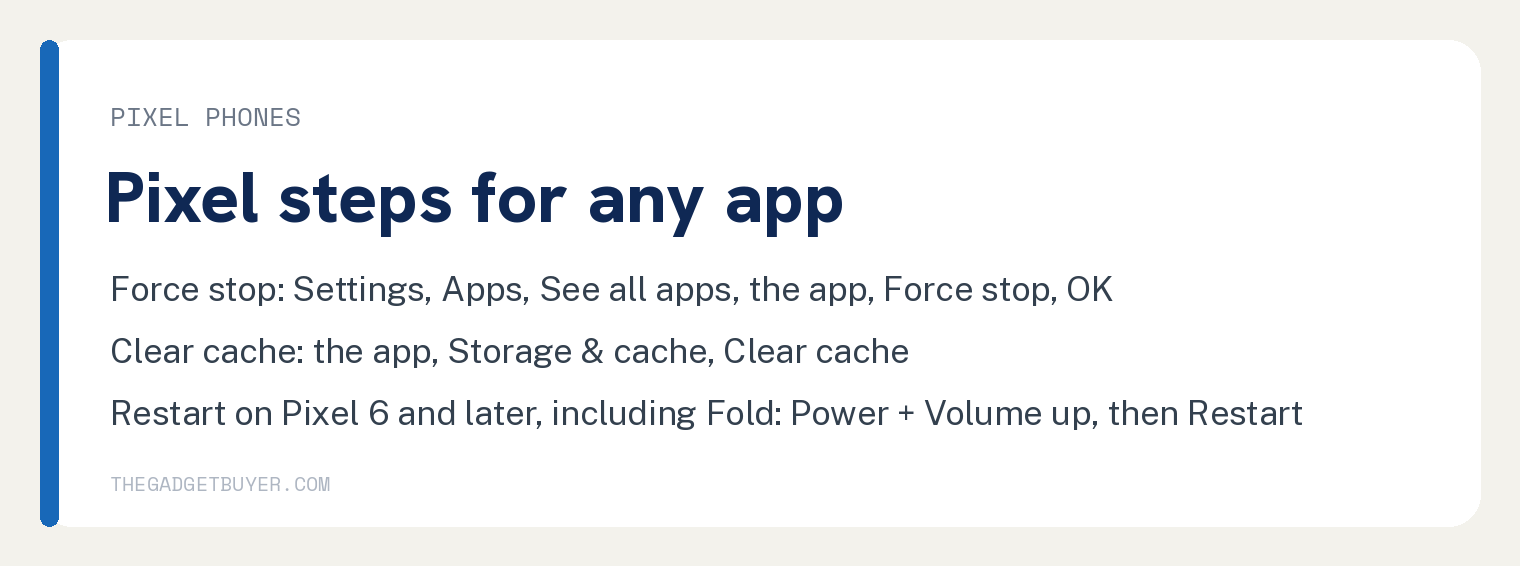
Pixel 6 and later, including Fold: Press and hold the Power button and the Volume up button for a few seconds, then tap Restart.
Next, open your phone’s Settings app and tap System, then Software updates, near the bottom. Google adds “Depending on your phone, you might need to tap About phone or About tablet” and then Software update.
Force stop Google Health and clear its cache
Google’s Play page says “You can usually force stop an app through your phone’s Settings app.” Clearing the app’s cache comes next, and Google calls that “a short-term solution” since cached data builds up again over time.
Pixel phones, force stop: Open Settings, tap Apps, then See all apps, then Google Health, then Force stop and OK.
Pixel phones, clear cache: Open Settings, tap Apps, then See all apps, then Google Health, then Storage & cache and Clear cache.
On other phones, the Play page says settings vary by phone and points you to your device manufacturer. Clearing the app’s data goes further than clearing the cache, and Google’s Pixel page warns “Caution: Any data saved in this app will be erased.”
Google adds “If problems continue after you’ve force stopped the app, you could need to contact its developer.”
Uninstall and reinstall Google Health as a last step
Our order puts this last.
Uninstalling comes near the end of Google’s Play page, and it carries a warning: “Any data saved in this app will be erased.” The same note says “This doesn’t work for Pixel essential apps.”
To uninstall, touch and hold the Google Health app, tap App info, then Uninstall. Google adds “If you want to use the app again, you can try to reinstall it.”
If Google Health still crashes while your other apps work, Google’s Play page says “contact the app developer.” The same page adds “If you can’t update any apps, or if you have trouble with Google apps, contact Google Play”.
Other Google Health app problems
What if the app opens but my Fitbit will not sync?
That is a sync problem with its own steps. See our guide to a Fitbit not syncing with the Google Health app.
For a tracker that will not sync at all, our guide to a Fitbit that won’t sync lists the fixes in order.
What if my Pixel Watch data is missing?
See our guide to a Pixel Watch not syncing with the Google Health app.
Where did the Fitbit app go?
Our guide to where the Fitbit app went explains the move to Google Health.
Sources
- Fix an installed Android app that isn’t working (Google Play Help)
- Fix an installed app that isn’t working on a Pixel phone (Pixel Phone Help)
- Google Health app setup requirements (Google Help)
- Explore the Google Health app (Google Health Help)
- Google Health Status Dashboard (Google)