
iPhone Stuck on Apple Logo: What to Do
Check for a progress bar first if you have an iPhone stuck on Apple logo. During a restore or migration on iOS 13 or later, Apple says the logo and progress bar might stay for over an hour, so wait until the bar has not moved for at least one hour.
After that hour, or if the logo shows for several minutes with no progress bar, you might need recovery mode. Connect your iPhone to a computer, put it in recovery mode and choose Update before Restore, since Restore erases all of your data.
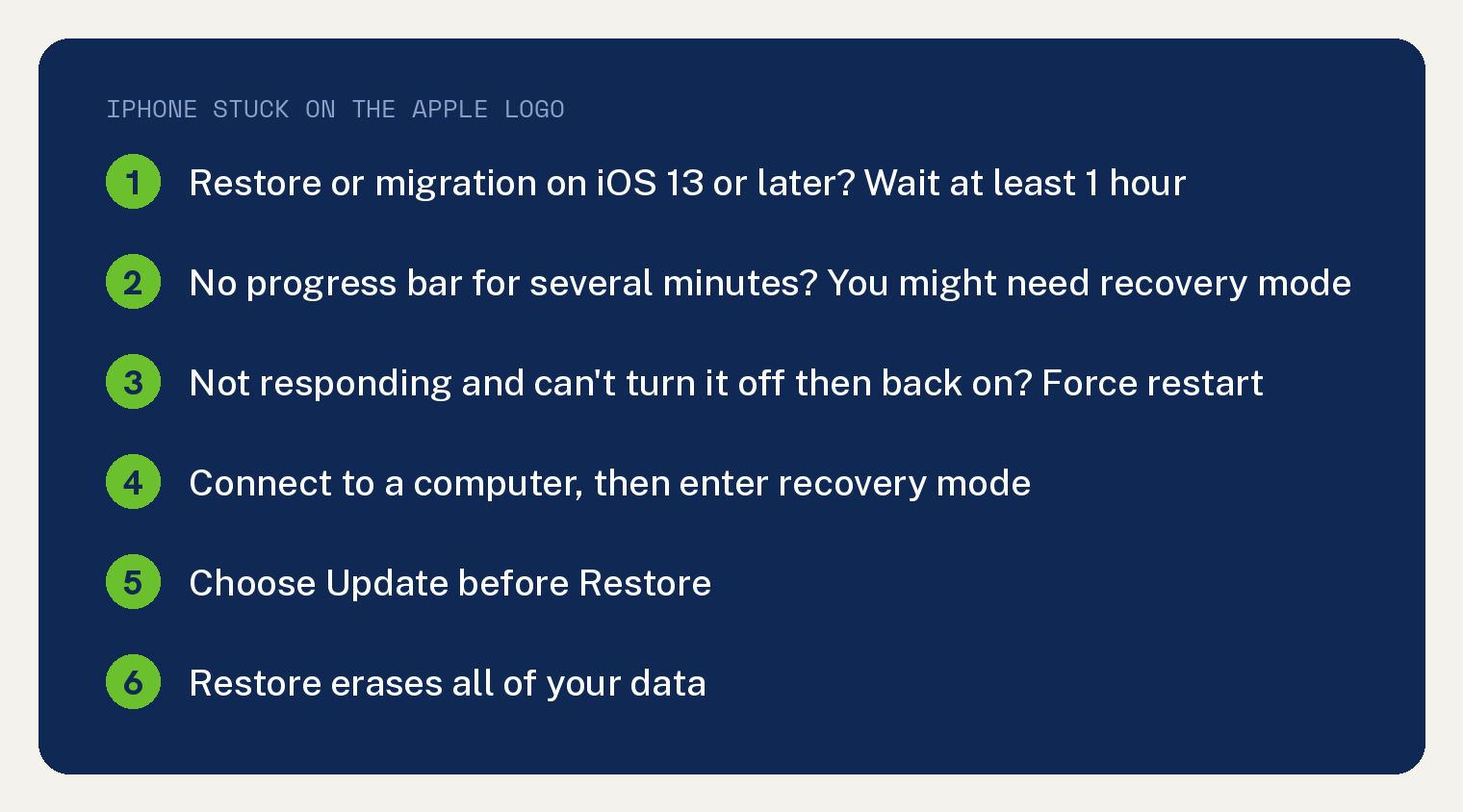
Which Apple logo screen is your iPhone showing?
| Your screen | What to do | Apple page |
|---|---|---|
| Apple logo and progress bar during a restore or migration, iOS 13 or later | Wait until the bar has not moved for at least one hour, then use recovery mode and choose Update | If your iPhone freezes on the Apple logo |
| Apple logo for several minutes, no progress bar | You might need recovery mode; try Update before Restore | If you can’t update or restore your iPhone or iPod touch |
| iPhone not responding, and you can’t turn it off then back on | Force restart | Force restart iPhone |
Seeing Apple logo screens during a software update? Our guide to an iPhone stuck on preparing update covers those screens.
How long should you wait on the Apple logo after a restore or migration?
Wait at least one hour. Apple’s page for an iPhone that freezes on the Apple logo says that when restoring or migrating with iOS 13 or later, “the Apple logo and progress bar might appear for over an hour.”
If the bar has not moved for more than one hour, connect your iPhone to a computer and put it in recovery mode with the steps below.
How to force restart an iPhone that is not responding
A force restart is Apple’s step for an iPhone that isn’t responding and that you can’t turn off then back on. It uses only the buttons, so you can try it before you reach for a computer.
These are the four steps from Apple’s Force restart iPhone guide:
- Press and quickly release the volume up button. On iPhone Duo, use the volume button nearest the side button.
- Press and quickly release the volume down button. On iPhone Duo, use the other volume button.
- Press and hold the side button.
- “When the Apple logo appears, release the side button.”
An iPhone 7 or iPhone 7 Plus uses a different press. Apple’s page for an iPhone that won’t turn on says to hold the side button and the volume down button at the same time until you see the Apple logo, and “this might take longer than 10 seconds”.
On an iPhone 6s or earlier, hold the Home button and the side button or the top button together until you see the Apple logo. That page says “this takes around 10 seconds”.
If the logo comes back and stays for several minutes with no progress bar, you might need recovery mode, which comes next. If your iPhone works and you only want a normal restart, see how to restart an iPhone.
How to put your iPhone in recovery mode
Connect your iPhone to a computer, open the Finder or the Apple Devices app, then press the buttons for your model. In recovery mode, your computer can update or restore your iPhone.
Apple’s recovery mode page lists four situations where “you might need to use recovery mode to restore your device”:
- The Apple logo shows for several minutes with no progress bar.
- Your computer doesn’t recognize your iPhone or says it’s in recovery mode.
- You see the “Connect to computer” screen.
- Your iPhone keeps starting up to Recovery Assistant, which can’t recover it.
Apple gives these steps for an iPhone that “still won’t start up” after you tried updating it with a computer. Its freeze page also sends you to recovery mode after the one hour wait.
- Make sure your Mac is up to date. On a PC, get the latest version of the Apple Devices app.
- Connect your iPhone to your computer with a USB cable.
- Open the Finder on your Mac, or open the Apple Devices app on your PC.
- Press the buttons for your iPhone model, listed below.
iPhone Duo
- Press and quickly release the volume button nearest the side button.
- Press and quickly release the other volume button.
- Press and hold the side button until the Apple logo appears.
- Keep your iPhone connected and wait until the “Connect to computer” screen appears.
iPhone 8 or later, including iPhone SE (2nd generation and later)
- Press and quickly release the Volume Up button.
- Press and quickly release the Volume Down button.
- Press and hold the side button until you see the “Connect to computer” screen.
iPhone 7 or iPhone 7 Plus
- Press and hold the top (or side) and Volume Down buttons at the same time.
- Hold the buttons until you see the “Connect to computer” screen.
iPhone 6s or earlier, including iPhone SE (1st generation)
- Press and hold both the Home and the top (or side) buttons at the same time.
- Hold the buttons until you see the “Connect to computer” screen.
Apple’s freeze page gives its own button steps for iPhone 8 and later, iPhone 7 and iPhone 7 Plus, and iPhone 6s and earlier, and each one ends at “the recovery mode screen”.
Which app opens your iPhone on an older Mac or a PC?
Use the Finder on macOS Catalina 10.15 or later, or iTunes on macOS Mojave 10.14 or earlier. That split by Mac version comes from Apple’s freeze page.
On a PC, Apple’s recovery mode page names the latest Apple Devices app. Its freeze page names the latest Apple Devices app or iTunes.
Should you choose Update or Restore?
Choose Update first. Apple’s freeze page says Update installs the latest version of iOS, and its recovery mode page warns: “Restore installs iOS and erases all of your data.”

When your computer finds your iPhone, a message should appear saying it needs to be updated or restored. Choose Update there, and turn to Restore only if you have already tried updating.
If the download takes more than 15 minutes, your iPhone might leave the “Connect to computer” screen. Let the download finish, then open the Finder or the Apple Devices app again and repeat the button steps for your model.
After a restore, Apple’s next step is to set up your device. Restore erases your data, so once your iPhone works, check that it backs up, and see our guide to an iPhone not backing up to iCloud if it won’t.
What if your iPhone is still stuck on the Apple logo?
You might need service. Apple’s recovery mode page says so if you can’t update or restore your iPhone with recovery mode, or if you can’t use recovery mode because a button doesn’t work or sticks.
That page ends with a “Get service” link. The freeze page offers a “Get suggestions” link for more help.
Seeing the logo on an iPad instead? See our fixes for an iPad stuck on a white screen with the logo.
Sources
- If your iPhone freezes on the Apple logo (Apple Support)
- If you can’t update or restore your iPhone or iPod touch (Apple Support)
- Force restart iPhone (iPhone User Guide)
- If your iPhone won’t turn on or the screen is black (Apple Support)