
Why Your Chromecast Won’t Connect to WiFi and How to Fix It
If your Chromecast won’t connect to WiFi, it may be too far from the router, or a router setting such as Band Steering or AP isolation may be blocking it. Google’s fix page works through those causes and more in 13 steps.
Start by moving it closer and restarting the router, and try connecting again after each step, as Google asks.
The steps come from Google’s page Can’t connect Chromecast or Google TV Streamer to Wi-Fi, written for when your network shows in the Google Home app during setup but the device won’t join it. Where a step differs by model, the model names here are Google’s.
Which Chromecast steps change with your model?
Some of Google’s steps change with your model. This table is ours and gathers the model notes from Google’s hidden network and factory reset steps, in Google’s own model names.
| Your model | Network not in the list | Reset button on the device |
|---|---|---|
| Google TV Streamer (4K) | All Settings, Network and Internet, Add a new network | Hold the button on the back of the device; LED blinks yellow, let go at solid white |
| Chromecast with Google TV | All Settings, Network and Internet, Add a new network | Hold the button on the back of the Chromecast; LED blinks yellow, let go at solid white |
| Chromecast (2nd gen), Chromecast (3rd gen) or Chromecast Ultra | Select Other at the Choose Wi-Fi network step | Hold the side button; LED blinks orange, let go at solid white |
| Chromecast (1st gen) | Select Other at the Choose Wi-Fi network step | Hold at least 25 seconds or until the solid LED flashes; let go when it blinks white and the TV goes blank |
| Chromecast Audio | Select Other at the Choose Wi-Fi network step | Not covered on this Google page |
Each of those button resets starts with the device plugged into the TV and powered on, per Google.
Is the Chromecast too far from the router?
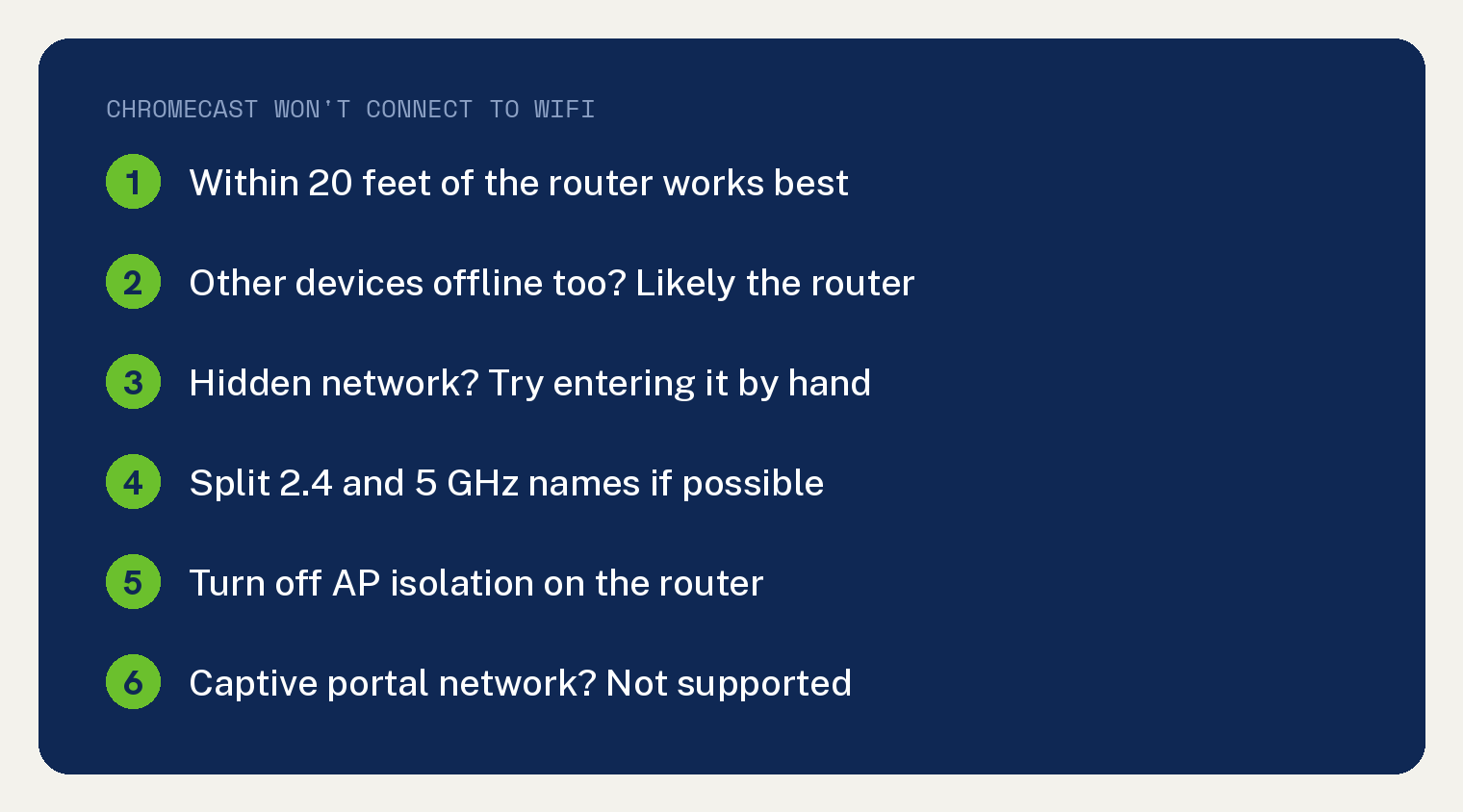
Move it closer if you can. Google says your streaming device works best within 20 feet of the WiFi router, and the signal may be weak when it sits too far away.
Walls and large appliances can also affect the connection. If you moved the device recently, put it back in its old spot to test whether the connection improves.
On Chromecast devices, use the HDMI extender that came in the box to move the Chromecast away from the back of the TV, which “can sometimes block the Wi-Fi signal.” Google says “Chromecast with Google TV and Google TV Streamer don’t have an HDMI extender.”
For a Chromecast (1st gen), Google says to use the included HDMI extender to get the device closer to the router and improve WiFi performance.
If the device has to stay where the signal is weak, Google suggests a WiFi repeater or mesh point to extend your coverage.
Can your other devices get on the same WiFi?
If they can’t connect either, Google says the issue “likely lies with the router.” Check the router’s signal strength and whether it needs a pending firmware update.
For help telling the two apart, see our guide to find out if it’s your internet or your router.
If your other devices connect and the Chromecast still won’t, power cycle the router:
- Unplug the power cable from your WiFi router.
- Wait at least one minute.
- Plug the cable back in and wait a few minutes for the router to fully restart.
- Once the router is back online, try connecting the Chromecast again.
If it still fails, Google says to contact your internet provider or router maker. They can help turn on Multicast, UPnP and IGMP, or turn off AP isolation (Guest Mode).
Weighing a new router instead? See our guide on when to replace your router.
What if your WiFi network is not in the list?
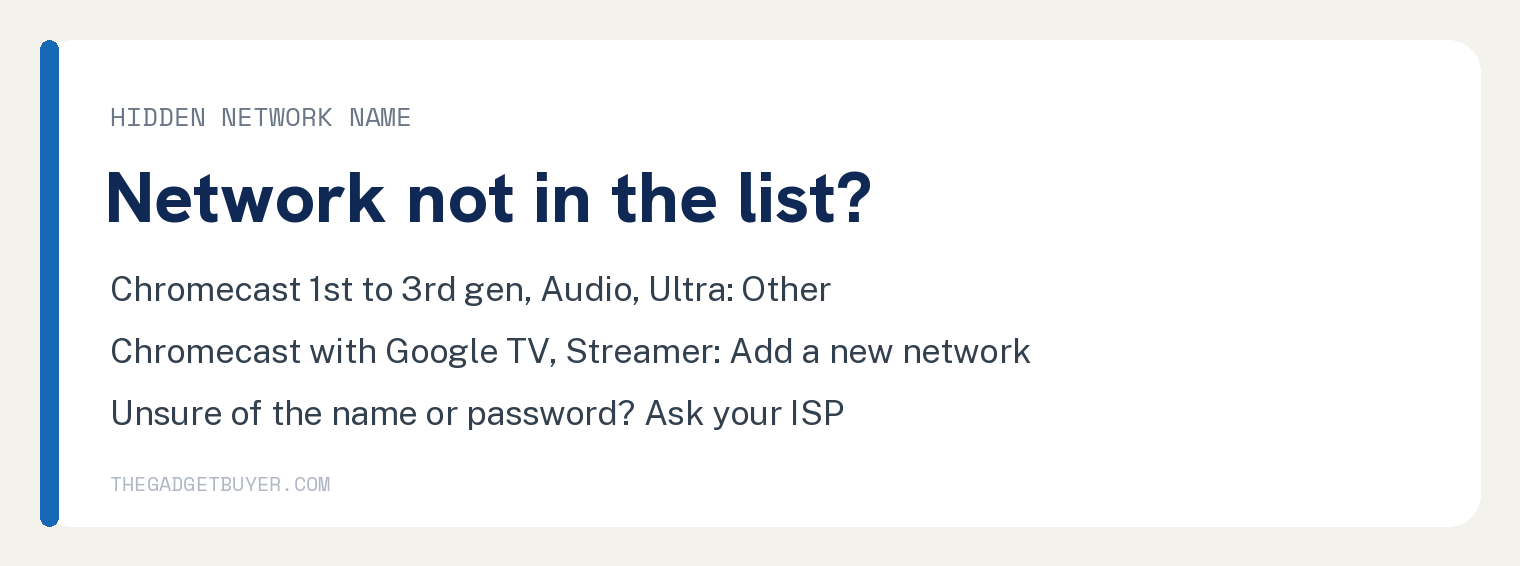
If your router hides its network name (SSID), Google says the name won’t show during setup. You can try entering it by hand, and the way to do that depends on your model.
Chromecast (1st Gen, 2nd Gen, 3rd Gen, Audio, and Ultra): at the Choose Wi-Fi network step in setup, select Other.
Chromecast with Google TV and Google TV Streamer: open the Google TV settings, then follow these steps.
- In All Settings, select Network and Internet.
- Scroll down and select Add a new network.
- Enter the network with the D-pad on the remote, or press and hold the Google Assistant button (Chromecast with Google TV remote) or the Microphone button (Google TV Streamer remote) to input it.
If the remote won’t respond at all, see our fixes for a Chromecast with Google TV remote not working.
Not sure of your SSID or password? Google says to contact your internet provider.
On a Chromecast (1st gen), a 5 GHz network won’t appear during setup. Google says that model “is only compatible with 2.4 GHz Wi-Fi networks.”
Which router settings stop a Chromecast connecting?
Google’s band and isolation steps send you into your router settings. Check these in Google’s order.
Give the 2.4 GHz and 5 GHz networks separate names
If your router uses Smart Connect or Band Steering to put both bands under one network name, Google says “it may cause connectivity issues.” If possible, turn that off in your router settings and give the 2.4 GHz and 5 GHz networks separate names.
Then try the 5 GHz network for better performance, or 2.4 GHz if the Chromecast is further from the router. A Chromecast (1st gen) works with 2.4 GHz networks only.
On Spectrum? See our guide to choosing Spectrum 2.4 or 5GHz.
Take special characters out of the name and password
Make sure your network name and password don’t contain special characters such as &, * or _. Google says these “can sometimes prevent devices from connecting.”
Turn off AP isolation
Your network setup may stop devices from communicating with a Chromecast. Google’s fix is to disable AP isolation, also called Client Isolation or Guest Mode, on your router, using your router’s documentation.
Without access to your router settings, you won’t be able to set up the streaming device, per Google. The same applies to guest, hotel or public networks with AP or client isolation.
Connecting through a WiFi extender? Turn off AP isolation on the extender too, before you set up the Chromecast.
Can a Chromecast connect to hotel, school or dorm WiFi?
Not when the network needs a captive portal. Google says its streaming devices “don’t support networks requiring connection through a captive portal, which is typical of hotels, schools, dormitories, or business.”
Google’s step for those places is to connect to a different network. You won’t be able to connect to that type, Google says.
Setting up from an iPhone? Check Bluetooth and Local Network
Google’s step for iOS devices is to turn on Bluetooth and give the Google Home app local network access.
- Open the Settings app and make sure Bluetooth is on.
- Go back to Settings and tap Privacy and security, then Local network.
- Turn on Local network for Google Home.
Restart the router, your phone and the Chromecast
Google’s steps 8 to 11 reboot the router, force close the Google Home app, reboot your phone, then reboot the Chromecast.
Reboot the router
Your WiFi will drop while the router reboots, Google warns. Unplug the router for 2 minutes and check that its LED lights go off, since some routers have backup battery packs you also need to disconnect.
Plug it back in after 2 minutes. Once all the LED lights are back on and your network name shows in your phone’s list of WiFi networks, try connecting again.
Close the Google Home app and restart your phone
Force close the Google Home app by swiping it up and away in your recent apps, on iPhone or Android. Then turn off your phone, wait about a minute and turn it back on.
Restart the Chromecast from its power cable
Unplug the power cable from the Chromecast, leave it unplugged for one minute, then plug it back in.
Google notes that unplugging it from the TV’s HDMI port “doesn’t reboot the device.” It “must be disconnected from the power source in order to reboot.”
Still not connecting? Try another phone, then reset
Run setup from another mobile device. “A different device might have fewer issues connecting to the Wi-Fi network,” per Google.
A factory reset is Google’s last step, and each model’s button hold sits in the model table at the top of this page. A Google TV Streamer or Chromecast with Google TV can also reset from the remote: select your profile at the top right of the TV screen, then All settings, System, About and Factory Reset.
A Chromecast (2nd gen), Chromecast (3rd gen), Chromecast Ultra or Chromecast (1st gen) can reset from the Google Home app: open the app, tap Home, then All devices, touch and hold your device’s tile, then at the top right tap Settings, More, Factory reset and Factory reset again. Google says that option is “only available if you’re on the same network that your Chromecast was set up on.”
Resetting a Google TV Streamer to pass it to someone else? Google says to remove it from your Google Home app first.
Google also notes that a Chromecast (1st gen) no longer gets support, including software or security updates and technical support from Google.
If none of the 13 steps works, Google’s page offers its help community and Contact us as next steps.
Sources
- Can’t connect Chromecast or Google TV Streamer to Wi-Fi (Google Streaming Help)