
Chromecast With Google TV Remote Not Working? Watch the LED
A Chromecast with Google TV remote not working gets one test before anything else: pull both batteries, watch the unmarked light on the front while you put them back, and look for two flashes. No flashes after fresh batteries and a five minute wait sends you to a reboot of the streaming device, a forget, a remote reset and a fresh setup, in that order.
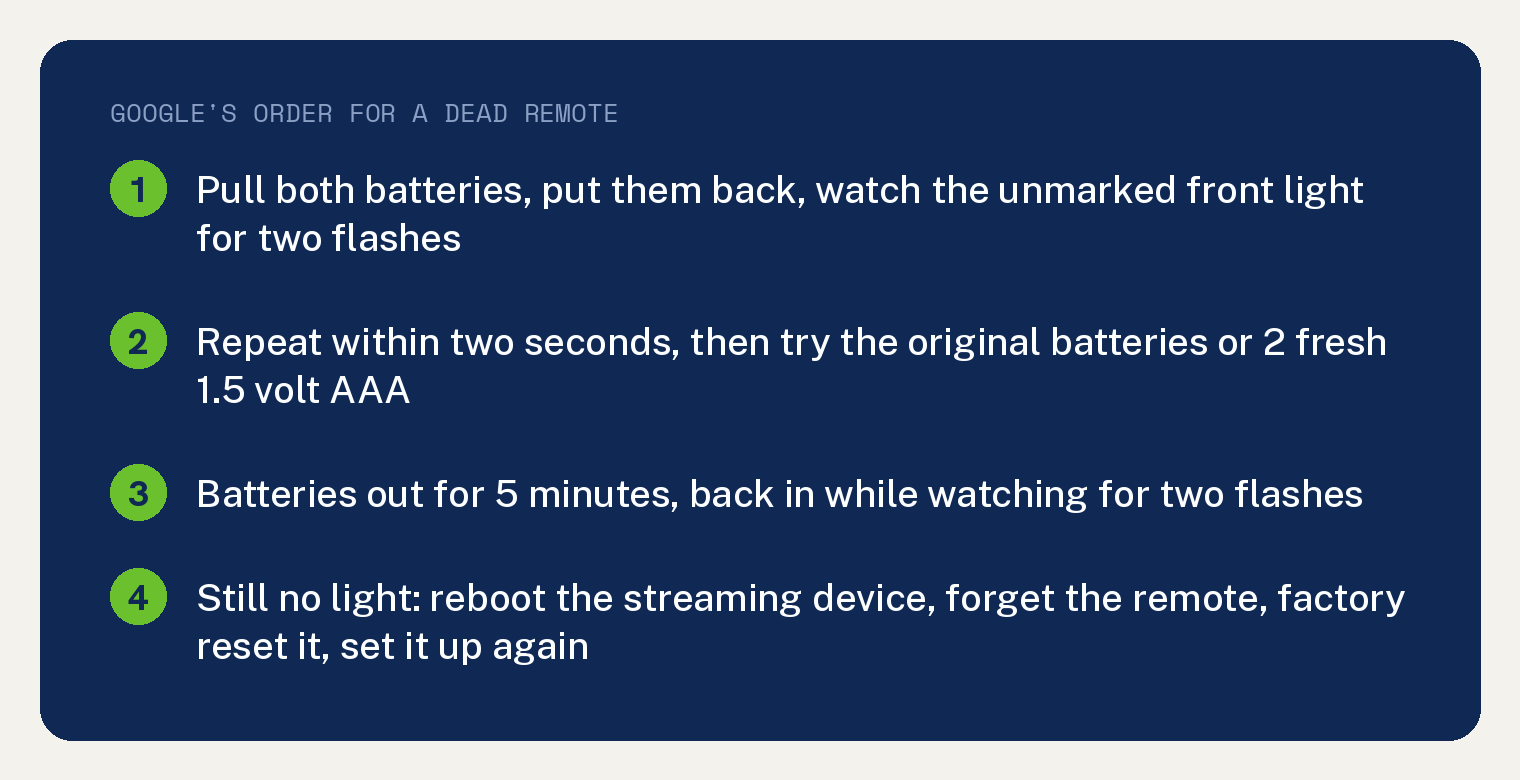
Those are Google’s steps and this article keeps Google’s order. The same page covers the Chromecast Voice Remote and the Google TV Streamer Voice Remote, and its first section, General troubleshooting, opens with “If your Chromecast Voice Remote or Google TV Streamer Voice Remote isn’t working, follow the steps below:”.
Start with the battery light test
Take both batteries out of the remote. Then put them back in while you watch the light on the front, and look for it to flash twice.
The light has no label. Google’s note places it: “The LED is unmarked, on the front of the remote below buttons” and “It’s only visible when it’s showing a status light.”
No double flash means you do it again fast, inside two seconds. The instruction reads: “While checking the LED, remove and reinsert the battery. If the LED still doesn’t flash twice, repeat this step.”
Still nothing, and the batteries come next. Put back the batteries that shipped with the remote if you still have them, and if you do not, “use 2 fresh 1.5 volt AAA batteries.”
The last battery move is a wait. Take both batteries out for five minutes, then put them back while you watch for the two flashes.
If the light never blinks after that, the page sends you to its four steps for a remote that does not work at all. They come next.
Four steps for a remote that does not work at all
Step 1: reboot the streaming device
That is the Chromecast or the Google TV Streamer itself, and Google links its own reboot page for each one under the heading “Step 1. Reboot your Google streaming device”.
Step 2: forget the remote
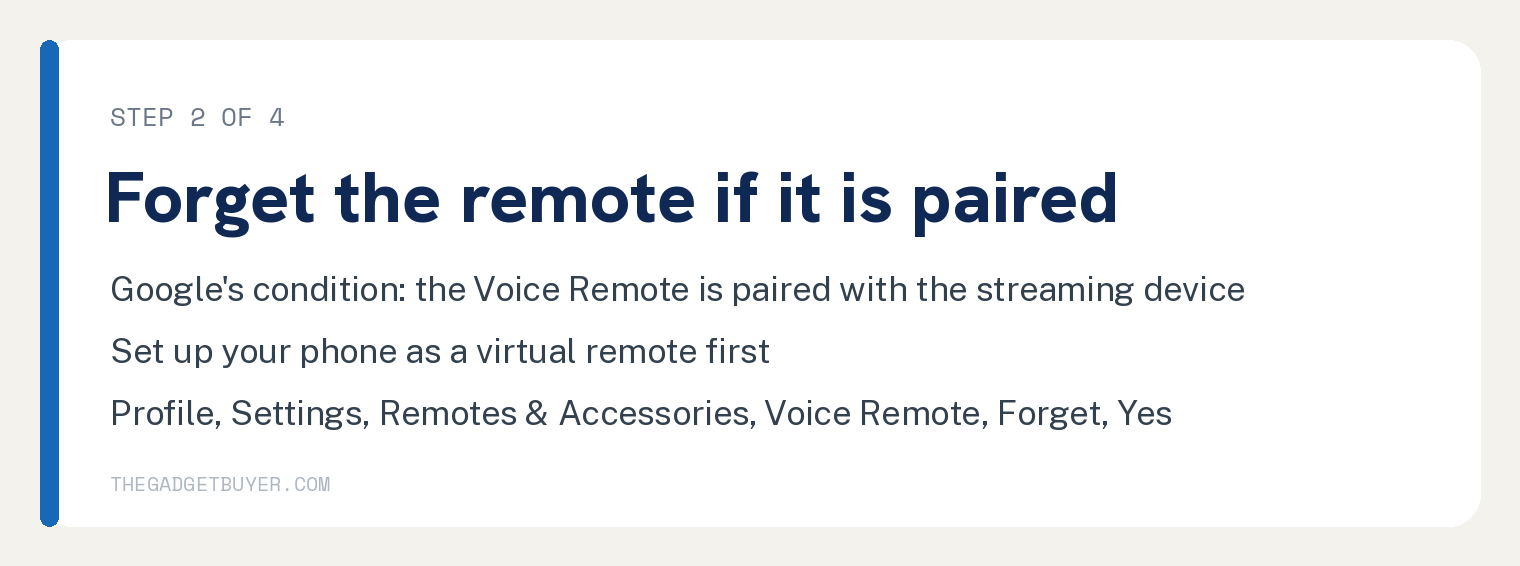
Google’s step 2 starts with a condition: “If your Voice Remote is paired with your Google streaming device, unpair it:”. To move around the TV screen, set up your phone as a virtual remote first, which is Google’s next line: “To navigate the TV screen, set up your phone as a virtual remote”.
Then on the TV screen open your profile, go to Settings, then Remotes & Accessories, pick Voice Remote, choose Forget and confirm with Yes. That is Google’s path with its arrows written out as words.
Step 3: factory reset the remote
Read the warning on the step before you hold anything: “A factory reset will reset your device to its default factory settings. This action will clear your data and can’t be undone.”
The two remotes reset in different ways. Pick your remote in the two sections below.
Step 4: set up the streaming device again
Google links the setup page for each device under “Step 4. Set up your Google streaming device”.
Factory reset a Chromecast Voice Remote
This remote resets with the Home button. Take both batteries out, wait five minutes, then put them back while you press and hold Home.
Keep holding until the light comes on and stays solid, then let go when it starts to pulse. In Google’s words: “Continue to hold the Home button while the LED light turns on and stays solid.” and “When the light starts to pulse, release the button.”
If it does not pair by itself, hold two buttons: “press and hold the Back and Home buttons for 3 seconds.”
If it still will not pair, use your phone as the virtual remote to pick Pair remote or accessory on the TV screen, reset the remote again, wait for it to show up on the screen, then tap the select button on your phone.
When the remote still does nothing after all of that, the page’s last move is to reset the Chromecast itself. Check it is plugged into the TV and turned on, then hold the button on its back until the light blinks yellow and then turns solid white, let go, wait for the device to reset, and reset the remote once more.
Factory reset a Google TV Streamer Voice Remote
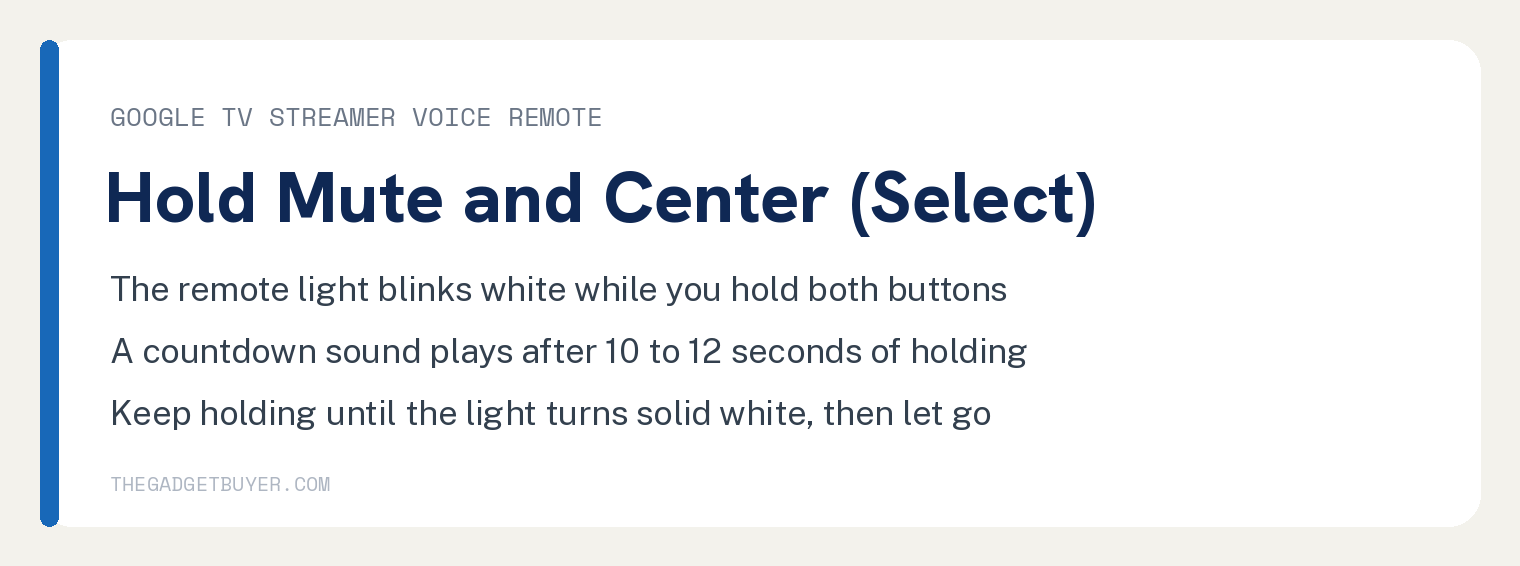
This remote resets with two buttons held together. Press and hold Mute and the Center (Select) button at the same time, and the light will blink white while you hold.
Keep holding until the light turns solid white; a countdown sound plays after 10 to 12 seconds of holding. Google’s note reads “It usually takes no more than 12 seconds to initiate a factory reset.”
The steps as printed: “Press and hold the Mute and Center (Select) buttons at the same time.” then “While both buttons are pressed down, the remote LED will blink white.” then “A countdown sound will play after 10-12 seconds of holding.” then “Keep holding the buttons until the LED turns solid white.”
The remote works for some things and not others
When your remote moves around the menus but will not turn the TV on and off or change the volume, Google reads that as likely an IR issue. The page’s condition is “If the remote can navigate around the TV, but can’t turn the TV on and off or control the volume”, and the section’s first sentence reads “If your remote isn’t working for some features but not others, the remote might not be able to send an infrared (IR) signal to the sensor.”
First check the input with a different remote, so you know the TV is on the streaming device: “Use another remote to ensure your Google streaming device is the selected input.”
Then check which TV the remote buttons are set up for. On the TV open Settings, then Remotes & Accessories, then Set up remote buttons, and pick the device that is misbehaving.
If that changes nothing, go back to the battery light test at the top, which is the general troubleshooting section the page points you to.
The light comes on but the remote drops its connection
A remote whose light works but which cannot control the Google TV screen has its own fix. Google’s heading for this case is “Voice Remote drops Bluetooth connection”.
First pull and reinsert both batteries and check for the two flashes. If the light does not come on at all, go back to the battery light test at the top.
Next, cut the power. Unplug the USB-C cable from the streaming device, leave it unplugged for one minute, then plug it back in.
Then factory reset the remote with the Chromecast Voice Remote steps or the Google TV Streamer Voice Remote steps above. To pair it again, the page says to “press the reset button on the streaming device to enter the pairing screen.”
The remote responds slowly
When the buttons work but the TV reacts late, you may be too far from the TV. Google’s condition reads “If the buttons on the Voice Remote work, but it takes a while for the action to register on the TV, you may be too far from the TV.”
Four moves follow: move the remote closer to the TV, move the Wi-Fi access point away from the streaming device, put the streaming device on an HDMI extension cable so it sits away from other HDMI cables, and move the streaming device and flip it over.
If none of that helps, the page sends you back to the battery light test at the top.
Where Google’s page stops
It prints no distance figure. The words feet, metres and range do not appear on the page; its wording is “too far” and the four moves above.
It prints no battery brand and no rechargeable option. The only battery spec on the page is “2 fresh 1.5 volt AAA batteries”.
The page’s “Need more help?” list ends on “Contact us”. A replacement remote appears on the page only as a sidebar page title, never as a step.
If the TV itself is the thing that will not respond, start with why a TCL TV will not turn on or a Roku TV stuck on the Roku screen. An LG set with a Magic Remote has its own pairing steps in LG Magic Remote not working, and an app that will not load is covered in YouTube not working on a smart TV.
Frequently asked questions
How do I know the Chromecast remote has power?
Watch the unmarked light on the front while you put the batteries in. Two flashes is the sign Google looks for; no flash after fresh batteries and a five minute wait sends you to the four steps for a remote that does not work at all.
How do I pair the Chromecast remote again?
After a factory reset it should pair on its own. When it does not, hold Back and Home for 3 seconds, and if that fails, use your phone as a virtual remote to pick Pair remote or accessory on the TV screen, reset the remote again, wait for it to show up on the screen, then tap the select button on your phone.
Why does the remote move through the menus but not change the volume?
Google’s page reads that as likely an IR issue. Check that the streaming device is the selected input, then set up the remote buttons for your TV under Settings, Remotes & Accessories, Set up remote buttons.
Does a factory reset of the remote erase anything?
Yes. The warning on the reset step says it “will clear your data and can’t be undone”. Read it before you hold the buttons.