
LG Magic Remote Not Working? Pair It Again in LG’s 3 Moves
When an LG Magic Remote stops working, LG’s own page says to unpair it and pair it to the TV again, and for a pointer that will not appear LG says the remote has likely lost its connection to the TV. LG’s support page on an LG Magic Remote not working says: “If the pointer doesn’t appear on screen, the remote has likely lost its connection to the TV. To fix this, re-register the remote to your TV.”
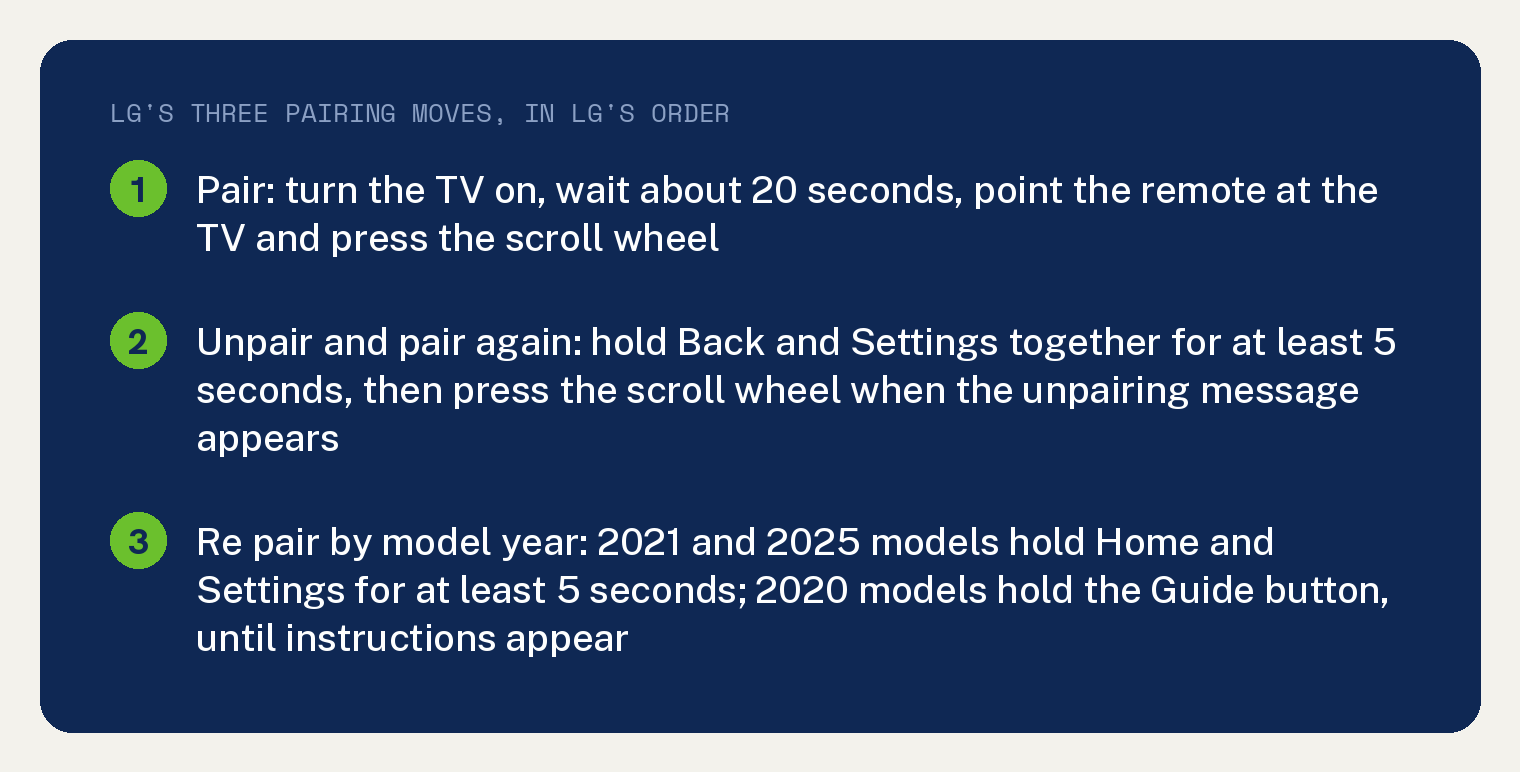
LG gives three pairing moves, and this article walks them in LG’s order: the plain pair with the scroll wheel, the unpair and pair again with Back plus Settings, and the model year re pair with Home plus Settings or the Guide button.
Voice commands that stop working are a separate checklist on the same page, covered further down. The page is written for a standard model, and LG notes that “The settings menu and steps may vary depending on your specific model.”
Pair the Magic Remote with the scroll wheel
Start with the plainest move. Turn the TV on, wait about 20 seconds, point the remote at the screen and press the scroll wheel.
LG’s page puts it this way: “Turn on the TV and wait about 20 seconds. Point the remote at the TV and press the scroll wheel button.” The remote pairs on its own and a confirmation message appears on the screen.
Unpair it and pair it again with Back plus Settings
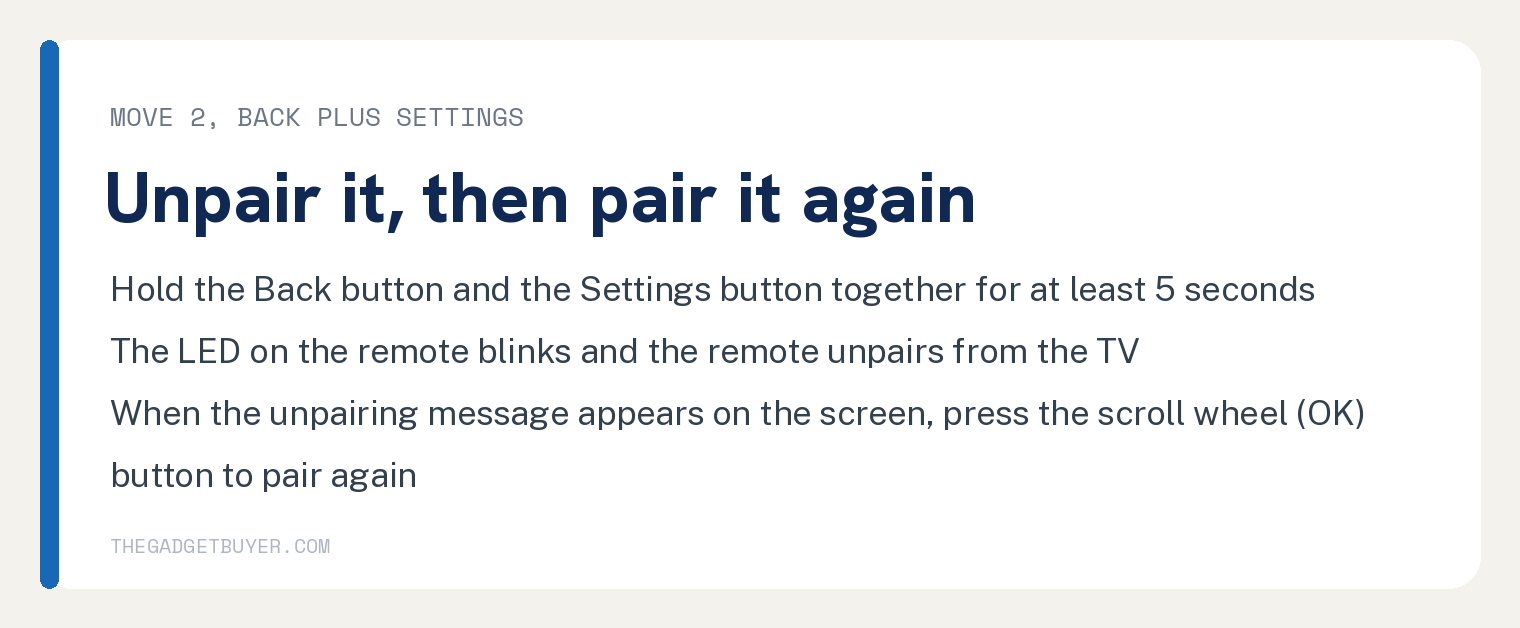
When the remote still misbehaves after that, LG’s next step is to break the connection on purpose and make it again. Hold the Back button and the Settings button together for at least 5 seconds.
The LED on the remote blinks and the remote unpairs from the TV. LG’s line reads: “The LED light on the remote will blink, and the remote will unpair from the TV.”
Then watch the screen. LG says: “When the unpairing message appears on the screen, press the scroll wheel (OK) button to pair the remote again.”
Re pair by model year with Home plus Settings or the Guide button
LG keeps a third move for a remote that still will not connect, and the buttons depend on the year LG says the model was released. For the 2021 and 2025 models, point the remote at the TV and hold Home and Settings together for at least 5 seconds until instructions appear on the screen.
For the 2020 models, LG uses a different button: “Keep the remote pointed at the TV and press and hold the Guide button until instructions appear on the screen.”
Follow whatever the TV shows next. LG’s page stops at the point where the on screen instructions take over.
Voice commands not working on the Magic Remote
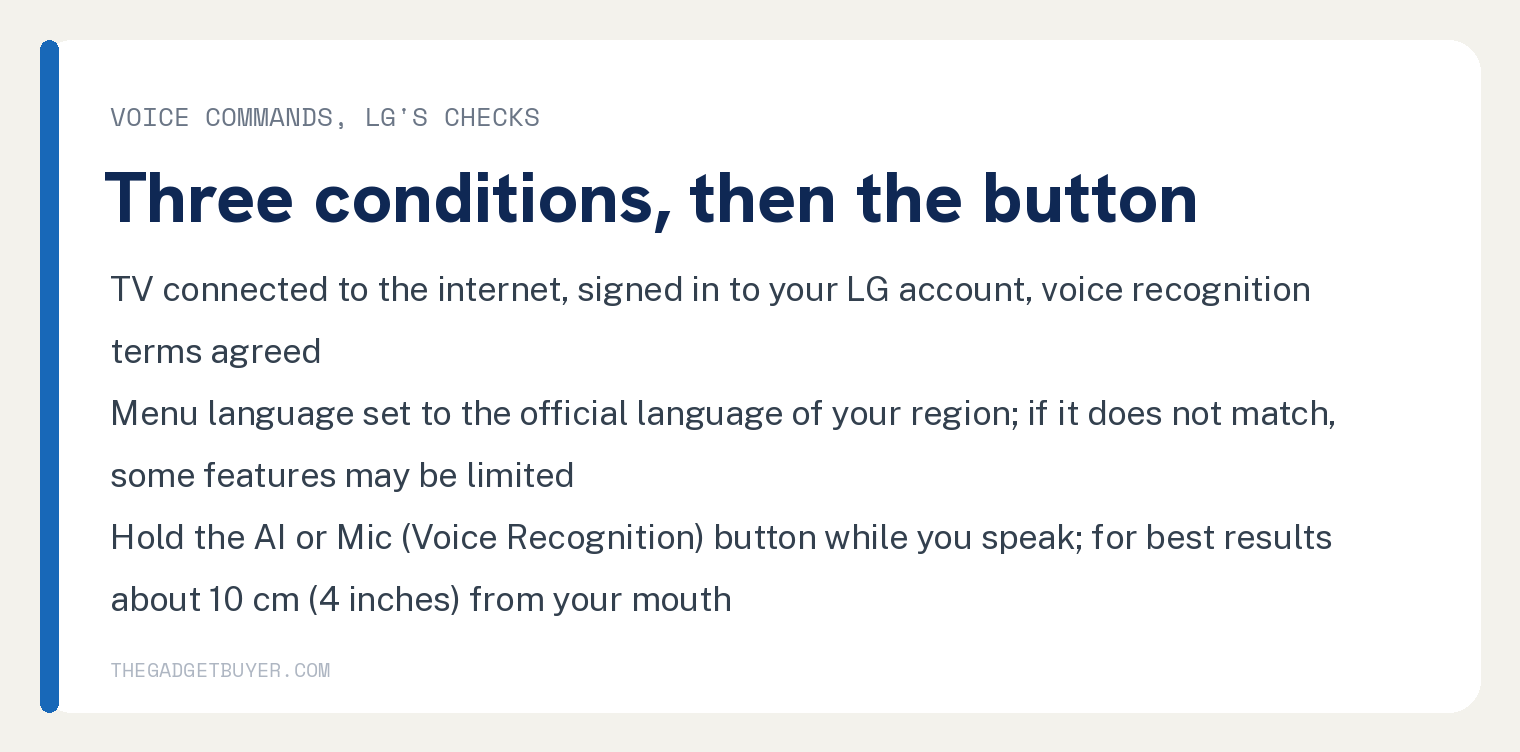
Voice has its own three conditions on LG’s page, and none of them is a pairing step. The TV has to be online, you have to be signed in to your LG account, and you have to have agreed to the voice recognition terms.
LG writes it as one sentence: “Make sure that your TV is connected to the internet, that you’re signed in to your LG account, and that you’ve agreed to the voice recognition terms of use.”
Next, check the menu language. LG’s page says to set it to the official language of your region, and adds: “If the menu language doesn’t match your region’s official language, some features may be limited.”
Then use the button the way LG describes it. Hold the AI button or the Mic (Voice Recognition) button, speak your command, and let go when you are done.
LG’s advice on distance reads: “For best results, hold the remote about 10 cm (4 inches) from your mouth and speak slowly and clearly at a normal volume.”
On the 2025 remote LG labels the voice key “[AI Button]” and adds “(requires internet connection)”. On the 2021 remote the same key is “[Voice Recognition]”, and LG’s note under that list says: “Older remote models may not support these features.”
When LG’s steps do not bring the remote back
LG’s page names two next moves and stops there. Its words: “If the issue persists after following the steps above, you can get further support through LG Chatbot on the LG website or by requesting a technician visit.”
Out of warranty, that visit can cost you. LG’s note says “A service fee may apply if your product is out of warranty.”
Until a replacement arrives, you can still run the set: see how to control an LG TV without the remote. If the TV itself is the thing that will not respond, start with why your LG TV will not turn on, and if the set says Wi Fi is off, that is a different fix: LG TV says Wi Fi is turned off.
Where LG’s page stops
It prints no battery step. The word battery appears on the page three times, all in the site footer, and never in the remote article.
It prints no step that says replace the remote. The page’s last move is LG Chatbot or a technician visit.
It prints no TV reset and no pointer settings menu. Its fixes for a remote that will not connect are the three pairing moves above.
Frequently asked questions
Why did the pointer on my LG Magic Remote disappear?
LG’s page gives one cause for a missing pointer: the remote has likely lost its connection to the TV. The fix on that page is to register the remote to the TV again, starting with the scroll wheel.
How do I reset an LG Magic Remote?
LG’s page prints no reset step by that name. Its closest move is the unpair and pair again: hold Back and Settings together for at least 5 seconds, wait for the unpairing message, then press the scroll wheel.
Which buttons re pair a 2020 LG Magic Remote?
The Guide button. LG’s page separates the 2020 models from the 2021 and 2025 models, which use Home plus Settings held together for at least 5 seconds.
My Magic Remote has no number buttons. How do I type a channel?
LG answers that in its FAQ: “When changing channels, press the [More Actions] button on your remote to open an on-screen number pad.”
Can I use an Apple remote with the LG TV instead?
That is a separate question with its own answer on this site: can you turn on an LG TV with an Apple remote.