
LG TV Says Wi-Fi Is Turned Off, So Run LG’s Hotspot Test
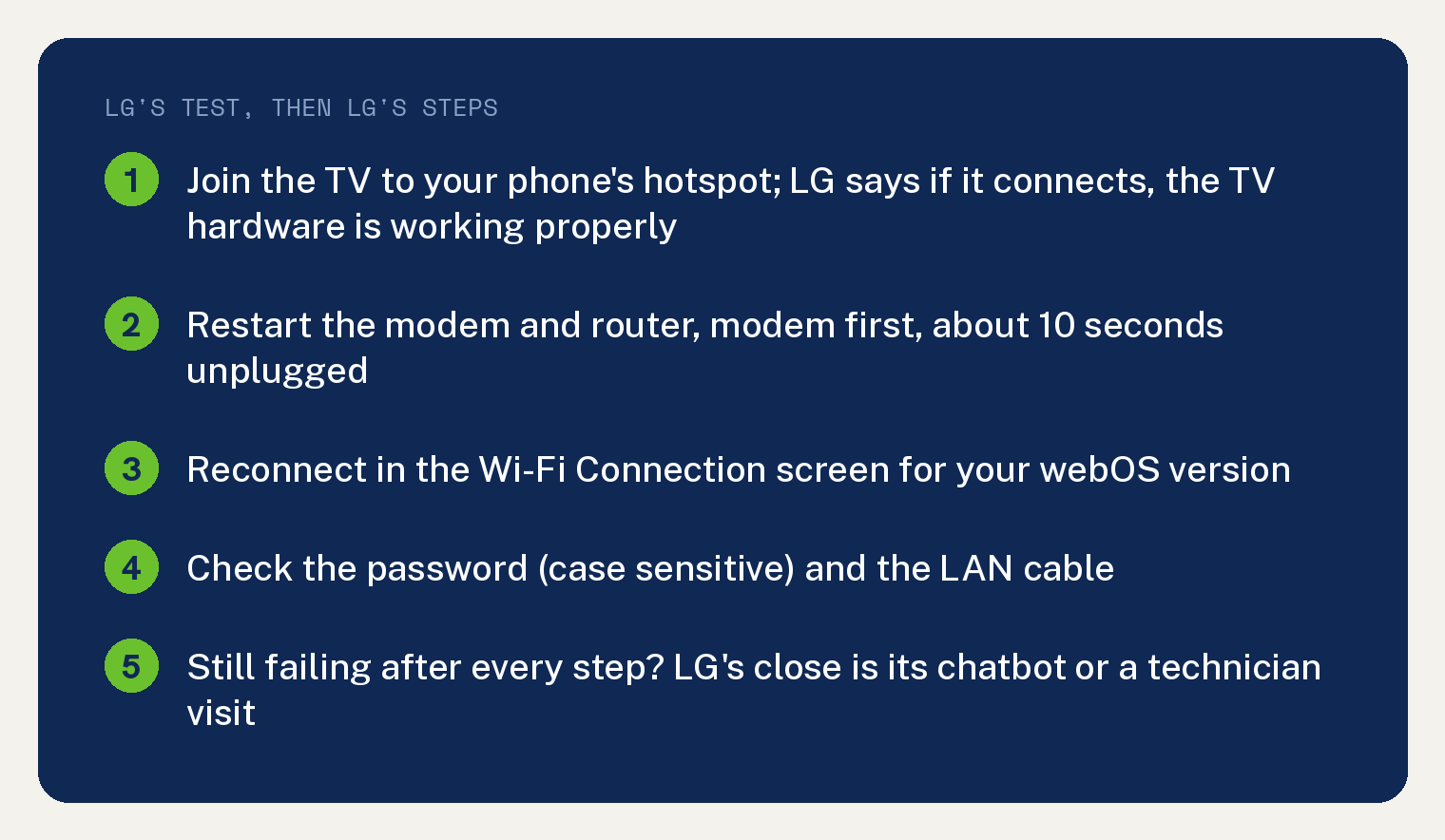
When your LG TV says Wi-Fi is turned off or will not connect, LG gives six steps, and the first one is a test: connect the TV to your phone’s hotspot, restart the router and modem, reconnect the TV in its network settings, check the password and cable, restart the router and modem again, then ask LG for help. LG’s page puts the test first, and its verdict reads: “If your TV connects to the hotspot, the TV hardware is working properly.”
LG’s page prints no Wi-Fi is turned off message anywhere; its subject is a TV that cannot connect to the internet, and reading the turned off message as that problem is this article’s call.
Why does my LG TV say Wi-Fi is turned off?
LG lists four causes for a TV that cannot connect, and the last one is the TV itself. In LG’s words: “Your TV’s internal Wi-Fi module may have a temporary issue or hardware problem.”
The other three sit outside the TV: a router or modem that is off or a provider with a temporary interruption, a wrong password or a TV too far from the router for a strong signal, and an IP address problem, in LG’s words: “There may be a temporary IP address assignment error between your router and modem.”
LG’s page prints no rule for telling a temporary module issue from a hardware problem. The hotspot test below is the check LG prints for the TV hardware.
Step 1: test the TV with your phone’s hotspot
Turn on the hotspot on your phone, join the TV to it, and see if the TV gets online. LG’s steps: “Check if your smartphone or laptop can connect to the same router’s Wi-Fi network.” Then: “If only your TV cannot connect, turn on Mobile Hotspot on your smartphone. Connect your TV to the hotspot and check if it can access the internet.”
A TV that gets online through the hotspot has passed. LG’s verdict: “If your TV connects to the hotspot, the TV hardware is working properly.”
LG’s page prints no verdict for the other result. A TV that cannot join the hotspot gets the rest of the steps, and for a problem that persists LG’s close is its chatbot or a technician visit, below.
Step 2: restart the router and modem, modem first
Pull both power plugs, wait about 10 seconds, plug the modem back in first, then plug the router in after one minute and let both finish starting up. LG’s line on the order: “Wait about 10 seconds, and then plug the modem back in first.”
Step 3: reconnect the TV in its network settings
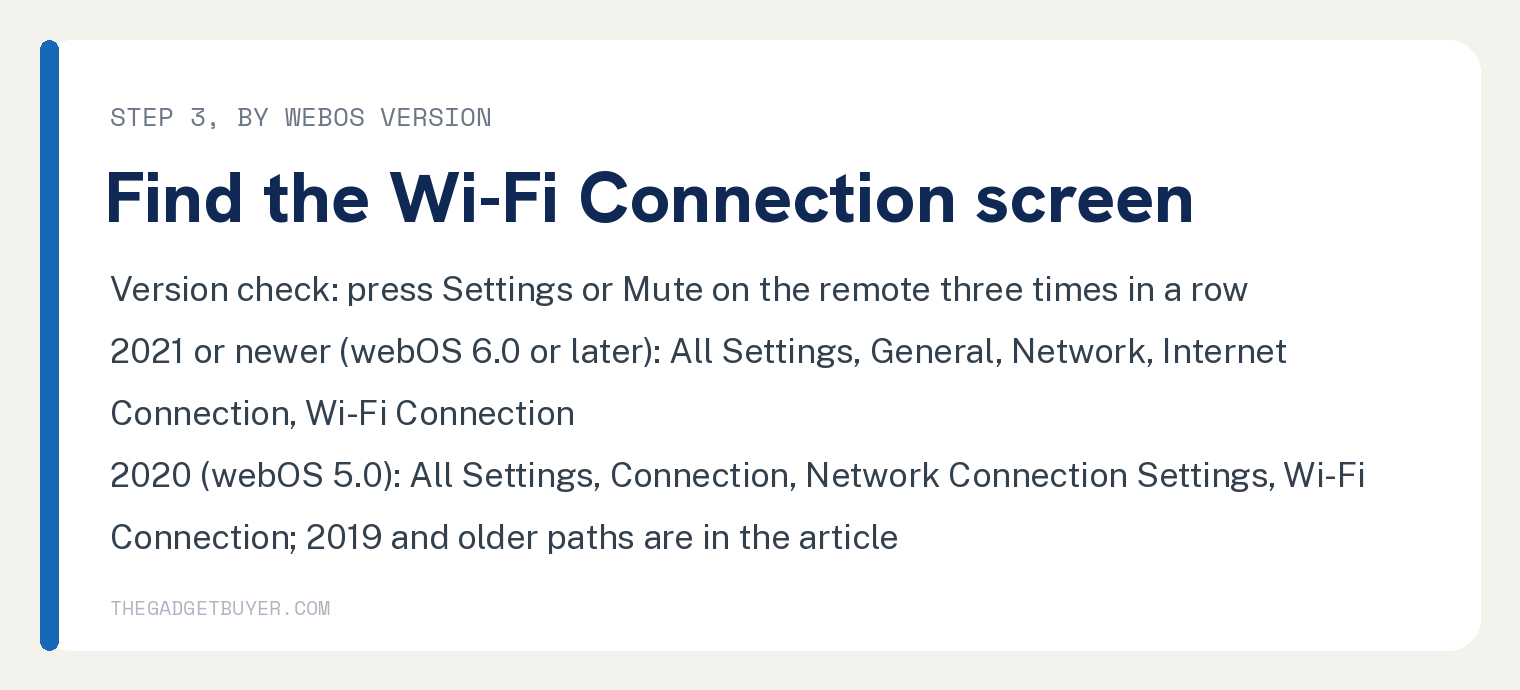
The menu path depends on the TV’s webOS version, and LG gives a shortcut to find it: “Press the Settings (gear icon) or Mute button on your TV remote three times in a row.”
Then open the Wi-Fi Connection screen for your version. Here are four of the five items in LG’s list, the version paths (the wired line is below):
- “For 2021 or newer TVs (webOS 6.0 or later): Press the Settings button on your remote, and then select All Settings, General, Network, Internet Connection, and Wi-Fi Connection.”
- “For 2020 TVs (webOS 5.0): Press the Settings button on your remote, and then select All Settings, Connection, Network Connection Settings, and Wi-Fi Connection.”
- “For 2019 TVs (webOS 4.5): Press the Settings button on your remote, and then select All Settings, Connection, and Wi-Fi Connection.”
- “For 2018 or older TVs (webOS 4.0 or earlier): Press the Settings button on your remote, and then select All Settings, Network, and Wi-Fi Connection.”
A cable connects on its own. LG: “For a wired connection, connect a LAN cable to your TV. Your TV will automatically detect the cable and connect to the network.”
LG’s note under the page says the guide is based on standard models and the settings menu may vary by model.
Step 4: check the password and the cable
Type the password again and check the network name, because LG’s page notes that “Passwords are case-sensitive.” On a cable, make sure the LAN cable is plugged in firmly at both ends.
If it all looks right and the TV still cannot get online, LG sends you back to the router and modem restart.
Step 5: restart the router and modem again, and watch the light
LG repeats the restart with one more detail, the light on the front: unplug the modem for 10 seconds, let it start, then unplug the router for one minute. Then, in LG’s words: “Check the connection: When the internet status light on the front of the equipment is on, try connecting your TV again.”
Step 6: when LG says to get help
After the five steps, LG’s page has one line left: “If the issue persists after following the steps above, you can get further support through LG Chatbot on our website or by requesting a technician visit.”
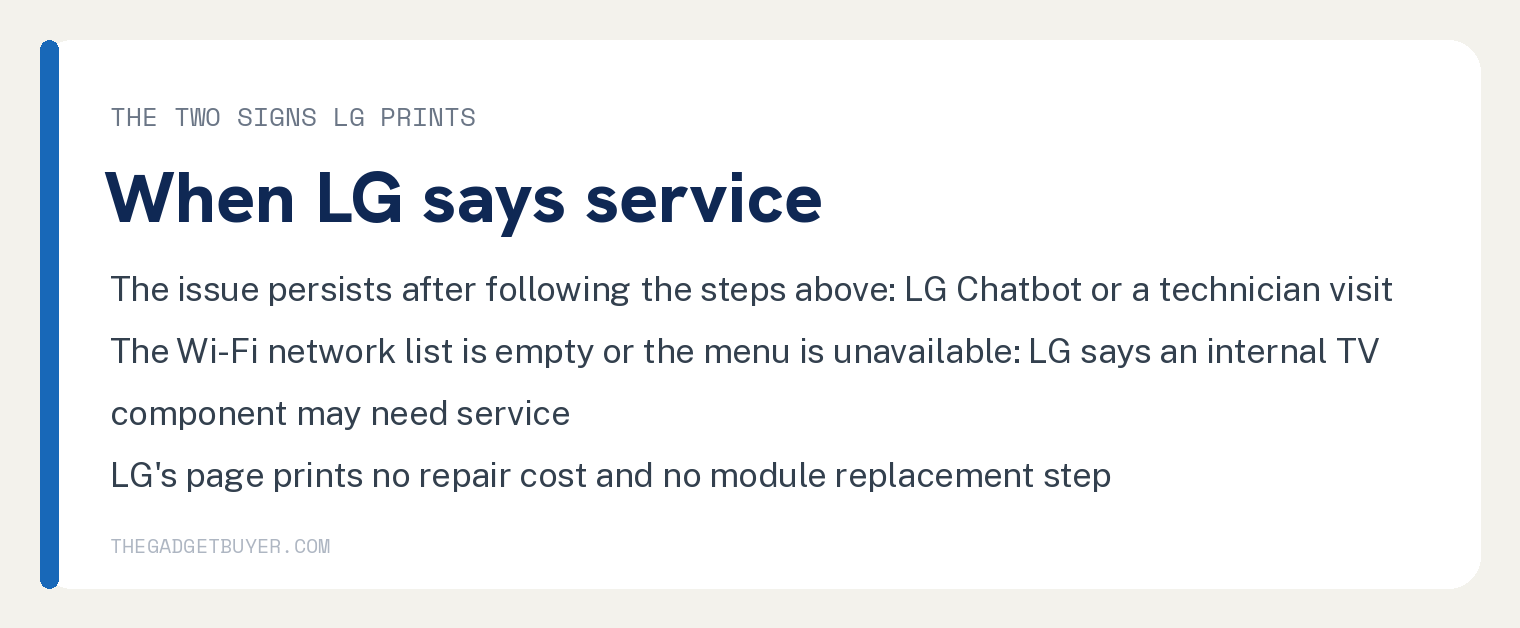
LG’s FAQ adds the on screen sign that points at service: “If the Wi-Fi network list is empty or the menu is unavailable, an internal TV component may need service.”
So the two signs LG prints are a TV that fails every step including the hotspot, and a Wi-Fi network list that is empty or a menu that will not open. The page prints no repair cost and no module replacement step, and this article adds none.
Does a factory reset or a software update fix it?
LG’s page cited below prints no factory reset, no firmware or software update, no Quick Start setting and no MAC address or DNS change: factory, reset, Quick Start, MAC and DNS each count 0 in the page’s visible text, and firmware, software and update count 0 in the article’s visible text, with their only hits in page code outside the article.
The page also prints no step that unplugs or restarts the TV itself. This article stays with what LG prints.
If the TV will not turn on at all, this site covers why an LG TV won’t turn on, in LG’s six steps. For a TV that is on with no picture, see an LG TV that turns on but shows no picture or sound, and for the remote itself, controlling an LG TV without the remote.
Frequently asked questions
How do I turn Wi-Fi back on on my LG TV?
Open the Wi-Fi Connection screen for your webOS version and reconnect the TV to Wi-Fi there. On a 2021 or newer TV LG’s path is “All Settings, General, Network, Internet Connection, and Wi-Fi Connection.” LG’s page prints no separate Wi-Fi on or off switch; the connection screen is the step it gives.
Will a Wi-Fi extender fix an LG TV that keeps losing Wi-Fi?
LG’s answer carries a trade off: “A Wi-Fi extender can increase the signal range, but it may reduce connection speed or cause drops.” For a more reliable connection LG’s page says to move the router closer to the TV or use a wired connection.
How do I know if my LG TV Wi-Fi module is broken?
LG’s page prints two signs and no rule. The hotspot test clears the hardware when the TV connects to the hotspot, and an empty network list or a menu that will not open means “an internal TV component may need service.” A TV that fails the hotspot test gets the rest of LG’s steps, then LG’s chatbot or a technician visit.
Which webOS version does my LG TV have?
Press the Settings (gear icon) or Mute button on the remote three times in a row, which is LG’s shortcut. LG’s page groups the menu paths by year: 2021 or newer is webOS 6.0 or later, 2020 is webOS 5.0, 2019 is webOS 4.5, and 2018 or older is webOS 4.0 or earlier.