
TCL TV Won’t Turn On Means a Full 60 Seconds Unplugged
A TCL TV won’t turn on fix from TCL has the same order on Google TV, Roku TV and Fire TV: unplug it for a full 60 seconds, hold the TV’s own power button for about 15 seconds while it is unplugged if the set has one, then plug it straight into a wall outlet you know works. Before that, TCL has five basic checks, and after it, a remote test and a test with every connected device unplugged.
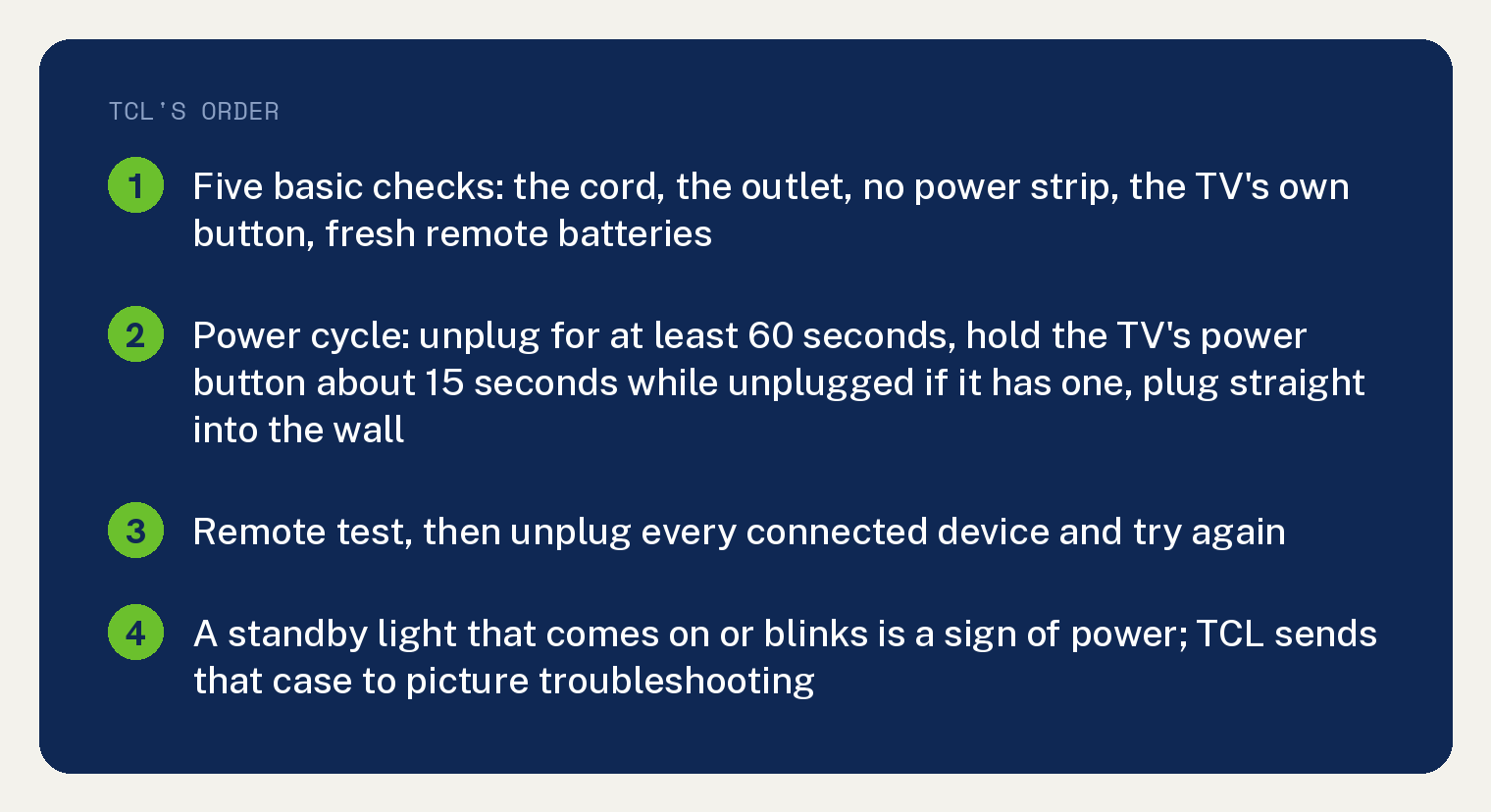
TCL prints the steps three times on one support page, once each for Google TV, Roku TV and Fire TV, under four step headings in the same order, with step 2 named for that section’s remote. This article gives them once, in TCL’s order, using the Google TV wording, and names where the remote sections differ.
What TCL checks before any of the steps
TCL’s page opens with five basic checks to do before the operating system steps. In TCL’s words: “Complete these basic checks before performing the operating-system-specific steps.”
- The power cord. Make sure it is tight at the TV and at the wall. If the cord comes off, TCL says to unplug it at the wall, unplug it at the TV, then “Reconnect both ends firmly.” TCL adds: “Inspect the cord for cuts, exposed wires, bent connectors, or other visible damage. Do not use the cord if it appears damaged.”
- The wall outlet. Plug a lamp or a phone charger into the same outlet. TCL also says: “If the outlet is controlled by a wall switch, make sure the switch is turned on.”
- Power strips and surge protectors. TCL’s line: “If the TV is connected to a power strip, surge protector, extension cord, or smart plug, disconnect it and plug the TV directly into a working wall outlet.”
- The TV’s own power button. Press the physical button on the set instead of the remote. TCL says the button is commonly under the center of the TV, behind the TCL logo, along the bottom edge, or on the back or side panel, and that “The exact location varies by model.”
- The remote batteries. TCL: “Replace the remote batteries with a new matching pair. Make sure the positive and negative ends are installed in the correct direction.”
If the set turns on from its own button, TCL says “the TV has power and the remote likely requires troubleshooting.”
How do I power cycle a TCL TV that won’t turn on?
This is TCL’s step 1 under all three operating systems, and TCL says the full 60 seconds is important.
- Unplug the TV from the wall outlet.
- Leave it unplugged for at least 60 seconds.
- While it is unplugged, press and hold the physical power button on the TV for about 15 seconds, if the TV has one.
- Release the button.
- Plug the TV directly into a working wall outlet.
- Press the Power button on the TV or the remote.
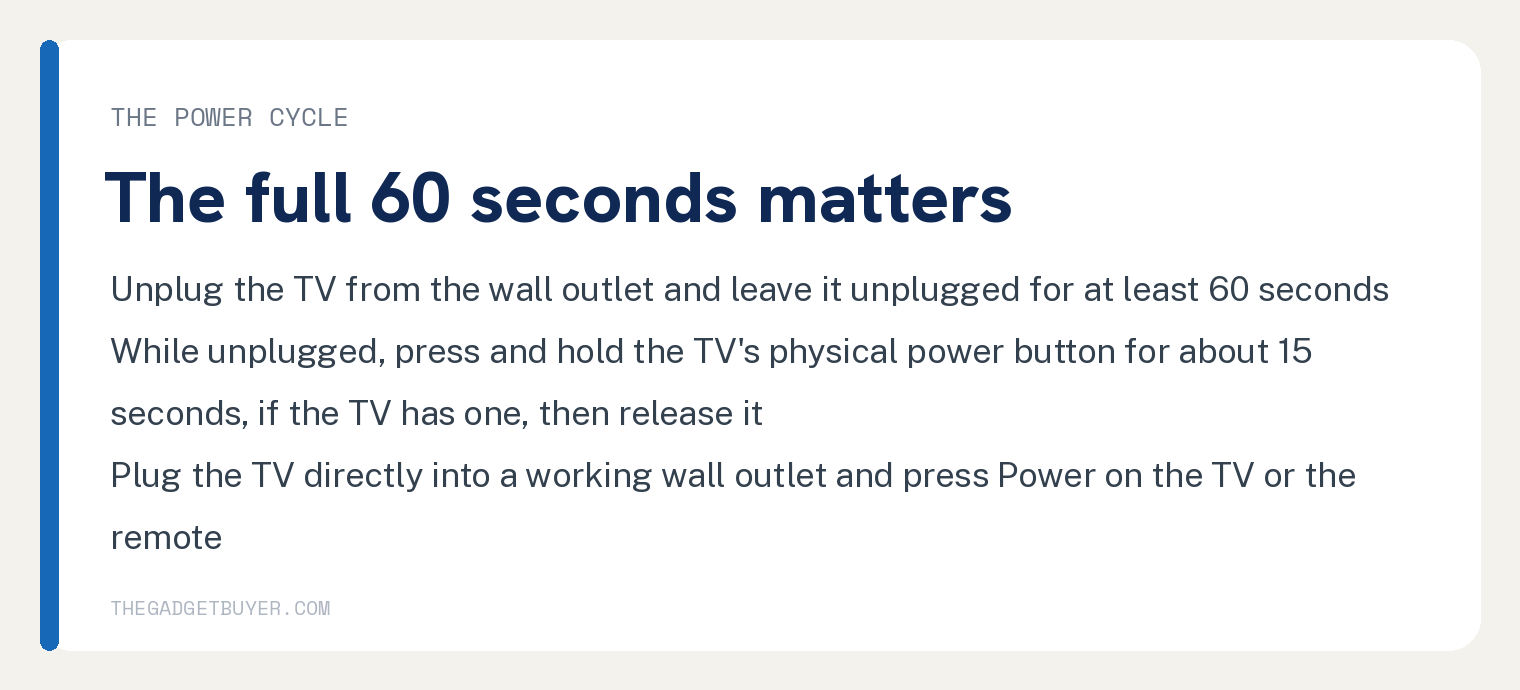
TCL’s reason for the wait: “Leaving the TV unplugged for the full 60 seconds is important. Quickly unplugging and reconnecting it may not provide enough time for the system to reset.”
Is it the remote?
TCL’s step 2 is the same test under all three sections: turn the set on with its physical button. If that works, replace the remote batteries, check they are in the right way, move closer, and press Power again. Google TV adds a check that nothing blocks the front or lower edge of the TV, and Roku TV says to point the remote at the TV.
The three sections name a different remote and describe it differently, and TCL’s own lines are these.
Google TV: “Some TCL Google TV remotes use Bluetooth for voice and navigation features. If the TV turns on but some remote buttons do not work, the remote may need to be paired again through the TV settings.”
Roku TV: “Some Roku TV remotes use an infrared signal and require a clear path to the TV. Roku voice remotes use a wireless connection and may need to be paired again after the TV turns on.”
Fire TV: “Fire TV remotes commonly use a wireless connection for navigation and voice features. If the TV powers on but does not respond to the remote, the remote may need to be paired again.”
A Roku remote that will not wake the set has its own guide on this site: a Roku remote power button not working.
Unplug everything but the power cord
TCL’s step 3 removes every connected device, because one of them can occasionally keep the set from starting. TCL’s words: “A malfunctioning device, cable, or HDMI control command can occasionally interfere with the TV’s startup process.”
Under Google TV, TCL says to turn off and unplug the TV first, then its list is HDMI devices, cable or satellite boxes, game consoles, streaming devices, soundbars and receivers, USB drives, and antennas and other accessories, then: “Leave only the TV’s power cord connected.” Plug the TV straight into the wall and try again.
If it turns on now, TCL says to reconnect the devices one at a time and turn the TV on after each one, so the one that causes it shows itself.
Is the TV on and the screen just black?
TCL’s step 4 is a look and a listen, because a set with a dark screen can still be running. Under Google TV, TCL’s first sign of power is “A standby light turning on or blinking”, and its list ends with “Sound playing even though the screen is dark”.
TCL’s own words on what that means: “These signs indicate that the TV may be turning on even though a picture is not appearing. In that situation, the problem may be related to the display, backlight, selected input, or connected equipment rather than a complete loss of power.”
For that case TCL says to unplug all HDMI devices and press Home on the remote. On a TCL Roku TV with sound and no picture, this site’s guide to a TCL Roku TV black screen with sound takes it from there.
When does TCL say to contact support?
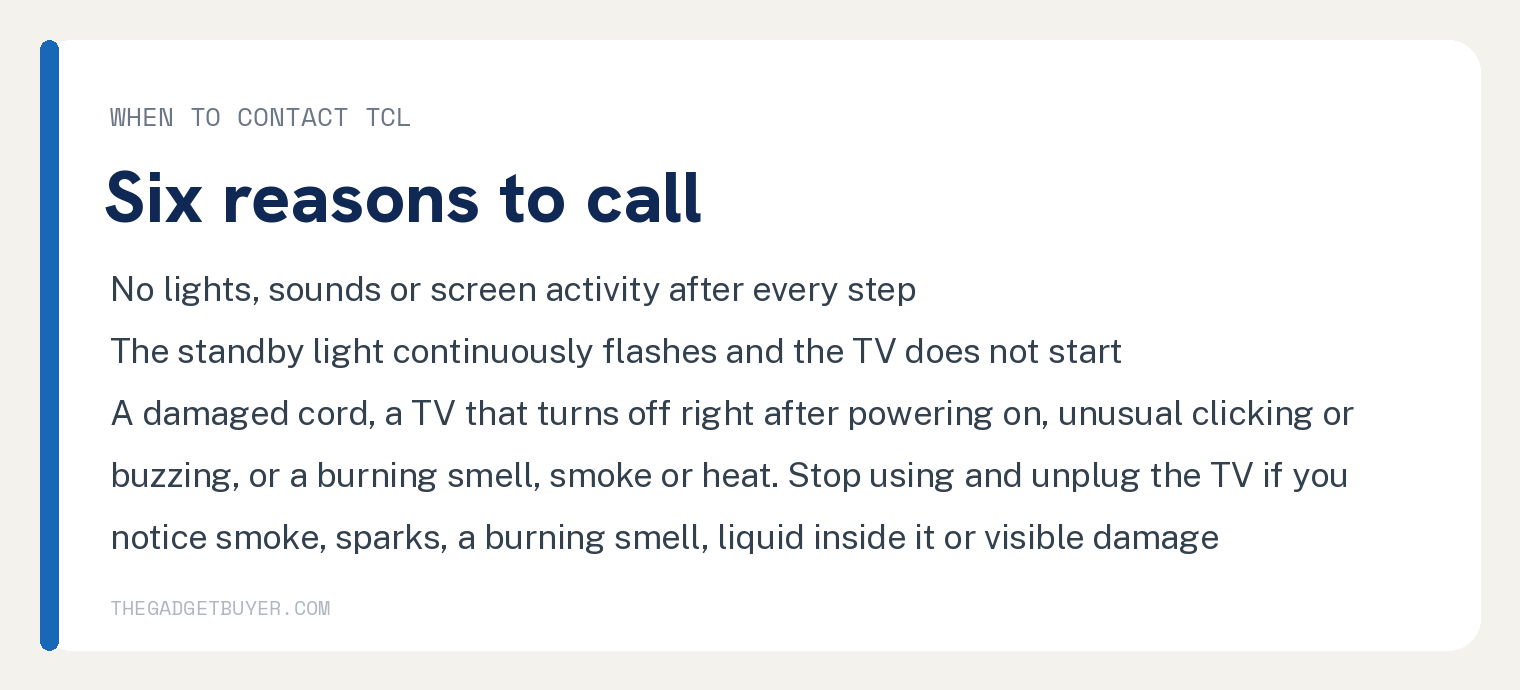
TCL lists six reasons. In TCL’s words, contact TCL Support if “The TV shows no lights, sounds, or screen activity after completing all troubleshooting steps.” or “The standby light continuously flashes and the TV does not start.”
The other four are a damaged cord or power connection, a TV that “repeatedly turns off immediately after being powered on”, unusual clicking, buzzing or electrical sounds, and a burning smell, smoke or excessive heat.
TCL adds a safety line: “Stop using and unplug the TV immediately if you notice smoke, sparks, a burning smell, liquid inside the TV, or visible damage.” Have the TV model number, serial number and approximate purchase date ready when you call.
Frequently asked questions
My TCL TV’s standby light is blinking. Does that mean it is broken?
TCL’s page gives that light two meanings, and which one you have depends on whether the set starts. A standby light “turning on or blinking” is on TCL’s Google TV list of signs the TV is receiving power, so TCL points you at the picture, input and connected devices instead. A standby light that “continuously flashes and the TV does not start” is one of TCL’s six reasons to contact support.
Does TCL print a red light code or a blink count?
No. TCL’s no power page names no light colour and no blink count. Its sentences about a light that blinks or flashes are the two above, plus a Roku TV sign of power: “A light that flashes when you press a remote button”.
Should I factory reset a TCL TV that won’t turn on?
TCL’s no power page prints no factory reset step and no reset pinhole. The only reset on the page is the 60 second power cycle, and TCL’s final list asks you to “Repeat the 60-second power cycle.” before you conclude the TV needs service.
Are the steps different for a TCL Roku TV, Google TV or Fire TV?
TCL prints four step headings in the same order for all three and says the steps are alike, in TCL’s words: “The main troubleshooting steps are similar for TCL Google TVs, Roku TVs, and Fire TVs.” The remote lines differ, and they are in the remote section above. A TCL Roku TV that restarts on its own is a different problem, covered in our guide to a TCL Roku TV that keeps restarting.
What are TCL’s last checks before calling for service?
TCL’s final list is seven checks: a different outlet you know works, the TV plugged straight into it, the cord fully in and undamaged, the TV’s own button again, every external device unplugged, the 60 second power cycle again, and a careful check for lights, sounds, clicks or a brief flash on the screen. TCL closes with: “If possible, test the outlet with another device before concluding that the TV requires service.”