
TCL Roku TV Black Screen but Sound Works, in TCL’s Order
A TCL Roku TV black screen that still plays sound means the set is on, and TCL’s own page for this symptom says to “follow the troubleshooting steps below in order.” Five of those steps are to press Home, check the input, check the connected device and HDMI cable, power cycle the TV for a full 60 seconds, then run its flashlight check.
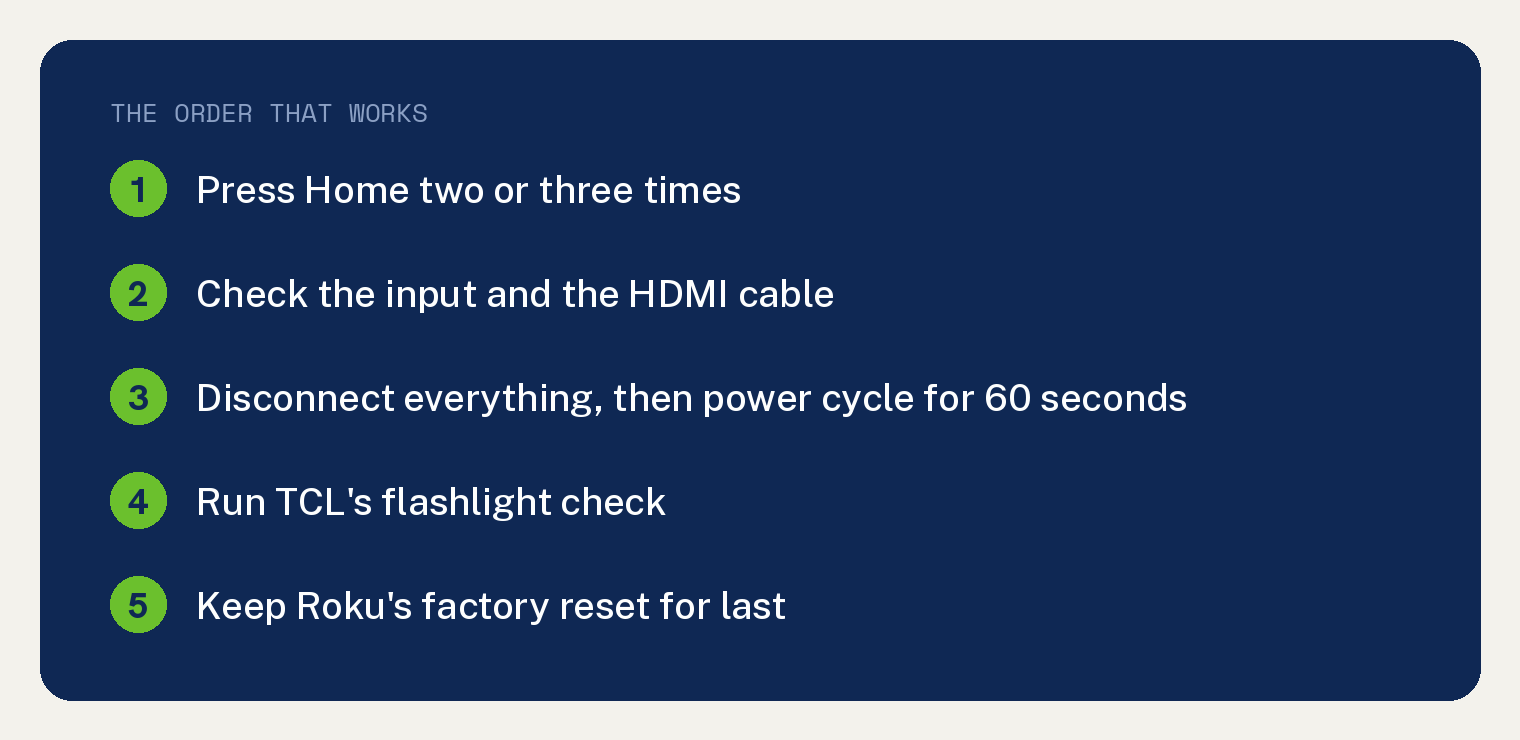
Roku’s page for Roku TVs offers a factory reset and warns that it “removes any of your personalized information”, and we put that one last.
TCL’s page says “Sound without a visible picture confirms that the TV is turning on and processing audio.”
What the sound already tells you
TCL’s page opens its Before You Begin section with “A black screen does not always mean the TV has no power.” Its next line reads “The TV may still be operating if you notice”, and the first item under it is “Sound from a program, app, or menu”.
TCL attaches one qualifier to the whole page: “Button locations, status-light behavior, and available features may vary depending on your TCL Roku TV model.”
Check 1: Press Home to get past the input
Start with the remote. TCL’s step 2 says to press the Home “button on the Roku remote two or three times, waiting several seconds between each press.”
It adds “You can also press another navigation button, such as the directional pad, to make sure the display has not been turned off while audio continues playing.”
TCL’s reason reads “Opening the Roku Home screen bypasses the currently selected external input.”
TCL’s result line reads “If the Home screen appears, the TV display is working and the problem is more likely related to an external device, HDMI connection, or selected input.” Under its heading What the Result Means, TCL’s line for the case where the Roku Home screen appears reads “Check the external device, HDMI cable, and selected input.” and its line for the case where the screen remains black reads “Continue to the next step.”
Check 2: Work through the inputs and the HDMI cable
A quiet input can look like a dead screen. TCL’s step 3 says “A black screen may appear when the TV is set to an input that does not have an active video signal.”
Its instruction reads “Use the Roku Home screen or the TV’s physical button to check each available input, such as:” and its examples are HDMI 1, HDMI 2, HDMI 3, AV and Live TV.
TCL adds “If you are using an external device, make sure the TV is set to the input where that device is connected.”
TCL’s step 4 opens with its condition: “If the black screen only occurs while using a cable box, game console, Blu-ray player, streaming device, computer, or other external equipment:”. Two of the steps under it read “Try a different HDMI port on the TV.” and “If available, test with another HDMI cable.”
TCL’s reason for the step reads “A loose, damaged, or improperly connected HDMI cable may carry sound without displaying a picture, or it may fail to send any signal at all.”
If a game console is the source, its own black screen has its own checks. We have written up that case for an Xbox One showing a black screen.
Check 3: Disconnect everything, then power cycle for the full 60 seconds
TCL’s step 5 says “Turn off the TV.” and “Unplug the TV from the wall outlet.” then “Disconnect every external device, including:” HDMI devices, cable or satellite boxes, game consoles, streaming players, soundbars and receivers, USB drives and antennas, then “Leave only the TV’s power cord connected.”
TCL’s list continues “Plug the TV directly into the wall outlet.” and “Turn the TV on.” and then press Home. Under its heading If the Roku Home Screen Appears, TCL says “Reconnect the external devices one at a time. Test the TV after connecting each device.”
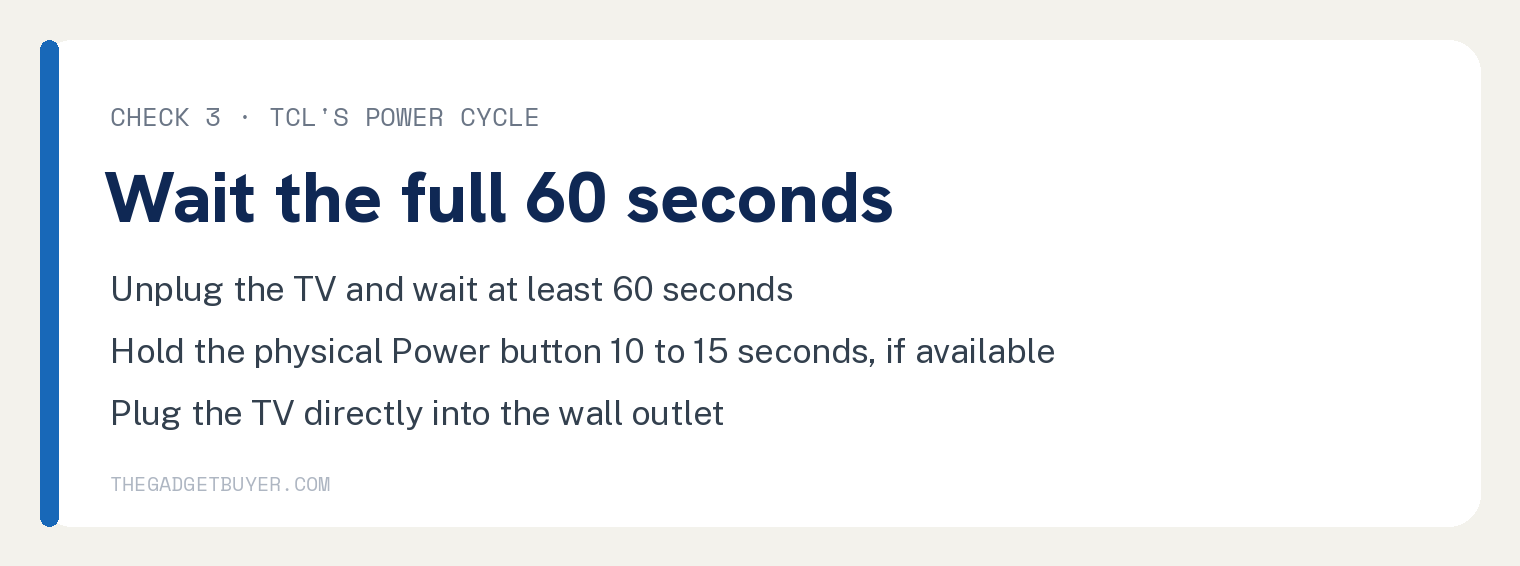
Now unplug it, and watch the clock. TCL’s step 6 says to turn the TV off, unplug it, and “Wait at least 60 seconds.”
TCL adds “Waiting the full 60 seconds is important.”
TCL’s next step reads “While the TV is unplugged, press and hold the TV’s physical Power button for approximately 10 to 15 seconds, if available.” Then “Release the button.” and “Plug the TV directly into the wall outlet.”
TCL sets a condition on the outlet during troubleshooting: “Do not use a power strip, surge protector, extension cord, or smart plug.”
Check 4: The flashlight check, and the limit TCL puts on it
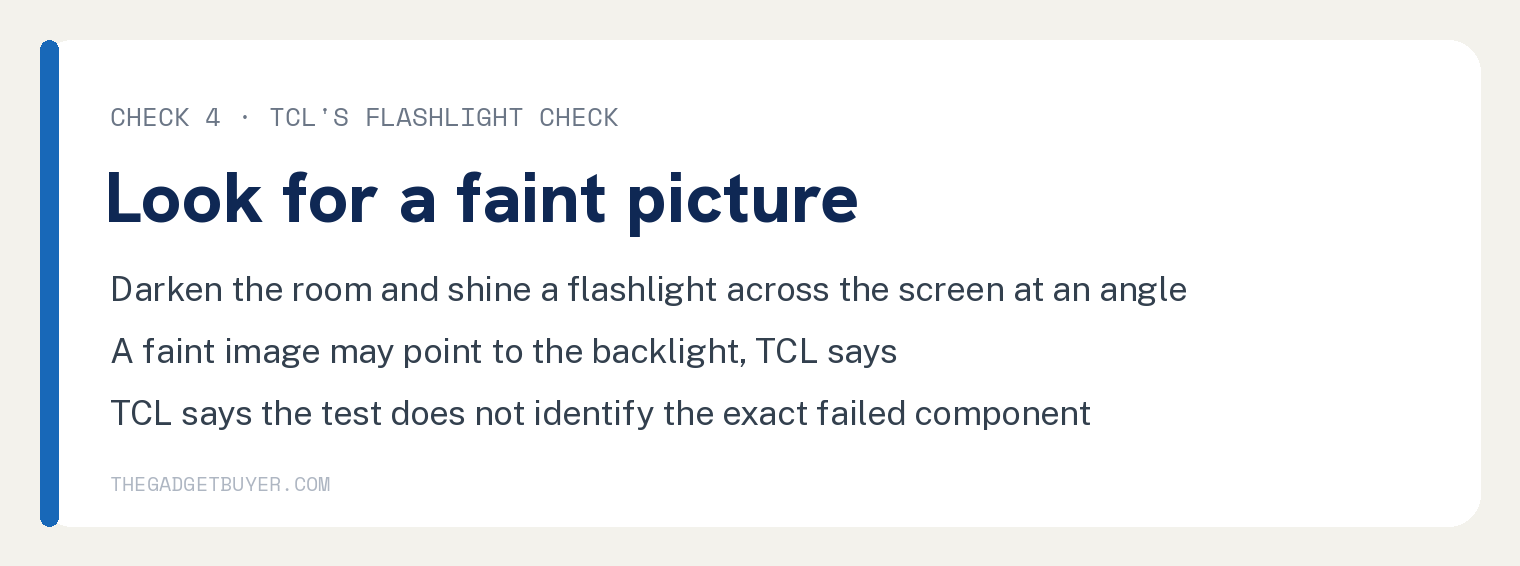
This is the check we put before Roku’s factory reset. TCL’s step 8 opens with “In some cases, the TV may be producing an image, but the screen’s backlight is not illuminating it.”
TCL’s reason reads “The screen uses a backlight to make the image visible.”
TCL prints the check as this list.
- “Turn the TV on.”
- “Darken the room as much as possible.”
- “Hold a flashlight several inches away from the screen.”
- “Shine the light across the screen at an angle.”
- “Look closely for faint shapes, menus, movement, or images.”
Directly after the list TCL prints “Do not press the flashlight against the screen.”
Where a faint image shows, TCL’s reading is “The TV may have a backlight-related issue and may require service.” Where nothing shows, its reading is “The issue may involve the display, video system, or another internal component.”
TCL states the limit of its own check: “The flashlight test is only a basic observation and does not identify the exact failed component.”
Roku’s page, and why its factory reset waits
Roku’s page for Roku TVs covers this symptom. It says that if your Roku TV “will not power on, or has no picture and is only playing sound, there are several steps that you can try to fix these issues.”
Roku’s page says “If your TV has no picture but has sound, first turn it off by pressing the” Power button on the Roku remote or on the TV. Roku’s outlet step says to plug the TV “directly into a different wall outlet.”
Roku adds a case for one outlet type: “If your Roku TV is plugged into a GFCI outlet, power may have cut off during a surge or outage.” Roku says “These outlets usually have two buttons” and names them Test and Reset, and its instruction reads “Press the” Reset “button to restore power to the outlet.”
Roku’s other section is the factory reset, and Roku prints the cost with it: “Factory reset returns the TV to its original state and removes any of your personalized information.” Roku adds “When you perform a factory reset, you will need to go through the Guided Setup process.”
Roku lists what to redo: “Be ready to reconnect your TV to Wi-Fi, re-link your Roku account, and set up your streaming channel accounts. You will also need to set up any additional input configuration, including live TV inputs.”
Roku also prints a case where the menu reset is out of reach: “It is possible for your TV to get into a state where you cannot access the various menus, including the menu option that lets you perform a factory reset. If that happens, you can force the TV to reset by following these steps.” Roku’s steps then run under three headings, “TVs that have a Reset button”, “TVs that have a Roku remote button” and “TVs that have no RESET button”.
Here is the gap between the two pages, measured on the article body of each page on 12 October 2026.
On Roku’s Roku TV page the strings backlight, flashlight and faint each return zero hits. On TCL’s page the strings factory reset and GFCI each return zero hits.
Those counts prove only what is absent from those two article bodies on that date. A reader working only from Roku’s page can reach the factory reset, give up the set’s configuration, and still face the backlight case that TCL’s flashlight check looks for without wiping anything.
| Check | TCL’s page | Roku’s Roku TV page |
|---|---|---|
| Press Home | Yes, step 2 | Zero hits for Home screen |
| Input and HDMI cable | Yes, steps 3 and 4 | Input named only in the reset setup list |
| Power cycle | Yes, at least 60 seconds | Covered as a different outlet |
| GFCI outlet reset | Zero hits for GFCI | Yes |
| Flashlight check | Yes, with its stated limit | Zero hits for backlight and flashlight |
| Factory reset | Zero hits for factory reset | Yes, with its own warning |
| Our pick for the order | Run TCL’s checks first, in TCL’s order, and keep Roku’s factory reset for after the flashlight check has told you what it can. | |
When to contact TCL
TCL’s page carries a section headed When to Contact TCL Support. Its list includes “The TV produces sound but never displays a picture.” and “A faint image is visible during the flashlight test.”
TCL’s list of what to have ready includes “Whether the TV produces sound” and “Whether a faint image was visible with a flashlight”. Roku’s last paragraph says “you will need to contact the manufacturer” and then “If it is a Roku TV, contact us.”
Two neighboring problems on the same TV are worth separating from this one. A set that reboots on its own is a TCL Roku TV that keeps restarting, and a remote that will not wake the TV is covered in why a Roku remote power button stops working.
Questions readers ask
Does a TCL Roku TV black screen with sound mean the TV is broken?
TCL treats the sound as evidence the set is running, in its words “Sound without a visible picture confirms that the TV is turning on and processing audio.” TCL’s own closing line on its flashlight check is that the check “does not identify the exact failed component.”
Should I factory reset the TV first?
Roku’s page prints the cost of the reset: “Factory reset returns the TV to its original state and removes any of your personalized information”. TCL’s closing section, headed Restoring Your TCL Roku TV’s Picture, reads “Checking each area in order can help identify the source without changing unnecessary settings.” and the page’s opening instruction is to “follow the troubleshooting steps below in order.”
Can a soundbar hide what is happening?
TCL’s page says “If you are using a soundbar, temporarily disconnect it and listen for sound through the TV speakers.” Its reason reads “This helps confirm whether the sound is coming from the TV itself or only from a connected device.”