
Pixel Watch Not Charging on the Dock or Cable
For a Pixel Watch not charging, use only the charger that came in the box and seat the watch the way your model needs. If the screen stays blank, leave it on that charger for 10 more minutes, and keep the watch software updated.
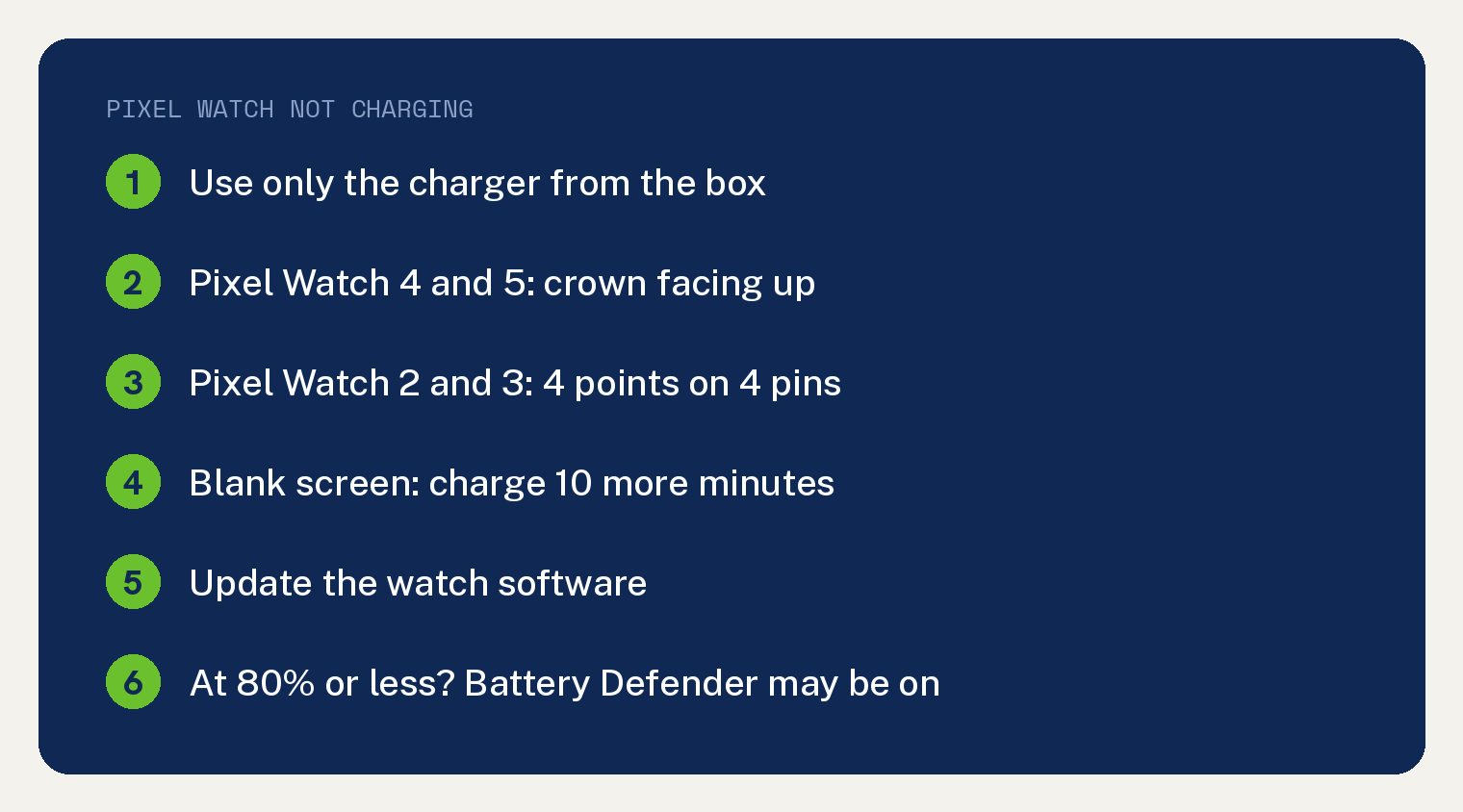
The steps below follow Google’s page Fix a Google Pixel Watch that won’t charge, which is for a battery that “won’t charge or won’t hold a charge”. Charging a Fitbit tracker instead? See our guide for when a Fitbit won’t charge.
Which charger does your Pixel Watch use?
Google says to charge each Pixel Watch using only the charger that came with it, so find your model first. The fix page names the charger for each model, and Google’s charging page gives the seating rules by model.
The two pages name the chargers in different words. We built this table from both pages so you see both names at once; each entry comes from Google.
| Model | Charger, in Google’s words | How to seat it |
|---|---|---|
| Pixel Watch 4 and 5 | Quick Charge Dock (fix page); the official charger included in the box (charging page) | Crown facing up; clear the area around the dock |
| Pixel Watch 2 and 3 | USB-C fast charging cable (fix page); Google Pixel Watch Magnetic Charging Cable (charging page) | 4 points on the 4 pins, crown the same way as the cable; fits one way only |
| Pixel Watch 1 | USB-C magnetic wireless charger (fix page); Google Pixel Watch Magnetic Charging Cable (charging page) | Place it on the magnetic charging cable |
On a Pixel Watch 1, 2 or 3, Google warns against other chargers: “Using different chargers might not work and could damage the watch.”
Google’s charging page, under “Incompatible charger or cable used”, says: “Pixel Watch 4 and 5: You’ll receive a notification that the charger is unsupported. Make sure to use the official charger included in the box.”
How to seat the watch so it charges
Take the watch off the charger completely, then set it back with the charging points lined up on the pins. Here are the first three of the four steps on Google’s fix page:
- Remove the watch from the charging dock entirely.
- Place the Pixel Watch on the magnetic charger so the charging points on the watch align with the pins on the charger.
- Point the crown in the same direction as the cable that comes out of the charger.
You know it worked when the battery percent shows on the screen. In Google’s words, “Once the percent charged is visible on the watch screen, you’ll know the issue is resolved.”
On a Pixel Watch 2 or 3, direction matters. Google says “the watch will only fit on the dock in one way” and that it “won’t charge if it’s placed on the dock in the wrong direction.”
The same Pixel Watch 2 and 3 tip asks you to make sure the back of the watch is clean and the charging pins are not stuck or damaged.
A Pixel Watch 4 or 5 sits on its dock with the crown facing up, per Google’s charging page. Clear the area around the dock so nothing stops the watch from resting in it properly.
Update the watch software
Google’s fourth step is to update your Pixel Watch firmware. Its update page gives the path on the watch.
- On the watch, swipe down and tap Settings.
- Tap System, then System updates.
The watch then checks for updates. “During this period, you can’t use your watch,” Google adds, and when the installation is complete, the watch reboots.
What if the screen stays black on the charger?
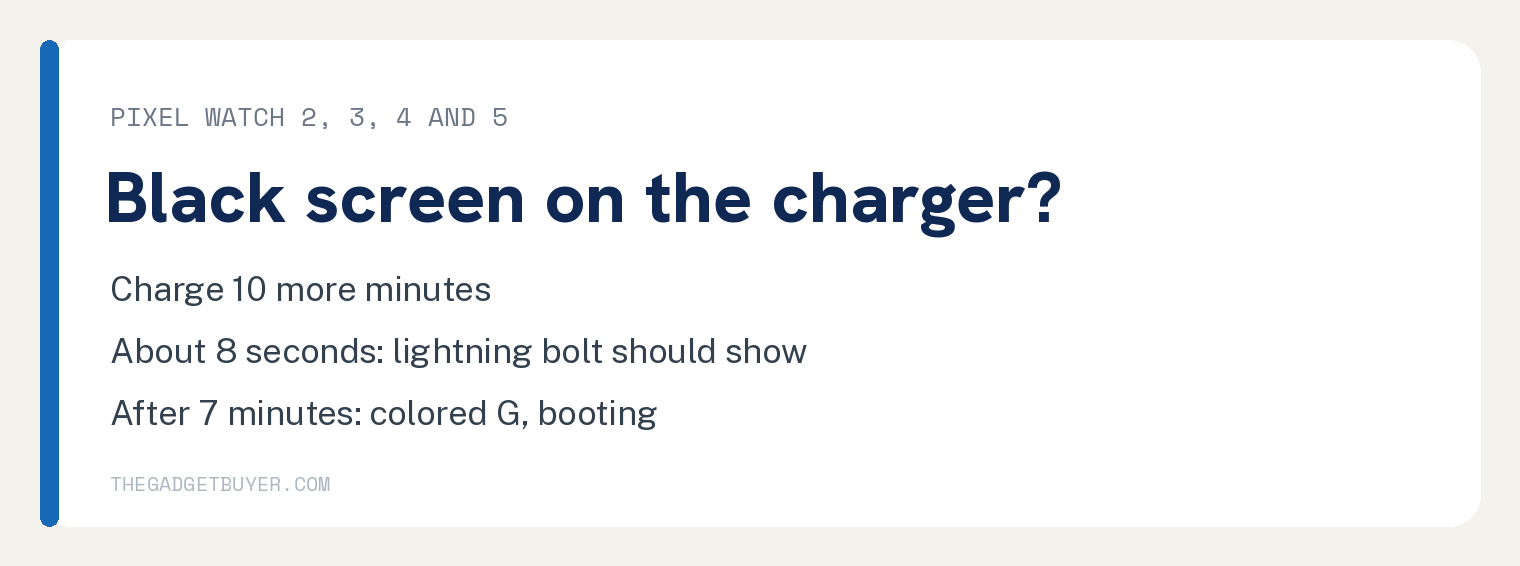
If the screen shows nothing after you have seated the watch properly on the correct charger, leave it there for 10 more minutes, then look for the signs below. If the watch went more than a day without a charge, Google says “it may take longer than usual for the charging screen to appear on the watch.”
On a Pixel Watch 2, 3, 4 or 5, Google gives this order:
- Charge for 10 more minutes on the correct charger.
- After about 8 seconds, a lightning bolt icon should show on the screen.
- After about 35 seconds, press the crown to see a low percentage.
- After 7 minutes, a colored G icon appears. Google says this means the watch “is booting up and will continue to charge successfully.”
On the first Pixel Watch, the waits run longer:
- Charge for 10 more minutes on the correct charger.
- After about 1 minute, a lightning bolt icon should show.
- After about 2.5 minutes, a low percentage should show.
- After 5 to 15 minutes of charging, long press the crown to turn the watch on. A white G icon appears.
- After 7 to 16 minutes, the colored G icon appears, and the watch keeps charging as it boots.
A Fitbit tracker with a dark screen has its own checks; see what to do when your Fitbit screen is black.
Why does a Pixel Watch stop charging at 80 percent?
A Pixel Watch that stays at 80 percent or less may have Battery Defender on. Google’s charging page says the feature pauses charging when the watch “stays plugged into its charger for 4 days or longer”.
To charge it past 80 percent, Google says to “remove the watch from the charger and then place it back.”
You should also see a notification about it when you wake the watch or pick it up from the charger, per Google.
Still not charging after these steps?
Post in Google’s help community or contact Google support. Those are the two next steps Google’s fix page offers, under “Post to the help community” and “Contact us”.
Once the watch charges, other problems have their own fixes. See Pixel Watch not syncing with the Google Health app or Pixel Watch notifications not working.
More Pixel Watch charging questions
Can I charge my Pixel Watch on my Pixel phone?
No. “Reverse wireless charging from Pixel phones isn’t supported,” per Google’s charging page.
Can I charge a Pixel Watch when it is wet?
No. Google says “Do not charge your watch if it’s wet.” Wipe the watch and the charger first; a Pixel Watch 4 or 5 alerts you if it detects moisture.
How do I check my Pixel Watch battery level?
Swipe down on the watch and find the battery level next to Settings. If the watch is turned off and has been charging for at least 10 to 30 minutes, press the crown to check charging status.
Sources
- Fix a Google Pixel Watch that won’t charge (Google Pixel Watch Help)
- Charge Google Pixel Watch and tips to improve battery life (Google Pixel Watch Help)
- Install & update apps on Google Pixel Watch (Google Pixel Watch Help)