
iPhone Stuck on Preparing Update? Check the Screen First
iPhone stuck on Preparing Update? Keep it connected to power, and read the rest of the screen before you press anything.

Which of Apple’s pages applies to you depends on what else is on the display, and that routing is ours, set out in the table below.
Apple’s power instruction for a wireless update, in its own words: “When you’re updating wirelessly, keep your device connected to a power source. If your device runs out of power, connect it to a power source and turn on the device to let the update or restore complete.”
None of the five Apple pages linked at the bottom of this article print the words Preparing Update.
So the branch you take below is ours, and Apple’s steps inside each branch are quoted from the five pages below.
Which screen are you looking at
Look at the screen, then take the row that matches it.
| What is on the screen | Where to go in this article |
|---|---|
| Apple logo with a progress bar | The progress bar wait |
| Still inside Settings, in Software Update | The download wait |
| Apple logo for several minutes and no progress bar | The screens that need a computer |
| A progress bar that never completes, or a phone that will not respond | Before you force a restart |
If the device in your hand is an iPad rather than an iPhone, we cover that separately in iPad won’t update to iPadOS 26.
The progress bar wait
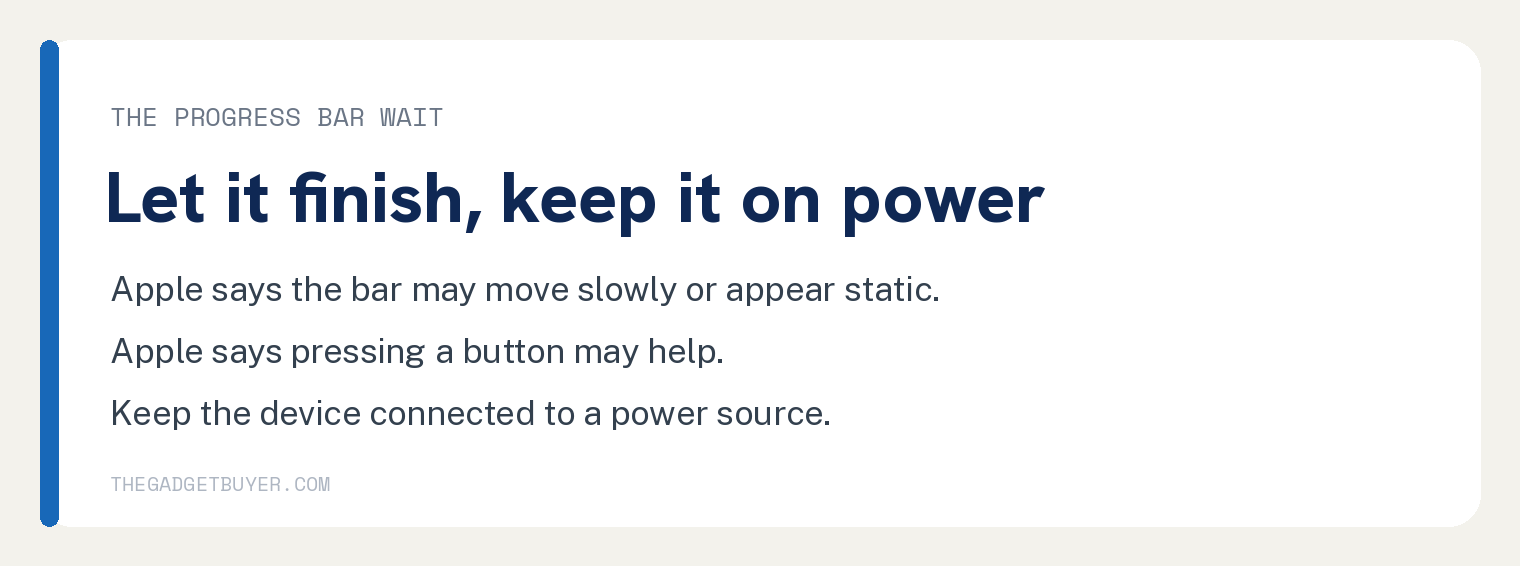
Apple has a page for this exact screen, titled Apple logo with progress bar after updating or restoring iPhone, iPad, or iPod touch, and these are its words: “The progress bar may move slowly or appear static, but it’s important to let the device complete the process, which can vary in duration based on the number of files and the type of operation being performed.”
The same page also says: “In some cases, you may see the progress bar complete, then start again.”
So the step here is to leave it running and keep it fed. Apple’s wording on that page for updates over the air: “For over-the-air updates, ensure that the device is connected to a power source to prevent it from running out of power during the update.”
The same page also prints this, and it carries its own qualifier: “If the update seems stuck, pressing a button may help; if an ‘updating’ message appears, the update is still ongoing.”
The last paragraph of that page reads: “If your device still displays the Apple logo with a progress bar, you might need service.”, and it ends with a link whose words are “Get service”.
The download wait
Apple’s page If your iPhone or iPad won’t update prints these two sentences: “The download time depends on the update size and your internet speed.” and “The time it takes to update depends on the update’s size and your device’s storage.”
The two phases do not depend on the same things.
During the download, Apple says the phone is still yours to use: “You can still use your device during the download, and the device will notify you when the update is ready to install.”
Storage is the part you can act on, and Apple says the phone can clear room on its own: “Your device can temporarily remove app data to make space, without deleting your personal information.”
Apple writes that route as Settings, then General, then “Tap [device] Storage.”, which is iPhone Storage on an iPhone, then “Tap Enable next to Offload Unused Apps”. If you would rather clear space by hand first, start with how to clean iPhone caches.
That page also prints two steps under the words “For faster downloads:”, and they are “Connect to a Wi-Fi network.” and “Avoid downloading other content while updating your device.”
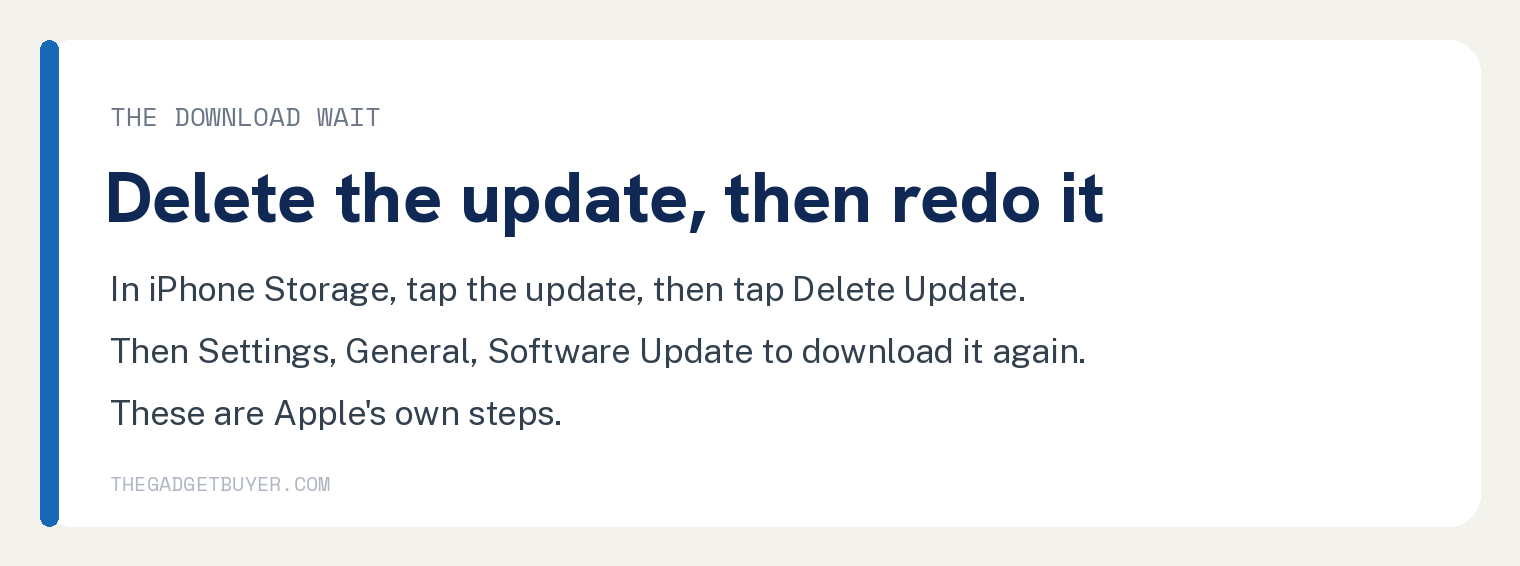
Under its heading If you still can’t install the latest version of iOS or iPadOS, Apple’s own line is: “If you still can’t install the latest version of iOS or iPadOS, you can download the update again”. Its delete steps, in its words, with [device] Storage read as iPhone Storage on an iPhone:
- Go to Settings.
- Tap General.
- Tap iPhone Storage.
- Find the update in the list of apps.
- Tap the update, then tap Delete Update.
Then its three steps to fetch it again:
- Go to Settings.
- Tap General.
- Tap Software Update and download the latest update.
Directly after those three steps, Apple’s page prints the condition that sends you to a computer: “If you don’t see the update in the list of apps or if the issue happens again”. From there its page sends you to update using a Mac or using iTunes, and it links to a separate set of instructions for each.
Before you force a restart
On its progress bar page, Apple attaches a force restart to a stated condition: “If the update or restore never completes or your device is unresponsive”. The linked words that follow it on that page are “force your device to restart”.
Apple’s iPhone guide attaches two conditions to a force restart, joined together: “If iPhone isn’t responding”, and you cannot turn it off then back on.
Apple’s force restart steps for iPhone, in its own words:
- Press and quickly release the volume up button.
- Press and quickly release the volume down button.
- Press and hold the side button.
- When the Apple logo appears, release the side button.
That page gives one set of force restart steps and names no model it excludes, and its own table of contents lists the iPhone models compatible with iOS 27, starting at iPhone 11 and iPhone SE (2nd generation). None of the five pages linked below print force restart steps for an iPhone outside that list. For the ordinary restart you should try first, see how to restart an iPhone.
The screens that need a computer
Apple’s page If your iPhone or iPad won’t update prints this condition, and you can check it from the screen alone: “your screen shows the Apple logo for several minutes without a progress bar”. That page pairs it with a computer that will not recognise the phone, and sends both cases to recovery mode.
Read this before you go there. The recovery mode page prints these words of its own: “Restore reinstalls iOS and erases all your data. If you haven’t tried updating yet, try updating first.”
Apple’s recovery mode page lists four entries under these words of its own: “In these situations, you might need to use recovery mode to restore your device:”
- Your screen displays the Apple logo for several minutes with no progress bar.
- Your computer doesn’t recognize your device or says it’s in recovery mode.
- You see the “Connect to computer” screen.
- Your device repeatedly starts up to Recovery Assistant, which isn’t able to recover your device.
That same page keeps the progress bar case apart from those four: “If you see the progress bar on your screen for several minutes, learn what to do.”
If the screen is dark instead and nothing appears at all, that is a different problem. The paragraph after those four steps on Apple’s force restart page begins: “If iPhone doesn’t restart after you try these steps, see the Apple Support article If your iPhone won’t turn on or is frozen”.
The closest thing we have written on a dark screen is iPad won’t turn on.
These five pages give no number of minutes for a wireless update
We looked for one. Apple publishes a dependency in place of a duration, twice, and the two statements name three different variables between them: update size and internet speed for the download, update size and device storage for the install.
Its progress bar page says the same thing a third way, about the screen itself: the process “can vary in duration based on the number of files and the type of operation being performed”.
Searching the five Apple pages linked below for the words Preparing Update returns nothing on any of them, and searching them for preparing on its own returns nothing either. That is a statement about those five pages and nothing wider.
Apple may use the phrase elsewhere, and the screen is clearly real, since you are looking at it.
This is the honest reason to work from the screen instead of a clock.
What an update needs, and what blocks it
Apple opens If your iPhone or iPad won’t update with what an update needs: “To update your iPhone or iPad, you need a compatible device, an internet connection, and enough available storage. It also helps to keep your device connected to a power source.”
The same page introduces its own list this way: “Here’s why your iPhone or iPad might not update wirelessly, or over the air”. All of its entries, in its order and its words:
- Your device doesn’t support the latest software
- There isn’t enough available storage space on your device
- The update is taking longer than expected to download
- Your device isn’t able to reach the update server
- The update doesn’t complete
Questions readers ask
How long should I let it sit before I do anything?
Apple publishes no number of minutes for a wireless update on any of the five pages below. The one number of minutes on those five pages is on If you can’t update or restore your iPhone or iPod touch, in these words of its own:
Wait while your computer downloads software for your device. If the download takes more than 15 minutes, your device might exit the “Connect to computer” screen.
For the screen in front of you, Apple’s progress bar page says the time “can vary in duration based on the number of files and the type of operation being performed”.
Will I lose my photos if I force a restart?
Apple attaches a force restart to two conditions, an iPhone that is not responding and one you cannot turn off then back on. The word erase does not appear in the instructions on the Force restart iPhone page below, and that is a statement about that one page.
On these five pages the one step Apple says erases your data is Restore, on If you can’t update or restore your iPhone or iPod touch: “Restore reinstalls iOS and erases all your data.” Apple’s storage step says your device “can temporarily remove app data to make space, without deleting your personal information”.
Can I use the phone while it downloads?
Yes, and that is Apple’s own wording: “You can still use your device during the download, and the device will notify you when the update is ready to install.” The install phase is the part that takes the screen.
What does the message about a download problem mean?
Apple’s update and restore errors page lists “There was a problem downloading the software.” under the heading “Check that your device can connect to Apple servers”. The page’s own line with that group of messages reads: “If you see these errors, your computer can’t connect to Apple servers or your device:”
On a wireless update, If your iPhone or iPad won’t update introduces four alerts this way: “If you try to update your device, you might see one of these alerts:”
- Unable to Check for Update. An error occurred while checking for a software update.
- Unable to Check for Update. Checking for a software update failed because you are not connected to the internet.
- Unable to Download. This update is not available because you are not connected to the internet.
- Unable to Download. This update requires a Wi-Fi network connection to download.
Does a progress bar that restarts mean something failed?
Apple names that behaviour without calling it a failure: “In some cases, you may see the progress bar complete, then start again.” The same paragraph on that page says “it’s important to let the device complete the process”.
Sources
- Apple Support: If your iPhone or iPad won’t update
- Apple Support: Apple logo with progress bar after updating or restoring iPhone, iPad, or iPod touch
- Apple Support: If you can’t update or restore your iPhone or iPod touch
- Apple Support: iOS update and restore errors
- Apple Support: Force restart iPhone
All five pages were fetched and checked on October 10, 2026.