
Fix Fitbit Weather Not Working or Not Updating
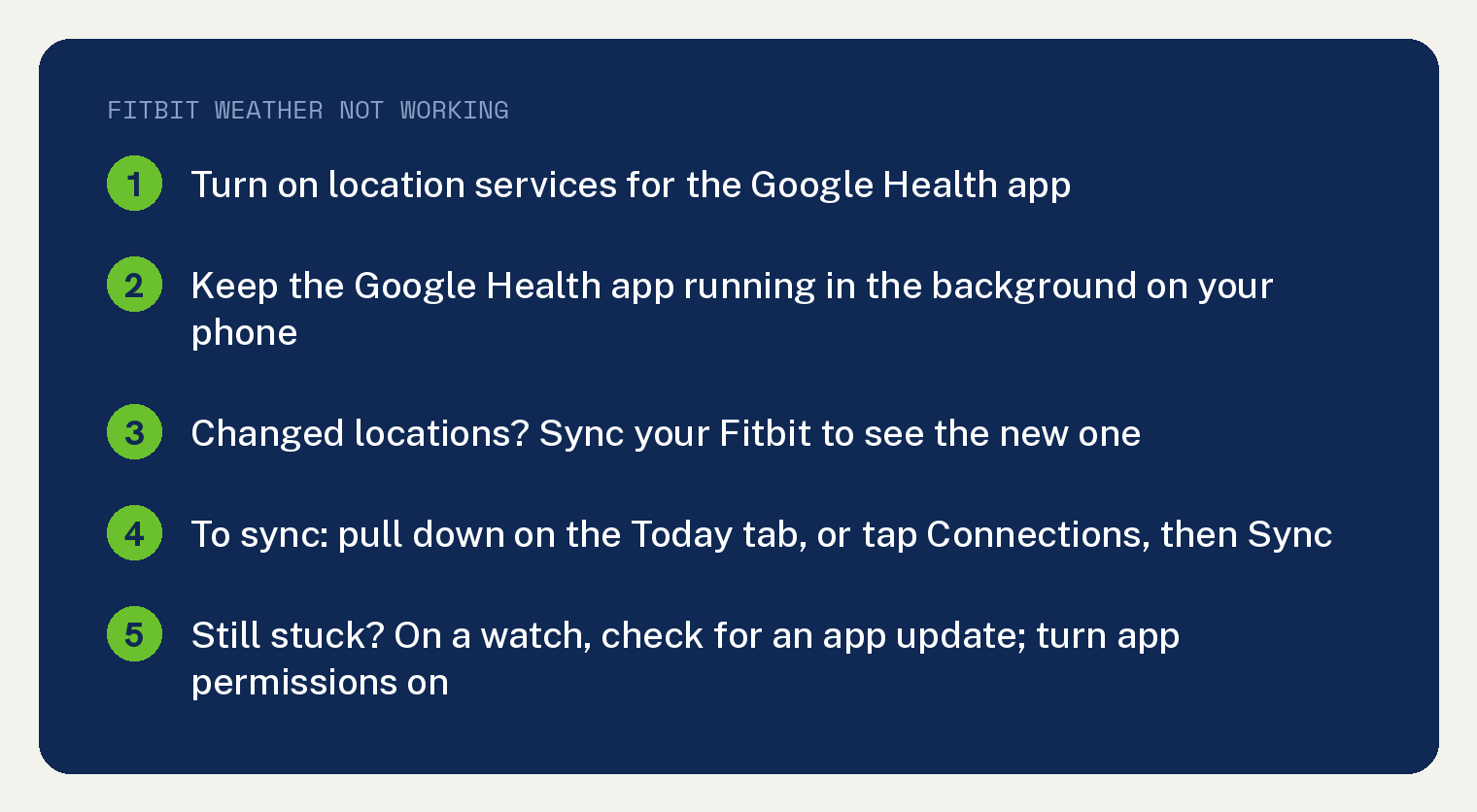
Fitbit weather not working or stuck on old data? Check two settings on your phone: location services must be on for the Google Health app, and the Google Health app must keep running in the background. Those are the two items on Google’s list for weather that doesn’t update, and if you have moved, a sync shows your new location in the Weather app.
Which phone settings keep Fitbit weather updating?
You set up the Fitbit Weather app inside the Google Health app on your phone. Google’s help page for setting up and troubleshooting Fitbit apps gives two phone settings to check when the weather doesn’t update:
- “Location services must be turned on for the Google Health app.”
- “The Google Health app must remain running in the background on your phone.”
For the location steps, that page sends you to Google’s page on using GPS with a Fitbit. The settings below come from its section on phone connected GPS, split by phone.
On an iPhone
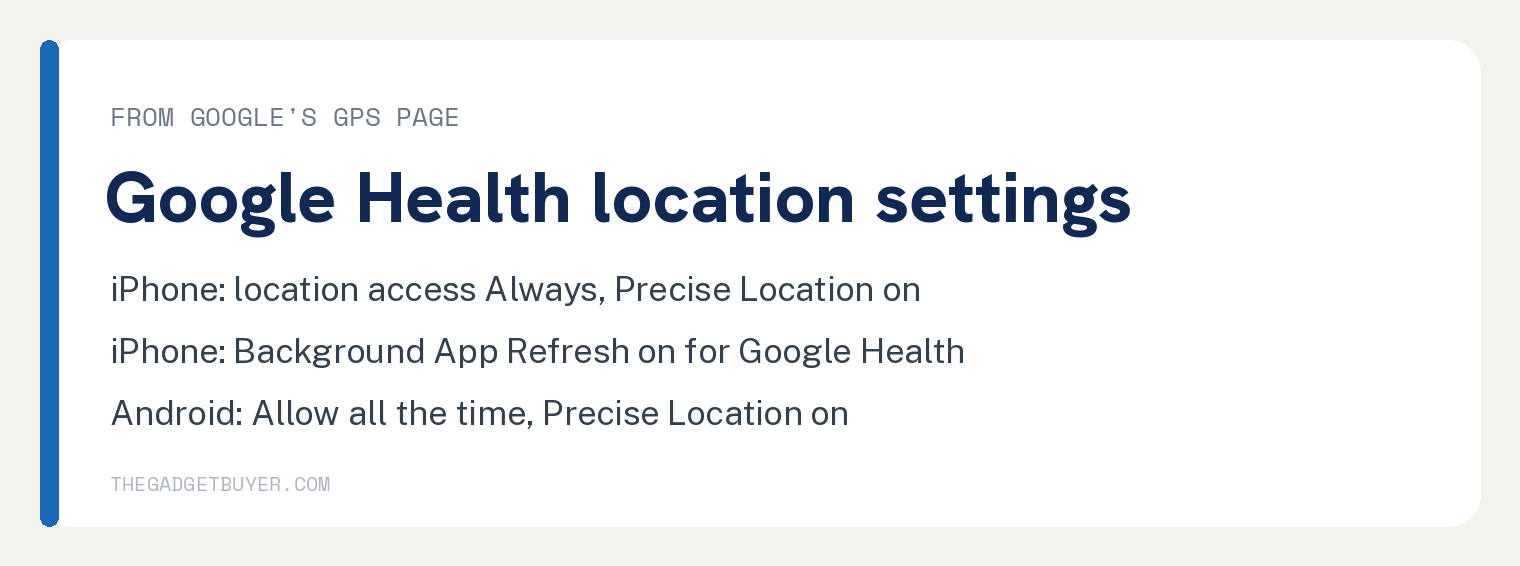
Set location access for the Google Health app to Always and turn on Precise Location.
Then make sure Background App Refresh is turned on for the Google Health app. That same iPhone list on Google’s GPS page asks for it.
On an Android phone
Set the Google Health app’s location permission to Allow all the time and turn on Precise Location. Google’s GPS page words the first one as “Location permission is set to Allow all the time.”
For GPS trouble during a workout, see our guide to Fitbit GPS not working.
How do you get your Fitbit weather to show your new location?
Sync your Fitbit with the Google Health app. Google says “If you change locations, sync your device to see your new location in the Weather app.”
To sync by hand, keep your Fitbit nearby and open the Google Health app on your phone. On the Today tab, tap and hold on the screen and pull down.
You can also use Sync Now. In the Google Health app, tap Connections at the top left, then tap Sync.
If the sync fails, our guide to a Fitbit that won’t sync has the fixes in order. For trouble inside the app itself, see Fitbit not syncing with Google Health.
How do you change the places or units in Fitbit weather?
Your Fitbit shows weather for where you are, and you can add up to 2 more places. Google’s apps page says “By default, the Weather app shows your current location, which can’t be deleted.”
To add a place, open the Google Health app and tap Connections at the top left. Tap your device, then Watch faces, then your device’s tab, then Weather, then Settings.
Sync your Fitbit when you finish. Google notes “It can take a few minutes to see the updated list of locations on your device.”
To switch between temperature units, open the same Weather Settings screen. In the Temperature Unit section, tap Units and choose the unit you want.
What if the Fitbit weather app still won’t update?
Keep your phone close with Bluetooth on. Google’s app troubleshooting says “For apps to access the internet, your phone must be nearby with the Google Health app running in the background and Bluetooth turned on.”
Next, check for an app update on a Fitbit watch. Open the Google Health app with your watch nearby, tap Connections, then your device, then the Apps tab, and tap Update if it shows next to the app’s name.
On a Versa Lite, Google says you must check for app updates by hand this way.
Then turn the app’s permissions back on, because “Turning off app permissions can cause the app to stop functioning.” In the Google Health app, tap Connections, then your device, then Watch faces. Tap the app, tap Permissions, turn on any that are off, and tap Save.
Google adds that some permissions can make your phone use more data.
If you see a caution icon next to the app in the My Apps tab, Google asks you to check two phone permissions: location services and calendar access for the Google Health app. For calendar access:
- iPhone: open Settings, then Google Health, and make sure Calendars is turned on.
- Android: open Settings, then Apps, Google Health, Permissions and Calendar, and set access to Allow.
- Windows 10 phone: open Settings, then Privacy and Google Health, and make sure Calendar access is turned on.
If the update that is stuck is for your Fitbit itself, see our guide to a Fitbit update that is stuck or failing.
Sources
- Set up and troubleshoot apps on your Fitbit device (Google Health Help)
- Use GPS on your Fitbit device or Pixel Watch (Google Health Help)
- How do Fitbit devices sync their data? (Google Health Help)
- Install and manage apps on your Fitbit device (Google Health Help)