
Fitbit Update Stuck or Failing: How to Fix It
Start with the battery: charge the Fitbit to at least 50%, update the Google Health app, use a stable connection and leave the app running. Those are the first checks for a Fitbit update stuck on its progress bar or failing to start.
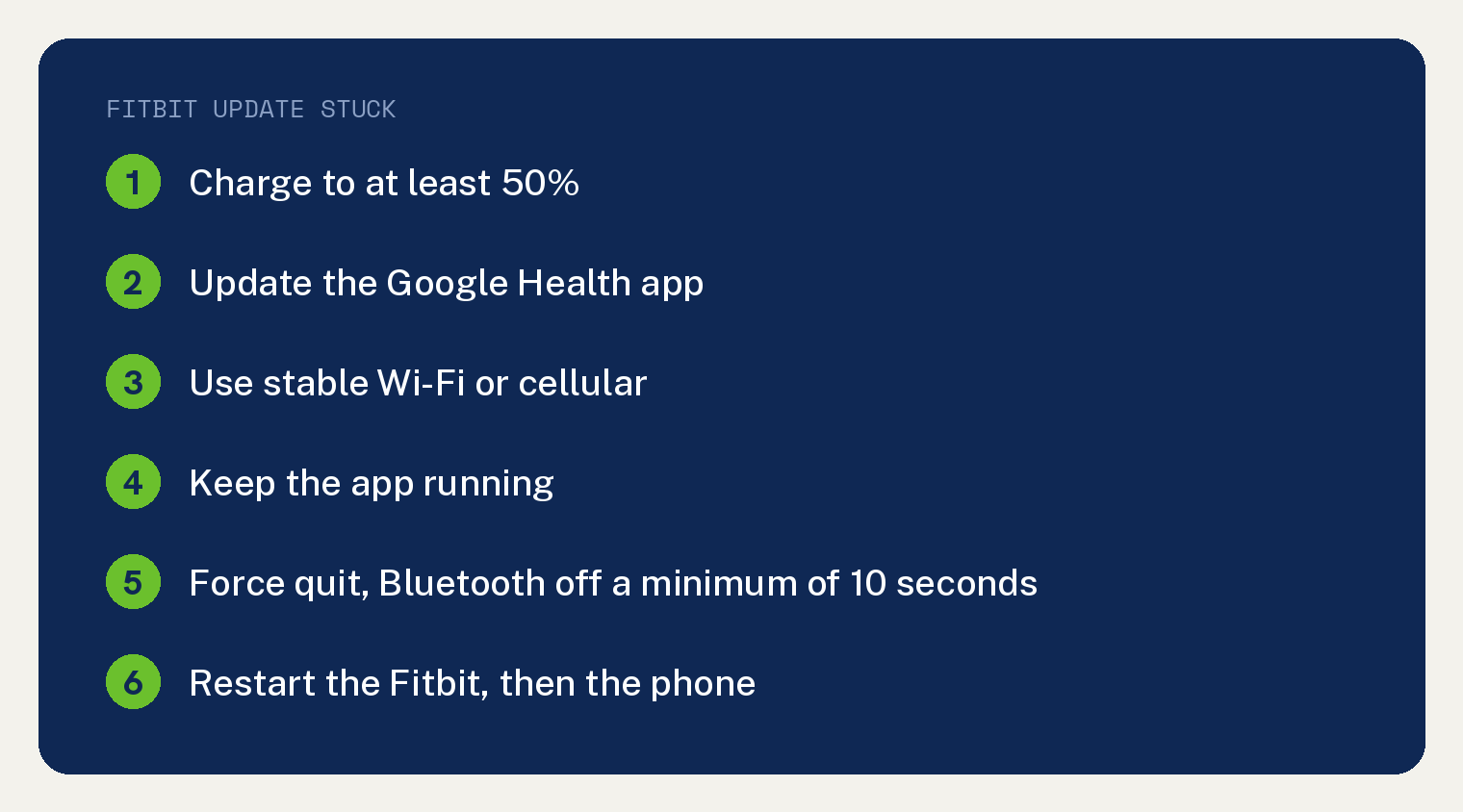
If the update still will not start, force quit the app, turn your phone’s Bluetooth off and wait “a minimum of 10 seconds”, then restart the Fitbit and the phone.
These fixes come from Google’s page on troubleshooting a Fitbit update. It opens with “Occasionally a firmware update will start and stop or otherwise fail.”
What to check before you try the update again
Start with the battery. Google’s list of what to check before you update includes this line: “The device is charged to at least 50%. A charge of 75% or higher is recommended to prevent power loss.”
Next, update the phone app. The same list asks that “The Google Health app on your phone or tablet is the latest version available in your app store.”
That is the app you knew as Fitbit: on May 19, 2026, the “Fitbit app became the Google Health app”. Our guide to where the Fitbit app went covers the switch.
Then check your signal. The list also asks for “a stable Wi-Fi or cellular connection.”
The time of day counts for your step count too. Google warns that an update right at midnight means “your step count might be wrong for a day.”
How long should a Fitbit update take?
Give it more than an hour before you call it stuck, with the Google Health app left running. Google’s two update pages give the time two ways. We put them in one table below; Google wrote each quote.
| Google page | Google’s words on time |
|---|---|
| Troubleshoot updating your Fitbit device | “Updates can take up to an hour.” |
| Update your Fitbit device | “Updates may take more than one hour to complete.” |
Both pages say to keep the app open. The troubleshooting page says to keep it “running in the background while the device syncs.”
Why is there no Update button for your Fitbit?
There may be no update for your Fitbit yet. Google says it “sends Fitbit device updates to everyone gradually over time. If there’s no update available, check again later.”
To start one, open the Google Health app with your Fitbit nearby, tap Connections at the top left, pick your device and tap Update. Google notes: “This is only available when there’s an update available.”
Once it starts, watch for the bar: “a progress bar appears on your device and in the Google Health app until the update is complete.” To see what you have now, “The version number is under your Fitbit’s name.”
Reconnect your Fitbit and phone when the update will not start
Reset the Bluetooth link between the two. Google’s list for this case opens with “If the device fails to sync or an update doesn’t begin, try to:” and gives these steps in this order:
- Force quit the Google Health app on your phone or tablet.
- Turn the phone’s Bluetooth off in Settings, wait at least 10 seconds, then turn it back on. Google says “This resets the phone’s Bluetooth radio stack.”
- Restart the Fitbit with the steps for your model (next section).
- Restart the phone or tablet.
- Keep the Fitbit close to the phone, “within 2 to 3 feet”.
- Turn off Bluetooth on other nearby devices, including a second phone, smart home hubs and other wearables. Google says “Multiple paired devices can cause connectivity issues with the Fitbit device.”
If your Fitbit will not sync at all, our Fitbit won’t sync fixes go deeper on the connection.
How to restart your Fitbit for an update
Use the restart steps listed under your exact model on Google’s Fitbit restart page. Google says “A restart turns your device off and on without the loss of any activity data.”
Google also warns: “Some Fitbit devices have small holes for sensors such as the microphone or altimeter. Don’t try to restart your device by inserting any items, such as paper clips, into these holes as this can damage your Fitbit device.”
For a few common models, the restart page gives these steps:
- Versa Lite, Versa 2, Versa 3, and Versa 4: “Press and hold the button for 10 seconds until the Fitbit logo appears on the screen, and then release the button.”
- Versa: press and hold the left button and the bottom right button for 10 seconds until the Fitbit logo shows, then let go of both.
- Sense and Sense 2: the same one button hold for 10 seconds as the Versa Lite group.
- Charge 5 and Charge 6: swipe down from the clock screen to the Settings app, then tap Restart Device and Restart.
Own a Versa Lite? Google’s two pages give it different restarts. The comparison below is ours; each quote is Google’s.
| Google page and heading | Google’s steps |
|---|---|
| Restart your Fitbit device, “Versa Lite, Versa 2, Versa 3, and Versa 4” | “Press and hold the button for 10 seconds” |
| Restart your Fitbit device, “Versa” | “Press and hold the left button and the bottom-right button for 10 seconds” |
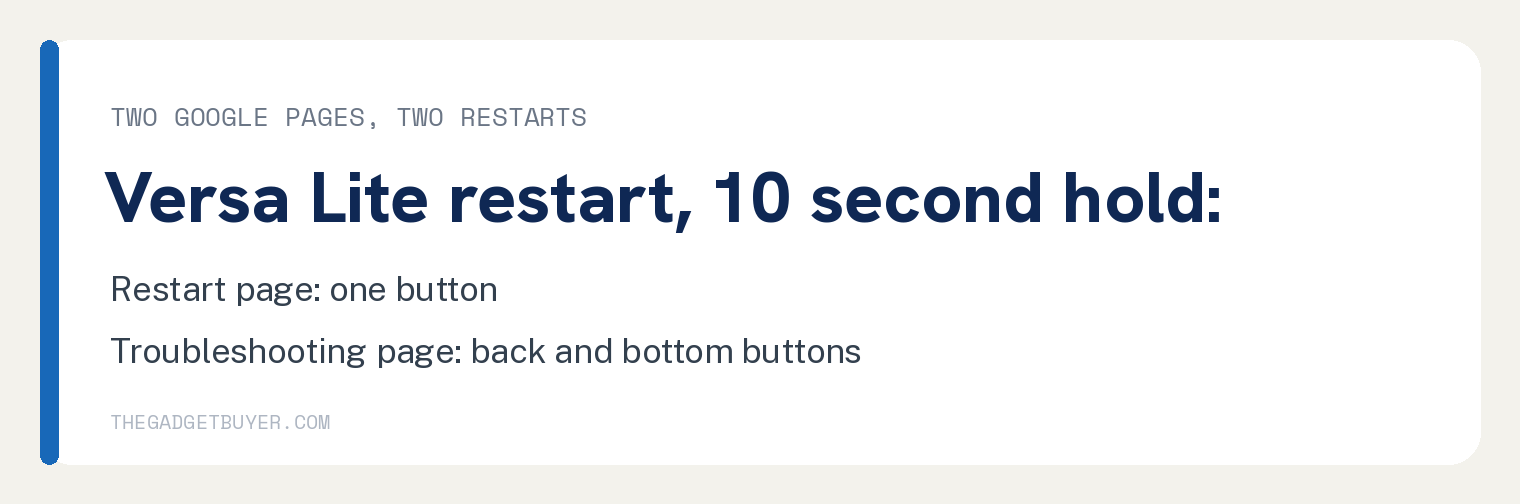
| Troubleshoot updating your Fitbit device, “Fitbit Versa Series (Legacy or Lite)”, “Hard Restart” | “Press and hold the back (left) and bottom (right) buttons simultaneously” |
The troubleshooting page itself sends you to the restart page for the restart step, so follow the heading there that names your watch.
We walk through the Versa 2 steps in our guide to restarting a Fitbit Versa 2.
Remove your Fitbit and set it up again
If a restart does not help, Google’s advanced fix is a full Bluetooth disconnection. Google says “This process removes your old connection profile to ensure a fresh start when you pair again.”
- Remove it from the app: in the Google Health app, open your device settings and choose the option to remove the device from your account.
- Forget it on the phone: in your phone’s Bluetooth or Connected devices settings, find the Fitbit in the paired list. On iPhone and iPad, tap Forget This Device. On Android, tap Unpair or Forget.
- Set it up again: force quit the Google Health app, reopen it and follow the on screen steps.
Do not skip the forget step. Google’s warning reads: “Failure to do this leaves residual, corrupted data that prevents successful re-pairing.”
Synced fine before the move to Google Health and not since? See our fix for a Fitbit not syncing with Google Health.
Does clearing the Google Health app cache help?
It can. Google says managing the Google Health app cache “frequently solves connectivity issues.” On Android, go to Settings, then Apps, then tap Health, then Storage & cache, then Clear Cache.
On iPhone and iPad, Google says “iOS architecture typically doesn’t permit manual cache clearing.” It names the full uninstall and reinstall of the Google Health app as the iPhone or iPad equivalent, “which should only be attempted after the device has been fully” forgotten in your Bluetooth settings.
When should you factory reset a Fitbit after a failed update?
Only as a last resort. Google’s recovery section opens with a warning that these steps are “only recommended as a last resort for unresponsive devices, devices stuck in boot loops, or persistent update failures” that have bricked the device.
It adds: “A factory reset erases all data stored locally on the device. This includes unsynced activity statistics, alarms, goals, and notification settings. The device returns to a factory state and you must set it up again.”
The section then says “The section below shows the precise and advanced reset steps required for high-end devices:” and its table gives these rows:
- Fitbit Sense or Sense 2, standard restart: press and hold the side button for 10 seconds until the Fitbit logo shows, then let go.
- Fitbit Sense 2, critical boot loop or bricking (factory reset): the steps, in order:
- Plug it into the charger.
- Press and hold the button about 8 seconds until the screen turns off.
- Let go at the short vibration.
- Right away, press and hold the button again.
- Let go when the blue logo appears and disappears.
- Right away, press and hold one final time until you feel a vibration, which Google says “triggers the factory reset”.
- Fitbit Versa Series (Legacy or Lite), hard restart: hold the back (left) and bottom (right) buttons together for 10 seconds until the logo appears.
- Charge 5, Charge 6, or Luxe, factory reset in the menu: swipe down from the clock, go to the Settings app and tap Device Info, then Clear User Data. Google notes “The device often requires connection to the charger for this option to become visible.”
What to do if the Fitbit update still fails
Try a different phone. Google’s next steps are to “Log in to your Fitbit account on a different phone or tablet and attempt the update.” and “Ensure Bluetooth is off on the original phone to avoid conflicts.”
If that fails too, Google’s last step is to contact Customer Support.
Update fixes for Versa Lite Edition, Fitbit Air and a clock error
Versa Lite Edition
Check the firmware version in the Settings app under About. If it reads “38.6.1.1.”, Google says to “attach your watch to the charging cable and plug it into a USB port on your computer before you begin the update.”
Google adds: “In a few days, you’ll receive another prompt to update your watch. At that point, you can update as normal without plugging your watch into a computer.”
Google Fitbit Air
In the Google Health app, tap Connections, your device, System, then About. Google says to “check if the version number is 20001.229.37, 20001.229.51, or 20001.229.84.”
On one of those versions, put the Air on its charger, open the app, tap Connections, your device, then Sync, and follow the steps. Google’s last step reads “Follow the on-screen instructions to install the latest firmware version.”
Clock error after the update
Pick a new clock face. Google says: “If you see a clock error message on your watch’s screen after the update, choose a clock face in the Google Health app to resolve the problem.”
Quick answers on Fitbit updates
Does restarting a Fitbit erase my data?
A restart does not erase activity data. A factory reset does: Google’s warning says it “erases all data stored locally on the device. This includes unsynced activity statistics, alarms, goals, and notification settings.”
How do I update a Google Pixel Watch?
On the watch, swipe down, tap Settings, then System and System updates. Google warns “You can’t use your watch while it’s updating.” and adds “When the update is done, your watch will restart.”
How does a Fitbit scale update?
It updates on its own. Google says “Your Fitbit scale checks for updates by itself. When there’s an update, it downloads and installs it.”
Sources
- Troubleshoot updating your Fitbit device (Google Health Help)
- Update your Fitbit device (Google Health Help)
- Restart your Fitbit device (Google Health Help)
- Changes in the Google Health app (Google Health Help)