
Fitbit SpO2 Not Showing Fixes, Model by Model
To fix Fitbit SpO2 not showing, install the SpO2 clock face or SpO2 app your model needs (a Pixel Watch needs neither), wear it to bed, and get at least 3 hours of quality sleep. Then sync with the Google Health app, and it may take around an hour for the number to appear.
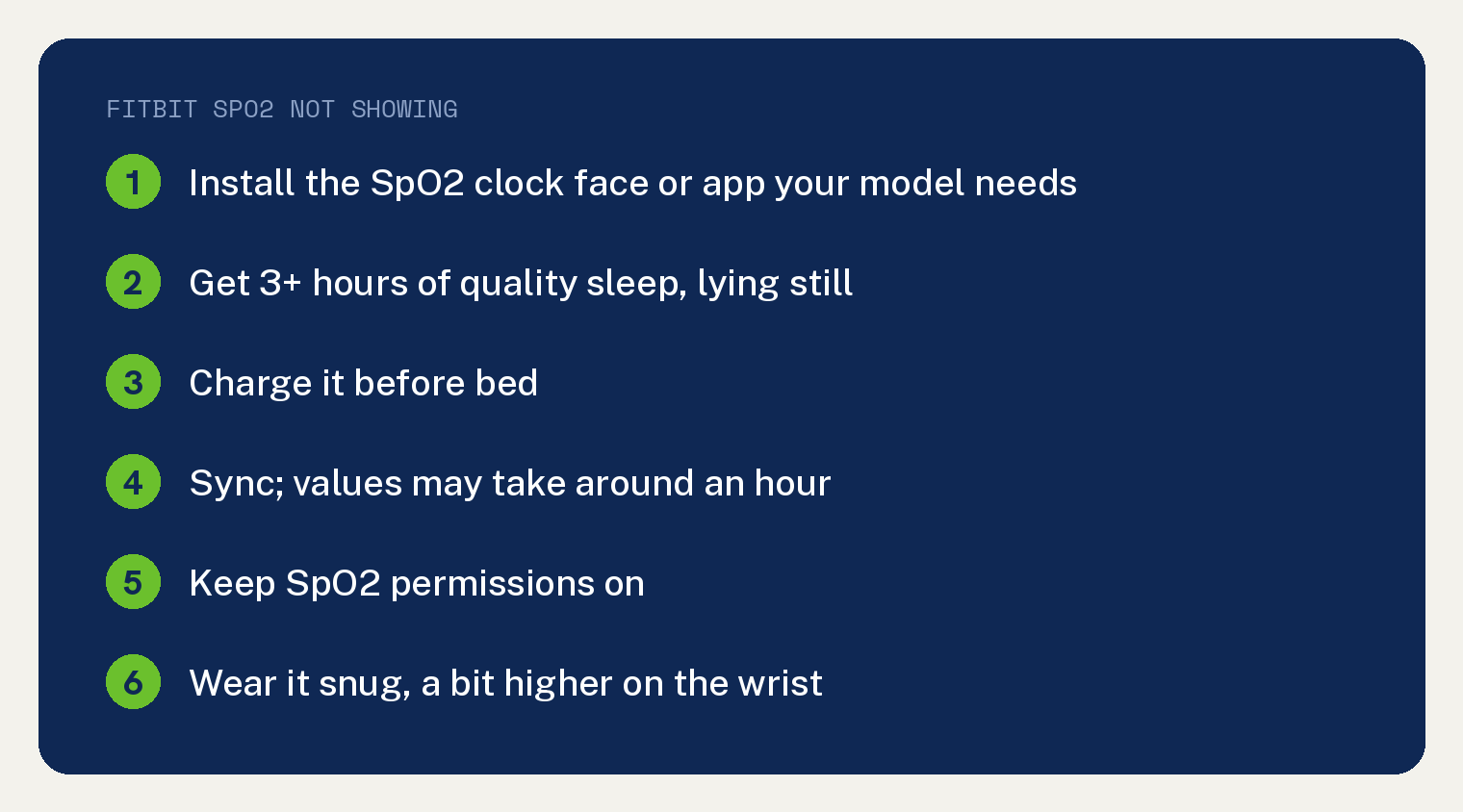
Google’s help page on tracking SpO2 with your Fitbit device sets out those steps. It opens with this: “This SpO2 feature is intended for general wellness purposes only and should not be used or relied on for any medical purposes. Consult your health care professional about any questions or health issues you may have.”
What does missing SpO2 data look like?
Google’s SpO2 page says “Sometimes, you may not receive your SpO2 data and experience any of the following:”
- Dashed lines on the clock face or SpO2 data tile
- A message that the SpO2 data could not be read
- Missing data in the Health tab in the Google Health app on your phone
If your clock face shows the message SpO2 not installed, Google’s tip is to “install the SpO2 Tracker app”.
The Google Health app is the one you may know by its old name: on May 19, 2026, the “Fitbit app became the Google Health app”.
Does your Fitbit need an SpO2 clock face or the SpO2 app?
It depends on the model. Google’s SpO2 page says “To collect SpO2 data, install an SpO2 clock face or the SpO2 app.” It also says “To collect SpO2 data on the following devices, make sure to:” Here is that list as a table:
| Your model | What Google says to do |
|---|---|
| Versa, Versa Lite Edition, and Versa 2 | “Use an SpO2 clock face.” |
| Inspire 3, Sense series, Versa 3, and Versa 4 | “Install either an SpO2 clock face or the SpO2 app.” |
| Google Fitbit Edge, Charge 4, Charge 5, Charge 6, and Luxe | “Install the SpO2 app.” |
| Google Pixel Watch series | “SpO2 tracking is automatically added.” |
Your region can rule it out. Google’s page warns “This SpO2 feature is not available in all regions.”
Some devices get the app without asking: “On certain Fitbit devices, the SpO2 app is automatically added for users in select countries.”
Google’s SpO2 page gives set up steps only for the models in that table. If your Fitbit is not on it, that page has no clock face or app steps for you.
How do you install the SpO2 clock face?
Google gives these steps for the Inspire 3, Sense series and Versa series only:
- Open the Google Health app.
- At the top left, tap Connections, then your device.
- Tap Watch faces, then the Clocks tab.
- Search for SpO2.
- Tap the clock face you want to install, then Install.
- “Follow the on-screen instructions to grant the required permissions and install the clock face.”
Grant those permissions when asked. The SpO2 page says “Turning off any SpO2 clock face or app permissions can cause the feature to stop functioning.”
How do you install the SpO2 app?
Google’s app steps cover the Google Fitbit Edge, Charge 4, Charge 5, Charge 6, Inspire 3, Luxe, Sense series, Versa 3 and Versa 4 only:
- Open the Google Health app.
- At the top left, tap Connections, then your device.
- Tap Apps.
- Search for SpO2.
- In the results, tap SpO2 or SpO2 Tracker, then Install.
Do not expect a new icon on your wrist. Google says “The SpO2 app doesn’t appear as an app on your watch. Instead, it runs in the background to track your SpO2 data.”
If the app will not go on your Fitbit, Google’s tip is to “update your Fitbit device to run the latest firmware version”.
Why are there still dashed lines after set up?
SpO2 needs a night of sleep first. Your Fitbit does not measure past nights, and Google says “you’ll have dashed lines until after your next sleep session.”
That night has to count. Google’s rule is “You must get at least 3 hours of quality sleep.”
Data is collected only while you are still. If you move a lot or the sleep session is too short, Google says “you might not get SpO2 data.”
If your Fitbit is missing sleep itself, fix that first with our guide to a Fitbit not tracking sleep.
Charge before bed, so the battery lasts through your whole sleep session. Google asks you to charge it so it is “able to collect data throughout your entire sleep session.”
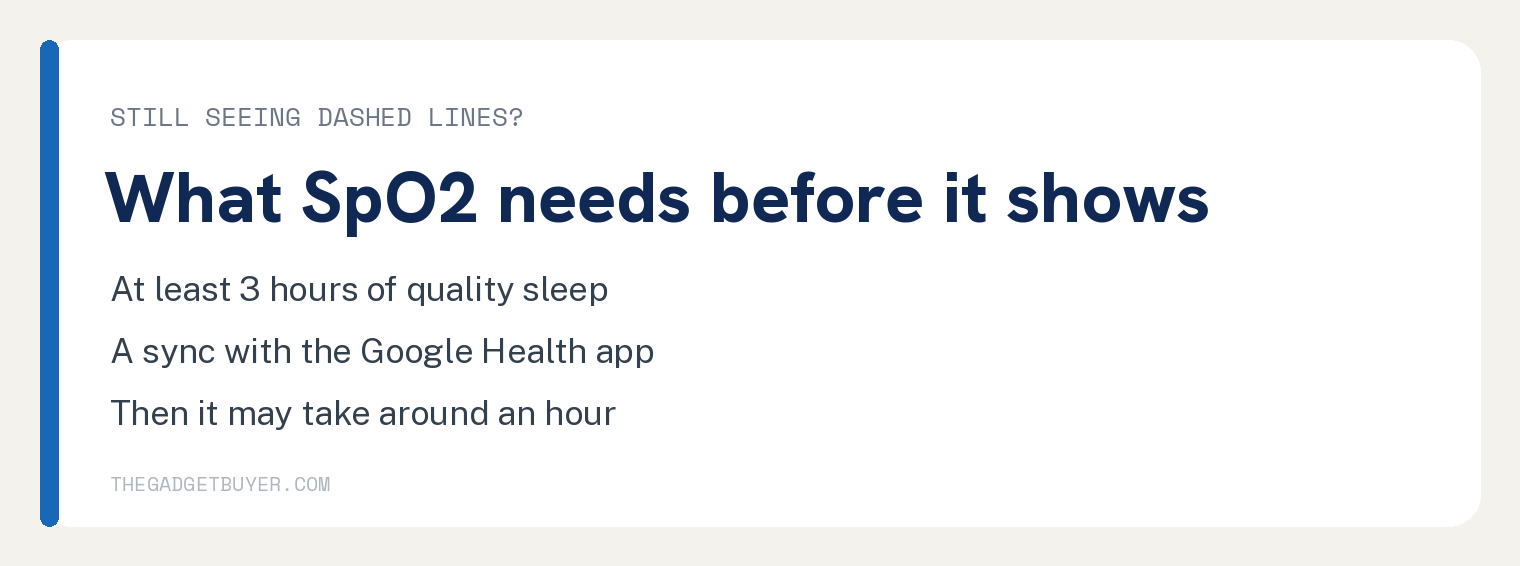
Then sync and give it time. Your Fitbit must sync with the Google Health app before the clock shows SpO2, and Google says “It may take around an hour for your SpO2 values to appear after you sync your device.”
If the sync itself fails, work through our Fitbit won’t sync fixes. A missing Sleep Score in the same app has its own guide: Google Health Sleep Score missing.
What can stop SpO2 that worked before?
Work through these three checks from Google’s pages: permissions, the clock face and the fit.
Turn the permissions back on
Google’s line is “Turning off any SpO2 clock face or app permissions can cause the feature to stop functioning.” Its guide to apps on your Fitbit device gives the path to those settings:
- Open the Google Health app with your watch nearby.
- At the top left, tap Connections, then your device.
- Tap the Apps tab or Watch faces.
- “Tap the app or clock face you want to change.”
- Tap Settings or Permissions.
- Tap the back arrow when you are done.
Put the SpO2 clock face back
If you picked a new clock face, put an SpO2 one back on a model that collects with the clock face. Changing faces is Google’s own removal step: “To remove SpO2 tracking, change your clock face to one not listed in the SpO2 clock face category:”
Google adds that full removal takes both pieces: “To remove SpO2 tracking from your device, you must remove both the SpO2 clock face and the SpO2 app. One or both might be installed depending on your Fitbit device.”
Check how you wear it
Wear the Fitbit slightly higher on your wrist, touching your skin. Google says “Your device should be snug but not constricting.”
Google also notes that tattooed skin can affect the accuracy of the red and infrared sensors.
Where do you find your SpO2 reading?
Look where your model shows it. On the SpO2 clock face (Inspire 3, Sense series and Versa series only), wear the Fitbit to bed, sync it in the morning and check the clock face.
The values may take around an hour to appear after you sync. Google says “The clock face shows data for your most recent sleep session.”
Google’s daily stats steps sit under the heading “In the Blood Oxygen (SpO2) (Charge 4, Charge 5, Charge 6, Inspire 3, Luxe, Sense series, Versa 3, and Versa 4 only)” and its first step reads by model:
- Sense series, Versa 3, and Versa 4: “Open the Google Health app on your watch.”
- Charge 4, Charge 5, Charge 6, Inspire 3, and Luxe: “Swipe up from the clock face.”
- Google Fitbit Edge: “On the Watchface, press the button for the app list.” then go to Health and swipe to Blood Oxygen.
Then swipe up to find the Oxygen Saturation or SpO2 app, which shows “your most recent average resting SpO2 level.” On this view, the values may take around an hour to appear after you wake up.
For trends on your phone, wear the device for at least a full day, including to sleep at night. In the morning, open the Google Health app, tap the Health tab and tap Blood Oxygen.
What if you have a Google Pixel Watch?
You do not install anything. Google says “SpO2 tracking is automatically added on Google Pixel Watch series.”
To see it, open the Google Health app on your watch and “Swipe up to find the Oxygen Saturation tile.”
If the SpO2 tile is missing or has no data, Google’s tip is to “make sure the Fitbit and Health Services apps are up-to-date”.
If you cannot find the feature on the watch at all, Google points to its page titled Install & update apps on Google Pixel Watch. On the Pixel Watch, SpO2 “doesn’t use a clock face or app and can’t be removed.”
Other SpO2 questions
Does SpO2 tracking drain the battery faster?
You may need to charge more often. Google says “You may have to charge your Fitbit device more often when collecting SpO2 data.” For other drains, see why your Fitbit is losing battery fast.
Can I use my Fitbit SpO2 reading for medical decisions?
No. Google’s page says “You should not use or rely on the SpO2 reading on your Fitbit device for any medical purposes. If you have concerns about your health, you should consult your healthcare provider.”
For another health number people ask about, see whether Fitbits track blood pressure.
Sources
- Track blood oxygen saturation (SpO2) with your Fitbit device (Google Health Help)
- Install and manage apps on your Fitbit device (Google Health Help)
- Changes in the Google Health app (Google Health Help)