
Fitbit GPS Not Working: Fixes for Each GPS Type
Fitbit GPS not working or slow to connect? The fix depends on which type of GPS your device has.
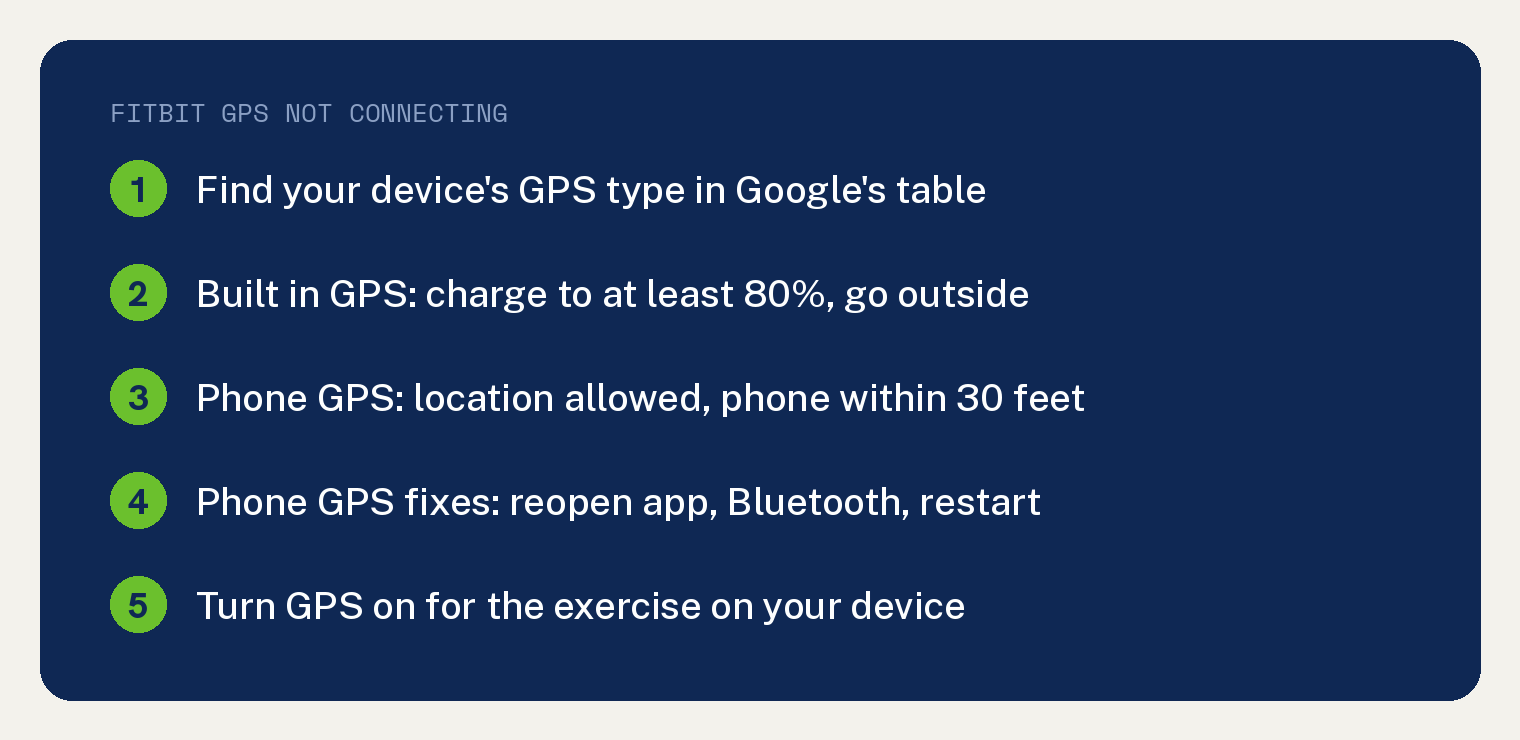
Google’s GPS help page sorts the Fitbit and Pixel Watch models in its table into built in GPS, phone (connected) GPS or Dynamic GPS, and its connection checks sit under two headings, Built in GPS and Phone (connected) GPS.
Google’s steps name the Google Health app. That is the Fitbit app with a new name: on May 19, 2026, the “Fitbit app became the Google Health app”, according to Google’s changes page.
Our guide to where the Fitbit app went covers the switch.
Which type of GPS does my Fitbit or Pixel Watch have?
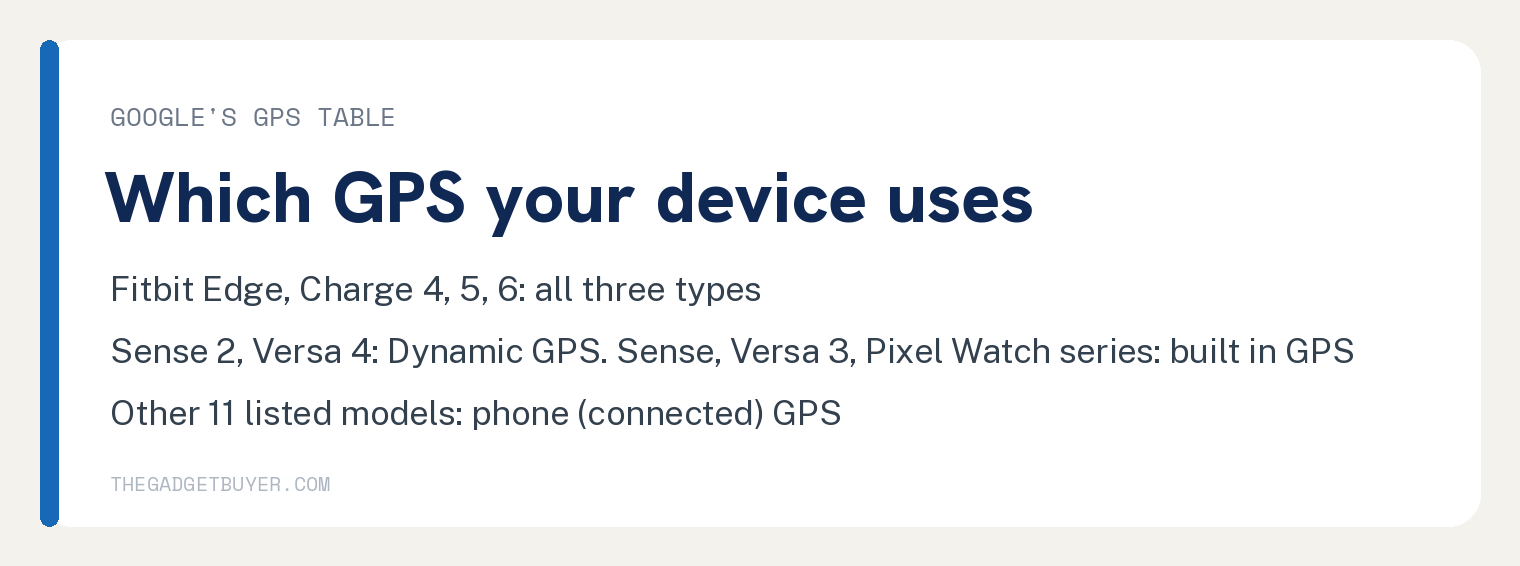
Look up your model in this table. It copies the table in the first section of Google’s Use GPS help page, all five rows.
| Device | GPS type on Google’s page |
|---|---|
| Google Fitbit Edge | Dynamic GPS, built in GPS, phone (connected) GPS |
| Fitbit Charge 4, Charge 5, Charge 6 | Dynamic GPS, built in GPS, phone (connected) GPS |
| Fitbit Sense 2, Versa 4 | Dynamic GPS |
| Fitbit Sense, Versa 3, Google Pixel Watch series | Built in GPS |
| Fitbit Blaze, Charge 2, Charge 3, Inspire HR, Inspire 2, Inspire 3, Luxe, Versa, Versa 2, Versa LE, Google Fitbit Air | Phone (connected) GPS |
Phone (connected) GPS means the watch borrows your phone’s GPS. Google’s note for those models: “Keep your phone near your device during your workout.”
Dynamic GPS models can take GPS from your phone instead. Google’s footnote: “If your phone is nearby, these devices use the GPS sensors on your phone to capture GPS data instead of the built-in GPS sensors on your device.”
Our reading of that footnote: on a Sense 2 or Versa 4 with your phone nearby, the phone GPS checks in this guide match where the signal comes from.
Why is my Fitbit GPS so slow to connect?
On a device with built in GPS, Google lists these best practices under Built in GPS, Best practices:
- Charge the device to at least 80%, since built in GPS can drain the battery faster.
- Go outside first, then connect to GPS and start the exercise.
- Wait up to 30 seconds before you tap Play, for a stable connection.
- Sync with the Google Health app at least once every 24 hours.
- Keep the Google Health app’s location permission on your phone always allowed.
- Check that GPS is on for the exercise. Only exercises where you cover physical distance use GPS.
The sync tip has a reason attached. Google says regular syncing helps “to reduce the time it takes for the built-in GPS sensors to connect to GPS satellites.”
A new place adds time too. Under its troubleshooting tips, Google warns that GPS used for the first time in an area “might take several minutes to connect to GPS satellites.”
What if built in GPS still won’t connect?
Work through Google’s troubleshooting tips for built in GPS. They are written for one condition: “If your device can’t connect to GPS satellites, or if gaps appear in the map of your route, try these tips:”
- Wear the device the way Google recommends for exercise.
- Loosen the band one notch.
- Make sure the device does not touch your wrist bone.
- Wait until GPS is connected before you start. Heavily wooded areas and tall buildings can add time.
- If GPS did not connect the first time, wait 5 minutes before you start the exercise again.
- Pixel Watch 5: wait until the display shows “GPS Connected” before you start.
- Google Fitbit Edge, Charge 4, Charge 5 and Charge 6: end the exercise, change the GPS mode to Phone GPS, and start again.
- Hold your arm parallel to your body near your head, at least 2 inches away from you, while GPS connects.
Google prints the arm tip on its own line, outside the Pixel Watch 5 and Charge labels. It can “reduce the time it takes for your device to connect to GPS satellites”.
My Fitbit uses my phone’s GPS. What should I check?
Check that the watch can sync and that the Google Health app can use your phone’s location. Those are the first two requirements Google lists under Phone (connected) GPS.
If the watch will not sync at all, fix that first with our Fitbit won’t sync checklist or our Fitbit syncing fix for the Google Health app.
The location settings Google names differ by phone:
- iPhone: Allow Location Access set to Always, Precise Location on, and Background App Refresh on for the Google Health app.
- Android: Location permission set to Allow all the time, and Precise Location on.
Two more requirements apply to every phone. GPS must be on for the exercise, and your phone must be within 30 feet of your device.
Still no signal? Google’s troubleshooting steps say: “Check if GPS connects after each step.”
- Force quit the Google Health app and reopen it.
- On your phone, go to Settings, then Bluetooth, and turn Bluetooth off and back on.
- Restart your phone.
How do I turn on GPS for an exercise on my Fitbit?
The switch sits in a different place on each device. This table follows the device labels on Google’s GPS page, in the order Google lists them.
| Device label on Google’s page | Where GPS gets turned on |
|---|---|
| Google Fitbit Edge, Charge 6, Charge 5, Inspire 3, and Luxe | Swipe to the Exercise app and choose an exercise. Swipe up through the exercise settings and tap GPS. |
| Google Fitbit Air | It must sync with the Google Health app. In the app, tap Fitness Shortcuts, tap the workout, and make sure Connected GPS is on. Location must be set to Always on an iPhone or iPad, with Precise Location and Background App Refresh on, or Allow all the time on Android, with Precise Location on. |
| Google Pixel Watch series | Press the crown, swipe up to the Exercise app and open it. Swipe up to Settings, then GPS, and make sure GPS is on. |
| Sense series, Versa 4, and Versa 3 | Open the Exercise app and swipe to the exercise. Swipe up from the bottom of the screen and turn GPS on in the GPS section. |
| Inspire 2 and Inspire HR | Open the Settings app and make sure Phone GPS is on. |
| Charge 4 and Charge 3 | Open the Exercise app, swipe to the exercise, swipe up, and make sure GPS is on. |
| Versa 2, Versa Lite Edition, and Versa | Open the Exercise app, swipe to the exercise, tap Settings, and make sure Connected GPS is on. |
| Charge 2 | In the Google Health app, tap Exercise Shortcuts, tap the exercise, and make sure Connected GPS is on. |
| Blaze | Same as Charge 2, in the Google Health app. If GPS does not connect, open the Exercise screen on the Blaze, find the exercise, tap Settings, and make sure Use Phone GPS is on. |
One more catch from Google’s start an exercise steps: “If you previously turned off GPS for an exercise, turn it back on before you start the activity.”
Does a Pixel Watch have its own GPS settings?
Yes. On the Google Pixel Watch series, Google’s tip says GPS cannot be turned on or off for individual exercises; the switch is in the Exercise app under Settings, then GPS.
The Pixel Watch 5 gets extra location settings. From the watch, swipe down and go to Settings, Location, Use location.
Google adds: “To improve GPS accuracy, enable these settings on both your watch and phone:”
- Location permissions: turn on Allow all the time, so the watch can track your route even when you are not using it.
- Body sensors: turn this on, so the watch can track how you move and make the GPS location more precise.
Pixel Watch 5 owners also get one connection tip from Google’s built in GPS list: wait for “GPS Connected” on the display before starting.
What happens if GPS drops in the middle of a workout?
The device keeps looking. Google’s page says: “If the GPS signal disconnects, your phone, Fitbit device, or Pixel Watch continues to search for a signal.”
On a Fitbit Edge, Charge 5 or Charge 6, the GPS mode decides whether the tracker can change sources mid workout. Google says Dynamic mode may switch sources, and the Built in GPS and Phone GPS modes will not switch if the signal is lost.
If the workout recorded but never reached Strava, see our fix for Strava not syncing with Google Health.
What do the GPS modes on a Charge 5, Charge 6 or Fitbit Edge do?
Dynamic is the mode that can change sources. To set it on a Google Fitbit Edge, Charge 5 or Charge 6, swipe down from the clock screen and tap the Settings app.
- Dynamic: picks the best source at the start. Google says it “Uses your phone’s GPS if it is moving with you, or built-in GPS if your phone is stationary,” and “The tracker may dynamically switch sources during your workout to maintain the connection.”
- Built in GPS: the tracker’s own sensors log the route. This option can cut battery life, and Google says that “If the signal is lost during your workout, the tracker will not switch to a different GPS type.”
- Phone GPS: relies on your phone’s sensors, which helps save tracker battery. It also will not switch types if the signal is lost.
The Charge 4 has its own menu: open the Settings app on the tracker, then GPS Settings. Its Dynamic mode sets the GPS type at the start, and Google says “If the GPS signal is lost during the exercise, Charge 4 doesn’t switch to a different GPS type.”
The Charge 4 also has GLONASS, for built in GPS only. Google says “For exercises with built-in GPS, this setting can shorten the time it takes for Charge 4 to find a GPS signal and enhance GPS performance.” Turning it on can reduce battery life.
Battery running down on GPS days? See our list of reasons your Fitbit is losing battery quickly.
What if my Fitbit has no GPS at all?
Record the workout on your phone. Google’s page says: “If your Fitbit device or Pixel Watch doesn’t have GPS, use the Google Health app on your phone to capture your route, distance, pace, and more.”
First give the Google Health app location access (All the Time on Android, Always on iPhone) and turn on Background App Refresh for it. Then open the app, go to the Today tab, tap Add, then Start Exercise, choose an activity and tap Start.