
3 Fixes for a Fitbit Touchscreen Not Responding
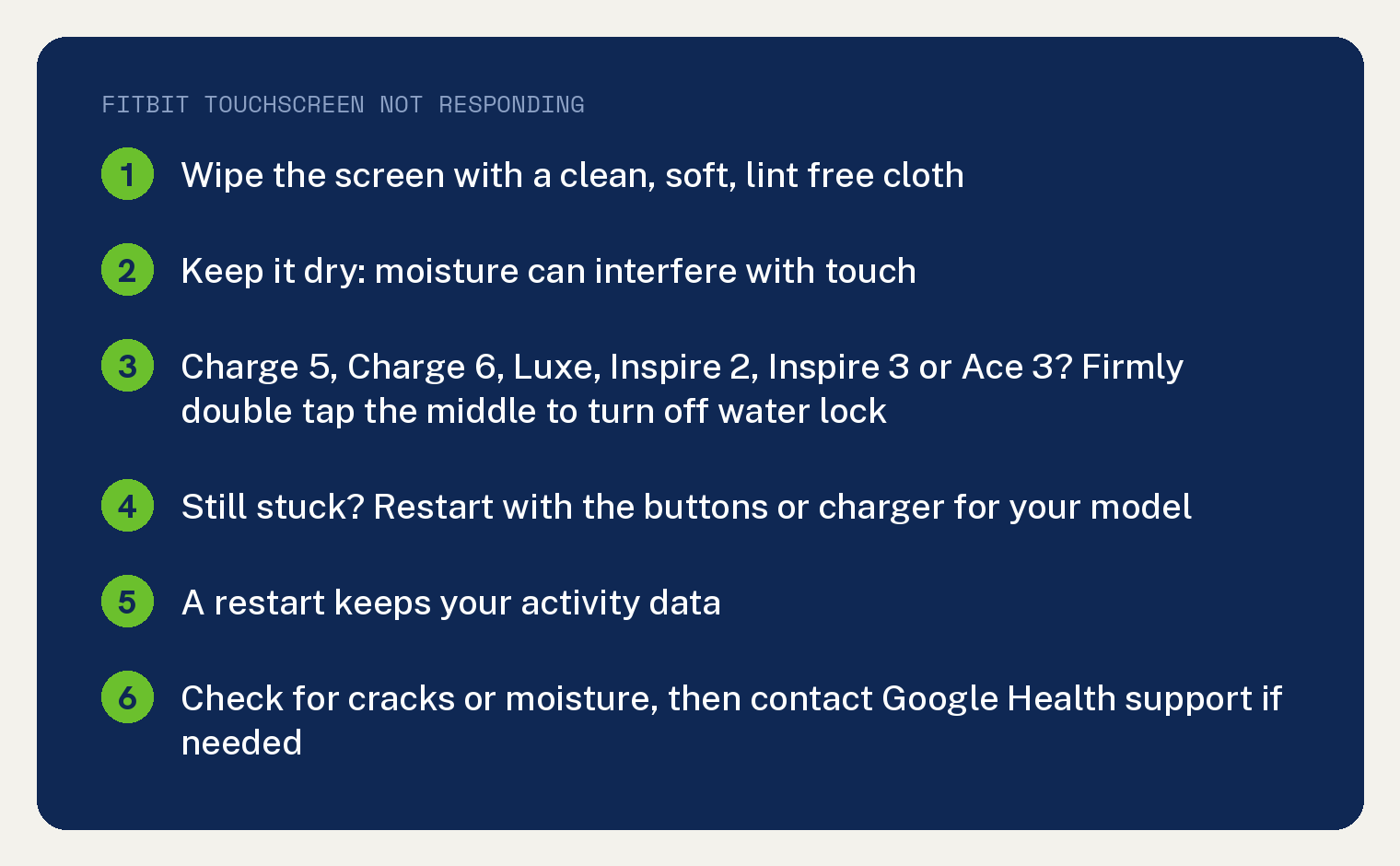
A Fitbit touchscreen not responding to taps or swipes needs a clean, dry screen first, because Google says “Dirt, oil, sweat, or even just moisture can interfere with touchscreen sensitivity.” If a clean screen still ignores you, turn off water lock on the models that have it, then restart your Fitbit with its buttons or its charger.
Why won’t your Fitbit screen respond to touch?
Grime or water on the glass can block your taps. Google’s page on fixing a blank or unresponsive Fitbit screen names dirt, oil, sweat and moisture as things that interfere with touchscreen sensitivity.
Water lock can stop taps too. On the Charge 6, Google says “When the water lock is on, your screen locks, and the water lock icon appears at the bottom.”
A frozen Fitbit needs a restart. Google’s restart page lists a device “unresponsive to taps, swipes, or button presses” as a reason to restart.
If your screen stays black instead of lit, that is a separate problem, covered in our guide to a Fitbit screen that is black.
How do you clean a Fitbit screen that won’t respond?
Gently wipe the screen with a clean, soft, lint free cloth. Google’s cleaning steps add: “Slightly dampen the cloth with water if needed. Dry it before use.”
Then try a tap or a swipe once the screen is fully dry. Google names moisture as one of the things that can interfere with touchscreen sensitivity.
How do you turn off water lock on a Fitbit?
Firmly double tap the middle of the screen with your finger to turn water lock off. Google’s guide to navigating a Fitbit gives that step for the Charge 5, Charge 6, Luxe, Inspire 2, Inspire 3 and Ace 3.
Tap harder if the word “Unlocked” doesn’t appear. Google explains that “Turning off this feature uses the accelerometer in your device, which takes more force to activate.”
Water lock can also switch itself on. On the Charge 5, Charge 6, Luxe, Inspire 2 and Inspire 3, Google says water lock “turns on automatically when you start a swim in the Exercise app.”
With water lock on, Google says “Notifications and alarms still appear on your tracker, but you must unlock your screen to interact with them.” So an alert can light the screen while water lock still blocks your tap.
For more on how the setting works, see our explainer on the Fitbit water lock feature.
How do you restart a Fitbit when the touchscreen won’t respond?
Restart your Fitbit with its buttons or its charger, so the screen never has to respond. Google says “A restart turns your device off and on without the loss of any activity data.”
Google warns: “Some Fitbit devices have small holes for sensors such as the microphone or altimeter. Don’t try to restart your device by inserting any items, such as paper clips, into these holes as this can damage your Fitbit device.”
Find your model below. Each set of steps comes from Google’s Fitbit restart page, which also covers models not listed here, such as the Charge 2, Inspire HR and Google Fitbit Edge.
For the Charge 3, Charge 4, Charge 5, Charge 6, Luxe, Inspire 2 and Inspire 3, these are the steps Google gives for a device or tracker that is unresponsive.
Charge 5, Charge 6 and Luxe
- Connect your Fitbit to its charging cable.
- Press the button on the flat end of the charger 3 times, with a one second pause between each press. Then wait 10 seconds or until the Fitbit logo appears.
Charge 3 and Charge 4
- Plug the charging cable into a USB port on your computer or a UL certified USB wall charger.
- Clip the other end of the cable to the port on the back of the tracker, so the pins lock securely with the port.
- Line up the button on your tracker with the button opening on the cable. The connection is secure when the tracker vibrates and shows a battery icon.
- Press and hold the tracker button for 8 seconds, then release it. The tracker has restarted when it vibrates and shows a smile icon.
Inspire 3
- Connect your Inspire 3 to its charging cable.
- Press and hold the buttons on your tracker for 10 seconds.
- Release the buttons. The tracker has restarted when it vibrates and the Fitbit logo shows up.
Inspire 2
- Plug the charging cable into a USB port on your computer or a UL certified USB wall charger.
- Connect your Inspire 2 to the charging cable.
- Press and hold the buttons on your tracker for 10 seconds.
- Release the buttons. The tracker has restarted when it vibrates and shows a smile icon.
Versa Lite, Versa 2, Versa 3, Versa 4, Sense and Sense 2
Press and hold the button for 10 seconds until the Fitbit logo appears on the screen, then release it. For more Versa 4 fixes, see our guide to a Fitbit Versa 4 not working.
Versa
Press and hold the left button and the bottom right button for 10 seconds until the Fitbit logo appears, then release both buttons.
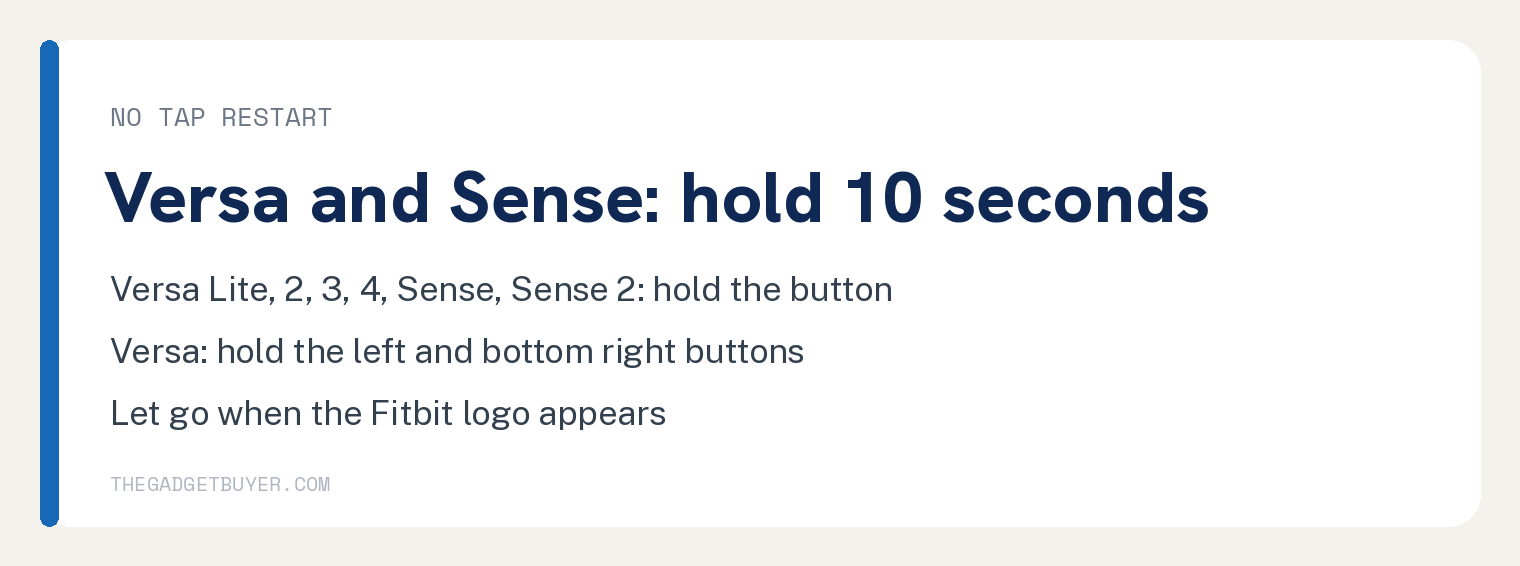
If you can’t restart your Fitbit, or the restart doesn’t fix it, Google’s restart page says to reach out to Customer Support.
What if your Fitbit touchscreen still won’t respond?
Update the firmware next. Google’s screen page opens with that fix.
Before you begin, charge your Fitbit and make sure the Google Health app on your phone or tablet is up to date. Then follow these steps:
- Open the Google Health app.
- At the top left, tap Connections, then your device.
- Tap the pink Update button. It only appears if an update is available.
- Follow the on screen instructions and keep the Fitbit close to your phone, tablet or computer during the update.
Google says “Updates may take up to an hour or more to complete.” If yours stalls, our guide to a Fitbit update stuck or failing walks through the fixes.
Check the screen for cracks or moisture. Google’s tip under that check is to contact Google Health support if needed, with your Fitbit model and serial number ready.
Leave a factory reset for last. Google warns “A factory reset erases all the data of your device, do this as a last resort.” It points you to your device’s manual for the steps.
Sources
- How to fix a blank, unresponsive, rebooting, or flickering Fitbit device screen (Google Health Help)
- Restart your Fitbit device (Google Health Help)
- How do I navigate my Fitbit device? (Google Health Help)