
3 Steps for a Fitbit Stuck on the Fitbit Logo
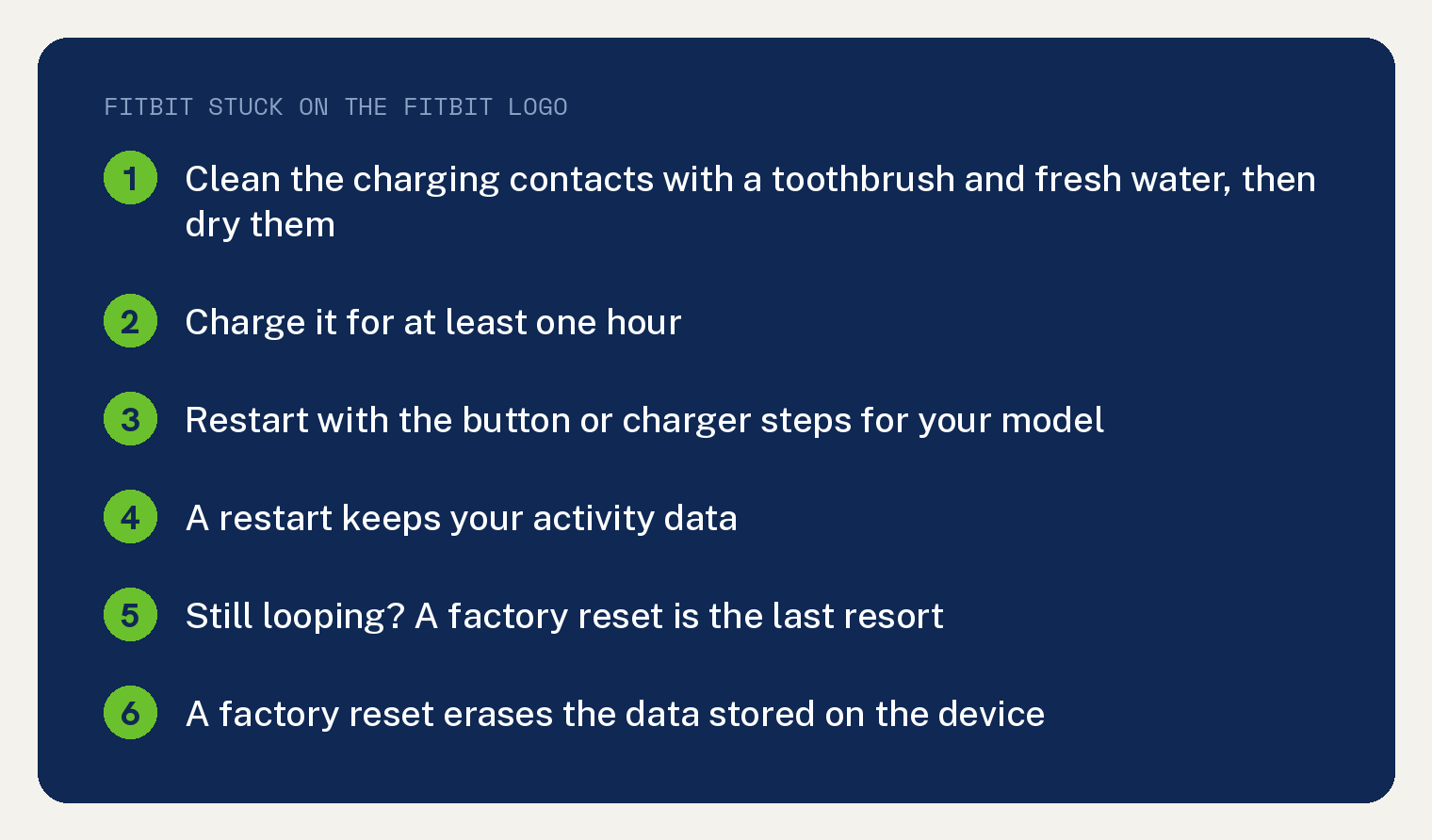
Put a Fitbit stuck on the Fitbit logo on its charger for at least an hour, then restart it with the button or charger steps for your model. If it still loops back to the logo, a factory reset is Google’s last resort, and it erases the data stored on the device.
Why does my Fitbit keep showing the logo?
On several Fitbit models, the logo is the sign Google gives that a restart worked. The Versa and Sense steps on Google’s Fitbit restart page end when “the Fitbit logo appears on the screen.”
We read a logo that never clears, or keeps coming back, as one of two cases on that page. Google lists “Your device’s display is blank or frozen” and “Your device is in a continuous reboot loop” among the issues a restart troubleshoots.
Google’s page for a blank or rebooting Fitbit screen starts with a firmware update. It then says “If your issue continues, you can also try to clean and charge your device, restart it, or reset it.”
Our order puts the charge first, and Google’s own update steps open with “Before you begin, charge your device.” If your screen goes black and stays black, see our guide to a Fitbit screen that is black.
Step 1: Charge your Fitbit for at least an hour
Put the Fitbit on its charger and leave it there for at least one hour. Google gives that time because “the battery may be depleted and the screen may turn on without enough charge.”
Clean the charging contacts on the back of the Fitbit first, using a toothbrush with fresh water. Google adds “Dry with a cloth or tissue before charging.”
Never scrape the contacts with anything metal. Google warns that “metal can damage the plating and cause corrosion.”
Clean the pins on the charging cable with a cotton swab and rubbing alcohol. Leave no pieces of the swab behind.
If the Fitbit will not charge at all, our guide to a Fitbit that won’t charge covers that problem.
Step 2: Restart it without the screen
Find your model below and use its button or charger steps. Google says “A restart turns your device off and on without the loss of any activity data.”
Keep paper clips and other items out of the small sensor holes some Fitbit devices have. Google warns that restarting by inserting items there “can damage your Fitbit device.”
Charge 5, Charge 6 and Luxe: Connect the Fitbit to its charging cable. Press the button on the flat end of the charger 3 times, with a one second pause between presses, then wait 10 seconds or until the Fitbit logo appears.
Charge 3 and Charge 4: Plug the charging cable into a computer USB port or a UL certified USB wall charger, and clip it to the tracker with the tracker button lined up with the opening on the cable. The connection is secure when the tracker vibrates and shows a battery icon.
Then press and hold the tracker button for 8 seconds and release it.
Charge 2: With the tracker clipped to its plugged in charging cable, press and hold the tracker button for 4 seconds.
Inspire 3 and Inspire 2: Connect the tracker to its charging cable. Press and hold the buttons on the tracker for 10 seconds, then release them.
Versa Lite, Versa 2, Versa 3, Versa 4, Sense and Sense 2: Press and hold the button for 10 seconds until the Fitbit logo appears, then release it.
Versa: Press and hold the left button and the bottom right button for 10 seconds until the Fitbit logo appears, then release both buttons.
For any other Fitbit, find its name on Google’s restart page and follow the steps under it.
How do you know the restart worked?
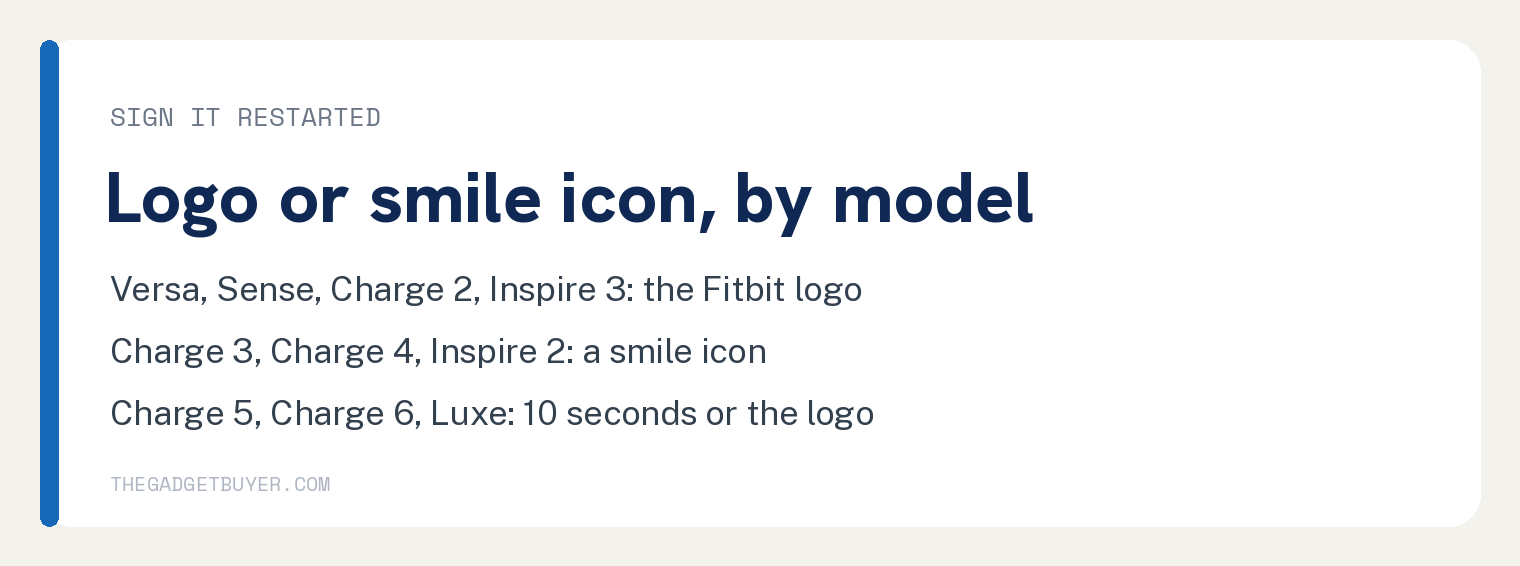
Each model has its own sign. This table is ours. The signs in it come from Google’s restart page.
| Model | Sign the restart worked |
|---|---|
| Charge 5, Charge 6, Luxe | Wait 10 seconds or until the Fitbit logo appears |
| Charge 3, Charge 4 | Vibrates and shows a smile icon |
| Charge 2 | Fitbit logo appears and the tracker vibrates |
| Inspire 3 | Vibrates and the Fitbit logo shows up |
| Inspire 2 | Vibrates and shows a smile icon |
| Versa Lite, Versa 2, Versa 3, Versa 4, Sense, Sense 2 | Fitbit logo appears on the screen |
| Versa | Fitbit logo appears on the screen |
If the restart will not run, or it does not fix the logo, Google’s restart page says: “If you can’t restart your device or if this doesn’t resolve the issue, reach out to Customer Support.”
Step 3: Factory reset it only as a last resort
A factory reset is Google’s last resort for a Fitbit stuck in a boot loop. Google’s update troubleshooting page recommends its reset steps only as a last resort for unresponsive devices, devices stuck in boot loops, and persistent update failures that have bricked the device.
A reset wipes the Fitbit. Google says “A factory reset erases all data stored locally on the device. This includes unsynced activity statistics, alarms, goals, and notification settings.”
After a reset, you set the Fitbit up again. Where Google prints the reset steps depends on your model.
Sense 2: Google’s update troubleshooting page lists these steps for a “Critical boot loop or bricking (Factory Reset)” on a Sense 2.
- Plug the Sense 2 into its charger.
- Press and hold the button about 8 seconds until the screen turns off.
- Release the button at a short vibration.
- Immediately press and hold the button again.
- Release it when the blue logo appears and disappears.
- Immediately press and hold one final time until you feel a vibration, which triggers the factory reset.
Charge and Charge HR: Google’s restart page carries factory reset steps for these two. It opens them with “Only follow the factory reset steps at the direction of Fitbit Customer Support.”
Other models: Google’s screen page says to connect your Fitbit to the charger and “Consult your device’s manual.”
If the issue persists, Google’s screen page says to contact Google Health support. Have your Fitbit model and serial number ready.
Questions about a Fitbit stuck on the logo
Will restarting my Fitbit erase my data?
No. Google says a restart turns the device off and on “without the loss of any activity data.” A factory reset erases the data stored on the device, including unsynced activity statistics.
Should I update my Fitbit after it starts again?
Google’s screen page puts the firmware update first, and it says “Most issues with blank screens can be fixed if you update and sync your device’s firmware.” Charge the Fitbit and get the latest Google Health app before you begin.
In the Google Health app, tap Connections at the top left, then your device, then the pink Update button. Google says the button “only appears if an update is available,” and “Updates may take up to an hour or more to complete.”
If the update stalls, our guide to a Fitbit update stuck or failing walks through the fixes.
What if my Fitbit starts but the screen ignores my taps?
That is a different problem with its own fixes. See our guide to a Fitbit touchscreen not responding.
Sources
- How to fix a blank, unresponsive, rebooting, or flickering Fitbit device screen (Google Health Help)
- Restart your Fitbit device (Google Health Help)
- Troubleshoot updating your Fitbit device (Google Health Help)