
Apple Watch Not Getting Notifications and Where They Go
An Apple Watch not getting notifications can be Apple’s own rule working the way Apple wrote it. Apple prints the rule at the top of its notifications page: “Notifications appear on your Apple Watch or iPhone, but not both.”
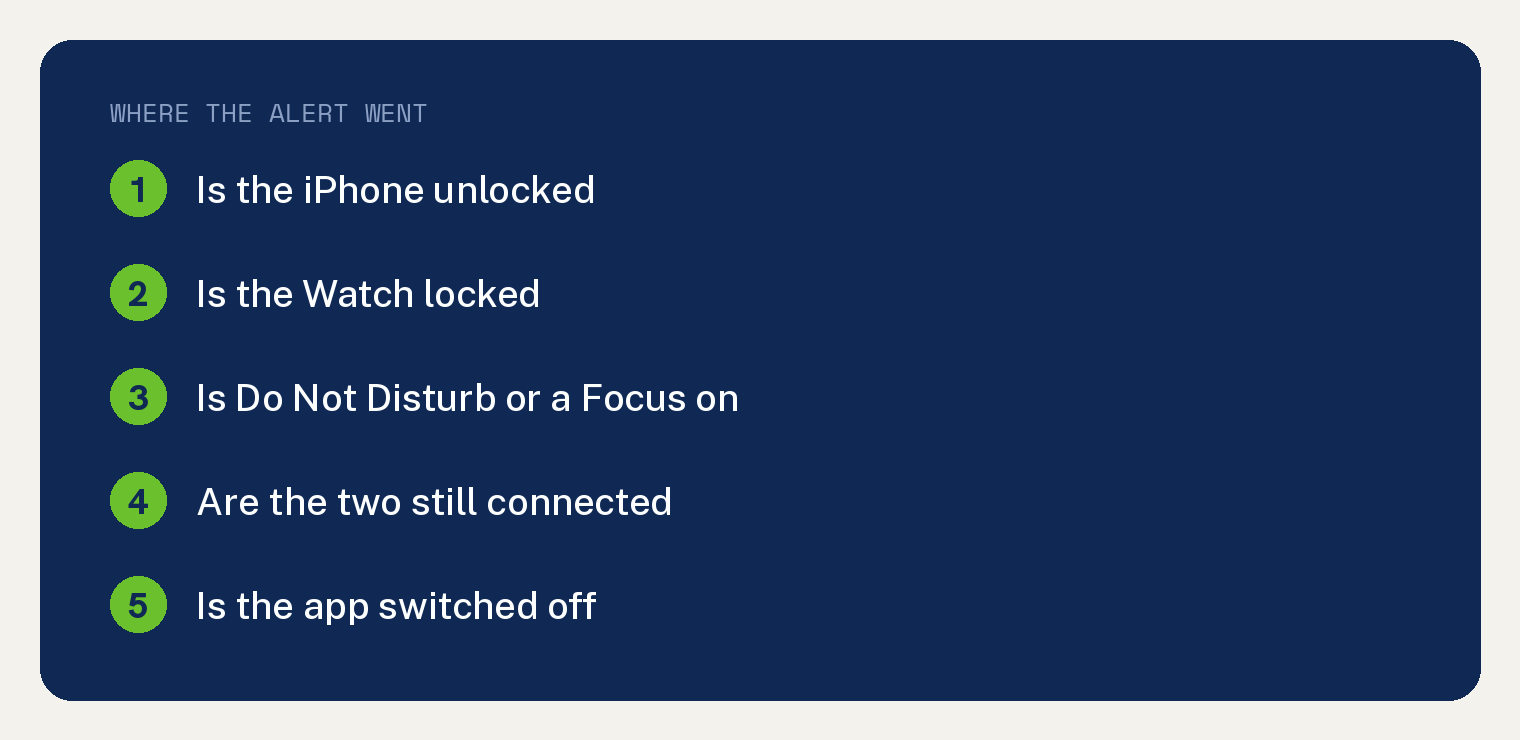
Which of the two gets the alert is decided by your iPhone. “If your iPhone is unlocked, you get notifications on your iPhone instead of your Apple Watch.”
The other half carries Apple’s own exception. “If your iPhone is locked or asleep, you get notifications on your Apple Watch, unless your Apple Watch is locked.”
Start with the phone, not the watch
Before you change a single setting, think back to what your iPhone was doing when the alert did not arrive.
Were you holding it, unlocked? Then Apple’s rule sent the alert there, and nothing is broken.
An easy way to see the rule work is to lock the iPhone, set it face down, and send yourself a message.
Rule out a locked watch and Do Not Disturb
Apple groups these two together: “When your Apple Watch locks or you turn on Do Not Disturb, your notifications go to your iPhone:”
Each one leaves a mark on the watch face.
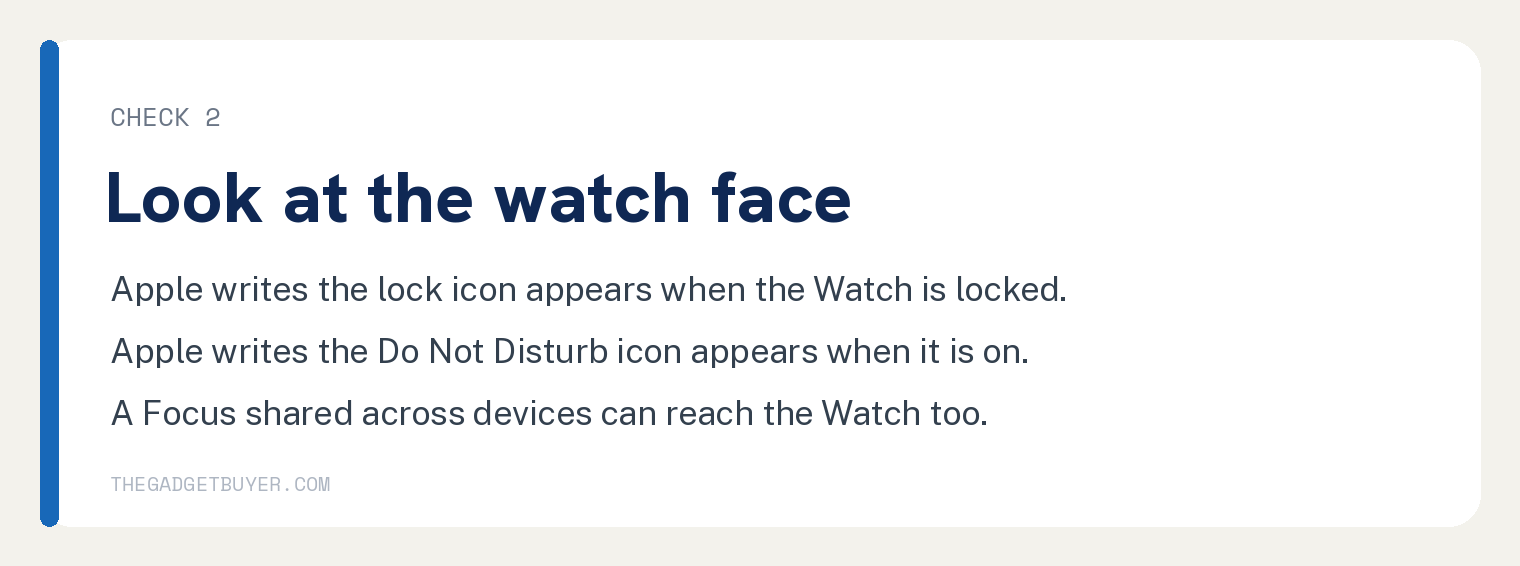
Apple writes “When your Apple Watch is locked, the lock icon appears on the watch face.” And “When Do Not Disturb is on, the Do Not Disturb icon appears on the watch face.”
A Focus you switch on at the iPhone can travel to the watch. Apple writes that “If you turn on Share Across Devices on your Apple devices and then turn on a Focus setting, your Focus setting works across your linked devices.”
Open Control Center on the iPhone to see whether one is running. Apple’s note there reads “(If only the Focus icon is there, no Focus setting is on.)”
If you switch Focus modes on and off a lot, the same controls are covered in our guide to turning off Do Not Disturb on an iPhone.
Check that the two devices are still talking
A dropped connection moves your alerts and says nothing about it. Apple writes “When your Apple Watch and iPhone disconnect, your notifications go to your iPhone instead of your Apple Watch.”
Apple’s check is “To check your connection in Control Center, press the side button on your Apple Watch.”
Apple’s own sentence names what a disconnect looks like, with its “might” attached: “If your devices are disconnected, you might see the red iPhone icon, the red X icon, or the Wi-Fi icon.”
Apple’s reconnect steps, in Apple’s order and in Apple’s words.
- “Keep your Apple Watch and paired iPhone close together to make sure that they’re in range.”
- “On your iPhone, swipe down from the top-right corner of your screen to open Control Center, then make sure that Airplane Mode is off and that Wi-Fi and Bluetooth are on.”
- “On your Apple Watch, press the side button to open Control Center, then make sure that Airplane Mode is off.”
- “Restart your Apple Watch and restart your iPhone.”
Apple places unpairing after those four steps and attaches a condition to it: “If your Apple Watch still can’t connect, unpair it from your iPhone, then pair your Apple Watch and iPhone again.”
Neither Apple page read for this article prescribes a reset. The strings factory reset, Erase All Content and reset your Apple Watch return zero hits on both.
Check the app’s own notification settings
When everything arrives except one app, that app’s own setting is the place to look.
Apple’s path is “Open the Apple Watch app on your iPhone, then tap the My Watch tab.” Then “Tap Notifications.”
Apple’s next step is “Tap an app to see its options.” Apple writes “Some apps allow you to customize your notifications. Tap Custom, then choose an option:” and prints the options underneath.
The first is the ordinary one: “Allow Notifications: Notifications appear in Notification Center and your Apple Watch alerts you.”
The second is the one that looks like a fault. “Send to Notification Center: Notifications are sent directly to Notification Center without your Apple Watch alerting you.”
Read that option slowly. The notification is delivered and the Apple Watch does not alert you.
The third switches it off outright: “Notifications Off: The app sends no notifications.”
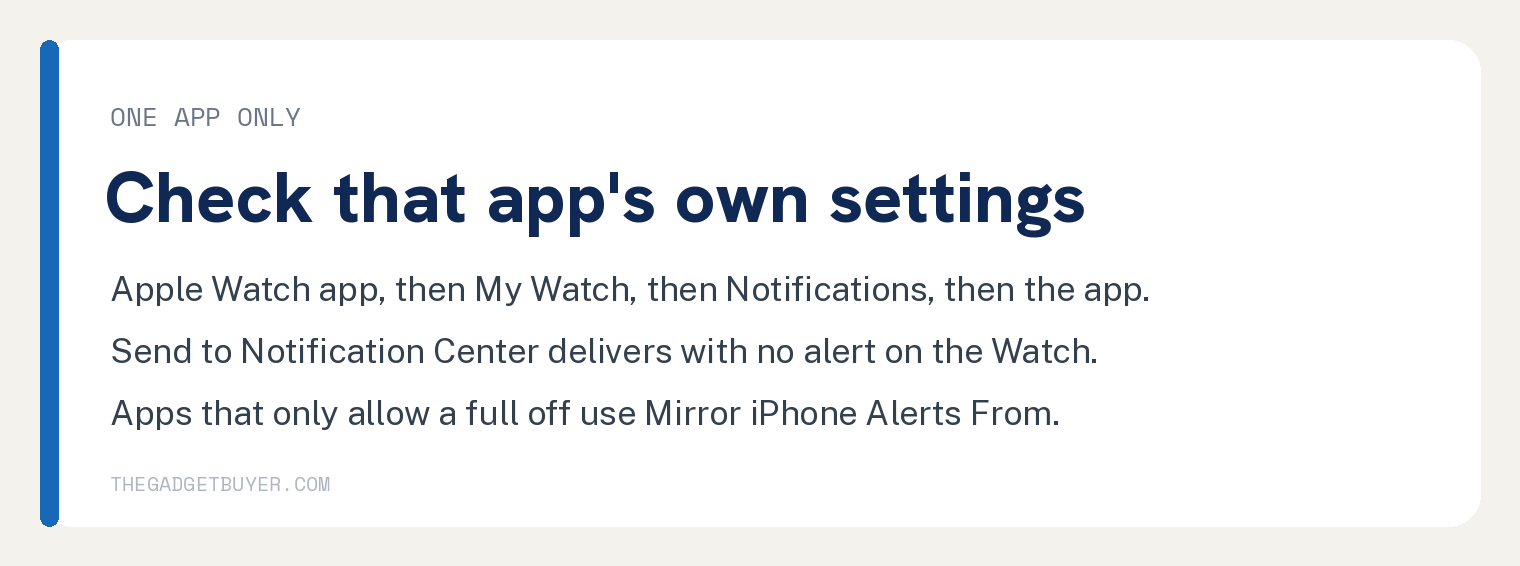
Apple writes “Some apps offer further customization, while others only let you turn off Apple Watch notifications completely.” Apple’s next sentence is “Scroll down to the Mirror iPhone Alerts From section and turn off the setting next to the app.”
For an app you muted or turned off from Notification Center on the watch, Apple prints a separate route: “You can turn on an app’s notifications if you want to see them again:” followed by “Scroll down to the list of installed apps, then turn on the app that you want to receive notifications from.”
If the app did not come from Apple
Apple attaches a precondition to those apps, and it carries an “only if”. Apple writes that for them, “notifications are delivered only if your paired iPhone is also connected to a network.”
A watch on its own, with the iPhone off the network, is a case Apple’s own sentence covers.
What Apple’s troubleshooting section leaves out
Apple’s page carries a troubleshooting section headed “If you don’t see notifications on your Apple Watch”. Its headings are “Check the connection between your Apple Watch and iPhone”, “Check Do Not Disturb” and “Check if you’re using a third-party app”.
That section does not restate the rule printed at the top of the same page. Searched across the 1,577 characters from its heading to the published date line, the strings unlocked, but not both, and locked or asleep each return zero, against two, one and one on the page as a whole.
A reader who jumps straight to the tips can work all three and never meet the rule printed above them. That is why this article leads with the rule.
Two things worth knowing before you go
Reading on one device clears the other. Apple writes “When you read or dismiss notifications on your Apple Watch, they’re also dismissed from your iPhone.”
Some alerts were never going to reach the phone. Apple writes “Some apps, such as the Noise app, are only on your Apple Watch.” and “Notifications for these apps don’t appear on your iPhone.”
A sleep schedule is another setting that quiets a watch on purpose, and we cover it in how to use sleep mode on an Apple Watch.
If you are weighing a different model while you are in here, our guide to picking the right Apple Watch covers the trade offs.
If your question is really about text messages only, we cover that case separately in not getting texts on your Apple Watch.
Common questions
Why does my iPhone buzz and my Apple Watch stay silent?
Apple’s rule sends the alert to one device. “If your iPhone is unlocked, you get notifications on your iPhone instead of your Apple Watch.” Lock the iPhone and the same alert goes to the watch, “unless your Apple Watch is locked”.
Do I need to unpair and pair again?
Apple puts that after its four reconnect steps and attaches a condition to it: “If your Apple Watch still can’t connect, unpair it from your iPhone, then pair your Apple Watch and iPhone again.” Work the four steps first, ending with a restart of both devices.
One app gives me nothing and the rest are fine. Where do I look?
Apple’s path is “Open the Apple Watch app on your iPhone, then tap the My Watch tab.” then “Tap Notifications.” then “Tap an app to see its options.” For the apps Apple describes as ones that “only let you turn off Apple Watch notifications completely”, Apple’s instruction is “Scroll down to the Mirror iPhone Alerts From section and turn off the setting next to the app.”
Can a Focus I set on my iPhone stop alerts on my Watch?
Apple writes “If you turn on Share Across Devices on your Apple devices and then turn on a Focus setting, your Focus setting works across your linked devices.” Apple also writes “You can’t allow notifications from apps with the Driving Focus setting.”
Does a silent iPhone explain a silent Watch?
Apple states the silencing effect on the phone side: “If your device is silenced, your notifications will not alert you with a sound.” Apple’s sentence is about the sound.